Script Function Business Object
Introduction
As a low-code platform, FNZ Studio uses Script Language as the quickest way to control the UI e.g., show or hide a form field depending on the situation), provide commands, or handle integration (e.g., send data to an external system).
The Script Function Business Object may be used to create functions which are not provided by the Platform out-of the-box. In this case, you can create a custom function in the context of a specific Package in the form PackageName:FunctionName().
Let's say that here we want to create a script function and then we want to test it.
Script Function Editor
-
Open your Package and select the Script Function from the Business Object in the left sidebar.
-
Right-click on it to create a new Script Function
-
Provide an ID, such as MyFunction. Note that our naming convention is to use naming convention is to use UpperCamelCase. See Naming Conventions.
-
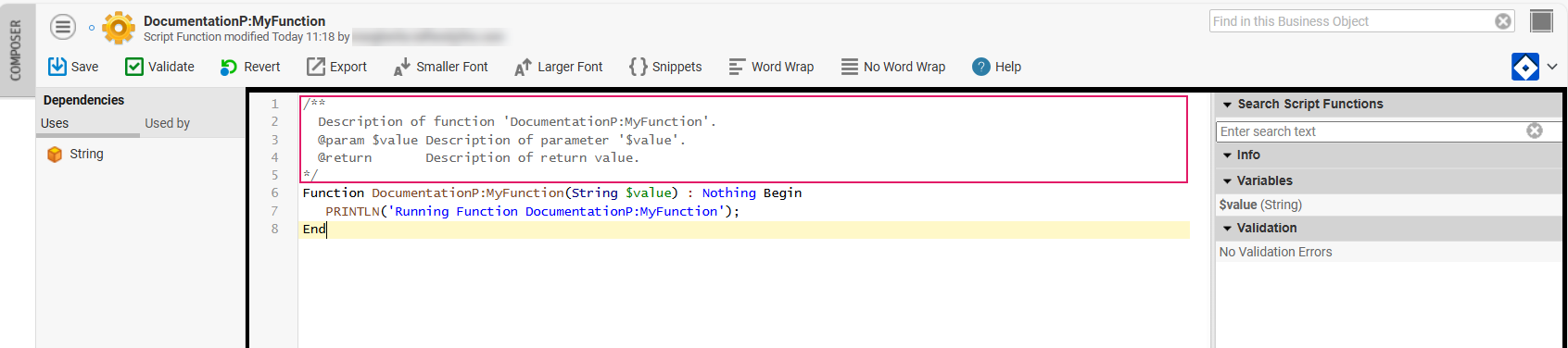
Double click to open your function. The comment area (highlighted below) allows editing the function description, parameters and return type, which will be shown in the right-hand panel when searching for the function.
-
Click on Save after editing.
Interactive Script Editor (ISE)
To test and edit a function, you can open the Interactive Script Editor (ISE).
-
Click Control + Shift + I to open it in the context of your Package. This means that you an access all the Business Objects that are contained in that Package. To access Business Objects outside that Package, you need to declare a Dependency (see Packages).
-
Start typing your function name and click Ctrl+Space to auto-complete.
-
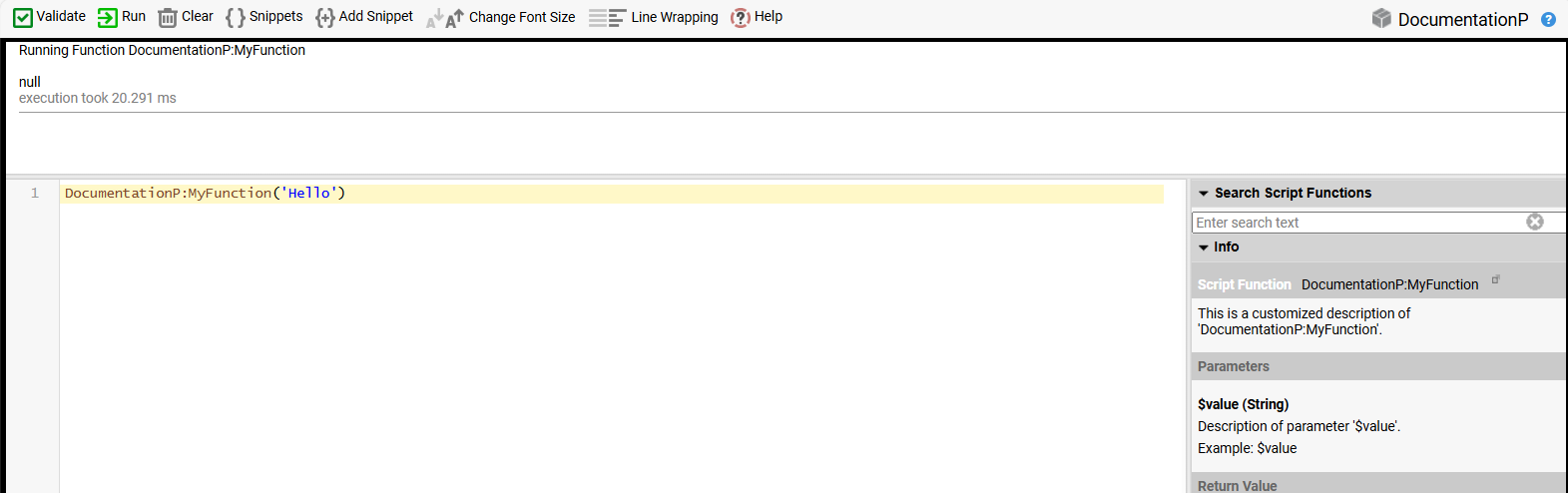
Click on Validate and then Run to test your function.
For full details on how to use the Script Language, see Script Language Introduction and the Script Languagesection.