Indexing
Introduction
FNZ Studio has a built-in servlet called RobotsTxtServlet which handles the robots.txt file for your server. By default, FNZ Studio’s robots.txt is empty, which allows common search indexers to index your site. This enables clients to find your Onboarding solution through a search engine. This behavior can be changed to suit your specific business needs.
However, when using FNZ Studio for public-facing websites, you need to take some specific things into account that don't apply to internal solutions, specifically for Google indexing.
The following sections will consider these two issues.
RobotsTxtServlet
As mentioned, FNZ Studio has a built-in functionality for managing robots.txt output of any server, which allows you to determine how your website interacts with search results.
To implement and customize the functionality, the best practice is to use the built-in nm.robotstxt.scriptfunction configuration property to reference an already created file. A string can also be hard-coded and returned instead of the Script Function, but this does not allow for easy management of the robots.txt content and would require commits between changes. By referencing a file, dynamic changes can be made to the content and automatically passed through to the crawler requesting the robots.txt file of your FNZ Studio installation.
Detailed examples of robots.txt files can be accessed on the robotstxt website, but for this demo, we will place the below lines into our file, which will tell web robots to hide our site from search results:
User-agent: *
Disallow: /
Configuring RobotsTxtServlet
The robots.txt file is handled by the RobotsTxtServlet in FNZ Studio, which can be configured using the nm.robotstxt.scriptfunction configuration property available at System Configuration > Configuration Properties in FNZ Studio Composition.
The nm.robotstxt.scriptfunction configuration property accepts a Script Function as a parameter, which defines the behavior of robots.txt. In this example, we have a Script Function called RobotsTxt in the Base Package which contains the following content:
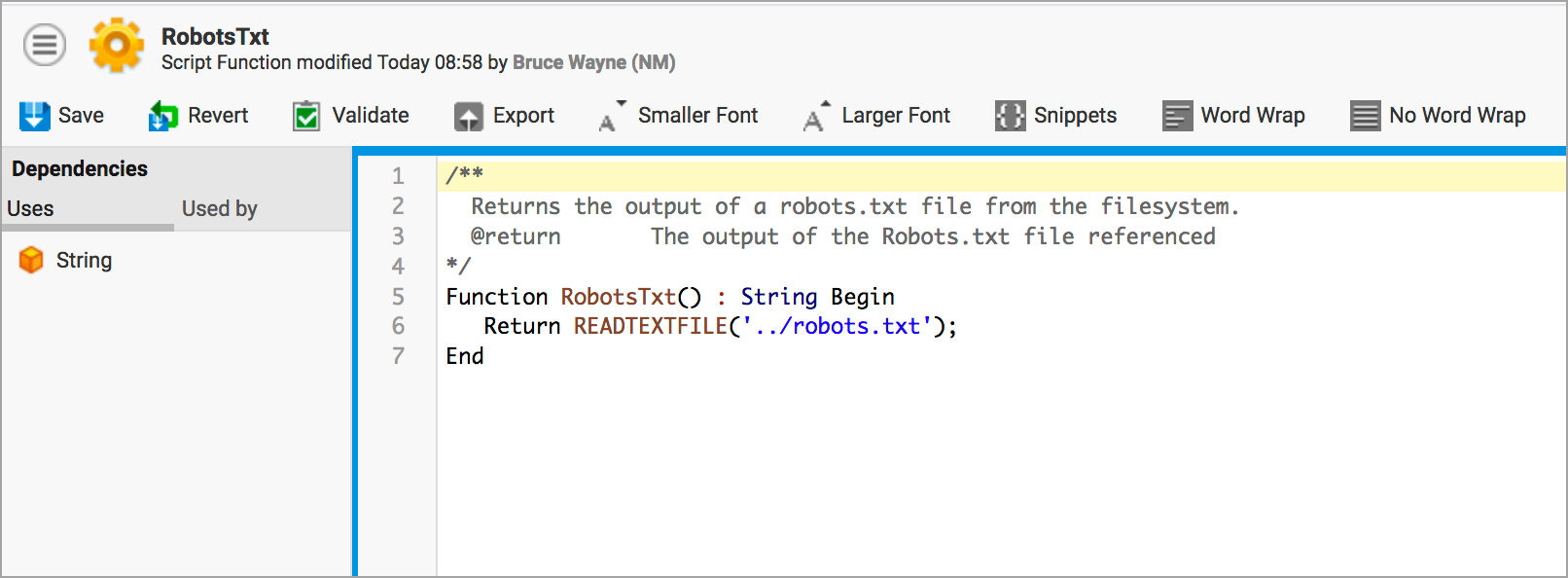
The READTEXTFILE function accepts a file path relative to the FNZ Studio Data Home directory. In our standalone instances, we have placed the robots.txt file one level above the Data Home, so ../ is used to go up one level.
Changes to robots.txt
The robots.txt file we have referenced has the following content (for hiding results):
User-agent: *
Disallow: /
If we access the robots.txt file through the browser (in the case of a local stand-alone, http://localhost:8080/robots.txt), the following text is returned:
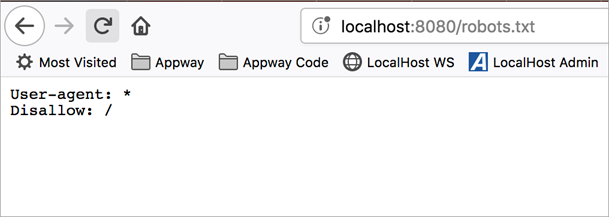
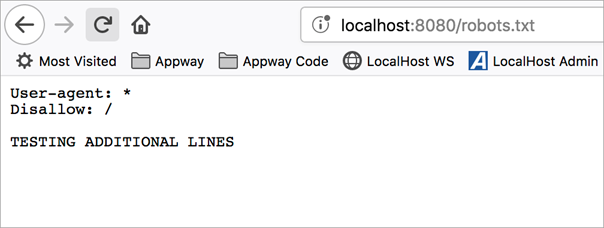
The servlet automatically reflects any changes we make to our robots.txt file. As an example, I have added the below line to the robots.txt file currently used by the server:
User-agent: *
Disallow: /

TESTING ADDITIONAL LINES
If we refresh the page on our website, the change is automatically applied as the resource in question (../robots.txt) is queried by the browser upon refresh:
Google Indexing
When using FNZ Studio for public-facing websites, you need to take some specific things into account that don't apply to internal solutions. One of these things is Google.
You want Google to index sites running on FNZ Studio; equally importantly, you want Google to remove indexed pages once they become invalid.
When FNZ Studio encounters an error, it often renders that error into the current Screen as a red "Error" element. As an example, this is what happened when somebody opened a recipe with an invalid ID on FNZ Studio Developer:
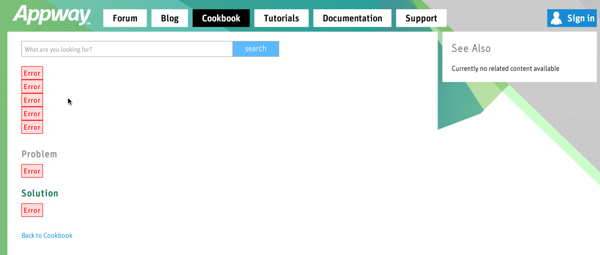
To Google, this looks like any other web page.
If somebody writes an article, Google indexes that page. If the article is then removed, Google will never find out that the article was removed — so the now-invalid link to the page with the "Error" elements remains in Google's index.
Implementation
In order to make sure that Google properly recognizes non-existing or invalid links, you need to give it a hint that the page is showing an Error.
Whenever the specific URL used to call your Screen actually calls something that can not be displayed and will not be displayed in the future, you must return a 404 HTTP status code which tells Google, "we can't find the thing you're looking for".
Do this by adding a Script Component. Set the Component to Execute in Render Phase and add this Script:
Script
   If HTTPRESPONSE() != null Then
      HTTPRESPONSE().setStatus(404);
   End
End
You need to put the Script Component inside an If Component and only show it when there's actually a problem; otherwise, Google will remove all pages referring to this Screen from its Index.
At this point, it is also a great idea to make sure that the Error elements don't appear.
Instead, show a human-readable error message:
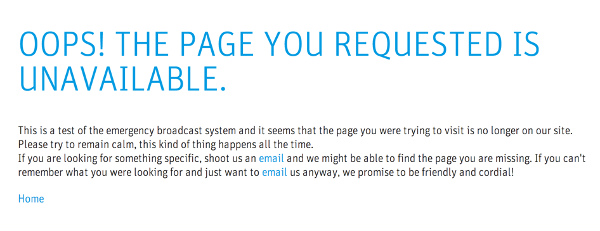
There are two reasons for this:
- The "Error" elements look ugly and unprofessional
- The information shown in the "Error" elements may give hackers hints helping them find security issues with the page