BusinessObjectPatching Extension (Enterprise Development and Operations)
Introduction
Replacing a specific version of a Business Object is sometimes needed in order to "patch" a running Process in production. This functionality is made available in Appway by the BusinessObjectPatching Extension. The patching process is accessed from the context menu of the extension. A wizard guides you through the patching process step-by-step.
In the backend, patching means that a specific version of a Business Object is overwritten with the patched version. It is important to understand that this change is final – it cannot be reverted or undone. After patching is completed, the meta data of the patched version of the Business Object contains information that it was patched, allowing you to track past patching operations.
Important facts about Business Object Patching you should be aware of:
- Patching CANNOT be undone.
- Patching can break running Process Instances.
- Patching does not validate that the patched version will work correctly with the Solution.
- As a safety measure, delete the extension once you are done patching.
Patching a Business Object Version
The following steps outline the typical process of patching Business Object versions using the BusinessObjectPatching Extension:
- Export the Business Object versions you want to fix in an .awexport file (from your PROD environment).
- Import this .awexport file to an Appway instance where you can modify the Business Object versions to fix the issues.
- Export the fixed Business Object versions in an .awexport file.
- Install the BusinessObjectPatching extension on your PROD environment.
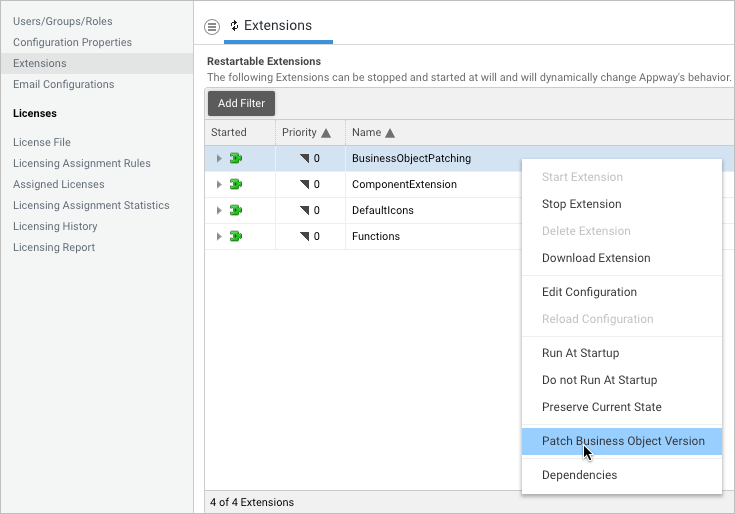
- Upload the .awexport file to the extension. Go to System Configuration > Extensions and right-click on the BusinessObjectPatching extension and select Patch Business Object Version.
- Select a Business Object patch you want to apply.
- Select the exact version of the Business Object you want to patch and confirm.
- (Optional) Verify the patched Business Object version.
- (Optional) Verify the patched Package version.
- (Optional) Repeat these steps if you want to patch further Business Object versions.
- Uninstall the extension.
For more details on these steps, see the example described in the next section.
Step-by-Step Example
In this example, the DemoBOPatch Package contains the following Screens:
- ScreenA
- ScreenB
- ScreenC
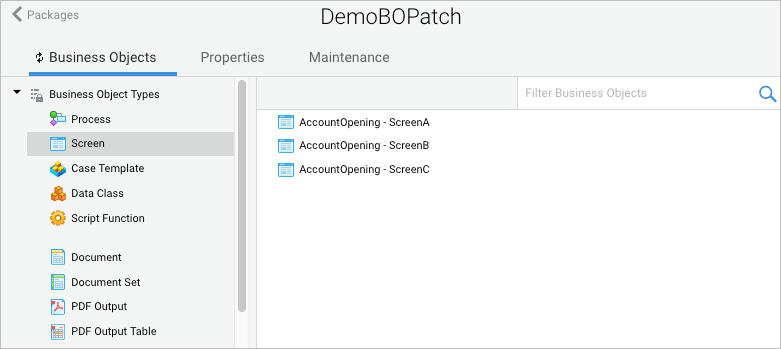
Problem Incorrect HTML IDs were assigned to all three Screens and then a Package Version (DemoBOPatch 0.0.1) was created, meaning that the Screens with the incorrect HTML IDs are referenced in Version 0.0.1 of the Package.
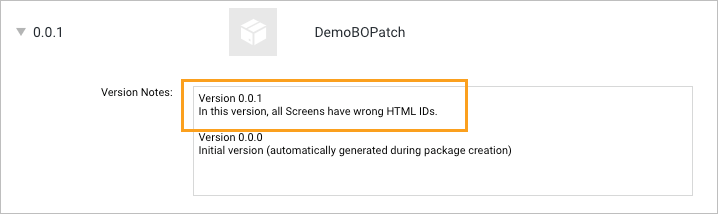
There are already running Process Instances using these incorrect Screens.
This example demonstrates how to replace the incorrect versions of all three Screens in currently running Process Instances.
Step 1 – Export the Versions With Errors
In your PROD environment, export the incorrect Screen versions into one (or multiple) .awexport files:
-
To export all three Screens at once:
- Select all three Screens in the Library and select Export Selected from the context menu.
- At the bottom of the Export dialog, click on the Change Versions button and select a timestamp which is valid for all Screen versions you want to export.
- Click on Export to create an .awexport file.
-
If you cannot identify a common timestamp, export each Screen individually:
- Right-click on the Screen and select Show Versions.
- In the list of versions, find the exact version of the Screen with the incorrect HTML ID that you need to patch. Click on the according Open in Editor button to open the Screen editor.
- Export this version of the Screen using the Export button at the top of the Screen editor.
With this approach, you create one .awexport file for each Screen version you want to patch.
Step 2 – Import .awexport on your “Fix” Instance
Import the .awexport file(s) created in step 1 to the Appway instance where you want to fix the Screens. Go to Solution Design, select the Package to import to, and go to Maintenance > Business Objects > Export and Import.
Note: An .awexport file can only be imported into a Package with the same ID as the Package from which it was exported. Create the according Package before importing if it does not already exist.
Step 3 – Export the Fixed Business Objects
Fix the Screens and export them into an .awexport file (see step 1 for details on exporting).
Step 4 – Install the BusinessObjectPatching Extension
In your PROD environment, go to System Configuration > Extensions and install and start the BusinessObjectPatching extension.
Select Patch Business Object Version from the context menu of the extension to start the patching wizard:
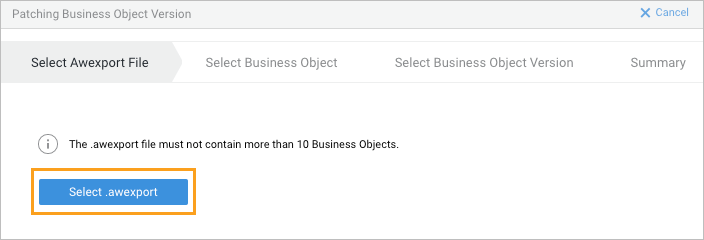
Step 5 – Load the .awexport File to the Extension
Click on Select .awexport and load the .awexport file which contains the fixed Screen versions.
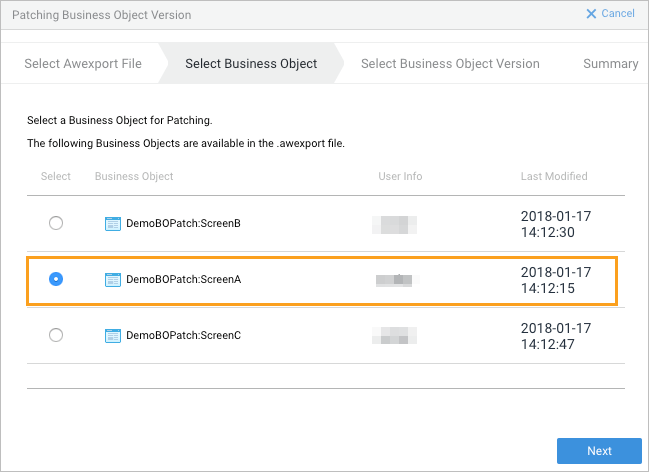
Step 6 – Select the Patch to Apply
Select which Business Object patch available in the .awexport you want to apply (Business Object versions are patched one-at-time).
In this example, select the patch for ‘ScreenA’:
Step 7 – Select the Business Object Version to Patch
Select the exact version of the Business Object you want to patch.
In this example, it is the version of ScreenA created at 13:28:47.
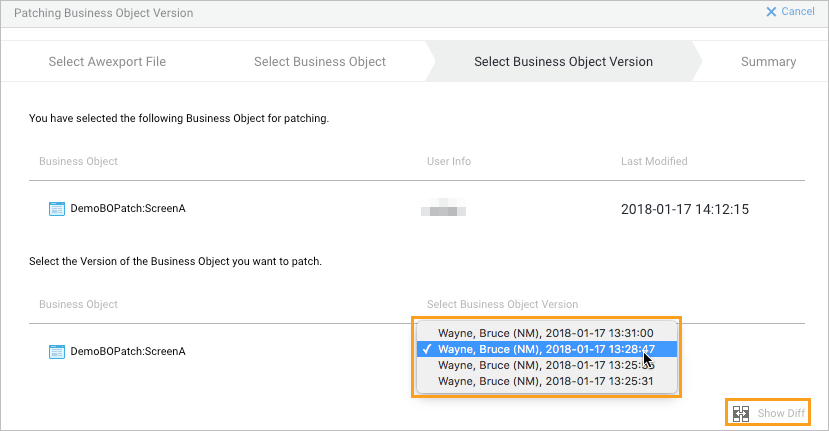
To verify that you selected the correct version to patch, click on Show Diff to compare the patch (on the left side) to the original version being patched (on the right side).
Confirm that you want to apply the patch by clicking on the Patch Selected Business Object Version button.
Step 8 – (Optional) Verify the Patched Business Object Version
After applying the patch, a summary of the patching process is displayed and there are three buttons allowing you to continue:
- Open patched Business Object with matching version filter – Opens the patched Business Object version in the editor, allowing you to verify that it was patched correctly.
- Open Workspace with matching version filter – Opens the Workspace using a version filter which allows you to verify that the patched Business Object version works correctly.
- Close BO Patching – Ends the patching wizard.
Step 9 – (Optional) Verify the Patched Package Version
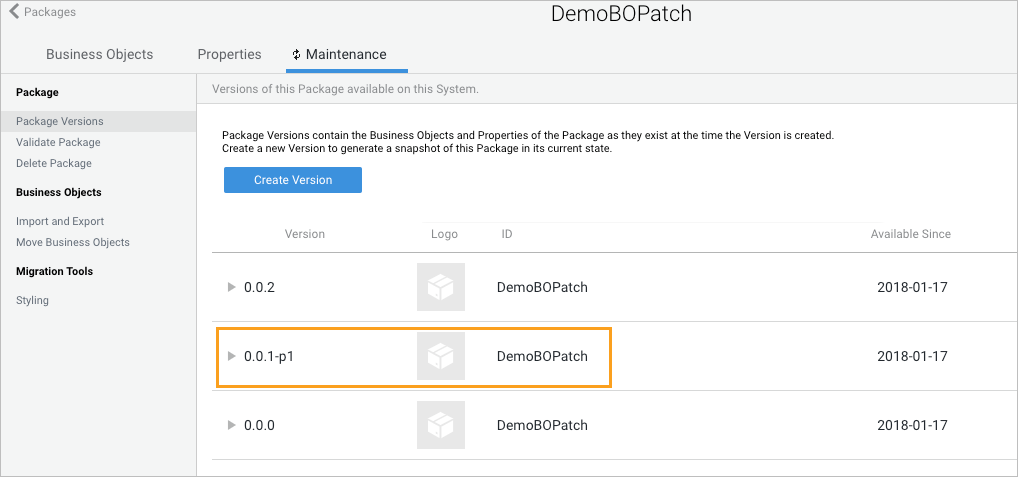
If the patched Business Object version was referenced in a Package version (in our example 0.0.1), then the BusinessObjectPatching extension also patches the Package version.
In our example, the incorrect Screen versions were referenced in Package Version 0.0.1 which is now patched (indicated by the '-p1' suffix):
Step 10 – Repeat for all Other Business Objects
Repeat the patching steps described above for all other Business Object versions which require patching (in this example: ScreenB and ScreenC).
Step 11 – Uninstall the Extension
After successfully patching all Business Object versions, we recommend that you uninstall the BusinessObjectPatching extension from your system for safety reasons.
Logging
The BusinessObjectPatching extension logs all relevant data when a Business Object is patched into the following log file:
<data-home>/logs/businessObjectPatching/audit-<date>.log
The different log messages/events that can be logged are:
Startup;BusinessObjectPatching;<extension version>Shutdown;BusinessObjectPatchingStart patching;<ObjectVersionRef existing>;<ObjectVersionRef from archive>Successfully patched;<ObjectVersionRef patched BO>Error while applying patch. Patching aborted.Error while deserializing. Patching aborted.