Process Instances
Introduction
A Process contains a BPMN representation of business activities, and depends upon other Business Objects like Screens, Data Classes, other Processes that are used as Sub-Processes, Integration Links, and so on. It has a unique ID such as AccountOpening
A Process Instance is an occurrence of a Process that has been started or is being executed. Each Process Instance represents a specific execution of a Process model and has its own unique ID, execution history, data set, and participants, and is isolated from other instances even if based on the same process model. When you start a Process, for example through an HTTP GET on the URL my.appway.platform.com/process/AccountOpening, you create a Process Instance for Process AccountOpening Process. At any time, there may be several Process Instances for the same Process.
In the figure below, you can see two Instances of process AccountOpening, each with a different ID.

Tokens, Value Stores and Attributes
The FNZ Studio Platform maintains the following data for each Process Instance:
-
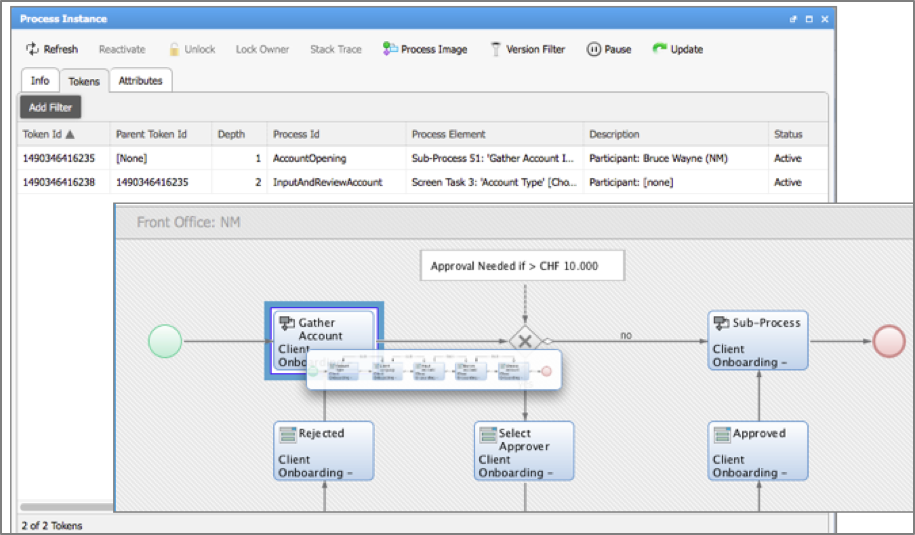
The token set: A token represents the execution of an activity within the Process Instance. In the example below, a token is executing the Sub-Process task, and a second token has been created to execute the activities within the Sub-Process. A Process Instance comes to the end of its life when the process engine, responsible for executing Process Instances, finds that there are no more non-transient tokens to move. A transient token is a token that does not need to complete for the Process Instance to be considered completed. You can view tokens under Solution Maintenance > Process Instance > [right click] > Details.
For full details, see the Process Tokens (Workitems) section.
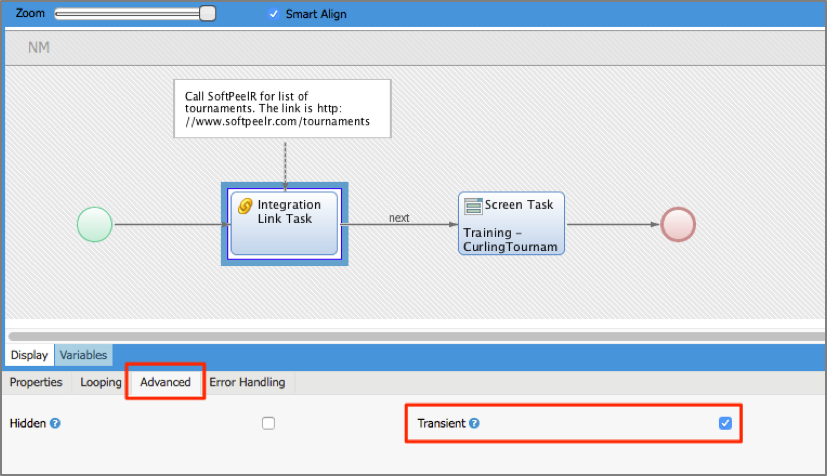
By default, all tokens are non-transient. Within a Process Editor, you can mark activities to be transient:
-
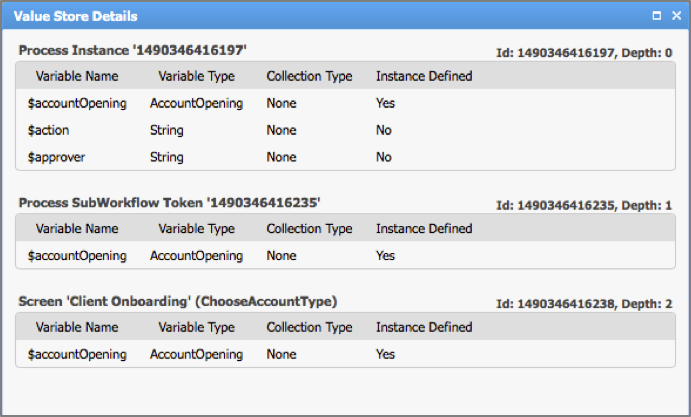
The Value Store holds the data of the Process Instance, that is, the values bound to each of the variables. The figure below shows a view of the Value Store for an AccountOpening Process Instance. This view is available Solution Maintenance > Value Store> [right click] > View . We see that values are bound to variables in the scope of the Process, the Sub-Process, and the Screen task.
-
Each Process Instance may have its own Process Instance Attributes. The platform function
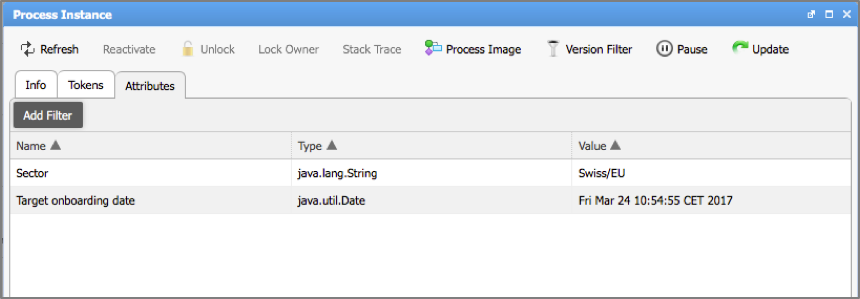
ProcessInstanceSetAttributebinds an attribute name and value to a Process Instance designated by an ID, e.g.ProcessInstanceSetAttribute('1490346415978', 'Sector', 'Swiss/EU').Note that attributes are specific to and stored with their own Process Instances. However, you can use Attributes to actively expose a set of data to be used by other Process Instances.
You can view attributes under Solution Maintenance > Process Instance > [right click] > Details:
FNZ Studio worklists can display attributes for each Process Instance. Users can therefore sort and filter Process Instances.
Process Instances Tab in FNZ Studio
Whenever a Process is started or executed, a Process Instance is created.
The Solution Maintenance > Processes > Process Instance module in FNZ Studio Composition shows information on all Process Instances, and allows performing several actions:

-
View Details: Opens a detailed view for each Process Instance and allows viewing information on Tokens, Value Stores, and Attributes. See Tokens, Value Stores and Attributes.
-
Update: You can manually update the status of the Processing Instance for specific use cases. Typically, the system handles updates automatically.
-
Cancel: You place the Process Instance into a canceled state. This does not wipe out all the information related to the instance immediately, but it effectively suspends its execution and designates it as canceled. The Process Instance will be deleted at the next Update operation.
-
Delete: You erase the Process Instance and its associated data with no delay. A confirmation prompt is displayed before deletion occurs.
Each of these operations can be executed on a single instance, a group of instances, or even in batch mode by selecting the Batch Operations option.
Warning! We strongly advice not to delete Process Instances in batch if not necessary.
Moreover, the Process Flows tab (Solution Maintenance > Processes) allows having an overview of Process Instances aggregated by Process (and Sub-Process) type.
Process Instance Persistence
Process Instances may be:
-
Persistent: They have Swimlanes and are saved to persistent storage.
-
Non-persistent: They do not have Swimlanes and are not saved to persistent storage, thus disappearing e.g., if the system goes down. However, they still consume CPU and memory resources.
Persistence in FNZ Studio
Before comparing non-persistent and persistent Process Instances in FNZ Studio, let's first take a look at FNZ Studio's architecture, as shown in the image below.
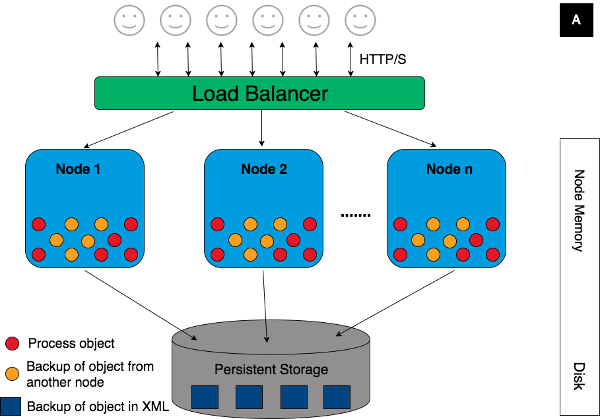
When a Process Instance is created, its data — token set, value store and Process Instance attributes (see Process Instances) — are stored in the primary memory of the node on which the Process Instance is running. The Hazelcast software layer ensures that this data is copied to other nodes, so that the data remains accessible if one node is stopped. This way, each Process Instance can continue running from other nodes if the node on which it was started is removed from the cluster.
An FNZ Studio installation also has a persistent cluster storage, to which all nodes have access. This contains data that needs to be persisted in the event of all FNZ Studio nodes going down, so that the cluster can be restarted. Examples of the data stored on the persistent storage are the Business Objects and their versions, as well as user preference data, mail and data source configuration data.
Persistent VS Non-Persistent Process Instances
A persistent Process Instance is a Process Instance for which data is saved to the persistent cluster storage. The FNZ Studio platform saves a copy of Process Instance data every 10 seconds. As a result, if the cluster is shut down while persistent Process Instances are running, those Instances can continue executing when the cluster is brought back up.
A non-persistent Process Instance is a Process Instance for which data is never saved to the cluster persistent storage. The data remains in the FNZ Studio nodes’ memory only. Consequently, these Process Instances do not survive if the nodes of the cluster are all taken down.
How does FNZ Studio runtime decide if a Process Instance is persistent or not? If there is a Swimlanes in the Process which is instantiated, then the Process Instance is earmarked as being persistent.
On a more technical level, when a Process without a Swimlane is started, FNZ Studio associates the underlying HTTP Session ID with the Process Instance. When a Process with Swimlanes is started, the HTTP Session ID attribute of the Process Instance is left empty. When persisting Process Instances, FNZ Studio determines that a Process Instance is persistent if its HTTP Session ID ( under Solution Maintenance > Process Instance > [right click] > Details) is empty.
The presence of the Swimlane means that there is at least one Workitem in the Process Instance that a user, role or group is responsible for executing. The Process Instance is persisted to ensure that the responsible user, group or role always has the possibility of terminating the Workitem.
Properties of Non-Persistent Process Instances
Non-persistent Process Instances have some characteristic properties:
-
Terminated after inactivity. Like any Process Instance, a non-persistent Process Instance terminates when it has no more non-transient tokens. In addition, a non-persistent Process Instance is terminated by the FNZ Studio platform when it has been inactive for too long. Each non-persistent Process Instance is associated with the unique HTTP session ID from the HTTP call that started the Process Instance. When the session expires, typically after 30 minutes of inactivity, the Process Instance is terminated.
-
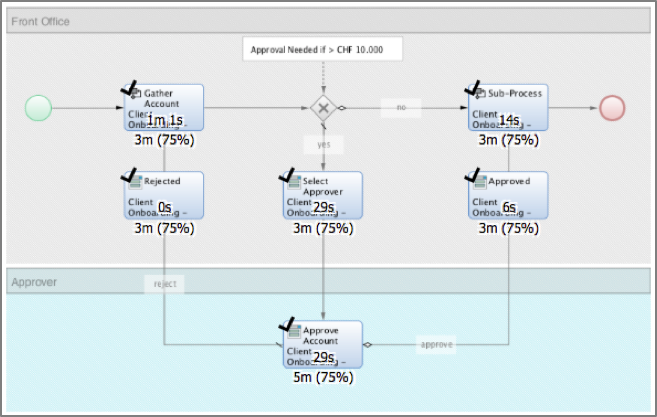
Unable to be measured with Business Activity Monitoring (BAM). The BAM Extension (Business Activity Monitoring (BAM)) lets you define performance scenarios that form the basis of service level agreements. The figure below shows a scenario for a Process where times in minutes are associated with activities. Scenarios can only be defined on Processes where there is at least one Swimlane. Therefore, non-persistent Process Instances are not measurable using BAM.
-
Not displayed in Portal Worklists. Portal Worklists only show Workitems that are placed inside a Swimlane. The FNZ Studio query that retrieves Workitems excludes non-persistent Process Instances from the query.
Sizing a Platform Running Non-Persistent Process Instances
It is important to consider the impact of non-persistent Process Instances in your Solution. In some cases, users create over 100 non-persistent Process Instances daily. For Instance, the Portal Process is typically modeled as a non-persistent Process Instance in many solutions.
To evaluate memory usage for a business solution with many non-persistent Process Instances, you need to collect data at runtime to see how many non-persistent Process Instances run simultaneously during a typical working day.
Since non-persistent Process Instance data is not persisted, the Value Store, tokens and Process Instance attributes are not available on disk. This data can only be measured from the data in the node memory.
Value Store sizes are available in Solution Maintenance > Value Store. The values are taken from the Hazelcast layer, where the Process Instance data are represented as byte arrays that correspond to serialized Java objects. The figures for the compressed and non-compressed byte array sizes are given.
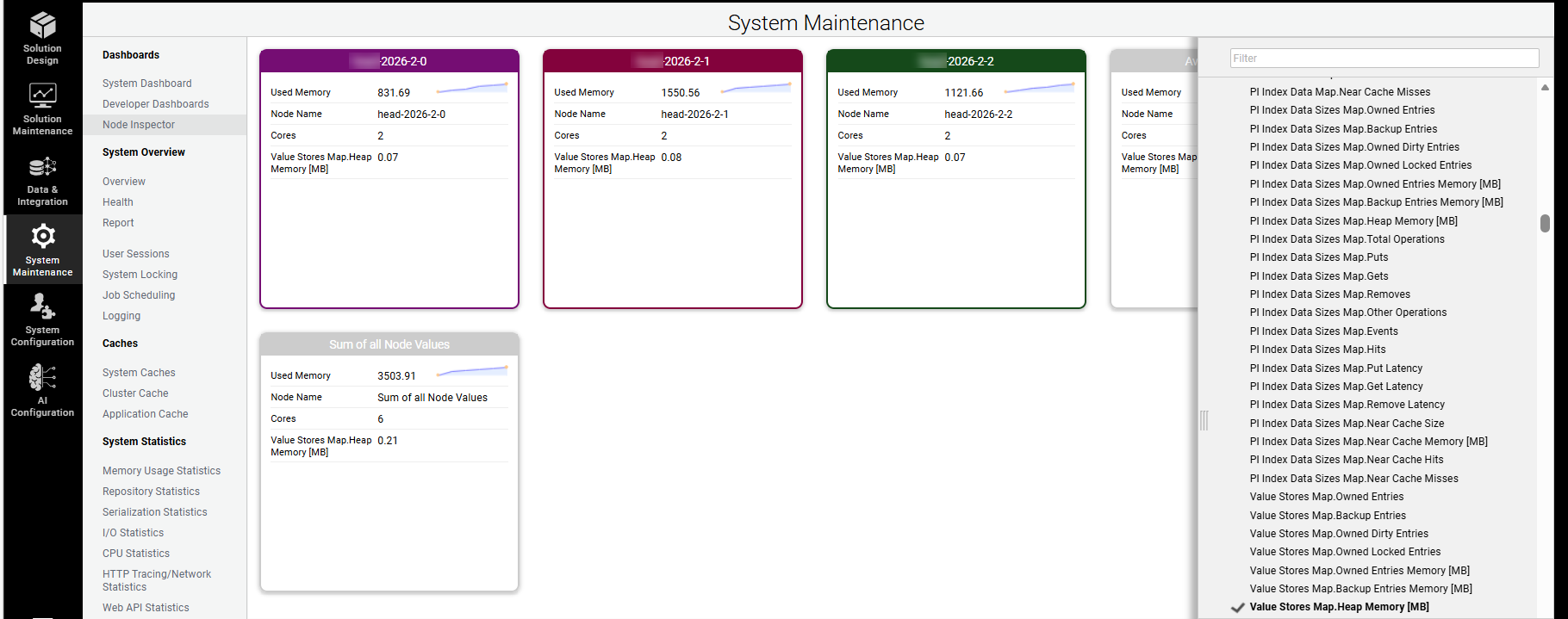
Value Store sizes and Process Instance memory consumption data are also available in the Node Inspector tab (System Maintenance > Dashboards). Clicking on the dropdown menu on the right-hand sidebar lets you select the values that you want to see. Data is aggregate, and corresponds to the sum of the compressed Process Instance data sizes in memory.
Process Instance Version Filter
Every Process Instance has a Version Filter. The Version Filter defines the strategy for selecting the versions of Business Objects used during the execution of a Process Instance. The most common type of Version Filter in production is the Timestamp Filter. This type of Version Filter contains a timestamp which is used to find the latest committed version of a Business Object at or before the date and time specified by that timestamp.
Previous Strategy
In previous Platform versions (Appway 10.0.0 and lower), a new Process Instance was always created with a Timestamp Filter using the current date and time as a timestamp. For example, when starting a Process on August 3, 2020 at 11:30 AM, the Process Instance used a Timestamp Filter with a timestamp pointing at this same date and time.
This way, a Process Instance was executed with the versions of Business Objects being "active" (committed) at the point in time when the Process Instance was started. Changes to Business Objects or Packages after the Process Instance was started had no effect on that Process Instance.
One side-effect of this strategy was that every Process Instance had a Timestamp Filter with a different timestamp. 100 new Process Instances typically used 100 different Timestamp Filters, assuming that Process Instances were not started at the exact same time. This made it very hard for Appway to cache certain information "per Version Filter", since the number of entries in such a cache grew with the number of different Version Filters and, therefore, with the number of active Process Instances.
Current Strategy: Latest Commit Timestamp
In current FNZ Studio versions, new Process Instances still get a Timestamp Filter with a timestamp, but this timestamp is no longer the current date and time but, instead, the date and time of the latest commit operation on Business Objects or Packages on that FNZ Studio system. We say that this Version Filter is "aligned" with a commit timestamp.
For example, when starting a Process on a system where the last commit operation was performed on July 5, 2020 at 3:15 PM, the Process Instance uses a Timestamp Filter with a timestamp pointing at this commit date and time, independent of the current date and time.
The reasoning behind is that there are usually much fewer commit operations (in the range of 1 to 30 per month) on a system compared to new Process Instances (in the range of 30 to 1.5 million per month). In an ideal case with short-living Process Instances, all active Process Instances may use the same 1 to 10 Version Filters. This allows FNZ Studio to implement more effective caching strategies, especially for information aggregated across multiple Business Objects.
A good example is a cache to remember all properties of a Data Class, including all properties inherited from all parent Data Classes. These properties must be collected by traversing the inheritance hierarchy of a Data Class. Since different Data Classes can have different version histories, the list of properties can be different after every commit. By caching properties "per Version Filter" and using Timestamp Filters configured to use commit timestamps, such a cache can hold the maximum amount of information with a minimum number of cache entries.
Process Instance Operations
Process Instance Indexing and Filtering
Process data stored on Process Instances and Process Tokens can be indexed to enable efficient searches without scanning all instances or tokens in the system. Process Instance Indexing allows indexes to be created and managed at runtime for process attributes, statuses, assignments, and token data, significantly improving query performance as the number of process instances grows. For example, it can greatly speed up filtering Process Instances assigned to a specific user.
This is valid both for persistent and non-persistent Process Instances.
For full details, see Process Instance Indexing and Filtering
Process Instance Landing
As FNZ Studio is a web application, all the interactions with the platform are done through HTTP requests.
Thanks to this, when users access FNZ Studio through a URL, the platform can direct them to a specific Process or landing page, creating a seamless entry experience. Moreover, unauthenticated users may be guided through login and automatically redirected to the correct Process once authenticated, resulting in a smoother journey.
For full details, see Process Instance Landing.
Process Instance Search
FNZ Studio Script Language offers predicate search over Process Instances, as well as predicate search over Users. A predicate search over Process Instances is faster than iterating over all Process Instances.
For full details, see Process Instance Search.
Process Instance Locking
Process Instances and their associated Value Stores store the current state of a Process, known as Process data. This data is continuously updated during Process execution and is one of the most critical assets in a production FNZ Studio environment. To prevent conflicts when multiple users work on the same Process Instance, FNZ Studio uses locking, transaction management, and isolation mechanisms to ensure data integrity and consistency.
For full details, see Process Instance Locking.
Process Instance Attribute Update
When you need to update a Process Instance attribute across multiple running Processes, iterating through all Process Instances is not a viable solution. Each update acquires a write lock on the Process Instance, which can lead to long-running operations and block other system activities.
There are different approaches to safely and efficiently perform these updates, covering both small-scale and large-scale scenarios.
For full details, see Process Instance Attribute Update.