Note that the Appway Platform has been renamed
FNZ Studio (also referred to, generically, as Platform in this article). Appway Studio (design-time environment) and Appway Workspace (runtime environment) have been renamed
FNZ Studio Composition and
FNZ Studio Runtime, respectively. Refer to our Renaming
article for full information.
To explain how Processes are executed, the Token Model needs to be introduced. Tokens are used to visualize how different Process Components influence the Process execution.
A Process Token can be seen as a game token on a board game where the Process Model specifies the board layout.
A Process Token can be visualized as follows:
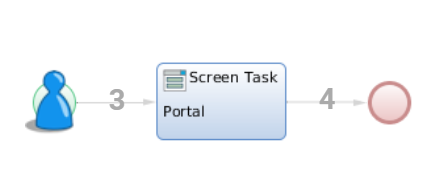
There are actually many different boards (one for every running Process Instance). Since Processes can contain parallel activities, there may be multiple Tokens on a board at the same time. There can even be multiple Tokens on the same position in the Process Model. The set of all Tokens in a given Process Instance is called Token Set.
Tokens can "flow" from Component to Component using the Connections between them. To be precise, Tokens flow in a first step from an Component onto the Connection and in a second step from the Connection to the target Component. This is important, because some Components prevent Tokens from flowing to them until certain conditions are satisfied. In these situations, Tokens remain on the Connection. There are to types of Connections:
- Connections which lead to a Component are called Incoming Connections of this Component. Tokens on these Connections are therefore called Incoming Tokens.
- Connections which lead away from an Component are called Outgoing Connections and the Tokens on them are the Outgoing Tokens.
When a new Process Instance is started, a Token is placed on every Start Event in the Process Model. If there is no Start Event, a Token is placed on every Component that doesn't have any incoming Connections. If a Process Model neither contains a Start Event nor a Component without incoming Connections, it is not a valid Process Model.
The Process Engine is a background service that "moves the Tokens on the board". Whenever a Process Instance has to be updated (e.g. because an Activity has been completed), the Process Engine inspects all Components within the Process Model.
- For every Component, the Process Model checks the incoming Tokens. How incoming Tokens are handled depends on the type of Component. By default, every incoming Token is allowed to flow to the Component without restrictions. However, there are exceptions to this rule. Gateways, for instance, can be used to merge some or all incoming Tokens into a single Token. A Token on a Component remains there until the Component has served its purpose.
- The Token can then leave the Component. In order to do this, the Process Engine has to "activate" outgoing Connections. Which Connections get activated depends on the type of Component and the types of outgoing Connections. There are three different types of Connections with different semantics on whether a Token may flow on it or not:
- If exactly one Connection is activated, the Token flows on this Connection.
- If there is more than one Connection being activated, the Token is split according to the number of activated Connections, and every Connection gets its own Token.
- If no Connection is activated, or if the Component does not have outgoing Connections at all, the Token is deleted (this is usually called "consuming the token").
A Process Instance is alive as long as there is at least one Token in the Token Set. In the "board game" metaphor, the game ends when there are no more game tokens remaining on the board. If the Process Instance is completed, it is destroyed along with all the data it contains.

The Process Editor is composed of different areas:
- Header: The header background color indicates whether you are in edit mode (gray) or read-only mode (red). It allows performing various actions, including:
- Undo: allows undoing your latest action
- Redo: allows redoing your latest action.
- Validate: allows validating your edits on the Process. The Validate icon is instantly updated upon your changes, thus providing immediate validation feedback (see also the Validation section below):
- red: highlights an error, the Process or part of it is invalid
- yellow: highlights a warning, the Process is still valid but action is required
- green: the Process is valid
- Edit Labels: allows displaying an overview and further editing the Labels used in the current Business Object through the Translations Tool.
- Left sidebar: contains Dependencies and Validation information.
- Right sidebar (also referred to as Components Library): library containing all the items that can be added to the central modeling area.
- Central area: modeling area, containing the content of the Process.
- Property Editor for the currently selected component/s. If no component is selected, the Process properties are shown.
The Process Editor allows using several keyboard shortcuts. See full list in the related
document.
The left sidebar of the Editor contains details about the relations between the current Process Business Object and other Business Objects in the Solution, as well as validation information. The two sections can be expanded and collapsed.
The Dependencies section displays the dependencies among Process Business Objects:
- The Uses section lists the Business Objects on which the current Process depends.
- The Used by section lists the Business Objects that depend on the current Process.
Note that, starting from Appway 2022.1, Label Business Objects are no longer shown as dependencies in the Process Editor. You can see Label dependencies from the Label Business Object library.
The Validation section contains validation messages for the current Process. The Process Editor supports instant validation: every time an action that triggers a validation issue is performed, the panel is updated with the corresponding information to allow quicker response.
The header indicates the total number of validation messages in the Process.
Type of messages are:
- Error: (red icon) the issue requires immediate action, and makes the Process (or part of it) invalid.
- Warning: (yellow icon) the issue requires immediate action, but the Process can be still used to create a working Data Model.
- Info: (gray icon) the issue does not require immediate action, but consider fixing it to have a Process that complies with best practices.
The right sidebar (also referred to as Components Library) contains the elements that can be used to compose the Process. Use the Filter search field to find the desired element.
Adding Components
To add a new Component to a Process, drag and drop it from the list to the right. You can search for the Component you're looking for using the Filter text field. Instead of adding a Process or Sub-Process Component, you can also drag an existing one right from the list.
Duplicating Components
To create copies of Components:
- Select the Component or Components (CTRL key) you want to duplicate.
- Press Ctrl-D.
There are different categories of Components:
- Activities are actions that need to be performed during the Process execution
- Events are used to start, interrupt or end Processes.
- Gateways are used to split or join execution paths in the Process
- App Tasks are a category of Process Tasks that comes with its own User Interface (UI) built as a single-page application. They are used in Application Business Components (ABCs). See a description of all available App Tasks in the article linked above.
- Trackpoints represent a specific point in the process used to retrieve only a subset of changes performed on a Data Class instance/collection. They are used in Data History. See a description of trackpoints in the article linked above.
- Others
The shapes of such Components are closely related to the BPMN specification.
Each Process Component has a set of Properties which change its function. The properties are listed in the bottom center part of the editor. If one or several Components are selected, the Component Properties are shown. If no Component is selected, the Process properties are shown.
Activities are actions that need to be performed during the Process execution. Activity Components have a rectangle shape in the Process Model. Examples are shown in the figure below:
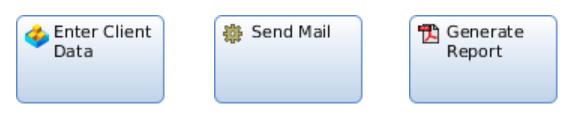
Some Activities are executed by the Process Engine directly (Script, Evaluate Rule Set or Generate PDF). When the Process reaches such an Activity, it is executed in line and the Process continues immediately.
Other Activities have to be performed manually by a Participant. An Activity is assigned to a Participant by moving the Activity component into the Participant's Swimlane. Activities to be performed by a Participant are prepared for execution by the Process Engine.
Example: For Screen Activities, a new Process Instance is created, the scope for the Process Instance is initialized (see the Variable and Scopes article for more details) and the Process Service is called to start the Process Instance. Then, the Process Engine waits until the Activity has been completed by the Participant. When the Activity has been completed, the Process Engine continues the execution.
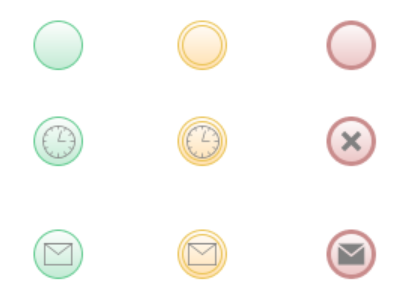
Events are used to start, interrupt or end Processes. There are three main events:
- Start Event (green)
- Intermediate Event (yellow)
- End Event (red)
Main events have subtypes differentiated by specific icons. For example, a subtype for all three categories is 'Send Message', and 'Timer' is a subtype for both the Start and Intermediate Events.
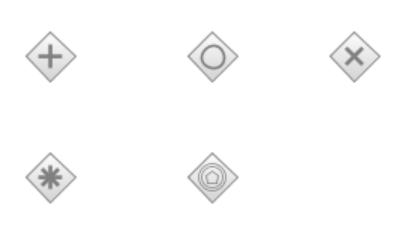
Gateways are used to control the Process. They can be used to split or join execution paths. There are different types of Gateways:
- AND
- OR
- XOR
- Complex
- Event-Based
The AND Gateway for example is used to split an execution path into several parallel execution paths while the XOR Gateway is used to select exactly one of several execution paths to continue with. Gateway components have a diamond shape in the Process Model.
AND, OR and XOR Gateways are shown on the first line, Complex and Event-Based Gateways are shown on the second line:
The category Others contains Components which are not Tasks, Events or Gateways. They are either of informational purpose (like Notes) or have an other special meaning to the Process Model (like Swimlanes).
Connections are used to link Components.
To add a Connection between Components:
- Click on the first Component to display a frame around it. Places the cursor on the fame to display the plus icon, indicating the place where the connection can start.
- Start dragging the Connection element towards the second Component. When the second element frame is displayed and the is plus icon is shown, you can release the mouse button.
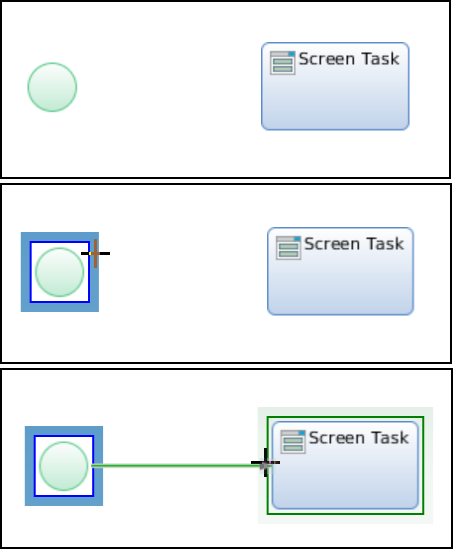
Connections have Properties: to edit them, right-click on the Connection (Connections are easiest to hit when you aim for the start or end part, or for the label) and select Properties from the context menu.
There are different types of Connections:
- Unconditional (or None Connections): Tokens usually flow on them without restrictions.
- Conditional (or Expression Connections): Tokens may flow on them only if the condition defined on the Connection is satisfied. Connections of this type can be used to introduce a decision within the Process Model.
- Default: They are activated if no other Connection can get activated.
Although a Component may have more than one outgoing Connection, some combinations of Connection types are not allowed or useful:
- A Default Connection when there is already an Unconditional Connection, or if there are two or more Conditional Connections when it is guaranteed that one of them will be activated (e.g. if the condition on one Connection is the opposite of the other Connection's condition). In these cases, a Default Connection is always ignored.
- More than one Default Connection is useless. If no other Connection is activated, the Process Engine chooses one of these Default Connections and activates it. Which Default Connection is activated if there is more than one is not defined and, thus, unpredictable.
- If there is only one outgoing Connection, the Connection should be an Unconditional Connection.
In addition to these general rules, there are restrictions on the types of outgoing Connections which are implied by the Component type:
- Outgoing Connections of an AND Gateway must be Unconditional Connections.
- Outgoing Connections of an XOR Gateway must not be Unconditional Connections and conditions on the Conditional Connections should be mutually exclusive.
- If a Process Model is verified, the application tries to find such misconfigurations and reports them. However, violations of these rules usually do not produce errors at runtime.
Connection properties are:
| Name | A label shown on the Connection; use this to indicate what a Connection is used for |
| Connection Type | The Connection type (Conditional, Unconditional, Default). |
| Condition (only visible if Type is Conditional) | The condition which needs to be satisfied to allow a Token to flow over this Connection. |
There is a default strategy detailing how outgoing Connections are activated. This strategy is used for Tokens on Activities, Events and OR Gateways. Actually, Activities and Events behave like OR Gateways with respect to the activation of outgoing Connections.
Every outgoing Connection is inspected according to these steps:
- First step
- If it is an Unconditional Connection, the Connection is activated.
- If it is a Conditional Connection, the Connection's condition is evaluated and if it returns
true , the Connection is activated. - Default Connections are ignored.
- Second step:
- If at least one Connection has been activated in the previous step, the activation process ends here.
- If no Connection has been activated, a Default Connection is selected and activated.
- If there is no Default Connection, no Connection is activated.
Further behavior:
- If the evaluation of a Connection condition produces an error, the Process Instance is suspended immediately.
- If there is more than one Connection being activated, the Token is split according to the number of activated Connections and a Token flows on every outgoing Connection. If exactly one Connection has been activated, the Token flows on this Connection. If no Connections could get activated, the Token "dies" and is removed from the Token Set.
- If a Token "dies" because no outgoing Connection could get activated and it has been the last Token in the Token Set, the Process Instance may be completed prematurely.
Outgoing Connections of an AND Gateway get activated all together.
Technically, the current Process Engine implementation applies the default strategy to AND Gateways. However, since the Process Model validation verifies that there are only unconditional outgoing Connections, the default strategy results in the required behavior.
For XOR Gateways, the strategy is very similar to the default strategy. The only difference is that, as soon as the first Connection is activated, the activation process stops. Therefore it is guaranteed that no more than one outgoing Connection is activated. Since there is no predetermined order in the inspection of the outgoing Connections, it is unpredictable which Connection is activated if there are either multiple Unconditional Connections or multiple Conditional Connections with non-exclusive conditions.
Complex Gateways allow using custom split and merge logic.
Complex gateways can, in most cases, be replaced by simple types of gateways such as XOR, OR or AND gateways, which tend to make the Process Model more understandable. Complete information is available in the
Using Complex Gateways recipe.
Once a Token has moved on to the Connection, the Connection type has no further impact on the Token. In other words, Connection types are irrelevant for incoming Connections. The Token now waits until it is allowed to flow to the target Component. If a Token flows to the target Component, the Token is said to "activate the Component".
By default, Tokens are allowed to flow to the Connection target Component without restrictions. This rule applies to incoming Tokens for Activities, Events and XOR Gateways. Actually, Activities and Events are said be behave like XOR Gateways with respect to incoming Tokens.
Every incoming Token activates the Component. To be precise, every incoming Token activates its own instance of the Component. If the Component is a Script Task and there are 3 incoming Tokens, the Script is executed three times.
The AND Gateway waits until there is at least one Token on every incoming Connection. If this is the case, it takes one Token from every incoming Condition and merges them to a single Token.
The OR Gateway processes all outgoing connection conditions and sends Tokens to each of the connections in which the condition is true.
Complex gateways allow using custom split and merge logic.
Complex gateways can, in most cases, be replaced by simple types of gateways such as XOR, OR or AND gateways, which tend to make the Process Model more understandable. Complete information is available in the
Using Complex Gateways recipe.
Common Component properties are:
| Name | A human-readable name (used only in the Process Editor) |
| Description | A human-readable description (used only in the Process Editor) |
For every type of Activity there is an Activity Handler registered in the Process Engine. When a Token activates an Activity, the Activity Handler is called. Depending on whether the Activity is an Inline Activity or a Participant Activity, the Activity Handler executes the Activity directly (Script, Evaluate Rule Set and Generate PDF) or it initializes the execution of the Activity (Screen and Sub-Process).
Every incoming Token triggers an independent execution of the Activity. Therefore, multiple instances of an Activity can be active at any given time.
If an Activity has been completed, the Process Engine schedules a Token for the activation of outgoing Connections.
A Screen is used to assign a Screen Activity to a Process Participant. When a Screen Activity is activated, a Screen Instance is created and initialized using the Variable Assignments defined on the Screen Activity (see the Variable and Scopes article for more details). It's the responsibility of the Screen service to report back to the Process Engine when the Screen Activity has been completed.
Screen properties are:
A Sub-Process is used to integrate another Process into the current Process. The Sub-Process is initialized using the Variable Assignments defined on the Sub-Process Activity. The Sub-Process Activity has its own Token Set and ends when there are no more Tokens in it. When the Sub-Process ends, the Sub-Process Activity has completed.
Sub-Process properties are:
| Process | Process to start as Sub-Process |
Script Activities can be used to execute arbitrary Expressions or Scripts. Script Activities are executed in line which means that the Process Engine doesn't assign this Activity to a Participant but evaluates the code directly. The Script Activity completes as soon as the Expression has been evaluated. The return value of the Expression is discarded.
If the Script Activity execution produces an error, the Process Instance is suspended immediately.
Script properties are:
| Code | Expression or Script to be executed |
The Evaluate Rule Activity can be used to execute a Rule. The result of this execution is a list with Action objects (e.g. 'PDF Output' Actions). This list could then be passed to the 'Generate PDF' Activity to generate a PDF file. The Rule is initialized using the Variable Assignments defined on the 'Evaluate Rule' Activity (the Variable Assignments tab is available starting from Appway 11).
Evaluate Rule properties are:
| Rule | Rule to execute |
| Actions Binding | Binding Expression used to save the Rule Actions triggered by the Rule evaluation. It is usually the name of a variable such as $actions. The Variable should be of type Collection with Indexed Entries with base type Action |
The Evaluate Rule Set Activity can be used to execute the Rules of a Rule Set. The result of this execution is a list with Action objects (e.g. PDF Output Actions). This list could then be passed to the Generate PDF Activity to generate a PDF file.
Evaluate Rule Set properties are:
| Rule Set | Rule Set to execute |
| Actions Binding | Binding Expression used to save the Rule Actions triggered by the Rule Set evaluation. Usually the name of a variable like $actions. The Variable should be of type Collection with Indexed Entries with base type Action |
Given a list of Action objects (such as the result of an Evaluate Rule Set Activity), this Activity can be used to generate a PDF file.
Generate PDF properties are:
| Actions Binding | Binding Expression used to get the PDF Output Actions. Usually the name of a variable like $actions. The Variable should be of type Collection with Indexed Entries with base type Action |
| Configuration Binding | Binding Expression used to get the PDF Render Configuration. Usually the name of a variable like $configuration. The Variable should be of type PdfRenderConfiguration |
| Document Set | The Document Set used in the PDF Generation Process |
| Outlines | If set to true, the PDF is generated with Outlines (Bookmarks) |
| Duplex | If set to true and a Document has an odd number of pages, the PDF Generator inserts an additional blank page before the next Document |
| Copies | Number of copies |
| Text Language | The Language used to translate Language Label references in the generated PDF |
| PDF Language | The Language used to select the PDF Outputs |
Custom Tasks can be used to assign an activity to an external system. The external system can query its Worklist and report Activity completion to the Process Engine.
Custom Activity properties are:
| Type | A user-defined type used to distinguish different Custom Activities in the Worklist |
Start Events are used to place start positions on the Process Model. When a Process is started, a Token is placed on every Start Event. Start Events must not have incoming Connections.
Start properties are:
| Type | Type of the Start Event |
Intermediate Events can be used to suspend an execution path until a certain event occurs. Two events are currently supported: waiting for a message to be received and waiting until a certain date and time has been reached.
When using the
Receive Message event, follow these best practices:
- Configure every Receive Message event with a different message variable.
- Always set the Scope of message variables to local, not inherited.
Using different message variables is especially recommended, if:
- Your Process contains Receive Message events on parallel branches (or even in parallel sub-processes).
or - You need to keep a Process Message for a longer time.
Using different message variables is necessary because a message variable is like a "binding" that is executed after a Process Message has been received and accepted, right before the Token leaves the event. The variable holds a reference to the Process Message received by the event. If another event is using the same variable and receives a message, it updates the variable with a reference to its message. This means that it overrides the variable value. The reference to the previous Process Message is lost.
The Message Queue setting does not have an impact as it makes no difference if two events are waiting for messages on the same queue or on different queues.
It is safe to use the same message variable for multiple
Receive Message events only if:
- all Receive Message events are on the same branch of the process
and - your business logic only needs access to the last process message.
Intermediate properties are:
| Type | Type of the Intermediate Event (None, Timer or Message) |
| Expression | An Expression used to specify conditions for Event Types Timer and Message |
None Event
Intermediate Events of type None are currently useless. They do not influence execution of the Process in any way.
Timer Event
Intermediate Events of type Timer can be used to suspend the execution until a certain date and time has been reached. The property Expression is expected to return a date or a time stamp in milliseconds.
Example Expressions:
TIMEADD(NOW(),'7d')
TIMEROUND(NOW(),'M','up')
TIMESTAMP() + 60 * 1000
In other words: the Token on the Timer Intermediate Event is held back until the specified time has been reached.
Message Event
Intermediate Events of type Message can be used to block the execution until a certain Process Message has arrived. Process Messages are special message objects managed by the Process Engine. A Process Message has the following properties: Id, Name, Sender, Recipient, and a map for custom properties.
The property Expression of the Intermediate Event is evaluated for every incoming message and is expected to return true if the message is accepted. In this case, execution of the Process continues. In order to inspect the Process Message, the Expression may use the implicit variable $message.
Example conditions:
$message.sender == 'ebanking@domain.bank'
$message.recipient == WORKFLOWINSTANCEID()
$message.getProperty('accountNumber') == $relation.AccountNumber
End Events are used to "consume" Tokens. Whenever a Token reaches an End Event, it is removed from the Token Set. If there are no more Tokens in the Token Set, the Process ends.
End properties are:
| Type | Type of the End Event ("None", "Cancel" or "Terminate") |
None Event
End Events of type None have no additional effect. The Token is simply removed from the Token Set.
Cancel Event
End Events of type Cancel are used to cancel the execution of the current Process. All Tokens in the Token Set get removed as soon as one of them reaches an End Event of type Cancel. If this Process is a Sub-Process of an other Process, the parent Process continues as if the Sub-Process had completed normally.
Currently there is no way to determine whether a Sub-Process has completed normally or has been canceled by a Cancel Event.
Terminate Event
End Events of type Terminate are used to cancel ("terminate") a Process as well as all of its parent Processes.
Gateways don't have additional properties besides the common Component properties.
All Gateways can be used to merge (or "join") Tokens or to split Tokens. Whether a Gateway acts as merging or splitting Gateway depends on the number of incoming and outgoing Connections. If there is more than one incoming Connection, the Gateway will merge the incoming Tokens. If there is more than one outgoing Connection, the Gateway will split outgoing Tokens. A Gateway can be used for both, merging and splitting, at the same time.
Incoming Tokens from all incoming Connections are merged into a single Token. There must be at least one Token on every incoming Connection before the Gateway can merge them. As long as there is at least on incoming Connection without a Token, the Gateway will not allow any Token to continue.
Outgoing Connections of an AND Gateway are expected to be Unconditional Connections. All outgoing Connections are activated and the Token leaving the AND Gateway is split.
Incoming Tokens can currently not be merged by OR Gateways.
Outgoing Tokens can be split by OR Gateways. Depending on the types of the outgoing Connections, there may be zero, one or more Connections being activated.
Incoming Tokens can not be merged by XOR Gateways.
Outgoing Tokens are handled by the XOR Gateway very similarly to the OR Gateway. But instead of activating multiple outgoing Connections, the XOR Gateway can activate only one Connection.
Complex gateways can be used to implement custom merge and split strategies.
Event-based gateways allow executing different activities based on a prior event.
When a loop is defined on a process activity, there are several loop-specific properties set on the process token that help identify the actual stage of the loop processing.
See all details in the 'Loop Defined on Process Activities'
section.
A Note can be used to add comments to a Process. Connections to Notes have no influence on the Sub-Process meaning and will appear as dashed lines. Use Connections to Notes to show which Component a Note applies to.
In order to enter text into a Note, click inside the Note and start typing. The Note will grow vertically if the text reaches a certain length.
Note properties are:
| Background Color | The Note color (default: White) |
Swimlanes reflect Sub-Process Participants. A Swimlane can be bound to an explicit user. Alternatively, an Expression can be used to determine the user at runtime.
- To add a Swimlane to your Process, do one of the following:
- Right-click on an empty place in the Editor and select Add Swimlane from the context menu
- Drag a Swimlane from the Component Library onto the Process Model.
- Add a Participant associated with the Swimlane from the Participant dropdown list.
- To adjust the position and size of the Swimlane, move the cursor over the Swimlane header and drag it to another position. Click on the bottom border of the Swimlane and drag the cursor to change the Swimlane height.
- To delete a Swimlane, right-click on it and select Delete Element from the context
Swimlane properties are:
| Color | The Swimlane color |
| Participant | User for that Sub-Process. |
When a Token reaches a Participant Activity, the Activity has to be assigned to a Workqueue. A Workqueue is a virtual object, defined only by its name. There are implicit Workqueues for users, groups and roles. The name of a user's Workqueue is equal to the user id. The names of Workqueues for roles and groups look like this: "GROUP:GroupName" and "ROLE:RoleName". Using Expressions on Swimlanes, a Task can be assigned to an arbitrary Workqueue. The Expression is expected to return a String. The result is treated as Workqueue name.
Example Expressions:
'ROLE:LegalOfficer'

IF($amount > 1000,'GROUP:Compliance','GROUP:Backoffice')
							GETSUPERVISOR($employeeId)
							'ExchangeConnector'
The Expression is evaluated whenever a Participant Activity is activated in the Swimlane. The result of the evaluation determines the Workqueue name for the current Activity, but has no effect on other, existing Tasks in the same Swimlane. The information to which Workqueue an Activity has been assigned is saved in the Token.
A word about Worklists. A Worklist is a list of Workitems. A Workitem is an instruction saying that a Participant has to perform an activity within a Process. Workitems are generated at runtime based on Tokens in the Token Sets.
In order to get the Worklist for a given user, the application first examines this user's membership in groups and roles. Based on this information it will retrieve all Workitems from the user's Workqueue and from the Workqueues of the groups and roles the user is a member of. Because Workqueues are only virtual objects, the application has to scan through all Workflow Instances to find Tokens that have been assigned to these Workqueues.
A Workitem contains the following information:
- Workitem Id (actually the Token Id)
- Token Type
- Workqueue Name
- Process Model Id and Version
- Process Instance Id
- Process Element Id (position)
- Status (Ready, Active, Completed etc.)
Note: Workitems are read-only objects. Changes to them do not get propagated back to the Token.
Example:
In most Process Models, the person that caused a Process Instance to start is the first Participant to execute an activity. If the process is started based on an Action in a Screen, the Expression Function USERID() can be used to acquire the current user's id. Best practice is to define a Variable called $creator of type String with a default Expression of USERID() on the Process and enter this variable as the Expression on the first Swimlane.