I would like to create a Catalog where the values in a column are composed of Appway data, assigned to the Catalog’s variables. I know that Appway does not permit Appway expressions in a static Catalog table.
How can I simulate a static Catalog with Appway data values in a column?
One of the purposes of Appway Catalogs is to model static business data: the list of currencies supported by a business process, or the list of account services that a bank client may select from, for instance, would generally be modeled using Catalog Business Objects.
Once a Catalog has been defined, its contents can be used as a data source for an input field in a screen, such as a radio button or dropdown list. A Catalog that defines currency values can then be used in any screen that contains a dropdown list of all currencies, for example.
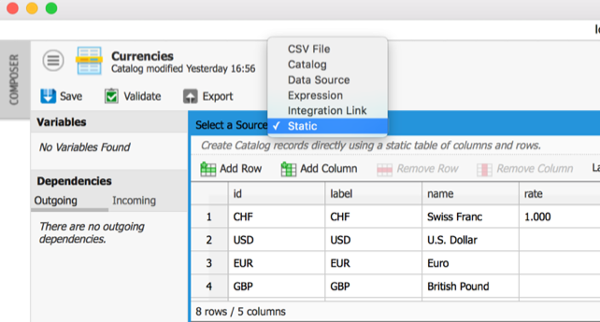
You are correct that Appway does not permit Appway expressions in a static Catalog table: the mocked-up image below is not possible.
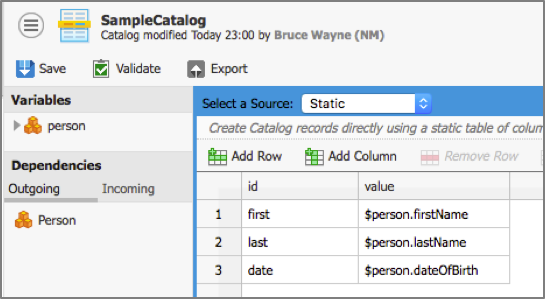
Sometimes however, we do need the Catalog data to evolve. This could be to include a changed set of options for our input fields—new currencies, or account services, for example. Or, the Catalog data may depend on Appway data: the list of services that a bank client has access to, for example, could be dependent on the client's nationality and fiscal status.
There are several ways of evolving Catalogs. Here are two ways that appear to be suitable, but in fact should not be used: changing values in the Catalog, and altering the 'source' parameter to 'data source' for example.
The first approach is simply to change the values in the Catalog using the Catalog Editor. This creates a new version of the Catalog that can be used by Processes that are run subsequently. The disadvantage of this approach is that the only way for already running processes to see the new Catalog version is to change the Processes' version filter. This means that the Process Instance would see the latest version of all Business Objects—a very dangerous change to apply to a running Process.
The second manner of evolving a Catalog is to alter the Catalog's source parameter. This indicates where the Catalog data actually comes from:
- A static source means that the data has been entered manually.
- A Catalog with Integration Link as a source gets populated by an external IT system (like a Web service).
- A Catalog with Data Source as a source gets populated from a database.
Since the Catalog can refresh its data from these external systems, this clearly allows us to have Catalogs in which the data evolves. For instance, if an external Web service maintains a list of currencies, changes in the Web service content are also reflected in the Catalog.
The drawback of these two approaches is that they do not allow us to have dynamic Catalog content based on Appway data, as opposed to external data. For instance, they do not permit us to have a Catalog of banking services where the options presented depend on properties of the Appway Object representing the client, such as tax regime or nationality.
The solution, therefore, is to use a Catalog where the source option is Expression. A Catalog can then be used as the data source for some input field, and we can pass Appway Objects to the Catalog. These Objects help calculate the actual values which the Catalog returns.
To understand why, we need to consider what happens when a Catalog Business Object is opened: Appway transforms the Catalog into an Indexed list of Record Objects, where Record is one of Appway’s primitive types. A Record Object is a wrapper around a row in the Catalog.
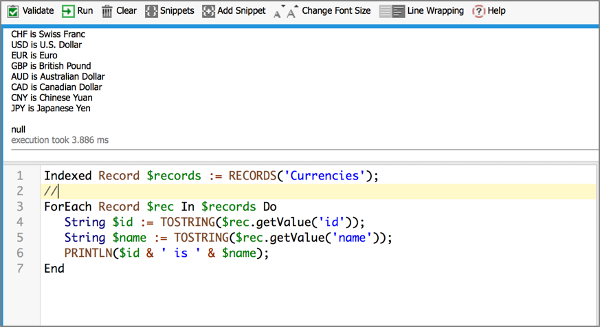
The RECORDS script function allows you to query the records of a Catalog using Appway script. Individual entries in the Catalog row can be accessed using the getValue(columnId) function on the record. For instance, the Catalog containing currencies can be processed in script using the following extract run in the Interactive Script Editor.
Returning to our example, we can simulate the desired behavior in the expression-type Catalog by encoding an expression that returns an indexed list of Record objects. The Catalog has assigned variables, meaning that the expression can be evaluated using data passed from an outside context.
Step 1: Define columns
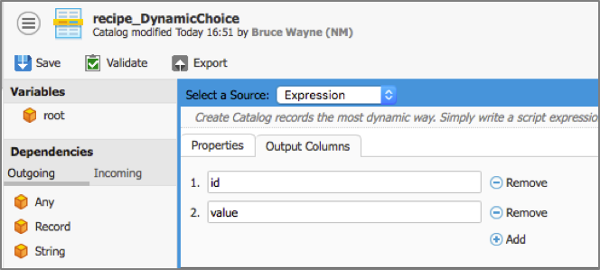
The first step in the configuration of the Catalog is to define the output columns. Here I'm going to define the columns 'id' and 'value'.
Step 2: Enter script
The Catalog has a variable, root, which is a named collection of type, Any. This allows us to pass any set of key-value pairs that can subsequently be used in populating the Catalog. An expression can then be entered into the Properties tab of the Catalog.
The following code is the code that must be entered into the Properties tab. This code gets executed by Appway when the Catalog is used in a screen component, or is read using the RECORDS script function. The code iterates over the key-value pairs of the root argument variable, creating a Record object for each pair. The resulting list of records constitute the records of the Catalog seen in screen components, and read by the RECORDS function.
//
Indexed String $variableNames := KEYS ($root);
Indexed Record $records := new Indexed Record;
//
ForEach String $variableName In $variableNames Do
     //
     Record $r := new Record;
     $r.setValue('id', $variableName);
     $r.setValue('value', $root[$variableName]);
    $records.addElement($r);
End
//
Return $records;
Step 3: Use as data source
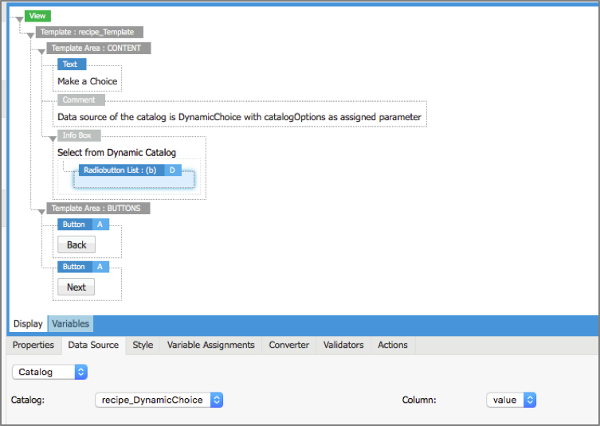
Once the Catalog has been defined, it can be used as the data source for an input field. The example below shows the dynamic Catalog in use (named "recipe_DynamicChoice" in the accompanying .awexport file).
Step 4: Pass a named collection
Once the Catalog has been chosen, the assigned variables tab allows a named collection to be passed to the Catalog.
The contents of the named collection are what appear in the list of options of the radio button list.

The .awexport provided has a sample process, 'recipe_DynamicCatalog' (AW6), where a first screen allows the user to create a named collection. The IDs and values of this collection are then presented to the user in the second screen task.
recipe_DynamicCatalog.awexport