As a Solution developer, I find it difficult to debug errors on Data Logic Controls and Rules, as it is not always clear where errors occur. What strategy should I use?
On occasion, Control and Data Rule evaluation is subject to failure for several reasons. Although errors may be caused by wrong configuration, failures are most frequently related to scripts.
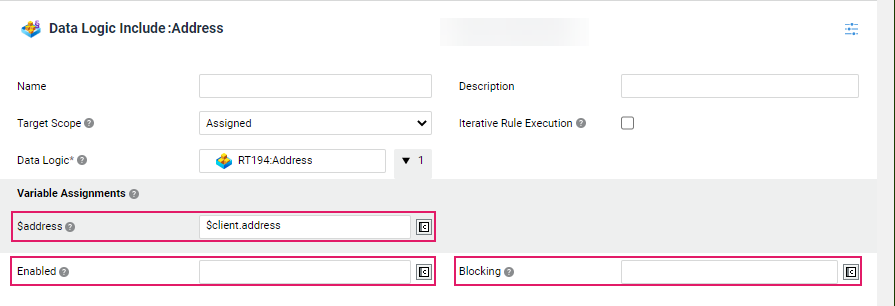
In the Data Logic Include example below, for instance, failure may be caused by scope initialization for variable assignments, as well as by wrong input on the Enabled or Blocking expressions.
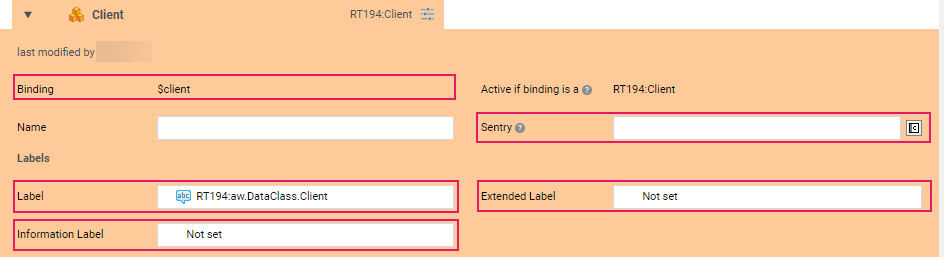
In the Control below, on the other hand, failure may be caused e.g. by incorrect Binding, malformed Sentry expressions, or wrong Label evaluation (namely, Label, Information Label and Extended Label fields).
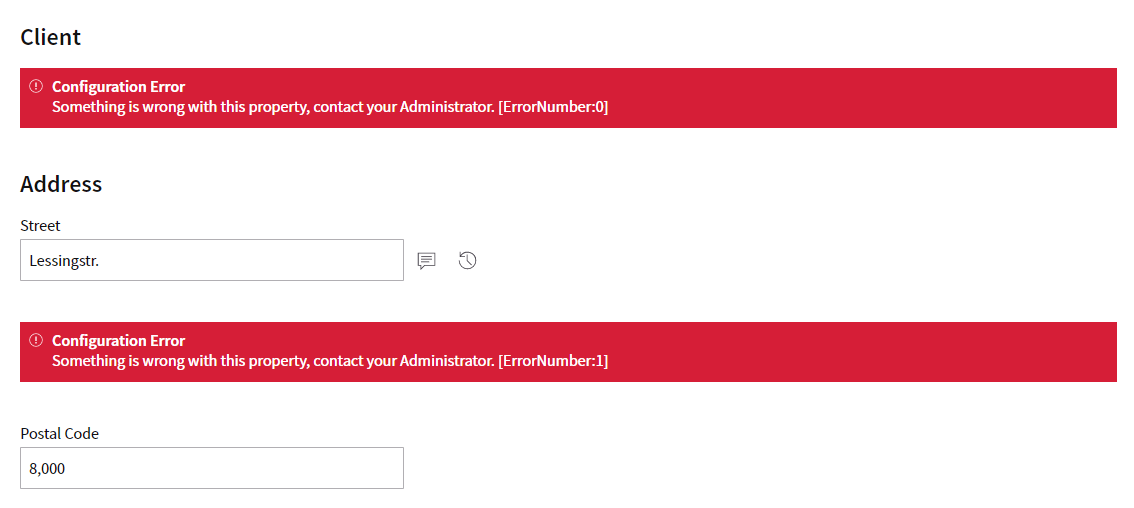
These kinds of error are often difficult to debug, since they are not reported in the UI and, although they are registered in the logs, there is no clear information on which Data Logic item is actually failing.
As part of a project to improve error messages in the data Engine, starting from FNZ Studio 2023, we have introduced some changes related to logging, by adding extra information to allow the Solution developer better identify the Data Rule which is is failing.
First of all, log information for exceptions thrown by a Control or Data Rule has been improved.
The information follows this pattern for Controls:
Control {Control Id},
{Data Logic BO ID},
{Control Type},
virtual control path: [
propertyName1 > propertyName2 >
… ],
include path:
({Including Data Logic}, {Include Control Id}),
Example:
Control ab1117ca-f708-4e88-bc0f-1a3a3665f192,
KYC:Address,
Data Class,
virtual control path: [
country
],
include path: [
(KYC:Client, 5e26ddb9-18e2-4e26-8af9-491c4223d1a5
On the other hand, the information follows this pattern for Data Rules:
Data Rule {Data Rule Id},
{Data Logic BO ID},
{Data Rule Type}
{Data Rule Description},
include path: [
({Including Data Logic}, {Include Data Rule Id}),
…. ]
Example:
Data Rule ab1117ca-f708-4e88-bc0f-1a3a3665f192,
KYC:Address,
Mandatory Fields
Street is mandatory,
include path: [
(KYC:Client, 5e26ddb9-18e2-4e26-8af9-491c4223d1a5
]
Moreover, as illustrated in the examples, the Control or Data Rule UUID is unique across the Business Object Repository and is generated from: Data Logic Id + Data Logic Version UUID + Control/Data Rule internal id.
Following is an example on how you can use log information to debug a Data Rule error. You can apply a similar workflow for Controls.
-
An error occurs:
-
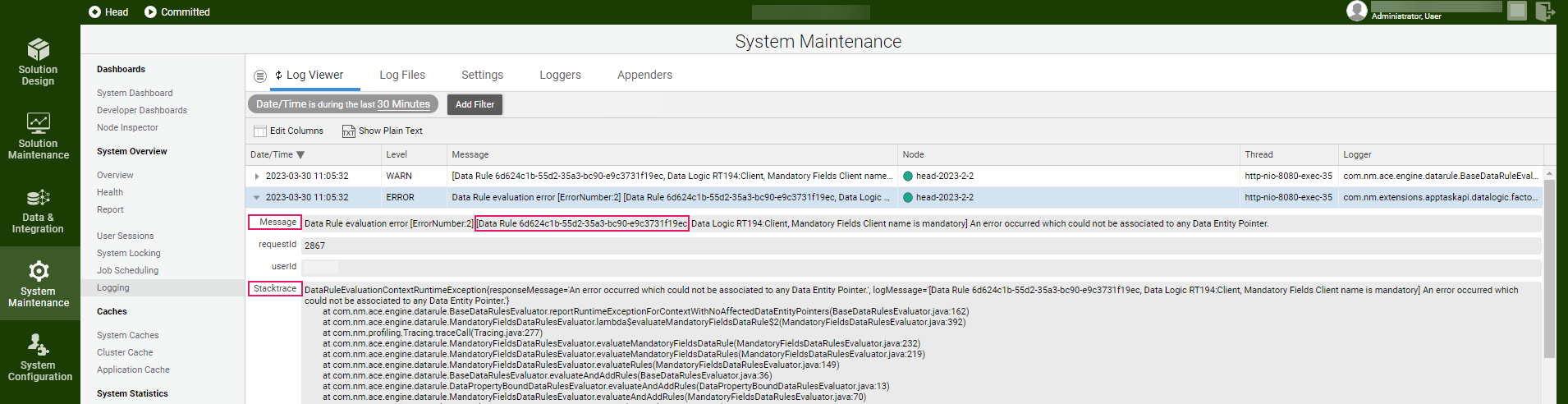
Go to System Maintenance > Logging > Log Viewer, and select the error for which you want to see further details. The Message row shows the Data Logic triggering the error, the Control or Data Rule UUID, the error description and path. The Stacktrace row shows further detailed information.
-
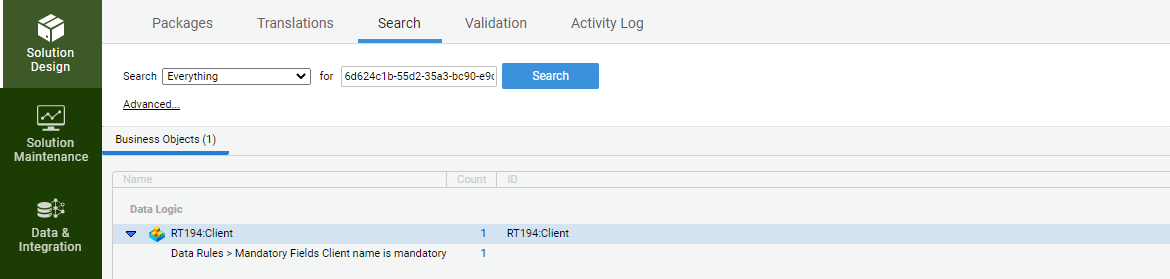
Copy the exact UUID and go to Solution Design > Search. The search returns the failing Data Logic Business Object with an indication of the error location.
The UUID for Rules and Controls can also be searched in the Compare Versions tool available for Data Logic Business Objects (through the context menu).
-
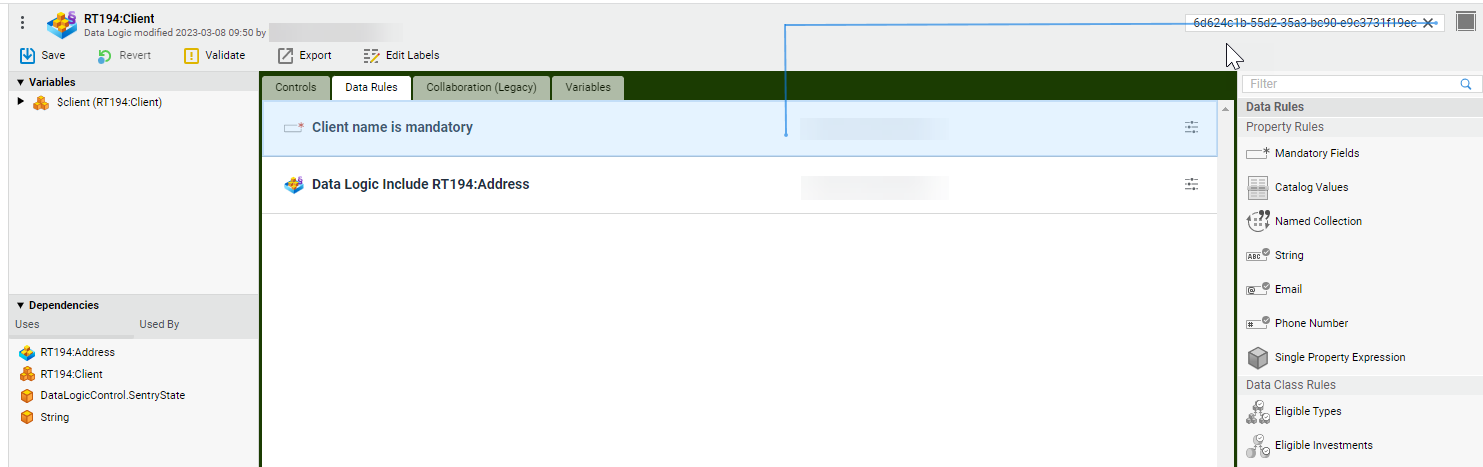
By clicking on the Data Logic name, the corresponding Business Object opens and the item generating the exception is highlighted. At this point, it is easier for you to fix the error.
-
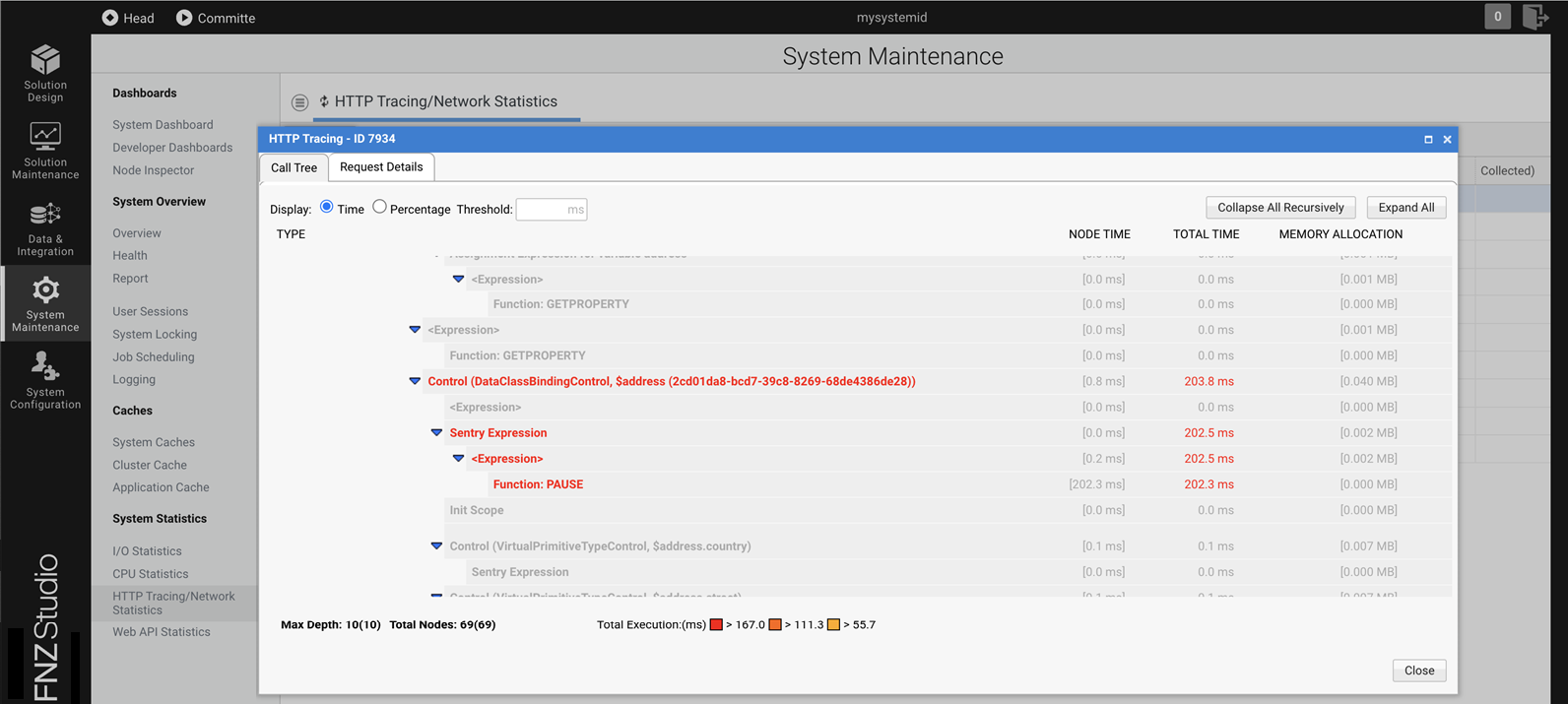
Finally, for Controls, you can also check the error in the System Maintenance > HTTP Tracing module in FNZ Studio Composition.