Note that,starting from version 2022.2, the Appway Platform has been renamed
FNZ Studio (also referred to, generically, as Platform in this article). Appway Studio (design-time environment) and Appway Workspace (runtime environment) have been renamed
FNZ Studio Composition and
FNZ Studio Runtime, respectively. Refer to our Renaming
article for full information.
If an external authentication provider is used, the application has no details about a user but the information provided by the application server through the methods of the HTTP request object: user name, user principal and role membership. The User Filter is using this information to insert and/or update user accounts in the internal user database. All other information like first name and last name needs to be maintained by the user itself using the preferences screen in the application.
Problems:
- A user who has never logged into the application is not visible to other users. No one can forward document folders to this user.
- If a user's name is changed in the external user database, this information is not updated in the user database.
- If a user is deleted in the external user database, the user is not deleted in the user database. The user can not login anymore, but the resources of this user (e.g. document folders) are still in the database.
This problem can be solved using an Adapter to automatically synchronize the internal user database with the external user database from time to time. The LDAP Synchronization Adapter can be used to read user information from MS Active Directory (AD), Novell eDirectory or other LDAP directories and write it to the user database.
This is a one-way synchronization. Information is read from the LDAP directory and written to the internal user database. Therefore, the service account used to connect to the LDAP directory may be restricted to only have read privileges.
See the LDAP Synchronization Adapter section of the Authentication and Authorization article for details on configuration properties and the ldap.properties file.
More information on synchronization is provided in the Synchronization Process section of the Authentication and Authorization article.
The LdapSyncAdapter extension adds four LDAP-related functions:
LDAPQueryLDAPGetAttributesLDAPGetAttributeLDAPSetAttribute
Using LDAPQuery returns an indexed collection which contains named collections with string values.
Use the LDAPGetAttributes function to get all attributes of an object given its distinguished name. The function returns a named collection with attribute names as keys and indexed collections with attribute values as values.
Local String $dn := 'CN=Markwalder Stephan,OU=Users,OU=Zurich,DC=numcom,DC=local';
Local Named Any $attributes := LDAPGetAttributes($dn);
Local String $name;
ForEach $name In KEYS($attributes) Do
   Local Indexed Any $values;
   $values := $attributes[$name];
   Local Any $value;
   ForEach $value In $values Do
      PRINT($name, ' = ', $value, '\n');
   End
End
If the object does not exist, an exception is thrown.
There are some optional parameters to specify a username, password, server address, port, and timeout in order to connect to the LDAP server. If these parameters are not defined, the function uses the properties defined in the configuration file for the LdapSyncAdapter, which is usually located at <DataHome>/conf/ldap.properties.
Use the LDAPGetAttribute function to get values from an single attribute of an object given the object's distinguished name and the attribute name. The function returns an indexed collection of attribute values.
Local String $dn := 'CN=Markwalder Stephan,OU=Users,OU=Zurich,DC=numcom,DC=local';
Local Indexed Any $values := LDAPGetAttribute($dn, 'memberOf');
Local Any $value;
ForEach $value In $values Do
   PRINT($value, '\n');
End
If the attribute does not exist, null is returned. If the object does not exist, an exception is thrown.
Use the LDAPSetAttribute function to set values for a single attribute of an object.
Local String $dn := 'CN=Markwalder Stephan,OU=Users,OU=Zurich,DC=numcom,DC=local';
LDAPSetAttribute($dn, 'initials', ['SMA']:Any);
Note: Some attributes cannot store multiple values. In this case, the function throws an exception if you pass an indexed collection with more than one value in it.
If the object does not exist, an exception is thrown.
The LDAP Configuration submodule in Appway Studio/ FNZ Studio Composition (under System Configuration) is deployed when the LdapSyncAdapter extension is installed. The LDAP Configuration submodule in Appway Studio/ FNZ Studio Composition (under System Configuration) is deployed when the LdapSyncAdapter extension is installed.
Consider this feature is only available to you if you have the
Manage Users Permission.
- To upload a new LDAP configuration file file, open the menu on the left-hand side, and click on the Upload LDAP configuration file option.
- To download an existing LDAP configuration file, for example if you want to modify it and upload it again, right-click on the file (e.g.
ldap.xml), and click on the Download LDAP configuration file option.
To syncronize users from Okta using the LDAP protocol, you first need to enable the LDAP interface in Okta. More details about this process can be found in the official Okta documentation.
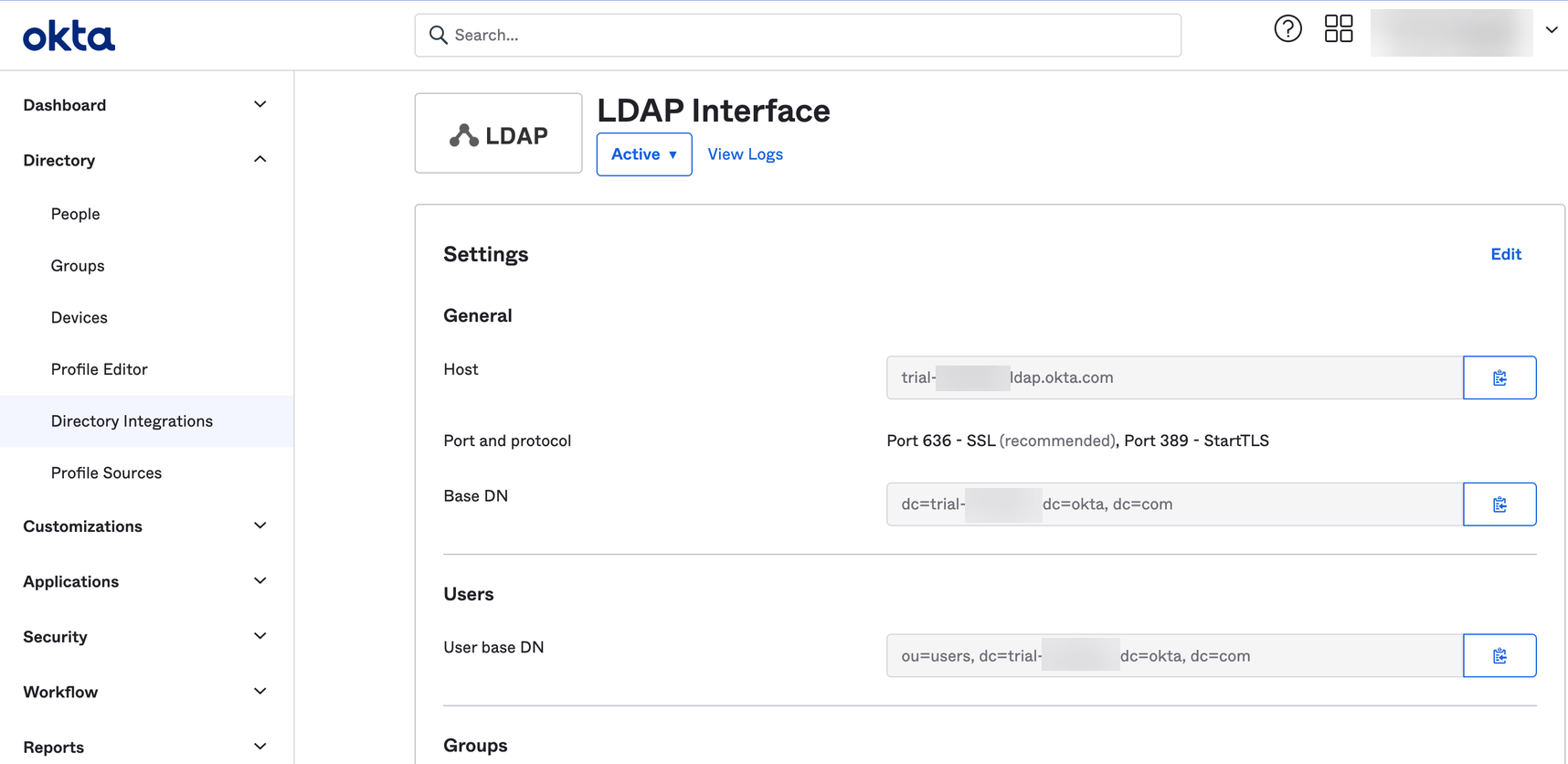
To use the LDAPSyncAdapter extension to sync users from Okta, you first need to configure the extension to connect to Okta LDAP interface.
Following is an example configuration file:
<ldap>
	<directory name="okta.com">

		<schema type="ActiveDirectory">
			<property name="attribute.uid" value="uid"/>
			<property name="attribute.lastName" value="sn"/>
			<property name="attribute.firstName" value="givenName"/>
			<property name="attribute.groupMembership" value="groupofUniqueNames"/>
			<property name="attribute.member" value="uniqueMember"/>
			<property name="attribute.objectClass" value="objectClass"/>
			<property name="attribute.userAccountControl" value="userAccountControl"/>
			<property name="attribute.picture" value="thumbnailPhoto"/>
			<property name="objectClass.user" value="person"/>
			<property name="objectClass.group" value="groupofUniqueNames"/>
		</schema>

		<server address="some-account.ldap.okta.com" port="636" ssl="true" timeout="10"/>
		<username>uid=some-email@mail.com,ou=users, dc=some-account, dc=okta, dc=com</username>
		<password>some-password</password>

		<loginPattern pattern="{USERID}@okta.com" context="dc=okta,dc=com"/>

		<roleMapping role="Administrator" dn="cn=Administrator,ou=groups,dc=some-account,dc=okta,dc=com"/>

		<preferenceMapping preference="ldap.email" attribute="mail"/>
	</directory>

	<syncOptions
			updatecomUsers="false"
			deletecomUsers="false"
			updateGroups="true"
			updateRoles="true"
			updatePictures="false"
	/>

</ldap>
Note: The password can also be stored in the Key Service using the SetKey Script Function with the LdapSyncAdapter alias. If the password is stored in the Key Service, the configuration file must contain the following string ENC(LdapSyncAdapter) in the <password> tag.
Once configured and started, the LDAPSyncAdapter extension retrieves user information from Okta and synchronizes it with the FNZ Studio user database. This is done by using a Quartz job that runs regularly. To get more information during the synchronization process, the log level of the com.nm.syncadapter.ldap.jobs.SyncJob logger should be set to DEBUG.