As a Screen Developer, I need to implement a page where the content of a dropdown list depends on the selection of another dropdown list. How do I implement this in Appway?
The Dropdown List Screen Component and its Data Source capabilities provide all the necessary functionalities to implement a cascading selection of items.
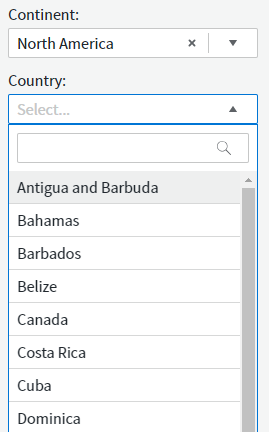
In the example below, the 'Country' Dropdown List depends on the 'Continent' Dropdown List, so that the available countries are pre-filtered based on the selection of the continent.
To create this implementation, follow these steps:
-
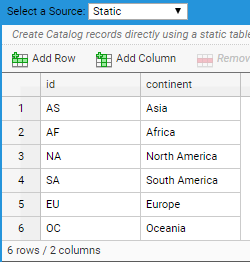
Create a Catalog Business Object containing the list of continents that will be linked to the 'main' dropdown list (see step 3). The Catalog can be named, e.g ' Continents'.
-
Create another Catalog containing a list of each continent's countries to be linked to the 'dependent' dropdown list (see step 3). The Catalog can be named, e.g. 'Countries'. In this Catalog, you must:
-
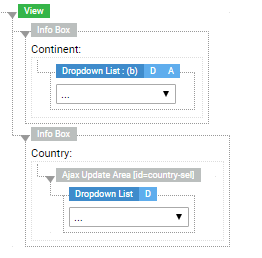
Create a Screen containing the Dropdown Lists corresponding to the already-created Catalog Data Sources:
- Define the $selectedContinent variable of type String and scope Local.
- Create the 'Continent' and a 'Country' Dropdown Lists and link them to the 'Continent' and 'Country' Catalogs, respectively, from the Data Source tab.
- For the 'Country' Dropdown List, set the $selectedContinent Expression for the $continentFilter Variable Name from the Variable Assignment tab.
- Bind the 'Continent' Dropdown List to the $selectedContinent variable.
-
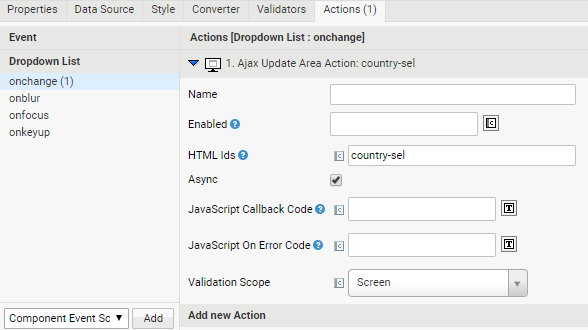
Add an Ajax Update Action to the relevant dropdown list.
The main dropdown list, in this case the 'Continent' Dropdown List, is linked to an Ajax update Area Action triggered by an onchange Event, so that it is refreshed when the item selection changes.
-
Insert the Screen into a Process and run it.
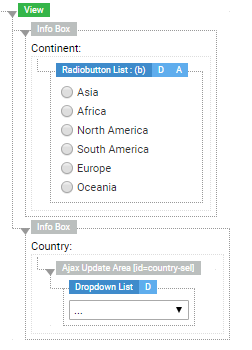
For lists with a limited number of options, you can easily switch from a Dropdown List to a Radiobutton List Screen Component from the Screen Editor. The Radiobutton List works with the same binding, Data Source and Actions as the Dropdown List.