My Process generates a PDF for a client, who then physically prints and signs the document, or signs electronically. How can I code my Process to automatically pick up the signed PDF when it is sent back to the environment?
This article looks at how a Process Instance can handle a media break for the documents it creates. I'll take you through an example where a document is generated by a running process, and then an Integration Link notifies the correct process once the returned file is detected in your environment's file system.
I'll start by explaining the concept of a 'media break'.
Note: An awexport file with the example Business Objects can be found at the end of this recipe.
A Process Instance that sends a document outside of the Platform environment often needs to pick that document back up when it returns to the Platform environment itself. For instance, a common scenario during client onboarding is for the business solution to generate a contract and send it to the client for signature. This constitutes a media break, since the client is not necessarily a Platform user, and works with an electronic or paper version of the document.
Two variants of the media break are illustrated in Figure 1:
- In the Paper Route variant, the Onboarding Process generates a PDF document that is sent to the printer. The paper document is then sent to the client, who signs it. The signed version of the contract is scanned, and the resulting PDF is placed in the Platform file system for the Onboarding Process to pick up.
- In the Electronic Route, a mail server can be used to send the document to the client, who digitally signs it. A new PDF version is sent back to the Platform via the mail server. As shown in Figure 1, an IMAP Integration Link can take the attached PDF from the mail message and save it in the file system.
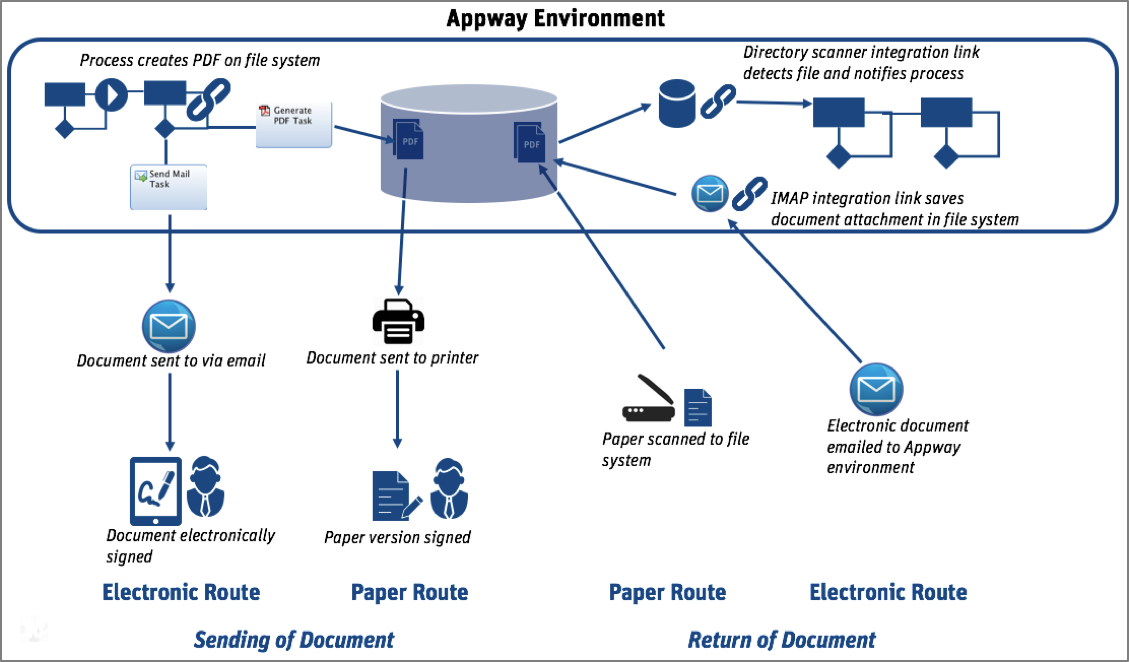
Figure 1
The media break is closed when the document is sent back to the Platform environment as a scanned PDF, or as an incoming electronic document. The incoming document often needs specifically to be sent to the Process Instance that created the original document. In the client onboarding example, the Onboarding Process takes the signed versions of the contract documents for compliance officers and management to verify before closing the onboarding.
This media break scenario can be implemented using an Integration Link Object of type Directory Scanner. This Object type scans the environment’s file system for the return of the file, and then informs the waiting Process Instance using process messaging.
Let's first look at the process messaging pattern that needs to be adopted, and then move onto the the Integration Link.
I'm going to use a simple example throughout this article, shown in Figure 2:
- A Process gathers client information in a Screen in the first task
- A document is generated, and sent out of the Platform environment in the second task
- The Platform waits for the document to return in the third task
Tasks 2 and 3 are implemented using Sub-Processes.

Figure 2
Within the document creation Sub-Process, the document PDF is created using the Evaluate Rule and Generate PDF process activities as shown in Figure 3.

Figure 3
In preparation for the media break, the Process Instance ID is associated with the file. One way of doing this is to have the Process Instance ID inserted into the name of the file, as is done in the script code of Figure 4. This approach is useful if the document remains in electronic form: emailed to a client, who signs it on an electronic device, and then emails the file back to the environment. In the example, the output file is named document and concatenated with the Process Instance ID. The out.tray configuration property denotes the folder where the file is written to.

Figure 4
In the case of a media break that involves the paper route, one manner of associating the Process Instance ID with the document is to encode that ID within the document. In Figure 5, the Process Instance ID is encoded into a barcode that is printed onto the document. In this way, when the signed paper version of the contract is scanned, the Process Instance ID can be extracted from the barcode, and inserted into the filename of the new PDF placed by the scanner in the environment. Many modern paper scanners can implement this feature — reading barcodes and using the scanned value to name the new PDFs.
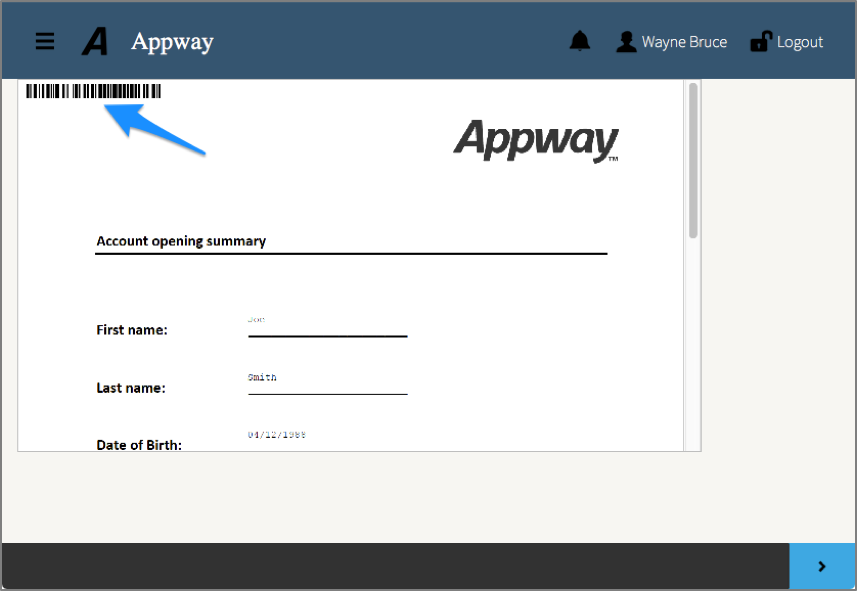
Figure 5
Coming back to our account opening process, the final Sub-Process activity, shown in Figure 6, waits for the file to return. Specifically, using an Intermediate Message Receive Event, the Sub-Process waits for a notification that the file has arrived. Once the message is received, the file is copied to the local file system and displayed in the Screen task (as shown in Figure 5).

Figure 6
The process is awoken by a message sent by an Integration Link. The Integration Link has the type, Directory Scanner, and is programmed to check the folder where the incoming file is placed. As mentioned earlier, we assume that the incoming file is placed here by a paper scanner or by an email server Integration Link.
The structure of the Integration Link is shown in Figure 7. The Directory Scanner (Start Element) component is configured to wait for a file whose name matches the regular expression in the Include Filename RegEx Pattern field. Our example uses a filename of the form 'document<processInstanceID>.pdf'.
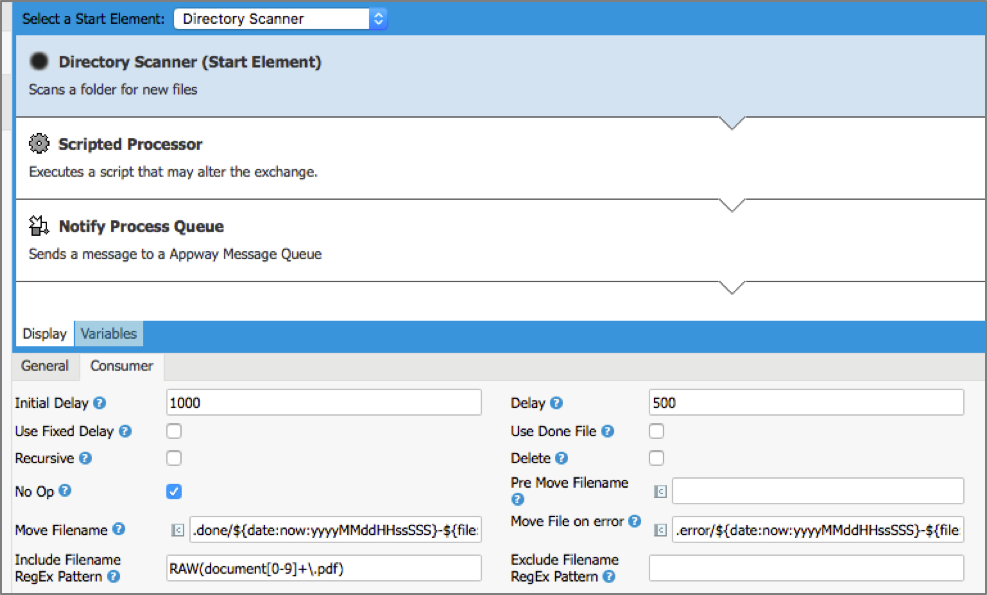
Figure 7
Once the file has been detected:
- The Scripted Processor element runs. The Appway script code for this is shown in Figure 8. This element parses the filename for the ID of the Process Instance.
- The
$in variable is implicitly defined within Integration Link objects, and represents the messaging Object in the underlying platform. Integration links are implemented with help of the Apache Camel open source framework. - For directory scanners, the name of the detected file is given by the
CamelFileName in the header component of the $in message. - The variable
$processInstanceID is a local variable of the Integration Link Object.
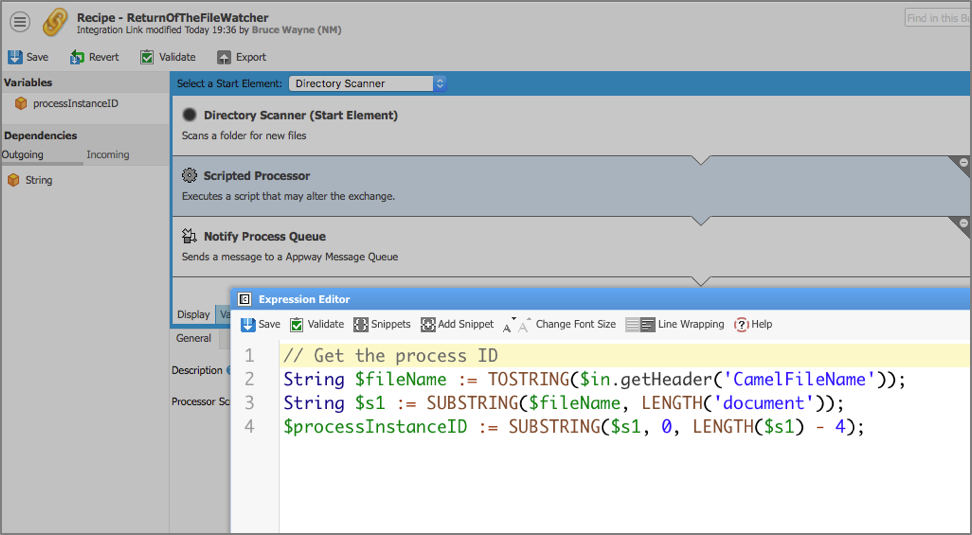
Figure 8
Once the Scripted Processor component has run, the Notify Process Queue component sends a process message to notify the Process Instance, as shown in Figure 9. The message is sent on a message queue, but importantly, the Recipient Workflow Instance ID field is set to the ID of the awaiting Process Instance. Thus, only that Process Instance receives the message.
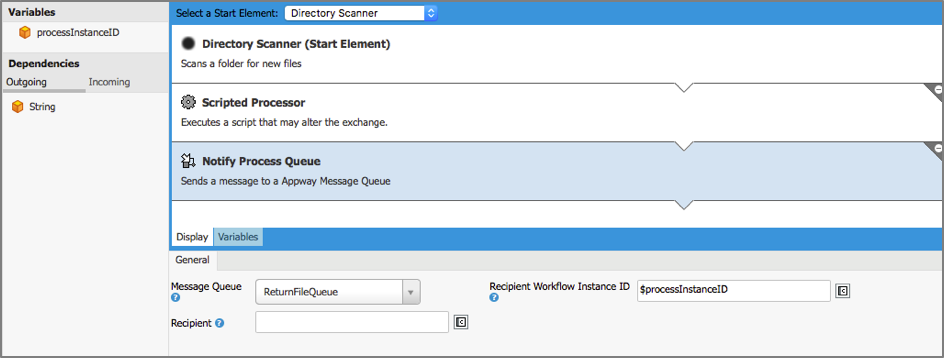
Figure 9
Note: You could enhance this solution with two further steps.
1. First check whether the specified Process Instance is still running in the system (before trying to notify it about the returned document). This prevents you sending out notifications to non-existent Process Instances.
2. If, for some reason, that Process Instance is no longer available, set the system to trigger another Process that handles the return of the document.
An awexport file containing the example Objects is available here: FilePickupRecipe.awexport
Note: This file is for Appway 6.3 only
The Process to start is named AccountOpening. To run the Process, you first need to define the following properties, and the message queue:
- The
in.tray property denotes the folder where the Platform writes the generated PDF to. The out.tray property denotes the folder where the Integration Link Object reads the file from.
Note: The Directory Name property in the Integration Link cannot be specified using Appway script (by CONF(‘in.tray’), for example). The Integration Link therefore also needs to be modified before the example is run.
Important! Ensure that the Integration Link is started before the example is run!
- The
ReturnFileQueue message queue needs to be created for the Integration Link in the Process Message tab of the Studio. This is the message queue that the Integration Link uses to notify the AccountOpening Process.