Note that,starting from version 2022.2, the Appway Platform has been renamed
FNZ Studio (also referred to, generically, as Platform in this article). Appway Studio (design-time environment) and Appway Workspace (runtime environment) have been renamed
FNZ Studio Composition and
FNZ Studio Runtime, respectively. Refer to our Renaming
article for full information.
Workitems are Tokens waiting for a Process action (for example, clicking a button) or event (for example, a message) to continue the Process execution. The Workitem ID matches the Token ID.
Note on Workitem/Process Token terminology: A Workitem is a Process Token which is assigned to a participant, meaning that the participant has an item on the to-do list for this Process Token. The Process Engine will wait for the participant to complete this work item (e.g., entering data into a form or approve a request) and, once the work item is completed, the Process Token will move on through the Process Model. This implies that the Process Token continues to exist even if the Workitem has been completed, as the Process Token may trigger an invocation of an integration link, wait on a connection to be merged at the following gateway, or wait for an incoming message on an intermediate message event, and so on.
The Workitems tab in Appway Studio/ FNZ Studio Composition displays information about all current Process Tokens which are not completed or canceled. This tab is useful for tracking the state of Process Tokens and troubleshooting issues, e.g. you can check for suspended Process Tokens or reassign Process Tokens to different users.
Access the Workitems tab via Solution Maintenance > Processes > Workitems.
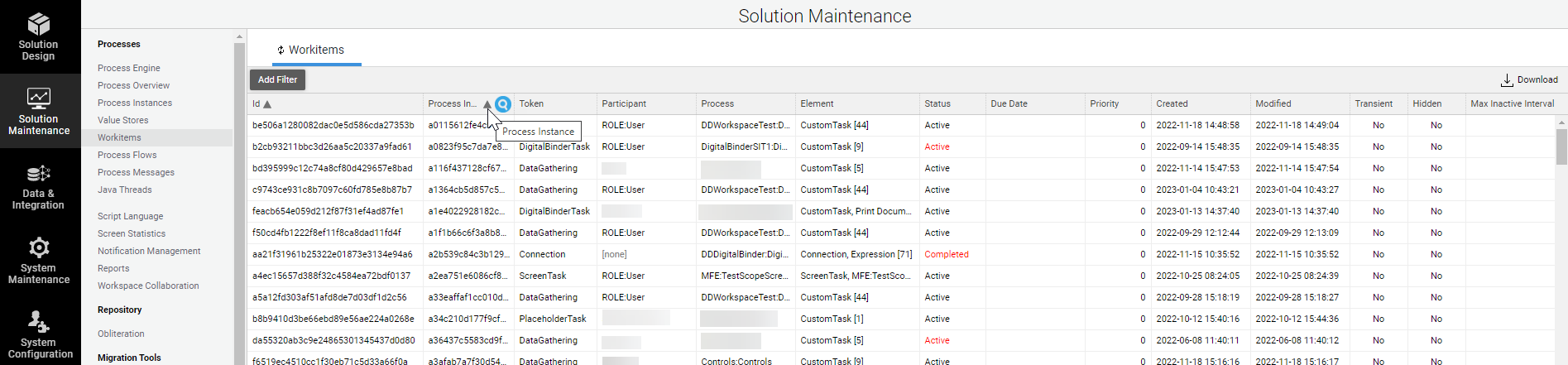
The table displays information about the most important aspects of the Process Tokens. Note that the data listed on the Workitems tab is gathered in a distributed manner from all cluster nodes.:
- Id — Process Token ID.
- Process Instance — The ID of the Process Instance to which the Token belongs.
- Token — Token type.
- Participant — The User, Role, or Group assigned to the current Token.
Note: The entry is displayed in red if the User, Role, or Group assigned to the current Token is no longer available on your Platform instance.
- Process — The parent Process to which the Token belongs.
- Element — The place in the Process where the Token is located at the current time.
- Status — The status of the Token, possible values are: None, Ready, Active, Outgoing, Suspended. Completed or Canceled Tokens are not displayed.
Note: The entry is displayed in red if the status of the Token or of the Process Instance to which the Token belongs is Suspended.
- Due Date — Property inherited from the Due Date field set on the component where the Token is located.
- Priority — Property inherited from the Priority field set on the component where the Token is located. This property defines the order in which the Tokens are executed in case there are multiple Tokens at the same time.
- Created — Date and time when the Token was created.
- Modified — Date and time when the Token was changed.
- Transient — Property inherited from the Transient field set on the component where the Token is located.
- Hidden — Property inherited from the Hidden field set on the component where the Token is located.
- Max Inactive Interval — Maximum time in which the Token is considered inactive. It is used by extensions or in Script Language.
Apart form sorting (through the small triangle in the column header) and filtering (through the magnifying glass above the column header), the following actions can be performed on Process Tokens through the right-click context menu:
- Assign — Enables assigning the Process Token to a different user or role.
- View Process Instance — Opens a new pop-up window which contains information about the Process Instance to which the Token belongs.
- Stack Trace — Displays important details about errors that occurred during Process execution. This action is disabled if the there is no stack trace available.
- Open in Workspace — Opens the Process Instance in a new window which displays a detailed view of the Process Token within the Process Instance. This action is available only if the current user has access to the Process Token.