My Process needs to call a single service or a series of services. The execution takes a long time, during which a user sees nothing on the screen.
I'd like to give users feedback about progress.
I'm going to start my answer by saying: Use the following pattern in your Process. Each phase of the pattern, and the elements necessary in each phase, are explained below.
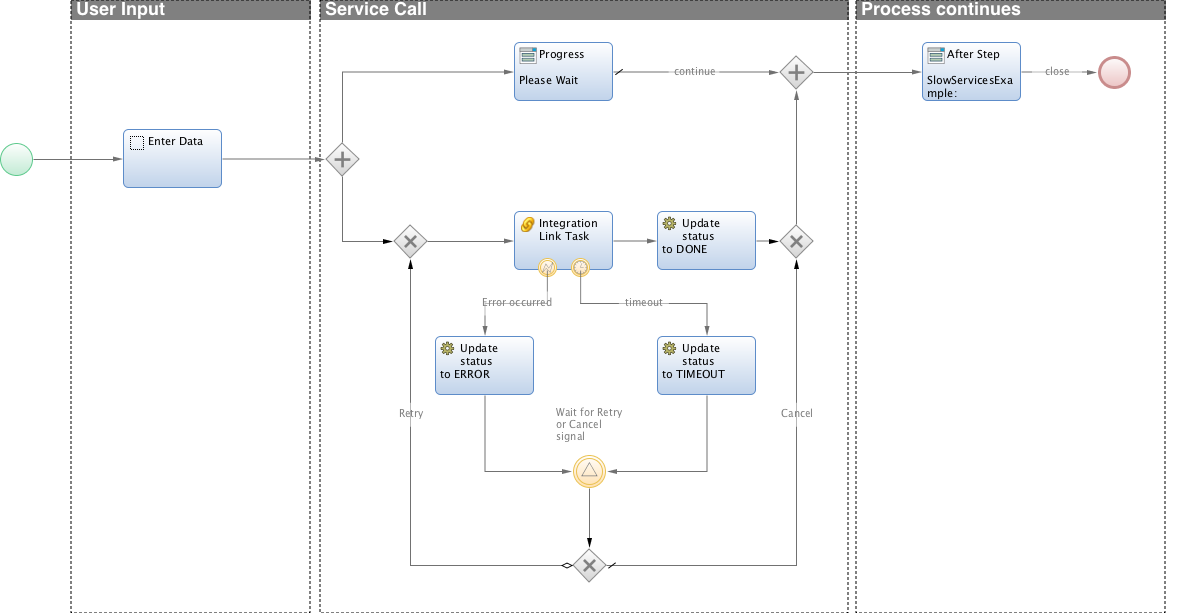
Figure 1: Process Pattern
In this phase, users enter the data required for the service call. There are no long-running scripts, and users experience a fast and responsive application.
When the Process enters the Service Call phase, it splits the token using the AND gateway. One token is sent to the Please Wait Screen, and another Token is sent to the Integration Link task.
The thread that executes the Process Instance is the user’s HTTP thread. But we need to force another thread to execute the Integration Link task so that the user’s thread is guaranteed to be able to execute the Please Wait Screen while the Integration Link is executing.
The pattern shown in Figure 1 does not, by itself, decouple execution from the user's HTTP thread. To achieve this, you need to set the Integration Link task's asynchronous flag to trigger execution in the back end, as shown in Figure 2.
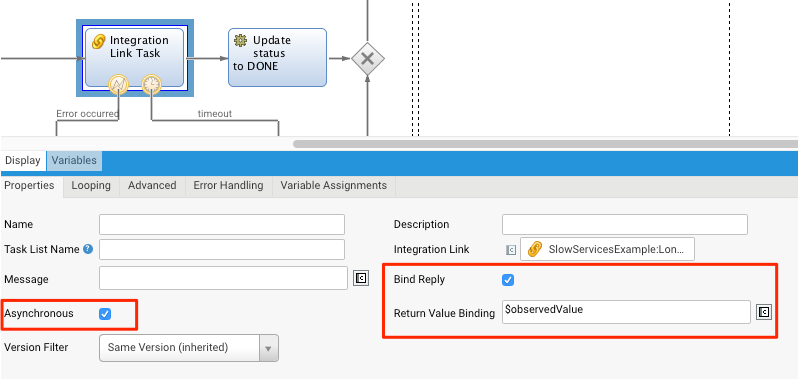
Figure 2: Integration Link settings
Returning to the overall Process shown in Figure 1, we use a variable $status to represent where the Integration Link is in the execution of the service call. Here are the values of the $status variable:
READY — The service call is being made or about to be madeDONE — The call has completedERROR — An error has occurred during the service callTIMEOUT — No response has come from the service for a long period
The variable is initialized to READY at the start of the Process.
If the service call terminates successfully, the token used for executing that call passes to the Script task where the $status variable’s value is set to DONE.
In the event of an error during execution, an Attached Error Event, programmed to catch Java exceptions or Process errors, is signaled and the token takes the error path. The $status variable’s value is set to ERROR, and then the Process Token waits on a Receive Signal event. This signal comes from the Please Wait Screen task once the user has decided whether they want to retry the call, or to abandon it.
Once the signal is received by the Token, the Conditional Gateway is taken:
- If the user decided to retry the Integration Link call, the
$status variable is reset to READY within the Screen, and the Token takes the Retry connection to execute the service another time. - In case the call has been abandoned, the Token takes the Cancel connection, and travels to the AND Gateway to synchronize with the Token coming from the Please Wait Screen task.
The Integration Link task also has an Attached Timer Event associated with it. The timer is set to a value that represents the acceptable amount of time that a user is expected to wait for a reply. If the service is not responding, then the timer interrupts the Integration Link task after the chosen timeout period, and sets the $status value to TIMEOUT. The Token proceeds to the Receive Signal event, where the behavior of the Process is the same as if there were an error during the service call.
But what is shown to users?
A. Now we've dealt with the Integration Link, let's move on to what is actually shown to the user during the service call: a 'Please Wait' Screen.
The Please Wait Screen has a very special role in the pattern. It informs the user about the status of the service call. It prevents the user from taking any next steps until a specific Process state has been reached — that is, until the service call has finished and the resulting values have been passed to the Process. Here's our example Screen:
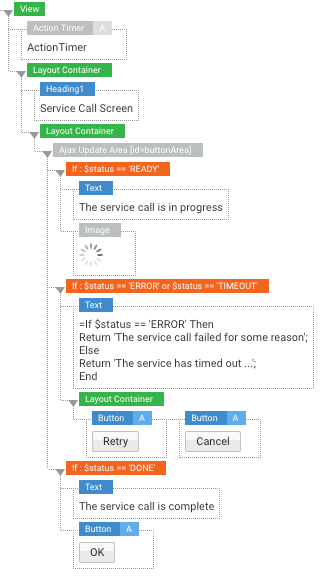
Figure 3: 'Please Wait' Screen in the Screen Editor
The important part is the combination of the Action Timer and Ajax Update Area components.
The Action Timer triggers a refresh of the Ajax Update Area every 5000ms using an Ajax Update Area Action on a timer trigger. As can be seen in Figure 4, the Ajax Update Area with the ID buttonArea gets refreshed each time the Action Timer expires.
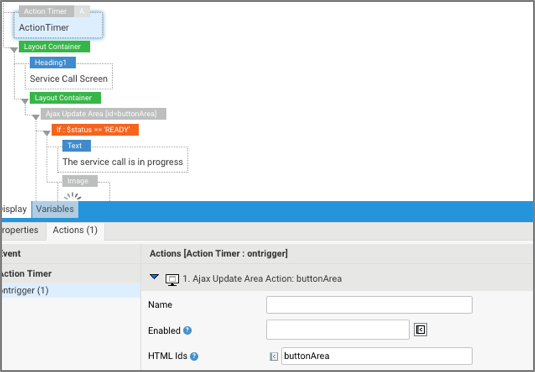
Figure 4: Ajax Update Area action
Within the Ajax Update Area, the text and buttons displayed to the user depend on the value of the Process’ $status variable:
-
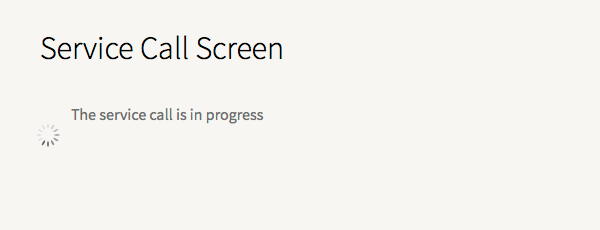
When $status is READY, users see the following Screen. The users continue to see this Screen until the service call terminates, or times out:
-
When $status is DONE, users see this Screen. Once the call is successful and terminates, the Screen immediately indicates this to users. The Process can move on to the next phase:
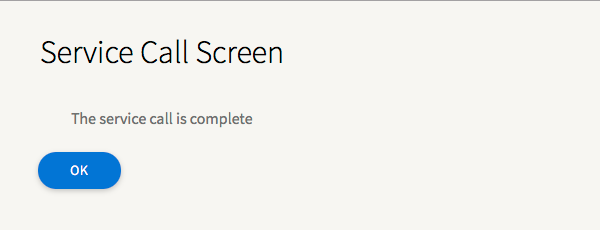
The OK button has a Process action bound to it. When executed, the Token moves on to the AND gateway, and rejoins the Token coming from the Integration Link task.
-
When $status is ERROR, users are also informed of this with the following Screen. Users are then given the possibility of trying to call the service again (in case the error is intermittent) by choosing the Retry button, or of abandoning the service call by choosing Cancel:
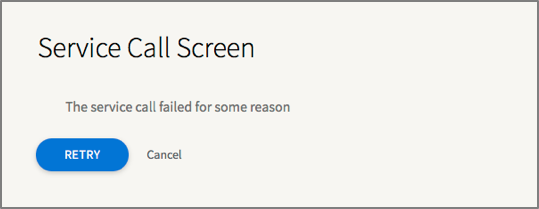
The Retry button has a Script action associated with it. This script updates the $status variable to READY, and then sends a signal for the other Token waiting on the Receive Signal event.
$status := 'READY';
SetProcessSignal('progress', '1d', ProcessInstanceId());
The Cancel button has a Script action and a Process action associated with it. The script sends a signal for the other Token at the Receive Signal event, and the Process action forces the current Token to move on towards the AND gateway.
SetProcessSignal('progress', '1d', ProcessInstanceId())
-
Finally, when $status is TIMEOUT, users see this Screen:
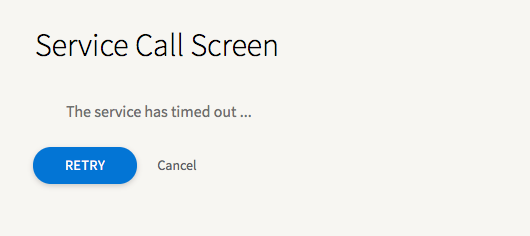
The Retry and Cancel buttons are the same as those used in the event of an error. Thus, a signal is sent within the Process Instance to the token waiting at the Receive Signal event.
By this phase of the pattern:
- The service has been called
- All Tokens not related to any user interaction have been consumed
- The Screen task displays the result of the service call; this value was bound to the variable
$observedValue in the Integration Link task - Users are now allowed to continue their work
If you'd like an example file containing this pattern, you can download it here: SlowServiceRecipe.awdeployment (built with Appway 7)