The Anchor Bar Screen Component creates a horizontal menu with links to defined parts of the page. Using the Anchor Bar component is a good choice when you have a long page with several distinct parts and you do not want to split the page into multiple Process steps/Screens. By providing an Anchor Bar, your users can get a quick overview of the page contents and navigate directly to the part of the page they need without having to scroll through the whole page. When clicking on a link, the page automatically scrolls to the defined location instead of jumping there directly.
For styling, a dedicated 'Style' Business Object is available for the Anchor Bar as well as for the Links displayed in the Anchor Bar, which are referred to as Anchor Links. The Anchor Link 'Style' Business Object is referenced from the Anchor Bar 'Style' Business Object.
The parts of the page/scrolling container the individual links in the Anchor Bar point to can be defined by:
- Anchor Target components
or - Adaptive Flow Layout Group components
Note: Avoid defining too many links in the Anchor Bar, overcrowding the menu reduces its benefits.
Example of an Anchor Bar at the top of a page. The Anchor Bar highlights the link to the section which is closest to the top of the page:
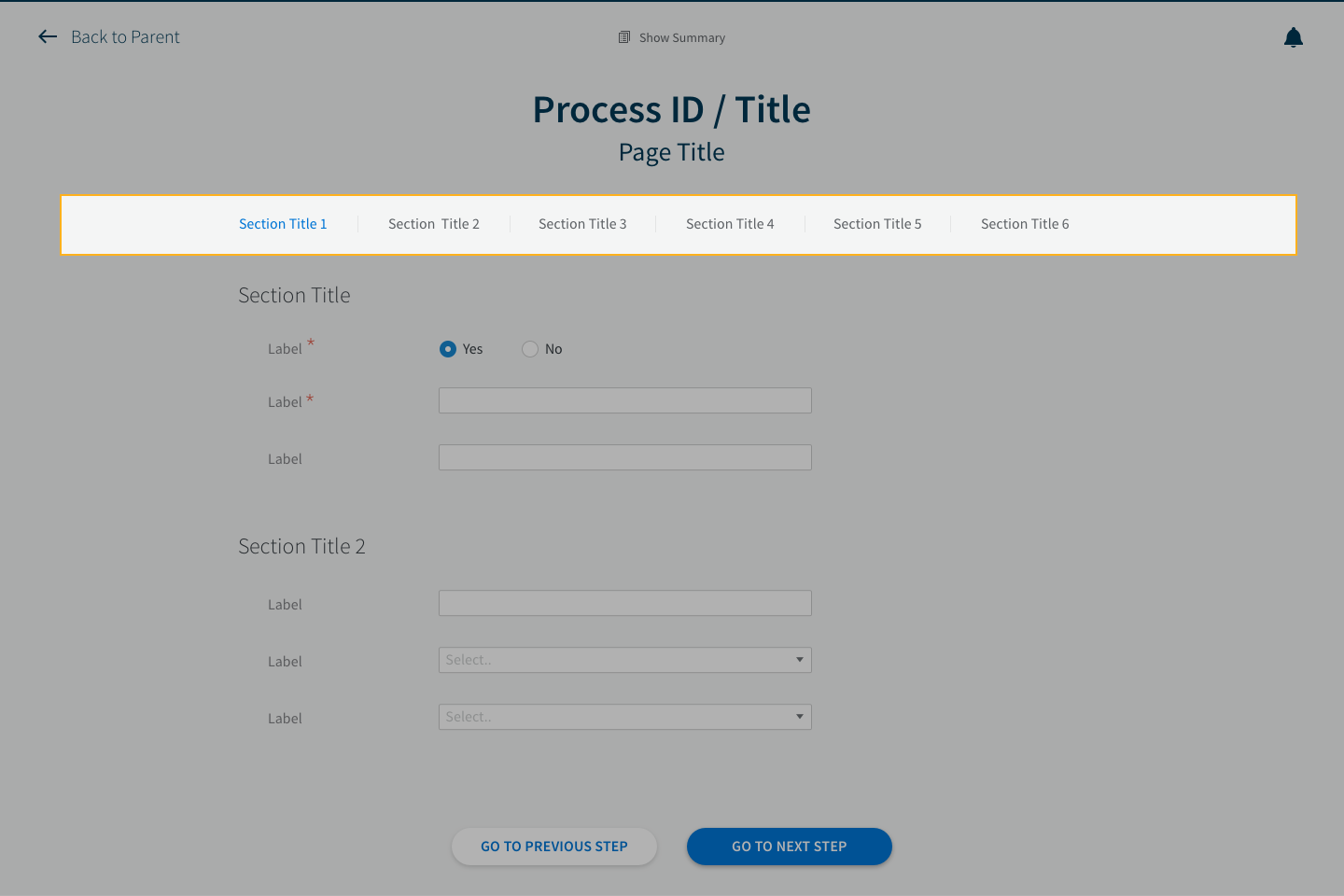
The following properties are available for the Anchor Bar component:
- Get Entries From – Defines the container where the Anchor Bar searches for targets to link to: in a specificScrolling Container or on the Entire Page.
- Scrolling Container Id – (available if Get Entries From=Scrolling Container) Specifies the HTML ID of the scrolling container where the Anchor Bar searches for targets to link to. The Scroll Pane or Layout Container components can be used as a scrolling container (ensure the Height property is defined for these components). A target can either be an Anchor Target component or Adaptive Flow Layout Group, depending on the Entry Type setting.
Important! This component works correctly only if you define the HTML ID of a scrolling container like the Scroll Pane or Layout Container in this field.
- Overlapping Header Id – (available if Get Entries From=Entire Page) Specifies the ID of a fixed component/header at the top of the page. Specify this property to enable the Anchor Bar to prevent this fixed component/header from overlapping with the Anchor Target when scrolling the container to the target after a user clicks on the link in the Anchor Bar.
- Entry Type – Defines the source of the links generated in the Anchor Bar: Anchor Targets or Adaptive Flow Layout Groups.
Note: For Adaptive Flow Layout Groups, the link text is defined in the Group Title property, which is available when the Group Has Layout option is selected.
- HTML Id – Defines the HTML ID of the component.
The following properties are available for the Anchor Target component:
- Anchor Name – Specifies the link text shown in the Anchor Bar.
- HTML Id – The HTML Id of the component.
When implementing an Anchor Bar, follow these three simple steps:
- Place the Anchor Bar component to a position on the page where it is always visible to users.
- Define where the Anchor Bar searches for entries in Get Entries From and set the additional properties for the Anchor Bar accordingly.
- Place Anchor Targets anywhere in the Scrollable Container/on the entire page (according to the definition in the Anchor Bar properties). Use the Anchor Targets to emphasize a part of the page to users and enable them to navigate there directly.
Note: If Entry Type=Adaptive Flow Layout Groups, you do not need to use Anchor Targets. Instead, verify that the placement of the Adaptive Flow Layout Groups supports your users when navigating through the page.
Why does my Anchor Bar component not contain any entries?
Verify the following settings:
- (when Get Entries From is set to Scrolling Container) The Scrolling Container Id property of the Anchor Bar is set correctly and points to a scrollable container like a Scroll Pane or Layout Container, where the Height property has been set.
- The Entry Type property of the Anchor Bar is set according to the components available in the defined scrollable container/entire page (either Anchor Targets or Adaptive Flow Layout Groups).
- Anchor Targets / Adaptive Flow Layout Groups have a title defined:
- Set the Anchor Name property for Anchor Targets
- Set the Group Title property for Adaptive Flow Layout Groups (on the Layout tab, ensure Group Has Layout is selected)
Can I place Anchor Targets in several Scrolling Containers and set the Anchor Bar to look for Anchor Targets on the entire page (Get Entries From=Entire Page)?
The Anchor Bar might not work as expected. The Anchor Bar decides which Anchor Link to highlight based on the visibility of the Anchor Targets inside a single Scrolling Container (either a component or the entire page). If Anchor Targets are inside multiple containers that scroll, the Anchor Bar might not be able to highlight Anchor Links correctly.
Why are Anchor Links not being highlighted?
There are several possible reasons:
- The Anchor Bar is set to use a Scrolling Container, but no container with the specified ID exists in the Workspace. In such a case, Anchor Links appear because the Anchor Bar then looks for Anchor Targets on the entire page. However, in order to highlight the correct Anchor Link, the Anchor Bar requires a reference to the component or HTML element that is actually scrolling.
- If the Anchor Target is at the bottom of the page or the Scrolling Container, it might not be possible to scroll it enough to move the Anchor Target close enough to the top. The Anchor Bar highlights the Anchor Link related to the Anchor Target that is closest to the top of the page or Scrolling Container.
- The “selected” style of the Anchor Link is the same as the “default” state. Check the Anchor Link 'Style' Business Object and ensure there is a visual difference between these two states.
Why can I not set a fixed height instead of specifying the 'Overlapping Header Id'?
The overlapping header might change its height dynamically, depending on how it is built. By providing the ID of the element, the Anchor Bar can adapt automatically to its changes.
Can I place Anchor Targets inside Ajax Update Areas?
Yes, the Anchor Bar updates automatically.
For design suggestions, see the Anchor Bar section of design.appway.com.