The three Text Screen Components available in the Screen Editor, Text, Heading and Paragraph, cover different semantic requirements, specifically:
- Text – It creates an HTML span. It is used for short pieces of text.
- Heading – It creates an HTML heading. It is used for text headers. Appway provides six hierarchy levels:
- Heading 1 for page titles
- Heading 2 as a complementary title or for page titles on End Screens
- Heading 3 for section headers
- Heading 4 for subsection headers
- Heading 5 and Heading 6 for further headings
- Paragraph – It creates an HTML paragraph. It is used for text paragraphs.
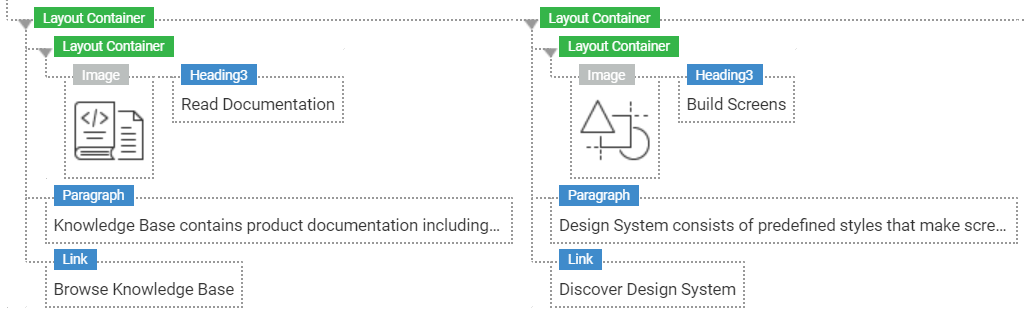
Text Screen Components (edit mode)
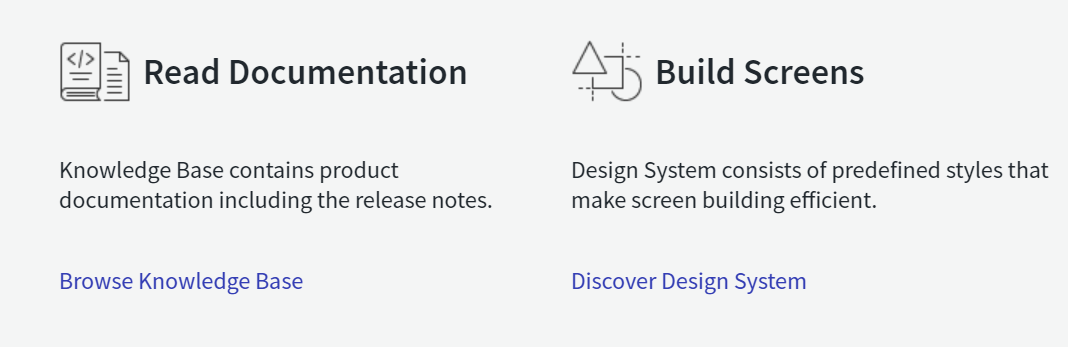
Text Screen Components (preview mode)
The three types of Text Screen Components, Text, Heading and Paragraph, have the same configuration properties:
Properties Tab
- Text — Field to enter the actual text.
- HTML Id — Define this property to be able to reference the current component (e.g. for the execution of Actions).
Consider that this value must be unique in any rendered HTML page, since non-unique HTML Ids in a page may cause unexpected behavior in the execution of Screen Actions.
Note: if you set the
Use Legacy Style option, the following legacy properties become available in the
Properties tab:
Allow HTML code,
Inline and
Markdown. From Appway 7 onwards, these styling properties are replaced by the Text Style Business Object.
Actions Tab
There are no specific Actions for these components. For complete information on Actions, see the Events and Actions article.
The three Screen Components, Text, Heading and Paragraph have associated Style Business Objects.
- Hovered – Appearance of the text when you hover over it.
The Text, Paragraph, and Heading Style Business Objects have the same styling properties:
- Text – Defines the properties (font, size, spacing, color and so on) of the text to be displayed.
- Inner Spacing and Outer Spacing – Define the space between the text and the outer element (e.g. a Layout Container).