As a Workspace user, I've noticed that, in my Appway Solution, the font size is unusually large and other screen elements are displayed incorrectly. A banner is shown warning me about this issue. How can I solve it and return to an adequate font size and correct element positioning?
Due to an issue affecting several browsers, your minimum font size has automatically been changed to a value higher than 0. Such browsers use the minimum font size value to calculate the dimensions of all the elements on the web page whose size is defined in rems.
Appway uses pixels instead of rems starting from versions 8.1.3 and 9.0.2. However, you might be affected by this issue if you have not upgraded your Solution to these Appway versions, or if you have some custom CSS still in place, AND your Solution has a configured minimum font size > 0 px.
In most cases, you probably also saw an Appway banner on your screen, redirecting you to this article. To solve the issue, you need to change the font size manually.
For Google Chrome browsers, for example, you can follow these steps:
- Upgrade Google Chrome to the latest version available.
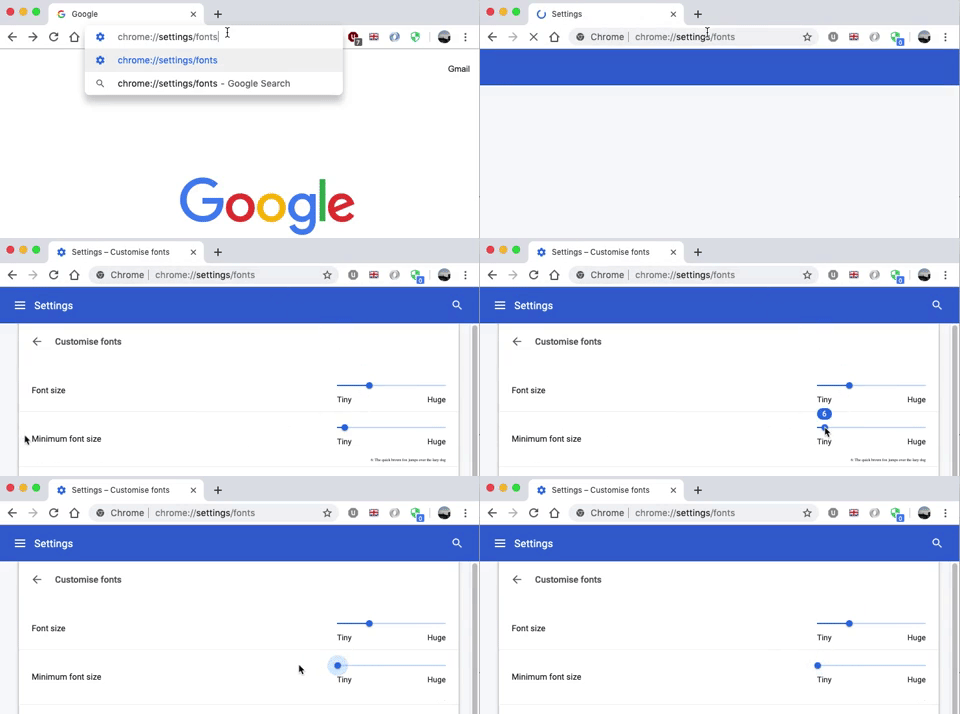
- Go to chrome://settings/fonts.
- Set the Minimum font size value to 0 px (move the toggle to Tiny).
- Now, you should see that all the elements on your Screen have the desired size and position.
To change the font size in other browsers, see the relevant browser documentation.
If you are an Appway developer, check the Removing Rems in your Appway Solution to Solve Incorrect Font and Element Size Issues recipe.