This document explains how to upgrade from a 6.1.x to a 6.2.x Appway installation.
See the Appway 6.2 Release Notes (PDF) for an overview of the most important changes between releases 6.1.8 and 6.2.
This chapter covers the steps to take in order to prepare for an upgrade from a 6.1.x to a 6.2 release. This is a major upgrade and requires careful preparation and planning.
Before every upgrade, always execute a Global Validation (Administration > Repository > Validation). Solve any errors or warnings and ensure that the Appway 6.1.x model is clean before moving on.
It is especially important to make sure that the Appway model is error-free before upgrading. Issues without visible consequences on the current application may cause problems after the upgrade.
Create a back-up of the existing 6.1.x installation.
Execute a clean shutdown of the Appway installation to remove any unneeded files. For more information, see the recipe Shutting down a large cluster.
- Standalone: Go to the Appway home directory and replace the ROOT.war with the new version.
- Application Server: Open your application server's control center and deploy the new version of the WAR file.
You can find more information in the document System Installation.
Replace each extension with its corresponding new version in AppwayHome/data/extensions. Make sure you replace the .jar files only; any .cfg files should remain the same as in the 6.1.x system, in case you made any custom configurations.
We have released new versions of the following core extensions at the same time as Appway 6.2. These extensions contain core functionality and must be updated to the minimum version listed below.
| Core extension | Minimum version required for 6.2 |
|---|
| ComponentExtension | 6.2.4 |
| Functions | 2.7.1 |
DrMoriartyAdapter
(Only for development systems! Do not install on production environments.) | 4.0.1 |
| RelationalDbHazelcastStore | 6.2.5 |
If you are using the BAM extension, version 3.2 has been released for Appway 6.2. The migration from BAM 3.1 to 3.2 requires the execution of a small DB script. Please contact Appway Support to receive the version specific to your DBMS.
Note: The mechanism to include a custom header in the dashboards has changed in BAM 3.2. Please refer to the
BAM documentation for details.
The key format for log statement lists has changed and is no longer compatible with the key format of log statement lists of Appway 6.1. All stored log statement lists must be removed from shared cluster storage.
To do so, remove the following: ${CLUSTER_STORAGE}/logstatementlists/**
In Appway 6.1, workflow messages are stored in the workflowmessagequeues table and workflow message queues are stored in the workflowmessages table. This is fixed in Appway 6.2, but to retain your existing workflow messages and workflow message queues, you must switch these table names manually.
To do so, execute the following DDL statements, depending on the database type:
-
Oracle / IBM DB2 / MySQL:
RENAME TABLE workflowmessages         TO workflowmessagequeuestmp;
RENAME TABLE workflowmessagequeues    TO workflowmessages;
RENAME TABLE workflowmessagequeuestmp TO workflowmessagequeues;
-
MS SQL Server:
sp_rename workflowmessages         , workflowmessagequeuestmp;
sp_rename workflowmessagequeues    , workflowmessages;
sp_rename workflowmessagequeuestmp , workflowmessagequeues;
If your Appway installation uses the Relational DB Hazelcast Store or Cassandra Hazelcast Store extensions, you must create two additional tables:
notificationindexentriescryptokeys (when upgrading to version 6.2.32 and higher)
The following are examples of scripts that generate the notificationindexentries table:
-
IBM DB2
CREATE TABLE notificationindexentries (id VARCHAR(4000) NOT NULL primary key, data BLOB (1G) INLINE LENGTH 28600 NOT NULL COMPACT LOGGED) in tspc_data index in tspc_index long in tspc_long;
-
MS SQL Server
CREATE TABLE notificationindexentries (id VARCHAR(4000) NOT NULL PRIMARY KEY, data varbinary(max) NOT NULL);
-
MySQL
CREATE TABLE notificationindexentries (id VARCHAR(4000) NOT NULL, data LONGBLOB NOT NULL, INDEX USING BTREE(id));
-
Oracle
CREATE TABLE notificationindexentries (id VARCHAR(4000) NOT NULL, data BLOB NOT NULL); CREATE INDEX notificationindexentries_idx ON notificationindexentries(id);
The following are examples of scripts that generate the cryptokeys table:
-
IBM DB2
CREATE TABLE cryptokeys (id VARCHAR(4000) NOT NULL primary key, data BLOB (1G) INLINE LENGTH 28600 NOT NULL COMPACT LOGGED) in tspc_data index in tspc_index long in tspc_long;
-
MS SQL Server
CREATE TABLE cryptokeys (id VARCHAR(4000) NOT NULL PRIMARY KEY, data varbinary(max) NOT NULL);
-
MySQL
CREATE TABLE cryptokeys (id VARCHAR(4000) NOT NULL, data LONGBLOB NOT NULL, INDEX USING BTREE(id));
-
Oracle
CREATE TABLE cryptokeys (id VARCHAR(4000) NOT NULL, data BLOB NOT NULL); CREATE INDEX cryptokeys_idx ON cryptokeys(id);
The default Hazelcast configuration file (<data-home>/conf/hazelcast.xml) must be updated with your 6.1.x installation's configuration.
To do so, compare your installation's Hazelcast configuration file with the default configuration file delivered with Appway and modify the default file delivered with Appway 6.2 accordingly.
- Use a "diff" utility to compare your installation's
hazelcast.xml file with the default hazelcast.xml file delivered with Appway 6.1.
Default "hazelcast.xml" (6.1.0 – 6.1.7):
<?xml version="1.0" encoding="UTF-8"?>
<hazelcast xsi:schemaLocation="http://www.hazelcast.com/schema/config hazelcast-config-3.2.xsd"
           xmlns="http://www.hazelcast.com/schema/config"
           xmlns:xsi="http://www.w3.org/2001/XMLSchema-instance">
    <group>
        <name>blade</name>
        <password>runner13</password>
    </group>
    <management-center enabled="false">http://127.0.0.1:8081/mancenter</management-center>
    <properties>
        <property name="hazelcast.jmx">true</property>
        <property name="hazelcast.logging.type">log4j</property>
        <property name="hazelcast.initial.min.cluster.size">0</property>
    </properties>
    <network>
        <port auto-increment="false" port-count="100">5713</port>
        <outbound-ports>
            <!--
            Allowed port range when connecting to other nodes.
            0 or * means use system provided port.
            -->
            <ports>0</ports>
        </outbound-ports>
        <join>
            <multicast enabled="false">
                <multicast-group>224.2.2.3</multicast-group>
                <multicast-port>54327</multicast-port>
            </multicast>
            <tcp-ip enabled="false">
                <interface>127.0.0.1</interface>
            </tcp-ip>
        </join>
        <interfaces enabled="false">
            <interface>10.10.1.*</interface>
        </interfaces>
        <ssl enabled="false" />
        <socket-interceptor enabled="false" />
    </network>
    <partition-group enabled="false"/>
    <executor-service name="default">
        <pool-size>8</pool-size>
        <queue-capacity>0</queue-capacity>
    </executor-service>
</hazelcast>
Default hazelcast.xml (6.1.8 and greater):
<?xml version="1.0" encoding="UTF-8"?>
<hazelcast xsi:schemaLocation="http://www.hazelcast.com/schema/config hazelcast-config-3.2.xsd"
           xmlns="http://www.hazelcast.com/schema/config"
           xmlns:xsi="http://www.w3.org/2001/XMLSchema-instance">
    <group>
        <name>blade</name>
        <password>runner13</password>
    </group>
    <management-center enabled="false">http://127.0.0.1:8081/mancenter</management-center>
    <properties>
        <property name="hazelcast.memcache.enabled">false</property>
        <property name="hazelcast.rest.enabled">false</property>
        <property name="hazelcast.logging.type">log4j</property>
        <property name="hazelcast.initial.min.cluster.size">0</property>
    </properties>
    <network>
        <port auto-increment="false" port-count="100">5713</port>
        <outbound-ports>
            <!--
            Allowed port range when connecting to other nodes.
            0 or * means use system provided port.
            -->
            <ports>0</ports>
        </outbound-ports>
        <join>
            <multicast enabled="false">
                <multicast-group>224.2.2.3</multicast-group>
                <multicast-port>54327</multicast-port>
            </multicast>
            <tcp-ip enabled="false">
                <interface>127.0.0.1</interface>
            </tcp-ip>
        </join>
        <interfaces enabled="false">
            <interface>10.10.1.*</interface>
        </interfaces>
        <ssl enabled="false" />
        <socket-interceptor enabled="false" />
    </network>
    <partition-group enabled="false"/>
    <executor-service name="default">
       <pool-size>8</pool-size>
       <queue-capacity>0</queue-capacity>
    </executor-service>
</hazelcast>
- Apply the modifications discovered in Step 1 to the new 6.2 default
hazelcast.xml file.
Default hazelcast.xml (6.2):
<?xml version="1.0" encoding="UTF-8"?>
<hazelcast xsi:schemaLocation="http://www.hazelcast.com/schema/config hazelcast-config-3.4.xsd"
           xmlns="http://www.hazelcast.com/schema/config"
           xmlns:xsi="http://www.w3.org/2001/XMLSchema-instance">
    <group>
        <name>blade</name>
        <password>runner13</password>
    </group>
    <management-center enabled="false">http://localhost:8080/mancenter</management-center>
    <properties>
        <property name="hazelcast.memcache.enabled">false</property>
        <property name="hazelcast.rest.enabled">false</property>
        <property name="hazelcast.logging.type">log4j</property>
        <property name="hazelcast.initial.min.cluster.size">0</property>
        <property name="hazelcast.operation.call.timeout.millis">300000</property>
    </properties>
    <network>
        <port auto-increment="false" port-count="100">5713</port>
        <outbound-ports>
            <!--
            Allowed port range when connecting to other nodes.
            0 or * means use system provided port.
            -->
            <ports>0</ports>
        </outbound-ports>
        <join>
            <multicast enabled="false">
                <multicast-group>224.2.2.3</multicast-group>
                <multicast-port>54327</multicast-port>
            </multicast>
            <tcp-ip enabled="false">
                <interface>127.0.0.1</interface>
            </tcp-ip>
        </join>
        <interfaces enabled="false">
            <interface>10.10.1.*</interface>
        </interfaces>
        <ssl enabled="false"/>
        <socket-interceptor enabled="false"/>
    </network>
    <partition-group enabled="false"/>
    <executor-service name="default">
        <pool-size>8</pool-size>
        <queue-capacity>0</queue-capacity>
    </executor-service>
</hazelcast>
- Use a "diff" utility again to compare the 6.2 default file and your modified version. This is to make sure that you applied only the necessary changes.
The ScriptCallbacks map has been removed in Appway 6.2. If the default compressor for this map had been changed in your 6.1.x installation, you have to remove the corresponding configuration, nm.cluster.scriptcallback.compressor.
To verify whether this configuration property is set:
$ cat *.properties | grep "nm.cluster.scriptcallback.compressor"
The parsing of the Relational DB Hazelcast Store extension's property com.nm.cluster.relationaldb.store.maps has changed in Appway 6.2.
If you are using this property, make sure it lists the exact name of the distributed maps (e.g. valueStoresMap instead of only valuestores). You can update this in the configuration properties for the RelationalDbHazelcastStore extension.
The default "AppwayChatProvider" has been removed from the Appway core. It allowed Workspace users to invite other users into Appway chats.
If you use this feature and have not yet switched to the "ScriptAppwayChatProvider" in the Workspace Collaboration extension, you have to do so when upgrading to Appway 6.2:
- Remove the configuration property
nm.usermessaging.chaturl (if set). - Configure the
ScriptAppwayChatProvider in the WorkspaceCollaboration extension. See the Workspace Collaboration documentation for details.
After you upgrade to Appway 6.2, a reindexing of discussion messages might be required. Appway automatically performs a reindexing of discussion messages during the upgrade from 6.1 to 6.2, however there might be some cases where manual reindexing is necessary. Otherwise some discussion messages will not be visible.
For example, if discussion messages are migrated only after the first startup of Appway 6.2, then a manual reindexing will be required.
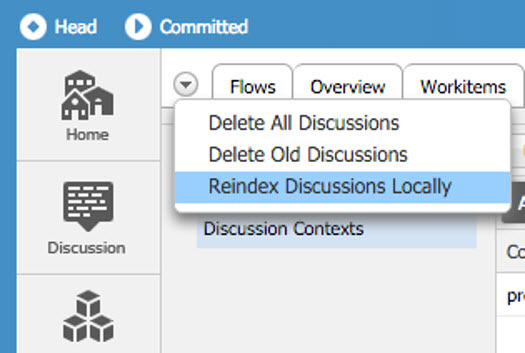
You can use the Console to reindex the messages. Go to Console > Workspace Collaboration Tab > Discussion Contexts and then click Reindex Discussions Locally from the following menu:
After upgrading, start Appway and check for any potential issues.
- Start Appway.
- When completely started, check the log output of the startup. Any errors should be examined in detail before continuing to the Studio.
- Check that the Appway version number has been updated in Administration > System > Overview.
- Check that extension version numbers have been updated in Extensions > "Version" column.
- Re-run the Global Validation report. Browse the validation logs (Show Validation Logs) and use its diff viewer to compare versions. Apply fixes for any newly arisen errors or warnings.
- Take this opportunity to remove any Business Object versions that are not needed any more by using Obliterate. In some cases, this can free up a large amount of memory.
- Thoroughly test your solution.
The table below lists all functions that have been removed between the 5.1.8 and the 6.2 releases. If your Appway Platform contains non-standard extensions, see the recipe Comparing functions across Appway installations for more information.
| Removed function | Source | More information |
|---|
| ProcessTokenRO | Functions extension | Use the ProcessToken function instead, which no longer acquires a write lock. |
UnregisterAllCallbacks
UnregisterCallback
RegisterChatEventCallback
RegisterDiscussionMessageCallback | Built-in | The script callback functionality was removed from Appway 6.2, since reacting to events is covered by Integration Links. If you used script callbacks, switch to Integration Links instead. Please contact Appway Support and ask for the Integration Link elements corresponding to your script callback implementation. |
| ListAllLookupKeys | Built-in | Removed for performance reasons. Use the Entity Indexer functionality instead. |
| GetEntityIndices | Built-in | Instead of using this function, you can view the list of available indexes under Administration > System > Entity Manager > Indexers. |
Check for deprecated code warnings in your app:
- Go to Adminstration > Repository > Validation.
- Run a validation for all object types.
- Filter the results for error types containing 'Deprecated'.
- Filter the results for error messages containing 'Deprecated'.
You can also look up where a specific function is used:
- Go to Adminstration > System > Global Search
- Search for "[function name](". Example: "UnregisterCallback("
Several old and already deprecated methods have been removed from the BusinessObjectRepository service interface:
commit(List, AjaxProgress)commit(List, String, AjaxProgress)delete(BusinessObject)delete(String, String)get(ObjectRef)get(String, String)get(String, VersionFilter)getVersionInfo(String)getVersionInfos()getVersionInfos(String)getVersionInfos(String, VersionFilter)getVersionInfos(VersionFilter)select()select(String)undelete(BusinessObject)
Replacement methods are available for all. To verify whether these methods are still in use in your solution, go to Administration > Repository > Validation, and make sure that no validation errors appear.
Components deprecated from Appway 6.2 are still functional in this release, but will be removed from future Appway versions. Their functionality has either been replaced or does not comply with the Appway Platform's design rules anymore.
| Deprecated component | More information |
|---|
| Image Text | No replacement |
| PDF Viewer | Use the 'Generated PDF' component instead. |
| Social Bookmark | No replacement |
| Image Scaler | No replacement |
| Portal | The 'Portal' and related components are deprecated for version 3 of the Workspace (not applicable to versions 1 and 2). |
Appway 6.2 comes with a new default Workspace. When upgrading an existing installation, version 3 is deactivated to ensure backwards compatibility. Versions 1 and 2 of the Workspace are fully supported in Appway 6.2 and it is thus not necessary to adapt existing apps.
You can check which version of the Workspace is currently activated under Administration > System > Configuration > nm.workspace.css.version.
Version 3 of the Workspace automatically gives Screens a functional design on any display device. It brings new default CSS styles and modifies the behavior of many Screen components. Some new Screen components are only available when version 3 of the Workspace is activated.
There have been changes to the styles of the following Screen components, independently of the Workspace version:
- Data Table: If some of the CSS styles for the Data Table component are overridden in you app, you will have to adjust class names. There have been major changes to the layout of the Data Table in Appway 6.2, and we took the opportunity to change the names of CSS classes to better reflect our code style conventions.
- Adaptive Flow Layout: The Style tab was removed from the Adaptive Flow Layout component and related ones. Any styles previously set are removed upon upgrading to 6.2.