Box Connector is a legacy component.
End of Support (EOS)) has taken place in September 2022. Recommended action: Consider adopting Blob Storage as cluster storage option.
The Box Connector is a Connector that facilitates the integration of Appway solutions with the Box APIs. The Box Connector includes one ingredient: the CloudStorage extension.
Disclaimer: Box (
https://www.box.com) is a content management platform and file sharing service for businesses owned by Box, Inc. The Box Connector is an Appway product that uses the Box WebAPI shared with the Box SDK Software License Agreement license (
https://developer.box.com/docs/box-sdk-license).
Appway has no affiliation with Box, Inc.
CloudStorage is an Appway extension that provides Functions, Data Classes, and a Screen Component for interacting with Cloud Storage providers in Appway solutions. This includes e.g. listing files, downloading and uploading files, and managing files and directories. Currently, it only supports the provider Box (http://www.box.com).
For the CloudStorage extension to work, your Appway solution must be accessible via HTTPS (See section 3 for details).
The following sections give an overview of the CloudStorage extension setup, the different kinds of usages of the extension and the corresponding authorization and authentication mechanisms, and the Functions to interact with Box.
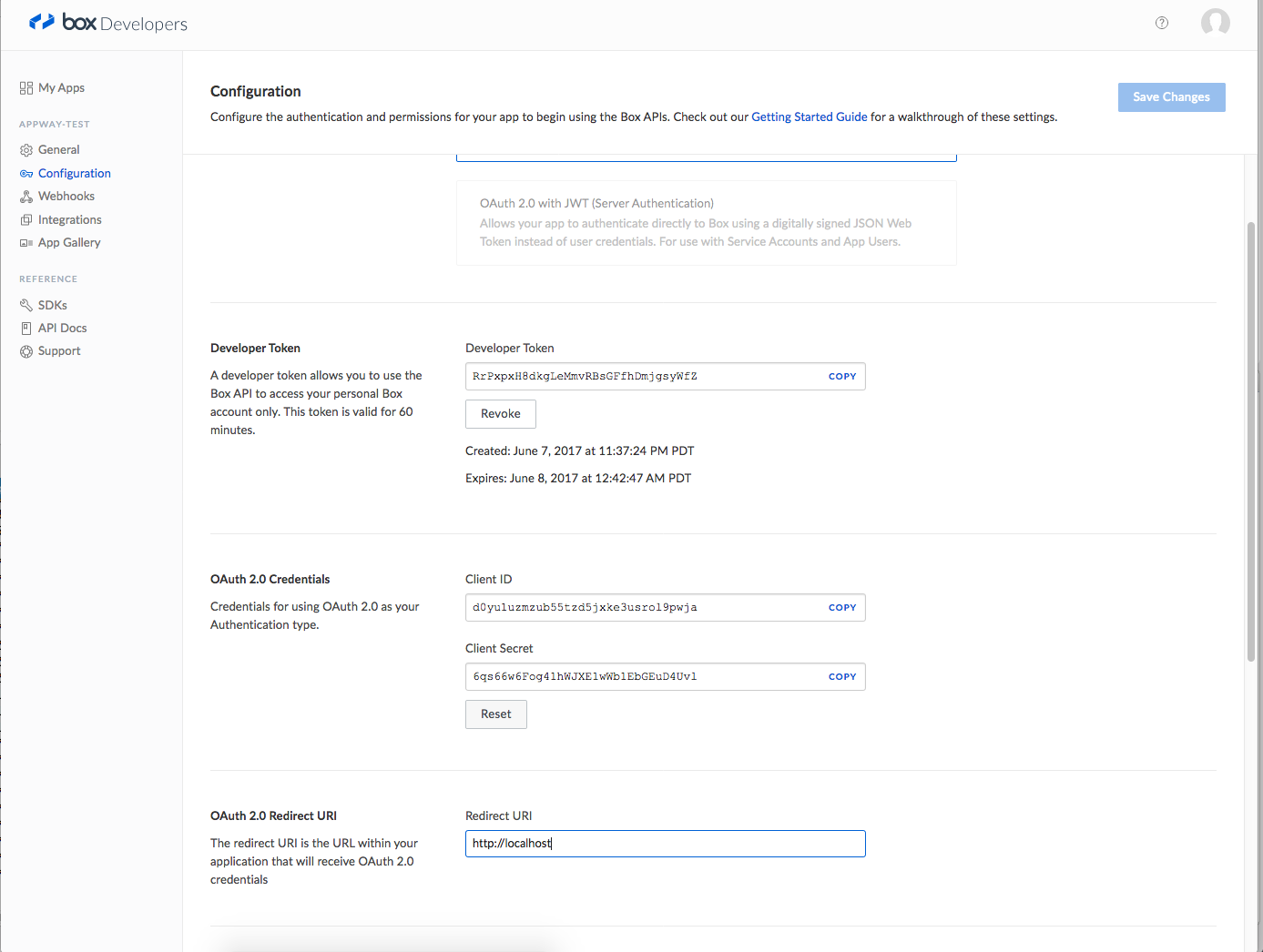
After uploading the Extension in the Appway Studio, you have to configure a client ID and client secret Appway will use to authenticate in Box. For this, you have to register your application at http://developers.box.com
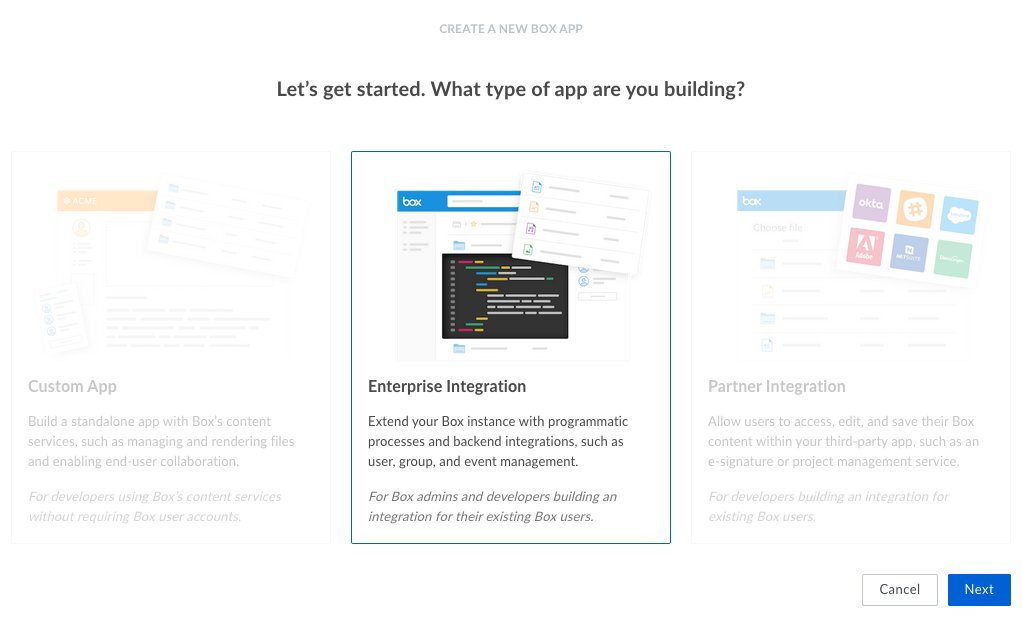
- Create a Box App: use standard OAuth, set the redirect URL to http://localhost and take note of Client ID and Client Secret.
2. Configure the Box App
3. Set the Extension properties:
cloudstorage.Box.clientId
cloudstorage.Box.clientSecret
cloudstorage.Box.baseUrl
cloudstorage.appwayBaseUrl
The CloudStorage extension supports the graceful reload of the configuration property changes, meaning that shutdown and startup operations are not necessary to use the new property values.
Before being able to access a user's account, the user must authorize Appway to do so. The Box API uses the OAuth2 protocol to ensure that this authorization and the subsequent authentication(s) are secure. If you would like to know more about this topic, visit http://developers.box.com/docs/ . Basically, the Box user is redirected to a Box login page where she enters her credentials. Then, Box redirects the user back to the web application that requested the authorization and the process is finished. Note that for this redirect to be secure, your Appway solution must be accessible via HTTPS.
In the extension, two types of authorization and authentication mechanisms that correspond to different usages of Box are implemented. These are described below.
The extension allows two ways of interacting with Box:
- Admin user: You authorize your Appway installation to access Box on behalf of one single admin user, i.e. all users of your solution work with the same Box account. This can be useful for automatically backing up data, or giving users access to a set of documents on Box.
- Solution user: A user of your solution authorizes Appway to use Box on their behalf by logging in with their credentials on the Box website in an Appway process. This can be useful if you want to allow a user to use or upload files on their Box account as part of a process.
All Functions take an optional last argument of the type CloudStorageAuthToken. If you would like to interact with Box on behalf of a solution user, you need to remember the auth token and always supply it as an argument. For an admin user, the extension manages the token and you do not have to supply the optional argument. The two authorization and authentication methods to use the extension outlined above are described in the two following sections.
To implement this configuration, you need to access Appway Studio via HTTPS.
If you want to make calls to Box on behalf of a predefined admin user, you have to authorize Appway to use Box by clicking on Authorize Box Cloud Storage from the System Configuration tab in Studio, as shown in the following screenshot.
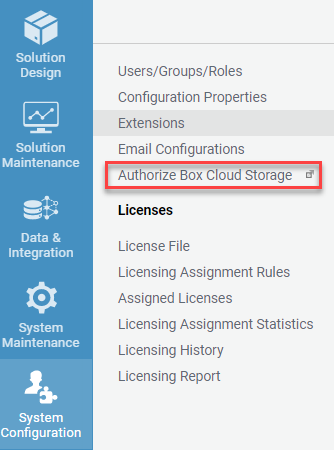
Fig. 3: Authorization in Studio
This will redirect you to a Box login page where you enter the admin user's Box credentials. If the authorization is successful, you are redirected back to Appway Studio and the configuration is finished.
The CloudStorage extension stores and manages the information necessary to authenticate at Box automatically. Thus, it is not necessary to log in at Box again, even after a restart of the Extension or the complete Appway server/cluster. When using the Functions provided by the CloudStorage extension, you do not have to supply the optional authentication token argument.
For the Box Authorization Screen Component to work, Process Instances must be accessed via HTTPS.
If you want to make calls to Box on behalf of a solution user, you can use the Box Authorization Screen Component that comes with the extension to allow the user to log into Box. The following screenshot shows how to place the Box Authorization task in a very simple Appway process. Note the CloudStorageAuthToken variable property, where you can select the variable into which the authentication token resulting from the authorization should be stored.
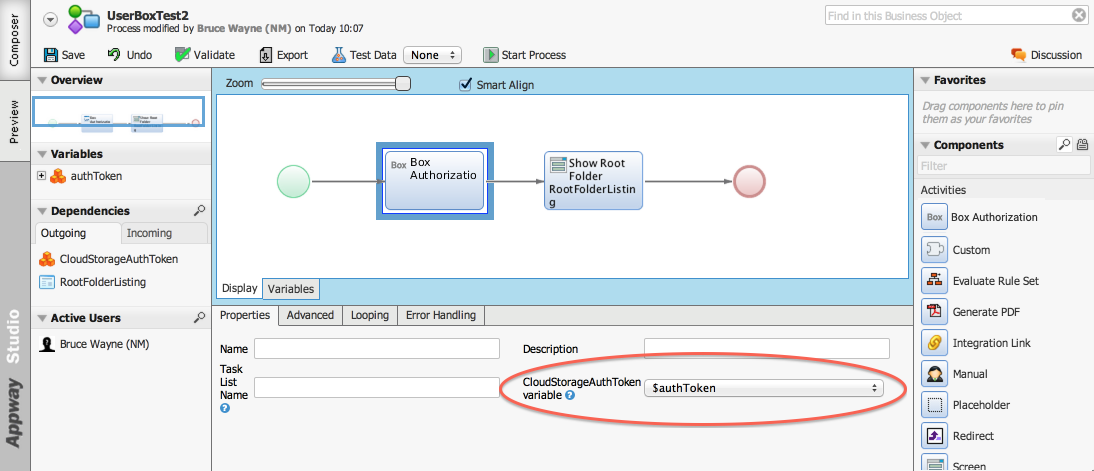
Fig. 4: CloudStorageAuthToken variable properties
The Box Authorization Screen Component first checks if the selected variable already contains a valid token. If this is the case, the authorization finishes without any user interaction. If the variable contains no token, or the token is no longer valid, the user is redirected to Box. After entering their credentials, the user returns to the process. If the authorization is successful, the authentication token is assigned to the selected variable. When you call a function, always supply this authentication token as the last argument.
If authentication at Box failed (both in the Box Authorization Screen Component or during the execution of a Function), a Java
com.nm.extension.CloudStorageExtension.exceptions.CloudStorageAuthException
exception is thrown.
Due to the way authentication is implemented in the Box API, the authentication information needed to access Box might change in the execution of the Box Authorization Screen Component or a function accessing Box. In this case, the authentication token object you supply is updated with the new information.
An authorization at Box is only valid for 60 days.
The functions for interacting with Box have the prefix CloudBox after the namespace. They allow you to download/upload files from/to Box, list directories, and manage files and directories.
The functions have an optional last argument, which is the authentication token used to access Box. The cases in which you need to supply a token (or not) are described in Section 3.
There are three types of exceptions that can be thrown by the functions:
- If authorization or authentication failed
com.nm.extension.cloudstorage.exceptions.CloudStorageAuthException
- If an operation could not successfully be executed on Box
com.nm.extension.cloudstorage.exceptions.CloudStorageServerException
- If an illegal argument was supplied or there was an unexpected problem
com.nm.sdk.NmRuntimeException
In the following sections, the individual functions are described and an example is provided for each of them. The examples assume that authorization has been performed with an admin user and, therefore, the optional authentication token argument is not supplied. However, the functions work analogously if the token is supplied.
To create a new directory on Box, call
BoxConnector:CloudBoxCreateDirectory(<parent-directory-id>, <new-directory-name>, <auth-token>)
The first argument is the Box ID of the directory inside of which you want to create a new directory. The second is the new directory's name, and the third is the (optional) auth token.
Example: Create a new directory named New Directory in the Box root directory.
BoxConnector:CloudBoxCreateDirectory('0', 'New Directory')
The Function returns the Box ID of the newly created directory.
To create a directory there is another function which takes the same arguments.
BoxConnector:CloudBoxCreateDirectoryIfNotExists(<parent-directory-id>, <new-directory-name>, <auth-token>)
The difference with the previous one is that if the directory already exists, nothing is done and the ID of the existing directory is returned.
To get the contents of a directory, use the following function:
BoxConnector:CloudBoxListDirectory(<directory-id>, <auth-token>)
The < directory-id > is an internal ID that Box sets for each file or directory. The root directory's ID is always '0'.
Example: To list the contents of the root directory, call
BoxConnector:CloudBoxListDirectory('0')
This function returns the files and directories that are direct children of the given directory as an indexed collection of CloudStorageFile data objects. Each CloudStorageFile has an ID, a name, and a flag indicating whether it's a directory. If it's a directory, you can again call CloudBoxListDirectory with the directory's ID to get that directory's contents.
To delete a directory and all its content use the following function:
BoxConnector:CloudBoxDeleteDirectory(<directory-id>, <auth-token>)
The first argument is the Box ID of the file or directory you want to rename, the second is the new name the file or directory will get, and the third is the (as always optional) auth token. Note that renaming does not change the Box ID of the file or directory.
To upload a file, use the following Function:
BoxConnector:CloudBoxUploadFile(<directory-id>, <file-path>, <auth-token>)
The first argument is the Box ID of the directory where the uploaded file should appear. The second is the local file's path relative to your data home (Appway 5.3), or the cluster file's path (Appway 6 and higher). The third is the optional auth token.
Example: To upload the file '{DATA_HOME}/foo/bar/thefile.txt' (Appway 5.3) or the cluster file 'foo/bar/thefile.txt' (Appway 6 and higher) into the root directory of the used Box account, call
BoxConnector:CloudBoxUploadFile('0', 'foo/bar/thefile.txt')
The upload function returns the Box ID of the uploaded file.
To download a file, use the following Function:
BoxConnector:CloudBoxDownloadFile(<download-folder-path>, <download-file-id>, <auth-token>)
The first argument is the local directory's path relative to your data home, or the cluster "directory" (actually, file path prefix) for the downloaded file. If it does not exist, the directory (and all non-existing parent directories) are created. The second argument is the Box ID of the file you want to download. The third (optional) argument is, again, the auth token.
Example: To download the file with Box ID '123123123' to the local directory '{DATA_HOME}/foo/bar' (Appway 5.3) or cluster directory 'foo/bar' (Appway 6 and higher), call
BoxConnector:CloudBoxDownloadFile('foo/bar', '12341413212')
The name of the file will be the same as the name of the file in Box. The Function returns the complete data home relative file path, or cluster file path of the downloaded file.
To create a new directory on Box, call
BoxConnector:CloudBoxCreateDirectory(<parent-directory-id>, <new-directory-name>, <auth-token>)
The first argument is the Box ID of the directory inside of which you want to create a new directory. The second is the new directory's name, and the third is the (optional) auth token.
Example: Create a new directory named "New Directory" in the Box root directory.
BoxConnector:CloudBoxCreateDirectory('0', 'New Directory')
The Function returns the Box ID of the newly created directory.
To rename a file or a directory, use the following functions:
BoxConnector:CloudBoxRenameFile(<file-id>,<new-name>,<auth-token>)
BoxConnector:CloudBoxRenameDirectory(<directory-id>,<new-name>,<auth-token>)
The first argument is the Box ID of the file or directory you want to rename, the second is the new name the file or directory will get, and the third is the (as always optional) auth token. Note that renaming does not change the Box ID of the file or directory.
To move a file or directory into a directory on Box, use the following functions:
BoxConnector:CloudBoxMoveFile(<file-id>,<destination-directory-id>)
BoxConnector:CloudBoxMoveDirectory(<directory-id>,<destination-directory-id>)
The first argument is the Box ID of the file or directory you want to move, the second is the target directory you want to move the file/directory into, and the third is the (as always optional) auth token. Note that the file or directory you move keeps its ID, although it changes location.
To copy a file or directory into a directory on Box, use the following functions:
BoxConnector:CloudBoxCopyFile(<file-id>,<destination-directory-id>)
BoxConnector:CloudBoxCopyDirectory(<directory-id>,<destination-directory-id>)
The first argument is the Box ID of the file or directory you want to copy, the second is the target directory you want to copy the file/directory into, and the third is the (as always optional) auth token. The functions return the ID of the newly created (copied) file or directory, respectively.
Box allows you to set and get a description property on each file. To set the property, use this function:
BoxConnector:CloudBoxSetFileDescription(<description>,<file-id>,<auth-token>)
The first argument is the description you want to set, the second the Box ID of the file where you want to set it, and finally, the optional auth token.
To read the description of a file, simply use:
BoxConnector:CloudBoxGetFileDescription(<file-id>,<auth-token>)
This Function returns the description of the file as a string.
Metadata allows you to define and store custom data associated with their files in Box.
This function returns the list of Metadata keys associated with the file.
BoxConnector:CloudBoxGetMetadataKeys(<file-id>, <auth-token>)
The argument of the function is the ID of the file for which you want to retrieve the Metadata keys.
This function returns the value of the Metadata key passed as the argument of the function (null if the key does not exist).
BoxConnector:CloudBoxGetMetadata(<file-id>, <metadata-key>, <auth-token>)
This function adds a key-value pair Metadata to a file. The function returns the old value if the key already existed, null otherwise.
BoxConnector:CloudBoxPutMetadata(<file-id>, <metadata-key>, <metadata-value>, <auth-token>)
To remove a Metadata key-value pair from a file, use the following function:
BoxConnector:CloudBoxRemoveMetadata(<file-id>, <metadata-key>, <auth-token>)
The function returns the removed value associated with the key if it already existed, null otherwise.
The following function retrieves an expiring URL for creating an embedded preview session. The URL expires after 60 seconds, while the preview session expires after 60 minutes.
BoxConnector:CloudBoxGetFileEmbeddedLink(<file-id>, <auth-token>)
This function returns the URL at which the user can log in with his Box credentials to authorize the application to access their Box account.
BoxConnector:CloudBoxGetAuthorizeUrl(<redirect-url>)
The argument of the function is the URL to which the user is redirected after authorization (must be a HTTPS URL).
Example: 'https://www.example.com/after-authorization'
To get the authorization token that will allow to use the other functions use:
BoxConnector:CloudBoxGetAuthToken(<authorization-code>)
where the argument is authorization code
The Cloud Storage Extension also provides some helper functions, which are sometimes useful when working with a cloud storage service. Currently, the following functions are supported.
This function returns the MD5 checksum of the file. This can be useful when determining whether two files have the same content.
BoxConnector:CloudFileChecksum(<file-path>)
The argument is the local file's path relative to your data home, or the cluster file's path. The result is the MD5 checksum of the file content as a string.
The following example Script will iterate through a given directory and back everything up to the admin user's Box account.
/**
This Function recursively backs up a given directory to a given box directory. If the remote file structure already
exists, it will only upload changed files.
If you want to upload the root of your local data home to your Box root, call it like this:
BoxDataHomeBackup('','0');
@$path path to local directory that should be uploaded
@$boxId the Box id of the target directory
*/
Function BoxDataHomeBackup(String $path, String $boxId) : Nothing Begin
 LOGGER('info', '============================================================================');
 LOGGER('info', JOIN('Backing up directory ', $path, ' to Box directory with ID ', $boxId));
 LOGGER('info', '============================================================================');
 Indexed CloudStorageFile $cloudFiles;
 Try
 $cloudFiles := BoxConnector:CloudBoxListDirectory($boxId);
 Catch
 LOGGER('error', ' Exception occurred while trying to read directory');
 Return null;
 End
 Indexed Any $localFiles := DIR(JOIN('{DATA_HOME}/', $path));
 Any $localFile;
 // Iterate through the files and directories inside the given local directory, and back each one up
 ForEach $localFile In $localFiles Do
 String $localPath := JOIN($path, '/', $localFile.getName());
 LOGGER('info', ' -------------------------------------------------------------------------');
 LOGGER('info', JOIN(' Backing up file or directory ', $localPath));
 LOGGER('info', ' -------------------------------------------------------------------------');
 // let's find out if a corresponding remote file or directory already exists
 CloudStorageFile $cloudfile;
 CloudStorageFile $cloudfileIterator;
 ForEach $cloudfileIterator In $cloudFiles Do
 If $cloudfileIterator.name == $localFile.getName() Then
 $cloudfile := $cloudfileIterator;
 Break;
 End
 End
 // todo: replacing directory with files and vice-versa is not yet supported
 // local dir exists, but Box dir does not exist -> create box dir and store files
 If $localFile.isDirectory() Then
 // Handle uploading a directory
 If $cloudfile == null Then
 // corresponding remote directory does not exist
 LOGGER('warn', JOIN(' ', $localPath, ': This directory does not exist on the server', $localPath));
 Try
 String $newBoxDirecotry := BoxConnector:CloudBoxCreateDirectory($boxId, $localFile.getName());
 BoxDataHomeBackup(JOIN($path, '/', $localFile.getName()), $newBoxDirecotry);
 Catch
 LOGGER('error', JOIN(' Exception while creating directory ', $path, '/', $localFile.getName()));
 End
 Else
 // corresponding remote directory already exists
 LOGGER('info', JOIN(' This directory exists on the server', $localPath));
 BoxDataHomeBackup(JOIN($path, '/', $localFile.getName()), $cloudfile.id);
 End
 Else
 // Handle uploading a file
 Try
 String $localChecksum := BoxConnector:CloudFileChecksum($localPath);
 // The Box API doesn't like file descriptions that contain two dashes (--)
 $localChecksum := REPLACE($localChecksum, '--', 'o');
 LOGGER('info', JOIN(' Local file checksum: ', $localChecksum));
 If $cloudfile == null Then
 // local file exists but remote does not
 LOGGER('warn', JOIN(' ', $localPath, ': Remote file does not exist ', $localPath));
 String $fid := BoxConnector:CloudBoxUploadFile($boxId, $localPath);
 BoxConnector:CloudBoxSetFileDescription($localChecksum, $fid);
 LOGGER('info', JOIN(' Box Description of file ', $localPath, ' is set to ',
BoxConnector:CloudBoxGetFileDescription($fid)));
 ElseIf BoxConnector:CloudBoxGetFileDescription($cloudfile.id) == $localChecksum Then
 // nothing to be done both files equal
 LOGGER('info', JOIN(' Remote file and local file are the same, remote hash: ',
BoxConnector:CloudBoxGetFileDescription($cloudfile.id)));
 Else
 // local file exists and remote exists with differen HASH --> upload
 LOGGER('warn', JOIN(' ', $localPath, ': Remote file and local file are different, remote hash: ',
BoxConnector:CloudBoxGetFileDescription($cloudfile.id)));
 String $fid := BoxConnector:CloudBoxUploadFile($boxId, $localPath);
 BoxConnector:CloudBoxSetFileDescription($localChecksum, $fid);
 LOGGER('info', JOIN(' Box Description of file ', $localPath, ' is set to ',
BoxConnector:CloudBoxGetFileDescription($fid)));
 End
 Catch
 LOGGER('error', JOIN(' Exception while attempting to upload ', $localPath));
 End
 End
 End
End
Why doesn't the CloudStorage extension natively support backing up or synchronizing a local directory? Why do you have to write a Script Function to do this?
There are a number of reasons, but most importantly, doing this via a Script Function gives you a lot of flexibility. You want to synchronize in both directions, just back up, or just pull changes form the cloud? You can do all of them by adapting the Script. You want to upload Business Objects selectively (say, only head versions, or only committed versions)? You can do that. You want to avoid uploading certain files (say, logs, or SVN directory, in case your data home is checked into SVN)? You can do that, too.
Or, say that you want to encrypt all of your files before uploading them. No problem; you can do even that.