You can change the ID of a Business Object by refactoring it. Right-click on the Business Object whose ID you want to change and select Refactor ID.
This feature not only modifies the ID of a Business Object, but also makes necessary changes in most locations where the Business Object being refactored is used or referenced.
Refactoring IDs should not be done routinely. The purpose of this feature is to fix mistakes, not to modify IDs as a regular, standard procedure.
This is because refactoring does not (and cannot) work correctly in all situations. Using refactoring can leave your system with non-obvious issues. For example, it does not find dynamically generated IDs. See the following sections for details of further situations where manual intervention is required.
The following description is based on the example of a simple Screen with the ID TestScreen.
Check the existing dependencies and usages of the TestScreen Business Object by right-clicking on the object and selecting Show Dependencies:
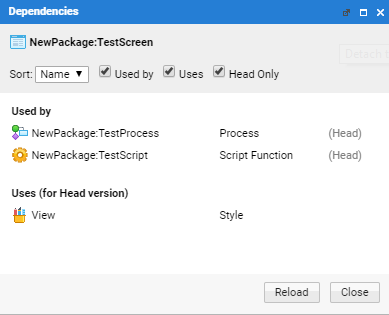
You can see that TestScreen is used by two Business Objects:
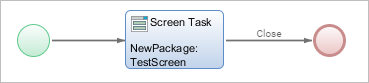
- A Process called TestProcess:
- A Script Function called TestScript:

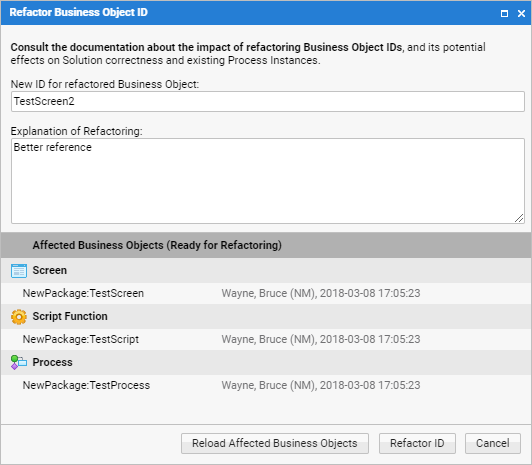
Select Refactor ID after right-clicking on the TestScreen Business Object. You can now enter a new ID, for example TestScreen2, then click on Search Affected Business Objects. This step scans every Business Object in Appway and checks which of them uses the Screen TestScreen. The affected Business Objects are displayed in the Affected Business Objects area:
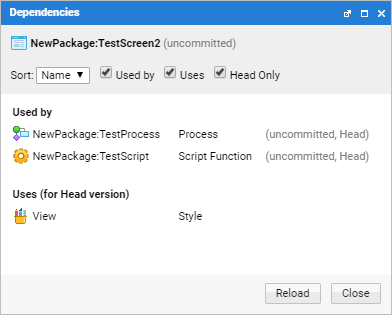
The next step is to execute the ID refactoring by clicking on the Refactor ID button, which modifies the ID of the Business Object. In reality, the system creates a new Business Object called TestScreen2, and deletes the original Business Object, TestScreen. The system updates the usages / references to TestScreen to TestScreen2 in the Dependencies window:
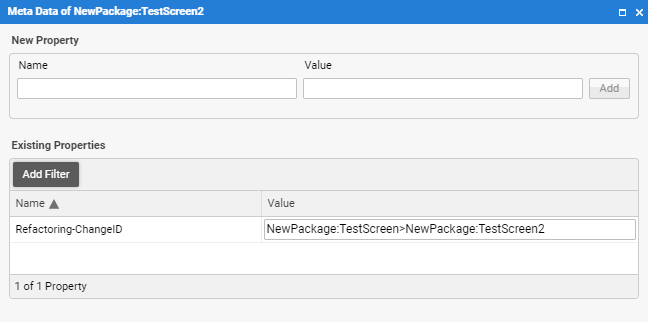
Additionally, metadata is created for the Business Object in question, indicating a change of name from TestScreen to TestScreen2. This information is needed to support later deployment and/or process migration tasks:
The Business Objects using TestScreen are also updated:
- The TestProcess Process is updated to:
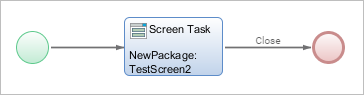
- The TestScript Script Function is updated to:

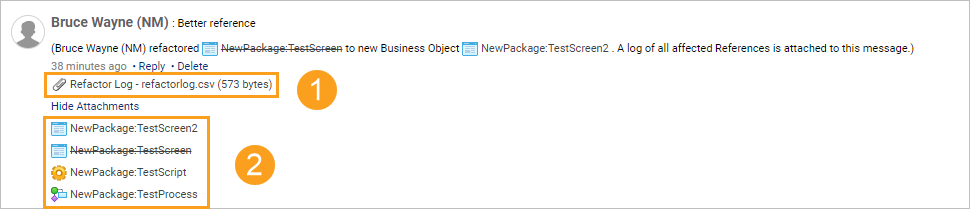
Finally, a Discussion entry (available at Solution Design > Discussion) referencing a log file detailing the changes (1) and a list of the Business Objects affected by the change (2) is automatically generated:
After refactoring an ID, run a global search:
- Go to the Solution Design > Search
- Search for the original ID of the Business Object, in this example "TestScreen".
This search can reveal locations where Appway was unable to detect and change the ID. For example, if a Business Object ID is stored in a Catalog as plain text. Modify these occurrences of the ID manually.
Business Object IDs can be used by third-party systems. Any ID refactoring within Appway must be executed manually in other systems.
Example: You have a Data Class called Client, and you use the DataStore extension to save Client Objects in a database. Refactoring the Data Class to Customer does not rename your database table from Client to Customer. Rename the database table manually.
Warning! Problems can arise in connection with ID refactoring when raising Version Filters after deploying from one environment to another.
Before continuing to read this section, make sure you know how Appway Versioning works.
Let's assume that you are working on a development environment (DEV) and have a production environment (PROD) with Processes that are already running.
On your PROD system, you have multiple running Instances of a Process called MyBusinessProcess. On your DEV system, you refactored the Process ID to MyImportantBusinessProcess. After some testing, you deploy the Business Objects to PROD. The following can happen after deploying:
- No change in Version Filter (standard case)
You do not change the version filters on your existing and running Process Instances. In this case, these Process Instances continue to work without any problems, and use Business Objects which were valid at the start time of the Process. This works thanks to the Timestamp Filter which is set by default when starting a Process. - Raising the Version Filter
If for some reason you are forced to raise the Version Filter so that it is larger or equal to the commit timestamp of your deployment, problems arise: The existing Process Instance still tries to work with the process MyBusinessProcess.
Depending on how you deployed (whether the deleted and uncommitted MyBusinessProcess was included in the deployment or not), MyBusinessProcess does not exist anymore or it still exists but it is not the one you intended to use.
To prevent these issues, you have to either patch the running Process Instances or use the Process Migration tool.