The Label Manager is a web-based tool used to collect and translate Labels in FNZ Studio Runtime.
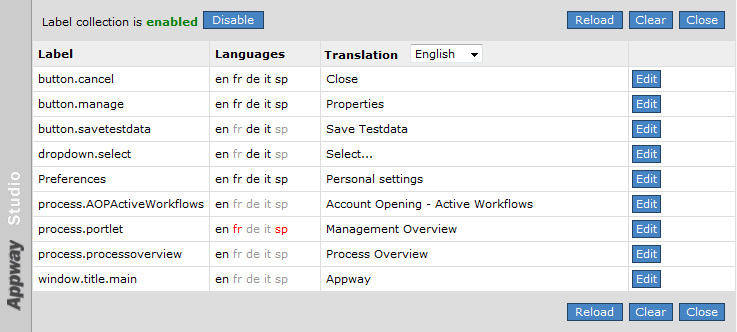
Differently from the Overriding Translation approach, the Label Manager in the Developer Toolbar allows you to edit the Label Business Object directly. Please, refer to the Languages, Labels and Translations article for full information on Label Business Objects and translations.
Prerequisite: You need the
Administrator Permissions to use this tool.
- Start the Label Manager by clicking on Open Translator in the Developer Toolbar (which is opened by clicking the arrow icon at the top of your Screen in FNZ Studio Runtime). Alternatively, use the following URL:
/frontend/labels.jsp
There is a built-in JavaScript function which can be used to open this URL in a new window:
openLabelManager()
- The Label Manager is integrated with the translation components of FNZ Studio. You need to enable the collection of Labels by pressing the Enable button. The Label Manager is enabled on a "per-Session" base.
The following buttons are available:
- Reload — Display the collected Language Labels
- Clear — Clear the list with the collected Language Labels
- Close — Close the Label Manager
The table has the following columns:
- Label — Label ID
- Languages — Shows which languages have available translations
- Black: translation is available
- Gray: a text is available, but it is a copy of another language
- Red: no text is available
- Translation — Translated text in the selected language
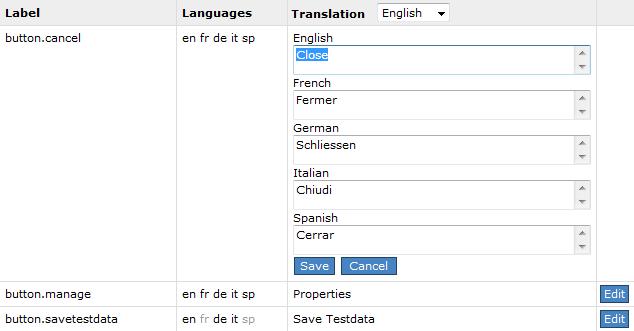
Click on the Edit button of a Label to edit Label translations