Form, Actions, and Inconsistencies Screen Components are deprecated in Appway 11 and will be removed in FNZ Studio 2024. See
deprecation information.
The Form, Actions, and Inconsistencies Screen Components belong to the Interaction Channels category. They are self-adapting components populated dynamically based on a given data context provided by the Data Logic Business Object.
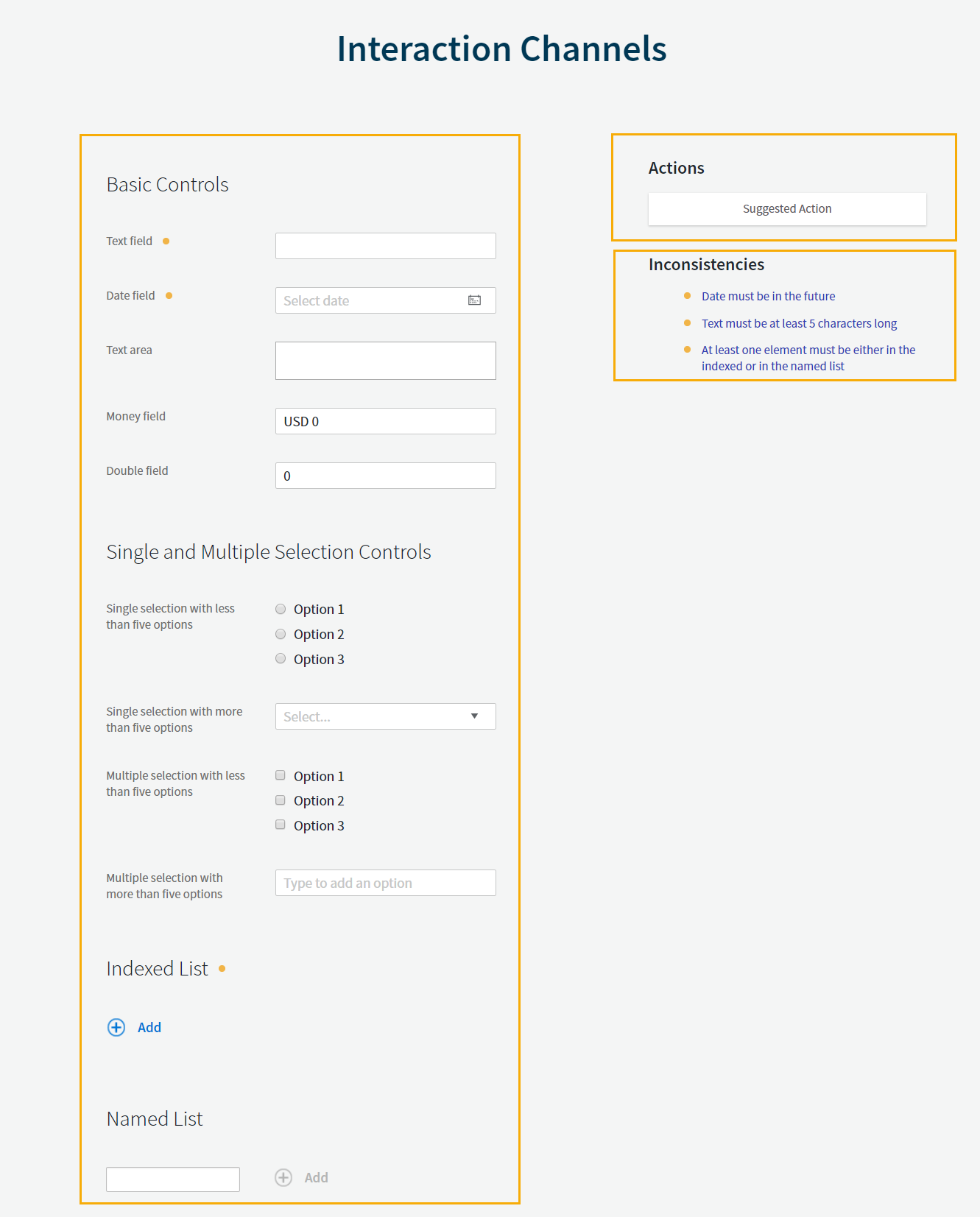
Form (left), Actions, and Inconsistencies (right) Screen Components
To "connect" a Form, Actions, or Inconsistencies Screen Component to a Data Logic Business Object:
- Create a new Screen which uses the Form, Actions, and/or Inconsistencies Screen Components.
- Define the settings for the Form, Actions, and Inconsistencies components on the Properties tabs.
- Now you have two alternatives:
- Select this Screen in a Data Task Process Component along with a Data Logic Business Object.
- Use this Screen as a Data Logic Screen and select the Data Logic Business Object there.
Note: The Actions Screen Component is not supported when using Data Logic Screens.
The Form Screen Component can be used to represent a form that is auto-generated based on data. The Form infers the exact appearance and order of the form fields from the underlying Data Logic Business Object. Depending on the data, the Form renders input fields, date pickers, dropdown lists, or radio buttons.
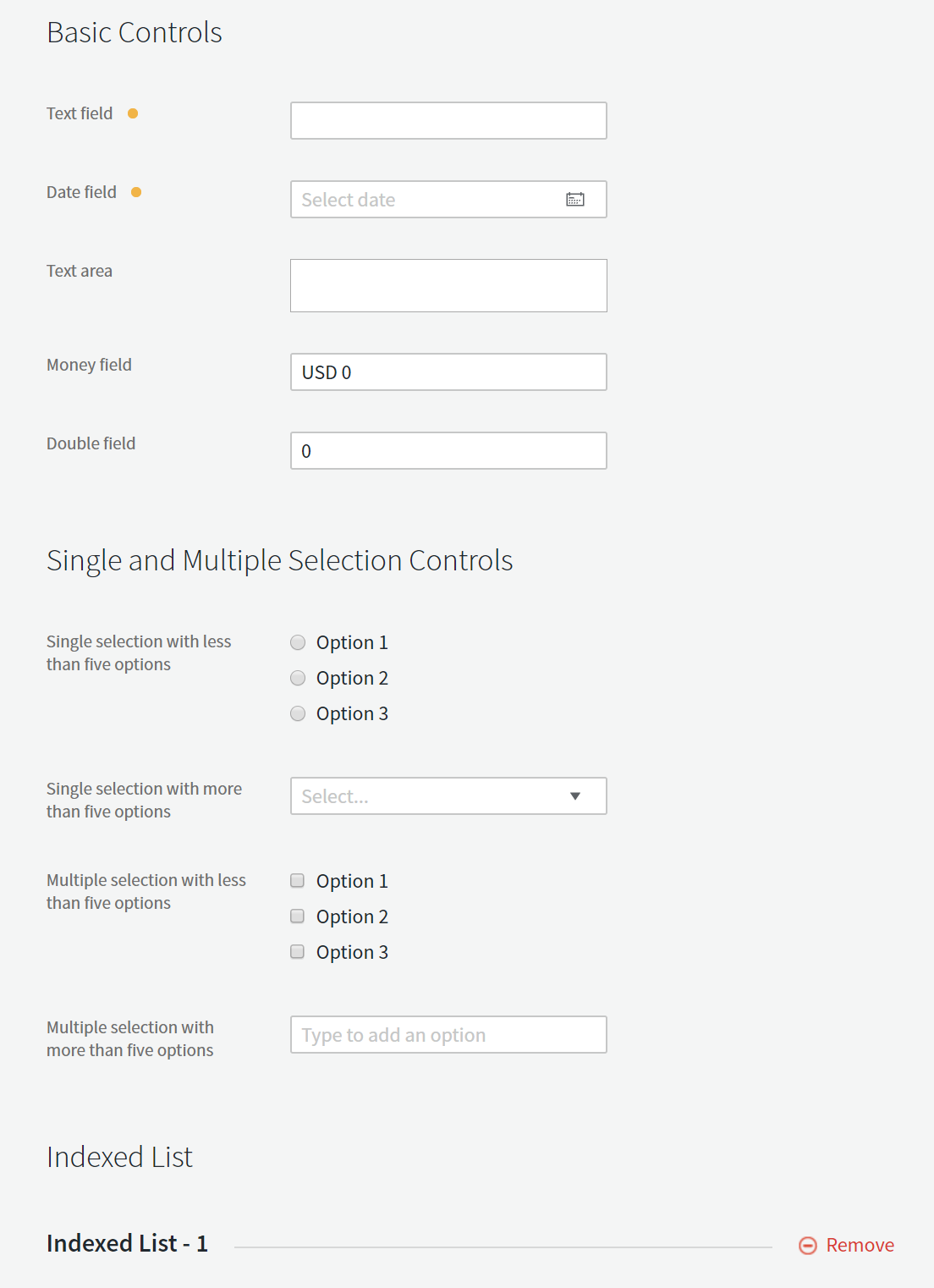
Available properties:
- HTML Id – Sets the HTML Id of the Form.
Define labels to use in the Form UI texts:
- Add and Remove – Used when rendering Collection Controls.
Defaults:
- 'Add' / Label:
aw.FormChannel.add - 'Remove' / Label:
aw.FormChannel.remove
- Select – Used in dropdown lists.
Default:
- 'Select...' / Label:
aw.FormChannel.select
- Type to add– Used in multiple selection fields.
Default:
- 'Type to add an option' / Label:
aw.FormChannel.typeToAdd
For more information, see also the Style Business Object article.
Form Style Business Object
The Form Style Business Object references a series of other Style Business Objects, one for each possible type of control, namely, Checkbox, Checkbox List, Text Area, Text Field, Radiobutton List, Date Picker, Dropdown List and Multiple Selection Field.
The Actions Screen Component displays the actions a user can perform. Available actions are based on End Task Action and Start Subprocess Action Controls defined on the Controls tab of the Data Logic Business Object (see documentation for more information).
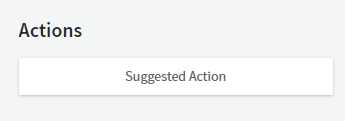
Available properties:
- HTML Id – Sets the HTML Id of the Actions component.
Define labels to use in the Actions UI texts.
- Suggested Actions
Default label:
- 'There are no suggested actions available' / Label:
aw.Actions.noSuggestedActions
Define the Style Business Object to use for the Actions.
The following event is available for the Actions component:
- onsubprocessstart – Performs the defined actions when a Sub-Process is started from the UI. This is useful in situations where the Sub-Process performs an action in the background which you want to reflect in the UI.
The Inconsistencies Screen Component provides information on the data that does not meet the Cross-Data Class Expression and Multiple Properties Expression Rules defined in the Data Rules tab. When you click on the inconsistency message, the related field/s in the form is/are highlighted.
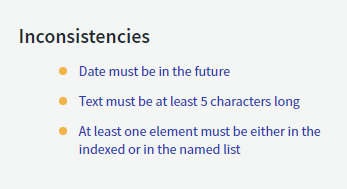
Available properties:
- HTML Id – Sets the HTML Id of the Inconsistencies component.
Define labels to use in the Inconsistencies UI texts.
- Inconsistencies
Default:
- 'Inconsistencies' / Label:
aw.Inconsistencies.noInconsistencies
Define the Style Business Object to use for the Actions.
The exact appearance of items rendered by the Form, Actions, and Inconsistencies Screen Components depends on the settings in the Data Logic Business Object:
- Elements are ordered from the top down in the Form Screen Component in the same order in which the controls are organized on the Controls tab of the Data Logic (except for End Task Action and Start Subprocess Action Controls which are displayed in the Actions Screen Component).
- The Inconsistencies Screen Component is populated according to the settings made on the Data Rules tab (see, especially, the Multiple Properties Expression and Cross-Data Class Expression Rules).
See the example below for detailed information on how the settings of the Data Logic are interpreted by the Form, Actions, and Inconsistencies Screen Components.
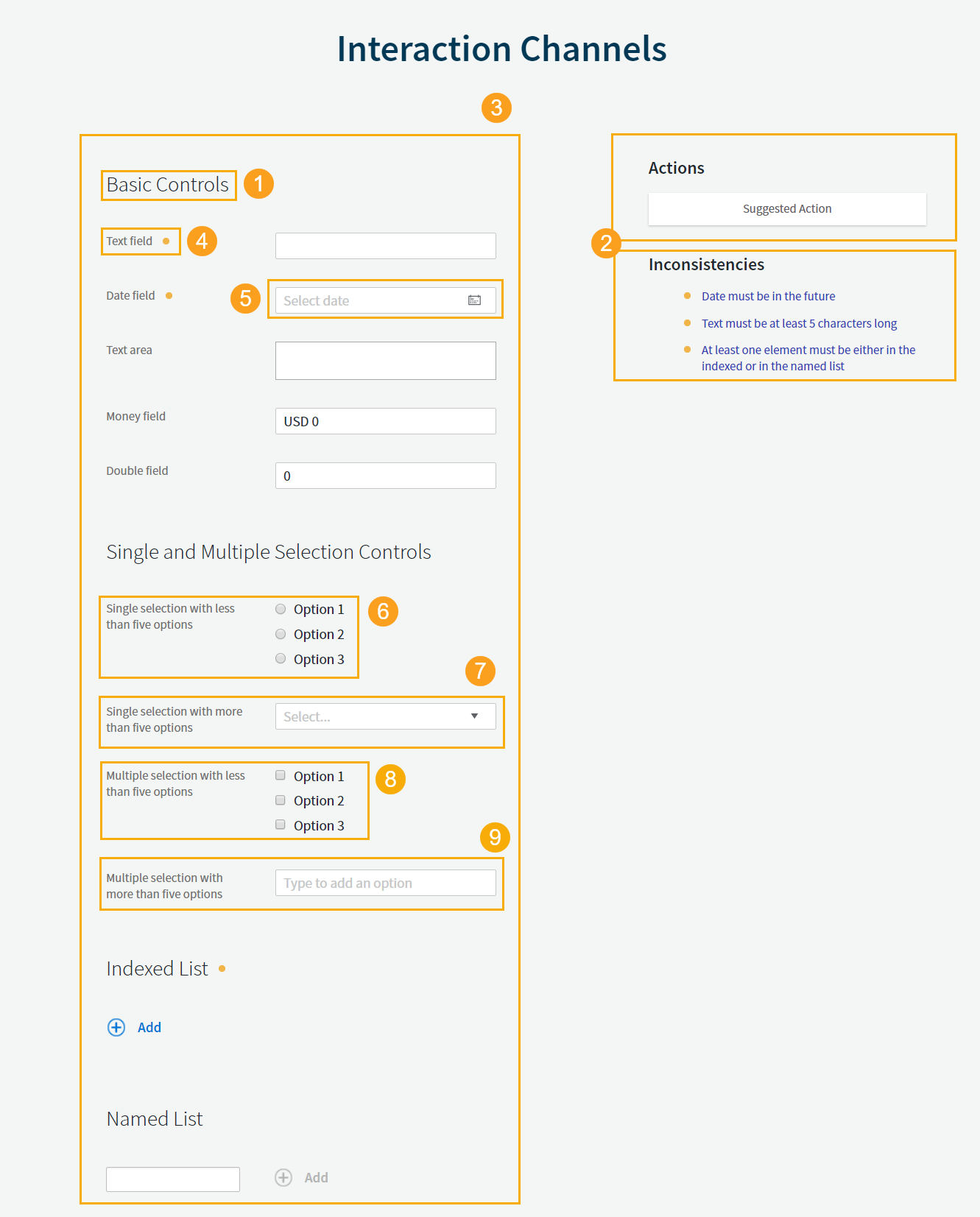
An example of the Form, Actions, and Inconsistencies Screen Components with boxes indicating what different parts of the UI are based on
Legend:
- The Label defined for a Data Class control nested inside the Group Control described in (1).
- The content of the Actions and Inconsistencies Screen Components is populated according to the following settings in the Data Logic Business Object:
- Actions – Based on End Task Action and Start Subprocess Action Controls.
- Inconsistencies – Lists all inconsistencies according to the criteria defined on the Data Rules tab (Cross-Data Class Expression and Multiple Properties Expression Rules).
- The Form fields are rendered based on the individual data entities (and their data type) contained in the Data Class Control.
Note: If the nested properties of a Data Class Control include a Data Class, ensure it is properly initialized so that this Data Class is rendered correctly, for example with (replace DataClassName, NestedDataClassName, and NestedDataClassType with the actual names):
DataClassName := NewObject(DataClassName);
$a.NestedDataClassName := NewObject(NestedDataClassType);
Return $a;
- The yellow dot indicates an inconsistency has been detected. Details on the inconsistency can be found by clicking on the dot or checking the Inconsistencies channel.
- This field is rendered with a date picker, as the data type is Date.
- This field is rendered as radio buttons as three conditions are fulfilled:
- A Catalog Values Rule is defined.
- The data type is String.
- There are 5 or less items in the Catalog which determines that the Form renders radio buttons instead of a dropdown list.
- This field is rendered as a dropdown list as three conditions are fulfilled:
- A Catalog Values Rule is defined.
- The data type is String.
- There are 6 or more items in the Catalog which determines that the Form renders a dropdown list instead of radio buttons.
- This field is rendered as a checkbox list as the following conditions are fulfilled:
- A Catalog Values Rule mapping a Catalog to a variable with the collection type Indexed elements is defined.
- There are 5 or less items in the Catalog which determines that the Form renders a checkbox list instead of a multiple selection field.
- This field is rendered as a multiple selection field as the following conditions are fulfilled:
- A Catalog Values Rule mapping a Catalog to a variable with the collection type Indexed elements is defined.
- There are 6 or more items in the Catalog which determines that the Form renders a multiple selection field instead of a checkbox list.
For design suggestions, see the Form, Actions, Inconsistencies section of design.appway.com.