In my Appway Application, I have a Dropdown List or a Multiple Selection Field associated with a Catalog with thousands of entries as a Data Source. To ensure efficiency, I want to avoid loading all the entries when first rendering the Screen. Instead, I would like to lazy load the entries as soon as the user enters some search query or scrolls through them.
The Dropdown List and Multiple Selection Field Screen Components allow lazy loading. You need to have a Catalog as a Data Source and follow some simple steps for setting it up.
Important! The procedure explained in the following sections must be considered as a simplified example and must not be implemented as is. Input sanitization is required on your side to avoid possible SQL injection vulnerability.
To allow the lazy loading of Catalog entries, you need to have a Catalog that can retrieve a page of records based on:
- An input query
- The progressive number of the first record to be retrieved
- The number of records to be retrieved
For instance, let’s assume you have a Catalog that executes the following query on a database:
SELECT * FROM CITIES WHERE name LIKE $filter LIMIT $limit OFFSET $start
where $filter, $limit, and $start are input values coming from the frontend. For instance, the input values San, 50, and 100, respectively, would retrieve the 100th to the 150th records matching the filter 'San'.
To set lazy loading on your Catalog, follow these steps:
- In the Catalog to be used as the Data Source, declare three variables:
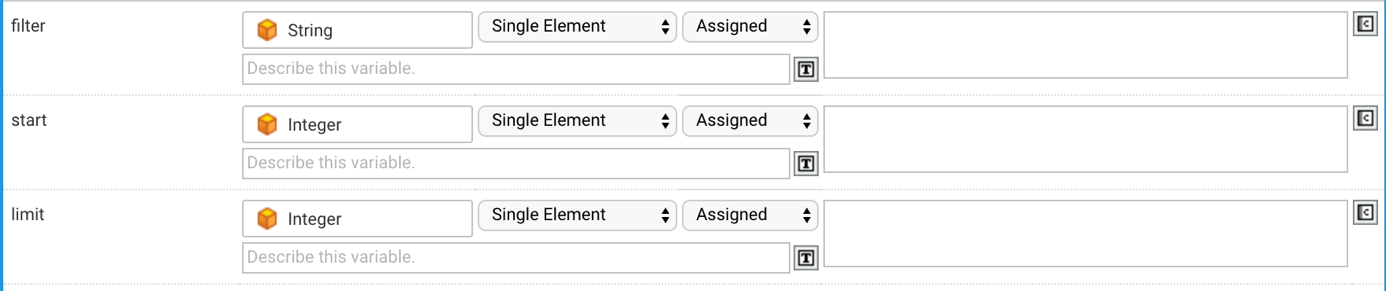
- Use these three variables to fetch a subset of records. For example, assuming that the Catalog retrieves records from a relational database, use these three variables in the query to lazy load the records:
SELECT * FROM CITIES WHERE name LIKE $filter LIMIT $limit OFFSET $start
Or, if the Catalog fetches entries from a web service, use the three variables when making the call to fetch the correct subset of records.
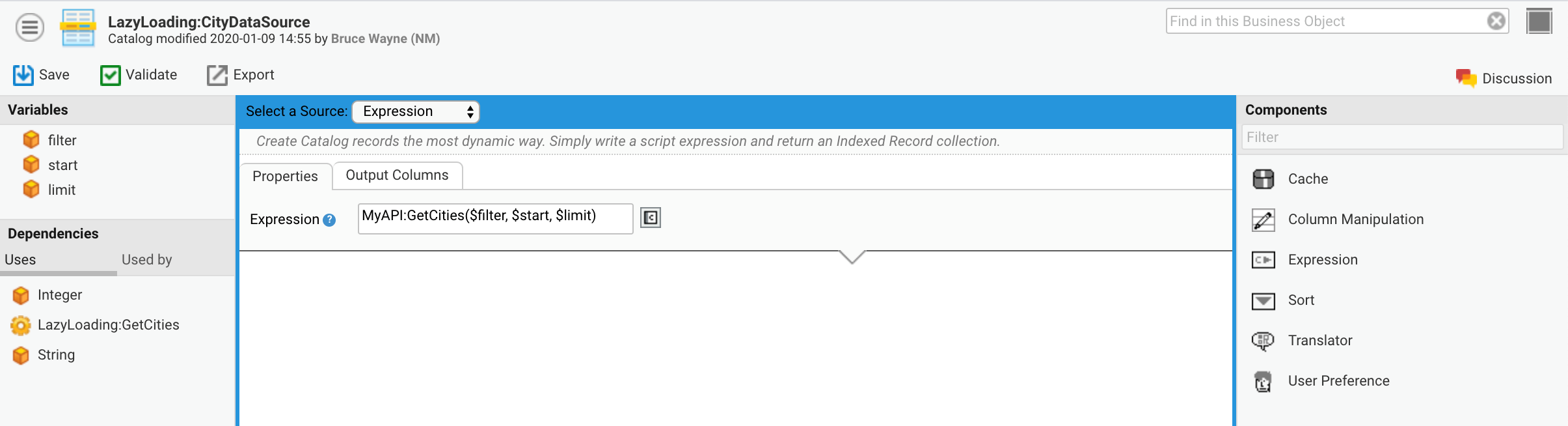
- In your Dropdown List or Multiple Selection Field Screen Component, go to the Data Source tab, and select the Catalog you set up in step 1, as in the figure below:
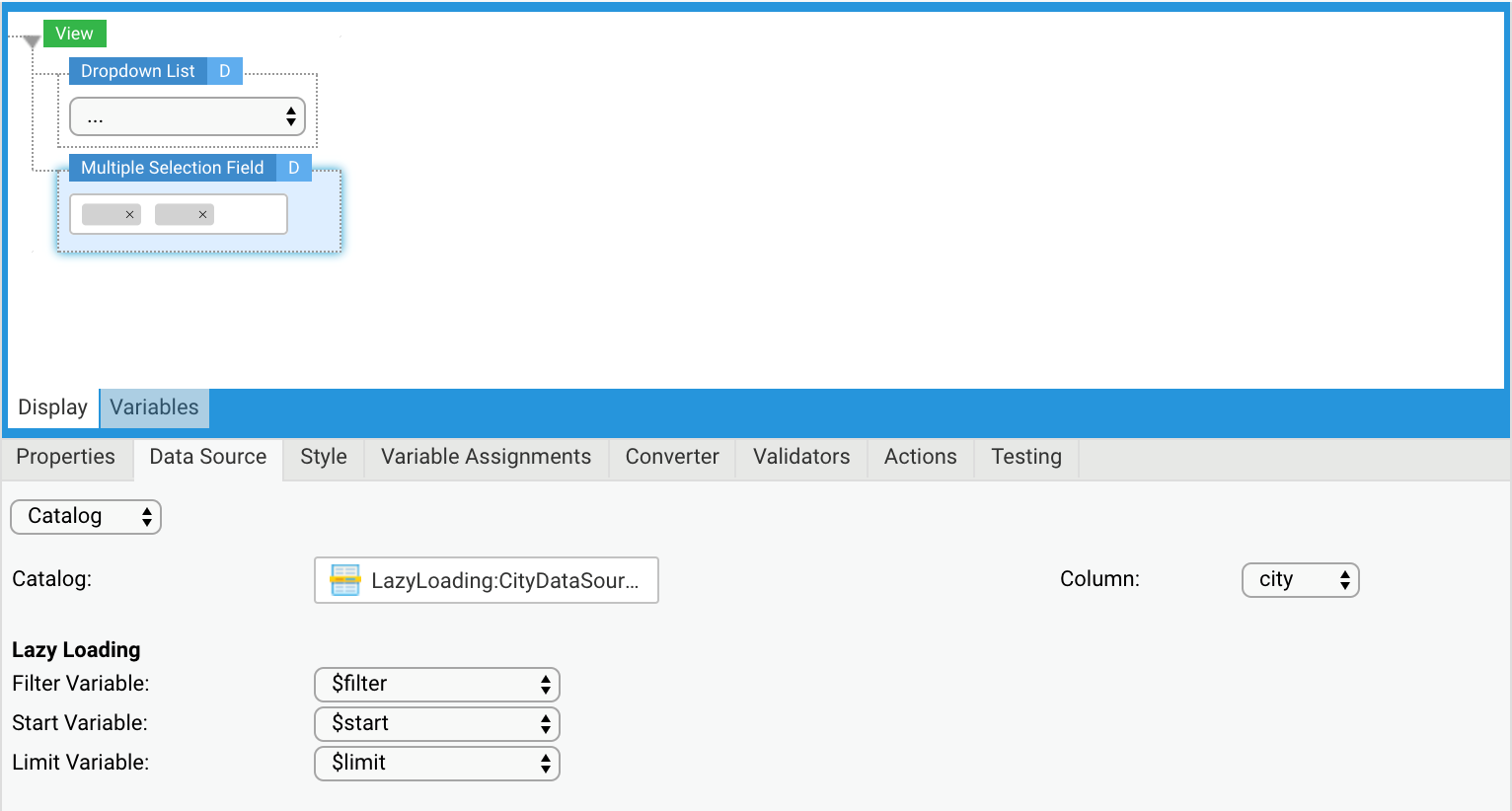
Important: For lazy loading capabilities to work correctly, make sure you follow the rules described below.
- Specify all the variables for filter, start, and limit. Defining only some of them leads to unpredictable behavior.
- Do not assign values to the variables $filter, $start, and $limit. The frontend component (e.g. the Dropdown List) assigns them values based on the user interaction. E.g., $filter is populated automatically with the value entered by the user in the search field.
- When enabling lazy loading by specifying these variables, make sure the Catalog implements the actual lazy loading logic. Not doing so leads to duplicated or missing entries.
To see a how lazy loading works in the Workspace, watch the following