Conditional styles allow Appway developers to apply a certain Style Business Object to a Screen Component only if a given condition is met.
Before Appway 9, one single Style Business Object could be set for each Screen Component, meaning that the developer might need to duplicate the Screen Component each time they wanted to apply a different Style Business Object. This had the disadvantage of creating complex Screen structures, as well as requiring changes to be manually applied to each single Screen Component whenever necessary.
Conditional styles, on the other hand, allow managing the implementation of styles in a neater and more manageable way.
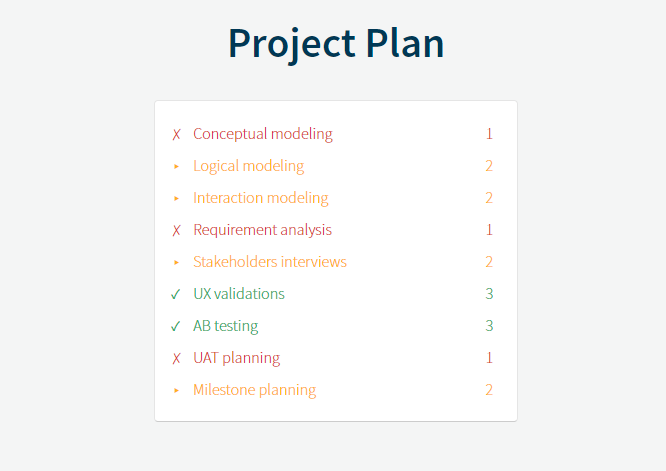
Conditional Styles applied to List Items: Preview
To apply Conditional Styles to your Screen Component, do the following:
-
On the Screen Editor, go to the Style tab and click on the Add conditional style ('Plus' icon) button.
-
In the Condition field, enter the condition to be evaluated using Appway Script Language (default is false). In the corresponding Style field, select the Style Business Object to be applied if the condition evaluates to true (the default value is the Default Style Business Object for that component).
-
You can:
- Add as many conditions as necessary by clicking on the Add conditional style ('Plus' icon) button.
- Change the order of conditions (with the exception of the Default row) by dragging and dropping the related rows.
- Delete conditions (with the exception of the Default row) by clicking on the Delete ('Minus' icon) button.
-
The system applies the following logic:
- Conditions are evaluated in the order in which they are set on the Screen: if the first condition evaluates to
false, the system evaluates the second condition and so on. - The last entry is always the Default value, which has no condition assigned and it applies if no condition evaluates to
true.
Note: The conditions are evaluated during the
Render phase, that is, when the Screen is rendered by the server, including any time server-side actions are executed, or before an Ajax Update action.
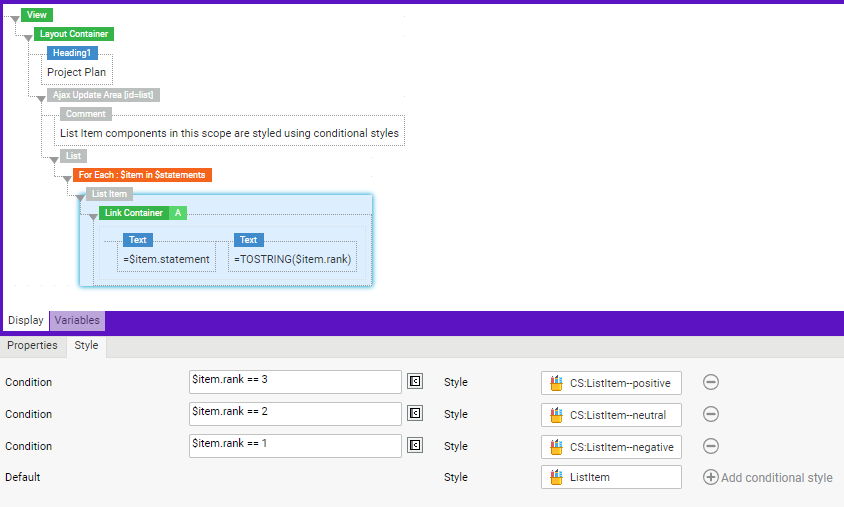
Conditional Styles applied to List Items: Edit Mode
A number of validation mechanisms is in place for Conditional Styles. Validation Errors and/or Warnings are issued if the following conditions are not met:
- Both the Condition and Style fields are mandatory and must be filled.
- The selected Style Business Object must be valid and visible from the Package you are working on.
- Condition must return a Boolean value (
true or false).
Finally, an Information message is issued if:
- The configured conditions are always
true or false.
The Style Business Objects defined in the Style Package have priority over the ones defined statically in the Screen Editor.
When a Style Package is defined on a Screen (or on a Screen including it), all Style Business Object IDs are resolved from the Style Package. Only if the Style Business Object is not found in the Style Package, then the ID is resolved from the static reference set in the Screen Component Screen Editor (Style tab).
The above evaluation can be described as the following process:
- Conditional Styles are evaluated, and the ID of the Style Business Object to be assigned is determined.
- A Style Business Object with the ID determined in the previous step is searched in the Style Package and, if found, it is applied.
- If a Style Business Object with such an ID cannot be found in the Style Package, then the one set in the Screen is used.
The Set Style client-side Action allows an event to trigger a change in the Style Business Object for a Screen Component.
Since the Set Style Action is applied client-side and Conditional Styles are applied after a server round-trip, the implementation of both styling features is likely to lead to unpredictable results.
For this reason, the concurrent use of Conditional Styles and the Set Style Action on a Screen Component MUST be avoided.