The Style Package Tools product offers support for defining and maintaining Style Packages.
The Style Package Tools contains an Application called Style Package Assistant that guides developers in the process of defining the list of Style and Style Value Business Objects of a Style Package. Starting from a list of Packages chosen as a source of Style Business Objects and Style Value Business Objects, the tool provides step by step guidance to create copies of these Business Objects into a Style Package specified as a destination.
The following elements are required to use the Style Package Tools:
- The Style Package Tools Package, which can be downloaded from the Products page.
- The Style Package Tools Extension, which can be requested from Appway Support.
The Style Package Tools Extension provides the functionality required to clone a list of Style and Style Value Business Objects together with their dependencies and then import them into a Style Package. The Extension also ensures that the entire dependency tree between imported Business Objects is recreated inside the destination Style Package and that no backward dependencies to the original source Packages exist.
The extension cannot run if the Package with the same name, called Style Package Tools Package, is not first installed in the Appway environment. If the Package cannot be found, the Extension fails to start.
The installation procedure should follow the steps:
- Import the Style Package Tools Package to your environment (can be downloaded from the Products page).
- Install the Style Package Tools Extension in your environment (contact Appway Support if you do not already have the extension).
- Start the Style Package Tools Extension.
- Invoke the Style Package Assistant by using the entrypoint stylePackageAssistant configured on the Style Package Tools.
Info: For a definition of Style Packages or if you want to recap how to use it in your solution together with the Design System, please revisit the
following recipe.
The Style Package Assistant application provides support to complete Style Packages based on the Style and Style Value Business Objects that are stored inside other Packages of an Appway installation.
The application guides application developers along the following steps:
0 As a prerequisite step, create an empty Style Package
If you have not yet created a Style Package for your brand or theme, access Appway Studio. Go to Solution Design > Packages and click on the Create New button to create a new Package. Give it a name that reflects the name of your brand or theme.
1 Select the source Packages and define the destination Style Package
First, select all the Packages that contain the Style and Style Value Business Objects to be added to your Style Package.
Then, select your destination Style Package. Please note that read-only or sealed Style Packages are excluded from this list.
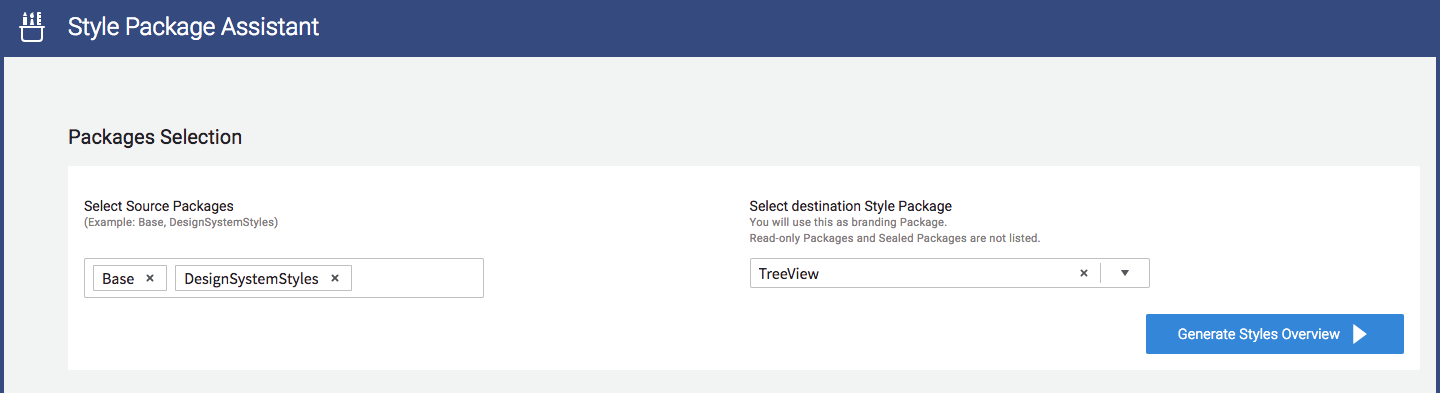
2 Generate the styles overview
Once you have made your selection, press the Generate Styles Overview button to generate on overview of all the styles contained in the source Packages.
The short IDs of all the Style and Style Value Business Objects contained in the source Packages are listed in a tabular overview. Uncommitted deleted Business Object are excluded from this operation.
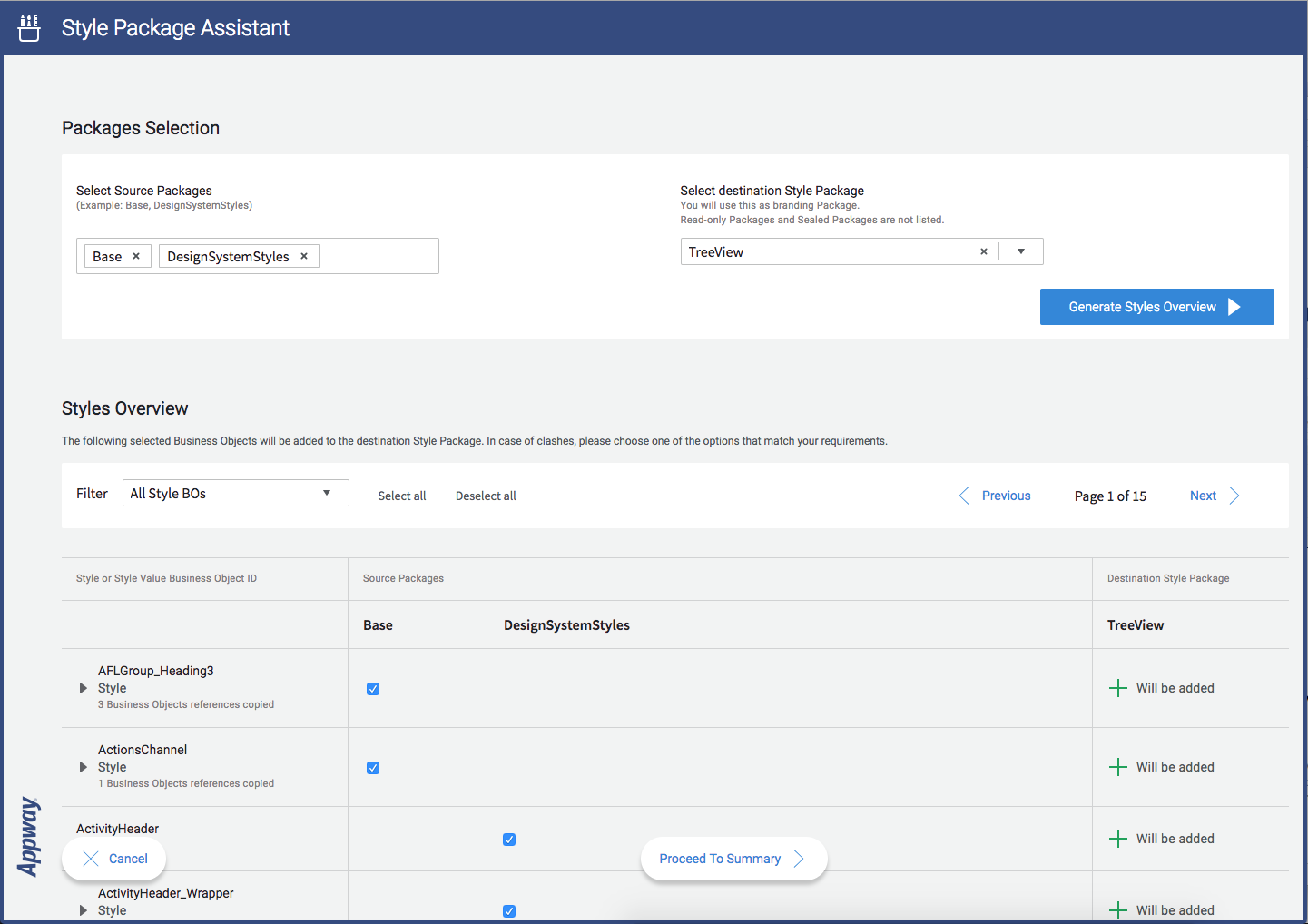
3 Inspect the Style and Style Value Business Object list
The list of Style and Style Value Business Object referred by each of them can be inspected by opening the interline.
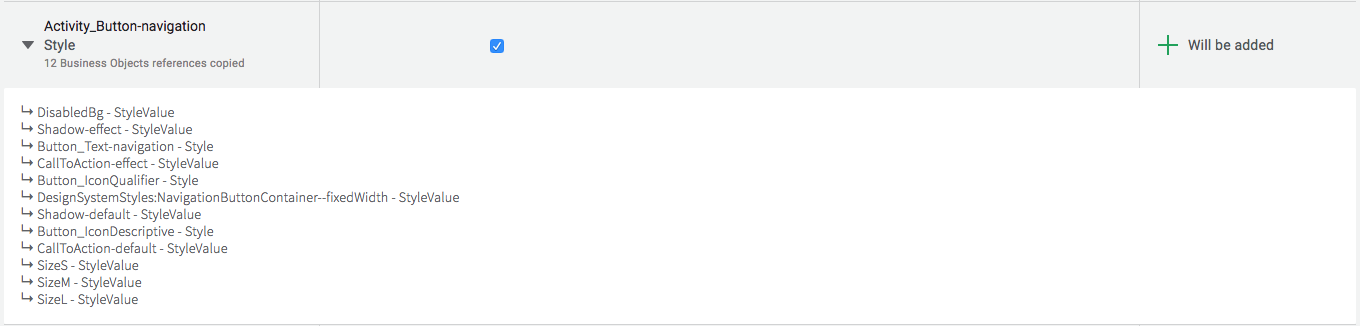
The right-most table column indicates whether the Business Object already exists in the destination Style Package or not:
a. Exists already: is displayed when the Business Object is already contained in the destination Style Package.

b. Will be added: is the default value displayed when the Business Object is missing from the destination Style Package, meaning that the Business Object is selected for being added into the destination Style Package.

c. Will not be added: by deselecting the checkbox, the Application developer has the possibility to prevent a missing Business Object from being added into the destination Style Package.

4 Resolve clashes
If the short ID appears in more than one source Package, the Application developer is required to resolve the clash by manually selecting a single source through the radio button. Checking the Style references placed in the interline can help identify the desired Business Object. Only resolved clashes are considered.

Warning: The tool does not override Style and Style Value Business Objects that already exist in the destination Style Package. If you want to replace Style and Style Value Business Objects existing in your Style Package with Business Objects that have the same short ID from another Package, you need to first delete them manually from the destination Style Package by using the delete functionality provided in the Studio Business Object library. At this point, you can use the Style Package Assistant to perform the copy operation.
5 Proceed to selection summary and confirm
A second screen provides an overview of all the selected Style and Style Value Business Objects listed by source Package. This step provides the possibility to identify possibly erroneous style definitions.
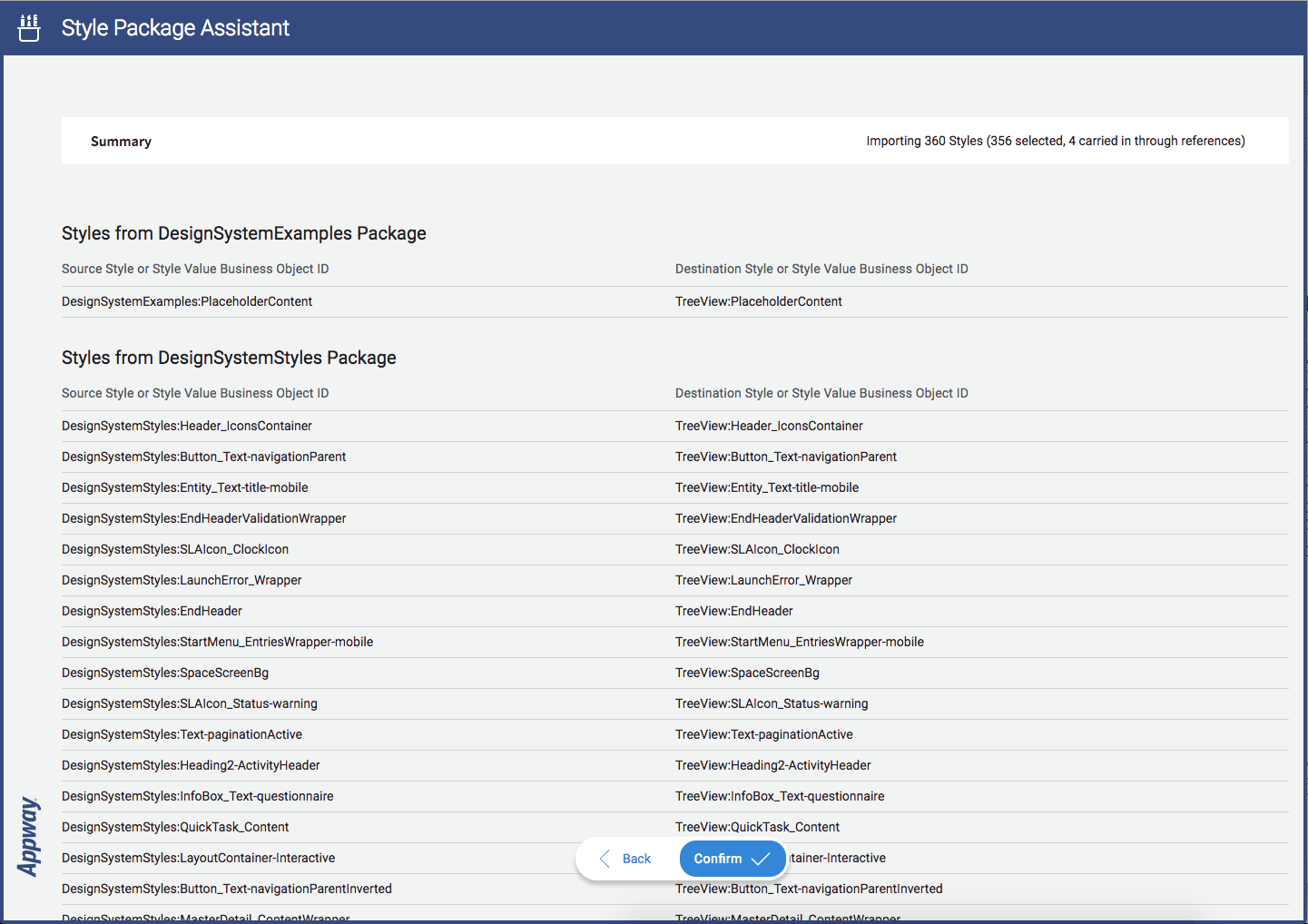
If everything is correct, click on the Confirm button to create copies of the listed Business Objects in the destination Style Package.
6 Confirmation
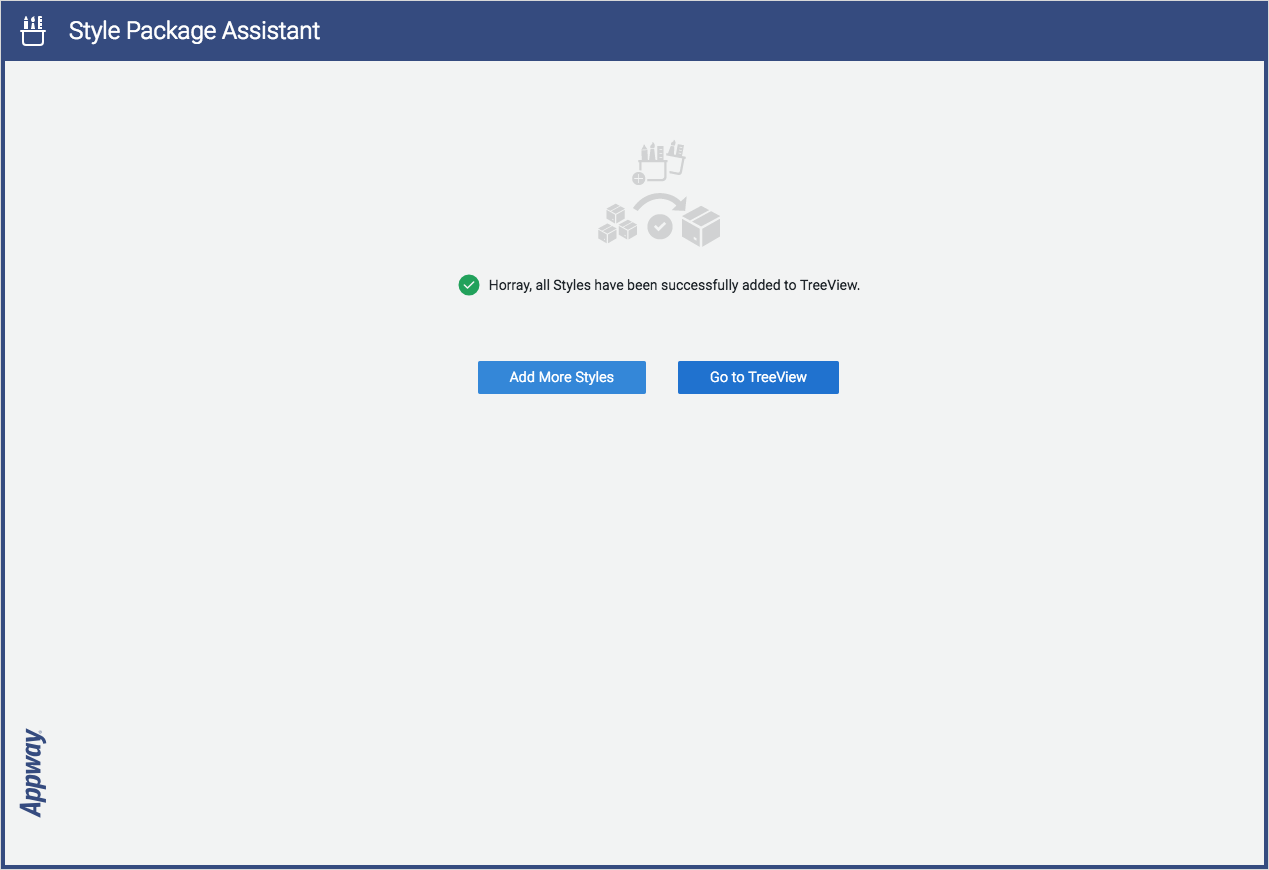
Once confirmed, the Styles get created in the destination Style Package and the developer can navigate directly into that Style Package in the Appway Studio or go back to the first Screen and perform the operation again for another combination of source Packages/destination Style Package.
The Style Package Assistant tool helps automate the following tasks:
-
Define the content of a new Style Package
This is particularly helpful when creating new or additional themes of an Application – a Style Package is used to define a theme.
For example, you might want to define an Application ‘look and feel’ that differs from the Appway Design System default ‘look and feel’. In this case, you can use the tool to define a Style Package based on the Style and Style Value Business Objects delivered with the Base and Design System Packages. Once you have imported all the Business Objects into the Style Package, you can define the desired ‘look and feel’ by editing the desired styling properties.
For more details on using Style Packages in conjunction with the Appway Design System, please have a look at the recipe dedicated to this topic.
-
Complete a Style Package
This is useful when you know that additional Style and Style Value Business Objects have been added to specific source Packages, e.g. Base, Design System or another Package in your Application, and you want to update your Style Package— and therefore your Application theme.
We are very much open to questions and suggestions from your side. If you have any feedback regarding the Style Package Tools, open a ticket on the Support page using the project "Appway - Platform - Design System".