The Dynamic Document Format Language is an XML-based markup language. It is based only on a few XML tags and offers a simple method to format dynamic document output containing text, tables, images, lines and colors.
Appway provides the PDF Output Table Business Object, which allows creating dynamic PDF documents. For more information see:
For example, you can create a basic structure combining Table, Row, and Cell Components and expand this structure according to your needs.
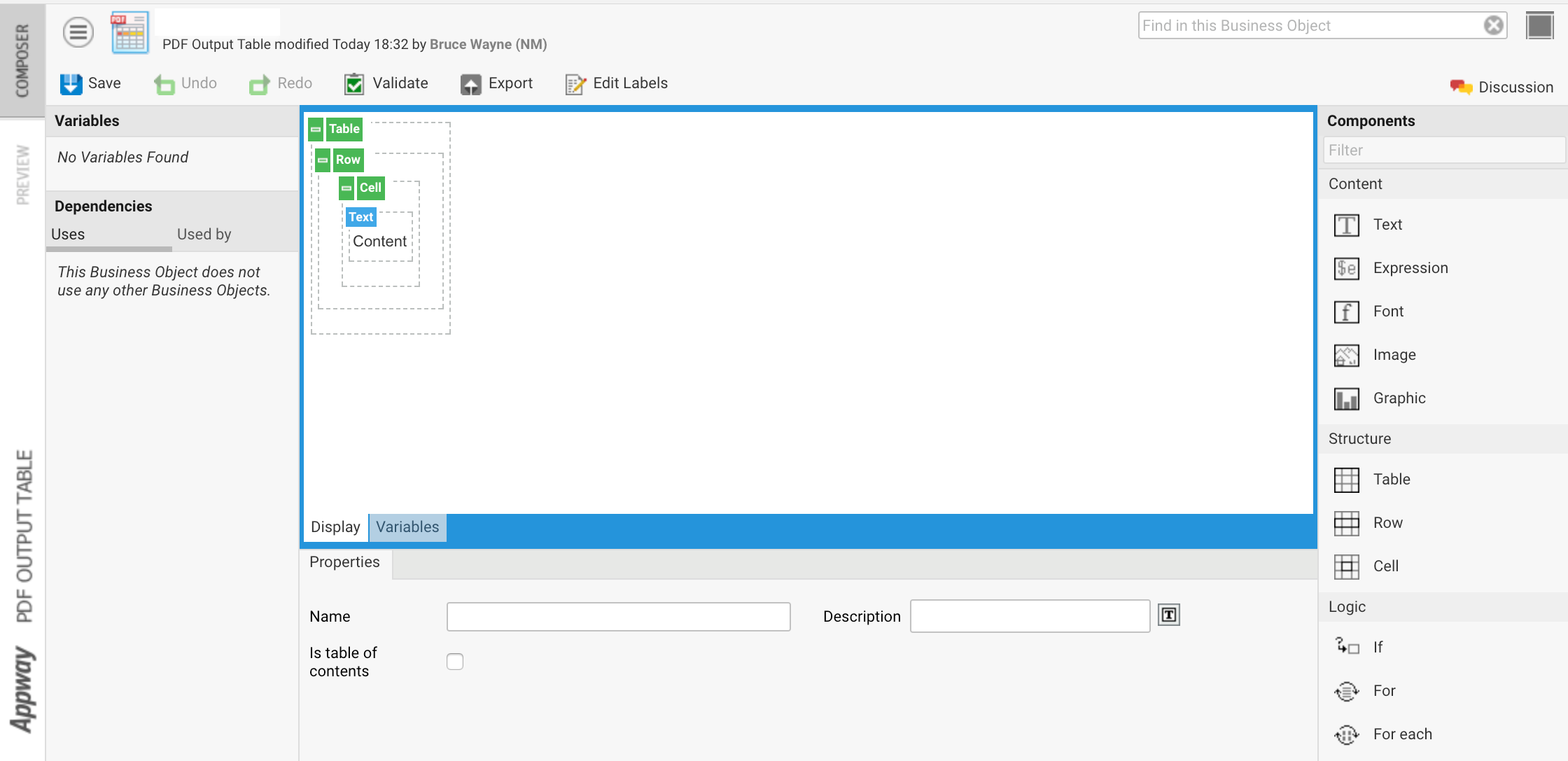
PDF Output Table: Composer Mode
The following sections of this document describe the PDF Output Table components and their properties.
A simple example (minimum required structure)
 <?xml version="1.0" encoding="ISO-8859-1" standalone="yes"?>
 <table xmlns:xsi="http://www.w3.org/2001/XMLSchema-instance" xsi:noNamespaceSchemaLocation="renderer.xsd">
    <row>
        <cell>content</cell>
    </row>
 </table>
The TABLE element is always the root element of every document, and the root element of any table. The TABLE element can be used recursively within other TABLE elements:
 <?xml version="1.0" encoding="ISO-8859-1" standalone="yes"?>
 <table xmlns:xsi="http://www.w3.org/2001/XMLSchema-instance" xsi:noNamespaceSchemaLocation="renderer.xsd">
     <row>
         <cell>
             <table>
                 <row>
                     <cell>content</cell>
                 </row>
             </table>
        </cell>
     </row>
 </table>
A CELL element can contain several TABLE elements:
 <?xml version="1.0" encoding="ISO-8859-1" standalone="yes"?>
 <table xmlns:xsi="http://www.w3.org/2001/XMLSchema-instance" xsi:noNamespaceSchemaLocation="renderer.xsd">
     <row>
        <cell>
             <table>
                 <row>
                     <cell>content</cell>
                 </row>
             </table>
             <table>
                 <row>
                     <cell>content</cell>
                 </row>
             </table>
         </cell>
     </row>
 </table>
The TABLE attributes are:
- font – The font name as provided by the Fonts and Styles Manager
- fontstyle – The font weight as provided by the Fonts and Styles Manager
- lead – The lead in pt
- fontcolor – The color of the font defined as an RGB Color triplet (255,255,255)
- cellspacing – Defines the spacing between cells of a TABLE element. (see section 1.3 CELL)
See the TABLE example. Attributes configured at ROW level are:
- break – The break attribute defines a potential break point, meaning that the Row element can be 'interrupted' by a page brake if its content does not fit (e.g., an image will never be split, while text will break properly so it won't be cut off). The break attribute is checked by default. If unchecked, you need to make sure the content actually fits the printing area, otherwise extra pages could be introduced.
- pagebreak – The pagebreak attribute forces a page break point before the row where it is configured.
| Column 1 | Column 2 | Column 3 |
|---|
| Text | Text | Text |
The CELL element contains the visible elements of any Dynamic Document such as the border lines, text, bindings or images.
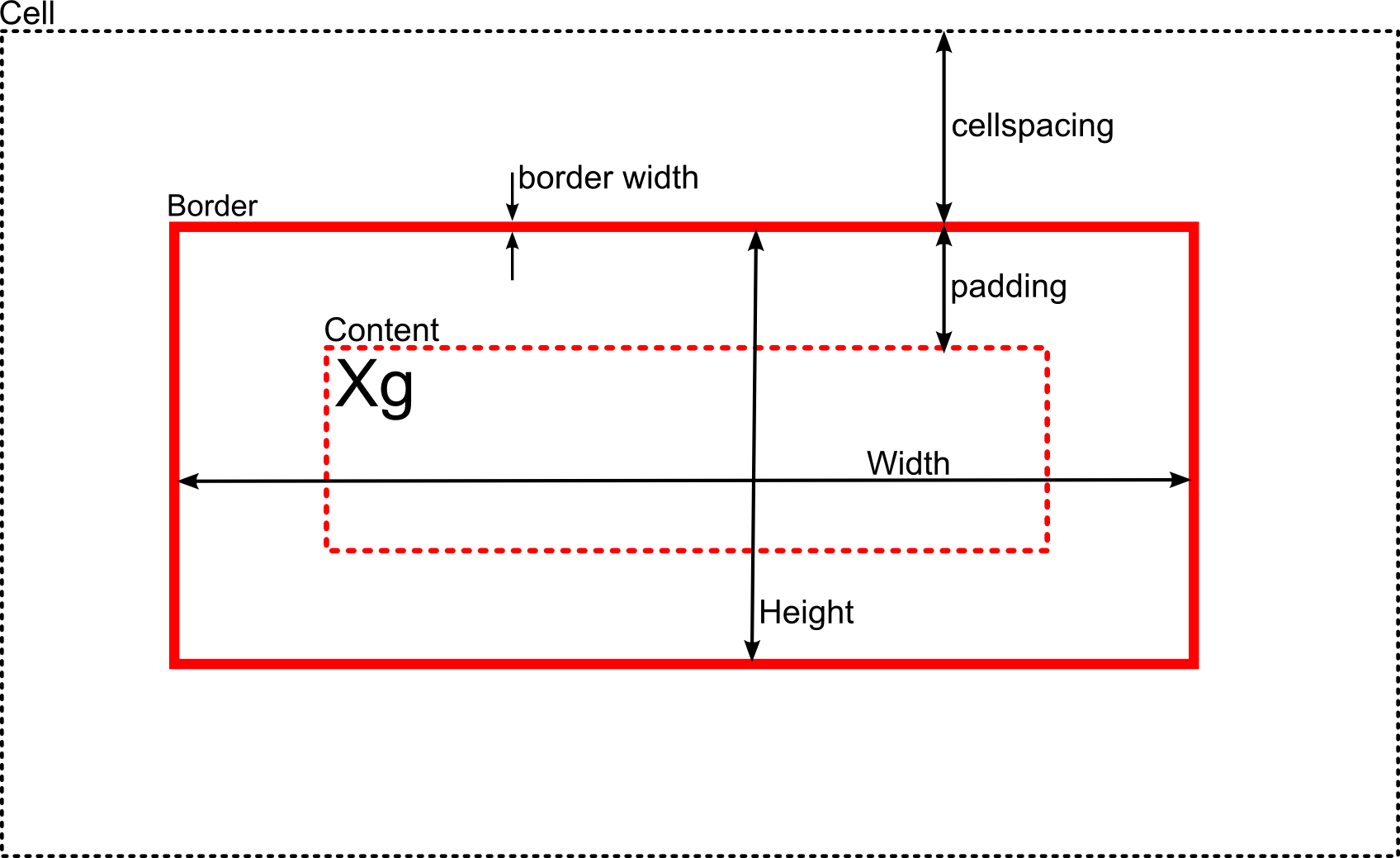
Figure 1 : CELL structure
Width and Height control of single CELL elements:
- width="10mm/10pt" – The CELL element's width in mm or pt
- height="10mm/10pt" – The CELL element's height in mm or pt
- dynamicwidth="true" – IF set to TRUE, the CELL spreads across the remaining space left on the ROW not used by any other CELL. If set to FALSE, the CELL width is forced to the maximum remaining width of the CELL's content
Vertical and Horizontal alignments:
- align="left" – Aligns the CELL's content to the left border. This is the default value for "align"
- align="center" – Aligns the content to the CELL's center. Text justification is also affected, resulting in center alignment of the text content
- align="right" – Aligns the CELL's content to the right border. Text justification is also affected, resulting in right alignment of the text content
- valign="top" – Aligns the CELL's content to the top border. This is the default value for "valign"
- valign="middle" – Aligns the content to the vertical center of the CELL. Text justification is also affected, resulting in vertical center alignment of the text content
- valign="bottom" – Aligns the CELL's content to the bottom border. Text justification is also affected, resulting in right alignment of the text content
The spacing between the CELL boundaries and the border, as well as the spacing between the border and the actual content is controlled with the cell spacing and padding attributes. Cell spacing and padding unit is set in decimal millimeters (mm) or in points (pt). The following attributes can be used:
- cellspacing="5mm/pt" – Controls the cell spacing for all four cell borders. Affects all four cell borders at the same time
- cellspacingtop="5mm/pt" – Spacing from the top cell border. Affects only the top cell border. All other spacings remain unchanged
- cellspacingbottom="5mm/pt" – Spacing from the bottom. Affects only the bottom border. All other spacings remain unchanged
- cellspacingleft="5mm/pt" – Spacing from the left. Affects only the left border, all other spacings remain unchanged
- cellspacingright="5mm/pt" – Spacing from the right cell border. Affects only the right cell border, all other spacings remain unchanged
- padding="5mm/pt" – Controls the padding for all four borders. Affects all four borders at the same time
- paddingtop="5mm/pt" – Spacing from the top border. Affects only the top border. All other boarders remain unchanged
- paddingbottom="5mm/pt" – Spacing from the bottom border. Affects only the bottom border. All other borders remain unchanged
- paddingleft="5mm/pt" – Spacing from the left border. Affects only the left border, all other borders remain unchanged
- paddingright="5mm/pt" – Spacing from the right border. Affects only the right border, all other borders remain unchanged
Each CELL element can have a visible border line. The border appearance can be controlled via several CELL attributes:
- border="true" – The borders can be set to on or off. By setting the border attribute to TRUE the borders are visible. The borders on each side can also be activated or deactivated separately by using bordertop="true", borderbottom="true", borderleft="true" and borderright="true"
- borderwidth="1mm/pt" – This attribute controls the border's width. The border width can also be controlled separately for all four borders by using the attributes borderwidthtop, borderwidthbottom, borderwidthleft and borderwidthright
- bordercolor="0,0,0" – The color is set as an RGB triplet from 0-255 for all four borders at once. There is no individual bordercolor for top,bottom,left or right borders
- bgcolor="255,255,255" – Each cell can have its own background color. The color is set as an RGB triplet from 0-255
- transparency="0.5" – Transparency of the background color (0=transparent, 1=opaque)
Examples:
<cell border="true" bgcolor="255,0,0" transparency="0.5">your text</cell>
The CELL element supports a mix of various types of content:
- <FIELD expression="$person[1].name"> – Standard field for data binding. Cannot be mixed with other content
- ${$person.address.street} – Similar to FIELD, can be mixed with various CELL content
- [LABEL:languagelabelname] – A Language Label
- <font style="arial" bold="true">some text</font> – Font configuration
Examples:
 <cell><field name="myName"/></cell>     (only one occurence of FIELD allowed!)
 <cell>hello my name is ${$person.firstname}</cell>
 <cell>[LABEL:helloname] ${CONCAT($person.firstname,' ',$person.lastname)}</cell>
 <cell><font style="arial" bold="true" underline="true">[LABEL:helloname] ${myName[1]}</font></cell>
Expressions can be used to define logic output formatting behaviour. A complete reference is found in the Document '"Expression Language Reference." Expressions provide String manipulations, math calculations and other useful functions.
The Page Numbering placeholders used in the Text Fields ($$P,$$P0,$$M,$$T) are not supported in dynamic documents, these are only valid in Text Fields. To create a Table of Contents, specific fields (cells) can be marked with any arbitrary String:
- marker="any name" – A marker field to mark a cell (this is used to retrieve a marker and its page number during the generation of the Table of Contents).
To retrieve markers and find the page number on which a specific cell is located, use the following function (only available for TOC (Table of Contents) dynamic fields):
<cell>${CAST(com.nm.sdk.data.pdfrenderer.LayoutCell, $fom.getMarkers($fom.getMarkers($fom.getTableRoots().get($n), 'Chapter').get($m), 'Section').get($i)).getPage()}</cell>
Every cell can contain a Link to an external resource.
<cell url="http://www.appway.com"></cell>
<cell url="=JOIN('http://',$host,'/index')></cell>
The Font configuration tag offers the following FONT attributes:
- style="default" – ID of the font style as seen in the Studio > fontstyle > properties > id
- name="arial" – ID of the font as seen in the Studio > font > properties > id
- size="12" – Size of the font in points
- color="black / #000000 / 0,0,0" – Color of the font. The color can be defined as standard color names, HEX, or RGB
- bold="true" – Can be "true" or "false"
- underline="true" – Can be "true" or "false"
- italic="true" – Can be "true" or "false"
- strikethru="true" – Can be "true" or "false"
- subscript="true" – Can be "true or "false". "True" lowers the font below the other characters
- superscript="true" – Can be "true or "false". "True" displays the font slightly above the other characters
Examples:
<cell><font style="arial" bold="true" underline="true">your text</font></cell>
To rise or lower fonts within a text the font element offers two attributes: subscript and superscript.
H<font subscript="true">2</font>O

March 3<font superscript="true">rd</font> 2010
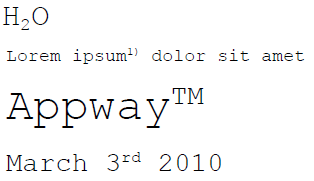
Figure 2 : Examples of Sub and Superscript
Note: Subscripts and superscripts cannot be concatenated.
The font size of the subscript or superscript are 60% of the original font size. Superscripts are raised by 33%. Subscripts are lowered by 15%. Both values can be set:
ABC<font size="50%">XXX<font size="150%">123</font></font>
The values for size and rise can also be set in mm:
Appway<font size="2mm" rise="5mm">TM</font>
If the standard default values do not need to be changed, the following method greatly simplifies the use of superscript or subscript:
<sub> = <font subscript="true">
<sup> = <font superscript="true">
Note: The use of subscript or superscript font does not work properly when using Underline.
A standard simplification allows you to use a somewhat easier notation for certain tasks:
<font ...>text</font>
<b>bold text</b>
<i>italic text</i>
<u>underlined text</u>
<del>stroke text</del>
<sup>super scripted text</sup>
<sub>subscripted text</sub>
All alternative notations can contain all font element attributes.
Loop command to iterate through arrays and collections of variable. FOR attributes are:
- start="1" – Start value for count
- end="10" / end="$list.size()" – Maximum value for count
- increment="1" – Amount added to count during each iteration
- variable="n" – Variable containing the current count value
Examples:
 <table>
     <for variable="n" start="1" end="$person.size()" increment="1">
         <row>
             <cell>${$person[$n].firstname}</cell>
             <cell>${$person[$n].lastname}</cell>
         </row>
     </for>
 <table>
Loop command to iterate through arrays and collections of variable types. FOREACH attributes are:
- variable="$item" – Variable containing the single item of the collection
- type="Person" – The data type of the single element of the collection
- collection="$persons" – The indexed or name collection
IF Condition are used to activate or deactivate parts of the Dynamic Document. Conditions are based on the Expression Language. The IF Conditions must evaluate to 'TRUE' or 'FALSE'. IF attributes are:
- condition="true" – An Expression that evaluates to "TRUE" or "FALSE." If it evaluates to "TRUE," the elements within the start and end tag of the IF condition are visible.
With this element it is possible to include image from various sources. IMAGE Element attributes are:
- id="imageResource" – The ID of the image resource
- filePath="c:/myimage.png" – The absolute path of the image file
- url="http://www.appway.com/img/myimage.png" – A URL to the image location
- dpi – Dots per inch. Resizes the image to the correct size and resolution (fewer amount of pixels in the image will result in smaller images)
- scale – Scaling strategy.Values can be:
- fit (as big as possible within the cell, keeps ratio)
- stretch (fill stretch into the cell)
- dpi (absolute size according to the amount of pixels provided)
The Graphic Element is coupled with the Appway SDK and an extension. The extension requires you to implement a specific interface. This provides a powerful way to implement any graphic in your dynamic documents.
<graphic listenername="myImageRenderer" expression="$myData"/>
To extend Appway and use this feature, knowledge of the Appway extension is required. Contact R&D.
The Table of Contents is defined in the same way as any other Dynamic Output Form with the exception of the data used to define its dynamic structure. The following example demonstrates a simple Table of Contents.
<table xmlns:xsi="http://www.w3.org/2001/XMLSchema-instance" xsi:noNamespaceSchemaLocation="renderer.xsd">
  <row>
      <cell bgcolor="black" border="true" borderwidth="1pt" fontcolor="white" padding="5pt">[LABEL:system.toc]</cell>
  </row>
  <for end="$fom.getChildren().size()-1" increment="1" start="0" variable="n">
      <if condition="$fom.getChildren().get($n) isa com.nm.sdk.data.pdfrenderer.Category">
          <row>
              <cell dynamicwidth="false" paddingtop="5pt"><font bold="true">${CAST(com.nm.sdk.data.pdfrenderer.Category, $fom.getChildren().get($n)).getTitle()}</font></cell>
              <cell bordercolor="#CCCCCC" borderbottom="true" borderwidth="0.2pt" paddingtop="5pt"/>
              <cell align="right" borderbottom="true" borderwidth="0.5pt" paddingtop="5pt"><font bold="true">${CAST(com.nm.sdk.data.pdfrenderer.Category, $fom.getChildren().get($n)).getPageTag()}</font></cell>
          </row>
      </if>
      <if condition="$fom.getChildren().get($n) isa com.nm.sdk.data.pdfrenderer.Form">
          <row>
              <cell dynamicwidth="false" paddingtop="5pt">${CAST(com.nm.sdk.data.pdfrenderer.Form, $fom.getChildren().get($n)).getTitle()}</cell>
              <cell bordercolor="#CCCCCC" borderbottom="true" borderwidth="0.2pt" paddingtop="5pt"/>
              <cell align="right" dynamicwidth="false" paddingtop="5pt">${CAST(com.nm.sdk.data.pdfrenderer.Form, $fom.getChildren().get($n)).getPageTag()}</cell>
          </row>
      </if>
  </for>
</table>
The following commands are available to access the data structure of the generated PDF Output:
$fom – The Document Root (Folder Object Model)$fom.getChildren() – Returns mixed list of Cateogory and Form objects$fom.getChildren().get($n) – Returns the Category of Form at the specific position$fom.getChildren().get($n) isa com.nm.sdk.data.pdfrenderer.Category (or isa com.nm.sdk.data.pdfrenderer.Form) – Condition to determine if the object in the list is a "Category" or a "Form"CAST(com.nm.sdk.data.pdfrenderer.Category, $fom.getChildren().get($n)).getTitle() (or com.nm.sdk.data.pdfrenderer.Form) – Command to return the title of the Category or the FormCAST(com.nm.sdk.data.pdfrenderer.Form, $fom.getChildren().get($n)).getPageTag() – Sets the Page numberCAST(com.nm.sdk.data.pdfrenderer.Node, $fom.getChildren().get($n)).getDepth() – Returns the Depth level of the object within the Hierarchic Object ModelCAST(com.nm.sdk.data.pdfrenderer.Form, $fom.getChildren().get($n)).getDocumentFormIdentifier() – Returns the Form Identifier of the Form object within the Hierarchic Object Model
Another complete example of a TOC:
<?xml version="1.0" encoding="ISO-8859-1"?>
<table xmlns:xsi="http://www.w3.org/2001/XMLSchema-instance" xsi:noNamespaceSchemaLocation="renderer.xsd">
  <row>
      <cell paddingtop="5mm" fontstyle="DocumentChapter">Table of Contents</cell>
  </row>
  <row>
      <cell height="10mm"/>
  </row>
  <for end="$fom.getTableRoots().size()-1" increment="1" start="0" variable="n">
      <for end="$fom.getMarkers($fom.getTableRoots().get($n),'Chapter').size()-1" increment="1" start="0" variable="m">
          <row>
              <cell width="120mm" borderbottom="true" borderwidth="0.1pt" dynamicwidth="true" paddingtop="4mm" fontstyle="documentTocChapter">${CAST(com.nm.sdk.data.pdfrenderer.LayoutCell, $fom.getMarkers($fom.getTableRoots().get($n), 'Chapter').get($m)).getDescription()}</cell>
              <cell borderbottom="true" borderwidth="0.1pt"/>
              <cell width="120mm" align="right" borderbottom="true" borderwidth="0.1pt" dynamicwidth="true" paddingtop="4mm" fontstyle="documentTocChapter">${CAST(com.nm.sdk.data.pdfrenderer.LayoutCell, $fom.getMarkers($fom.getTableRoots().get($n), 'Chapter').get($m)).getPage()}</cell>
          </row>
          <for end="$fom.getMarkers($fom.getMarkers($fom.getTableRoots().get($n),'Chapter').get($m),'Section').size()-1" increment="1" start="0" variable="i">
              <row>
                  <cell width="120mm" dynamicwidth="true" paddingtop="5pt" fontstyle="documentTocSection">${CAST(com.nm.sdk.data.pdfrenderer.LayoutCell, $fom.getMarkers($fom.getMarkers($fom.getTableRoots().get($n), 'Chapter').get($m), 'Section').get($i)).getDescription();}</cell>
                  <cell/>
                  <cell width="120mm" align="right" dynamicwidth="true" paddingtop="5pt" fontstyle="documentTocSection">${CAST(com.nm.sdk.data.pdfrenderer.LayoutCell, $fom.getMarkers($fom.getMarkers($fom.getTableRoots().get($n), 'Chapter').get($m), 'Section').get($i)).getPage()}</cell>
              </row>
          </for>
      </for>
  </for>
</table>
The following reference of XML element attributes describes all possible elements and their attributes.
| Attribute | Description | Example |
|---|
| For FONT Attributes, see section 3.4 | Font attributes | font="default" lead="12" underline="true" |
| cellspacing | Distance between the cells of a table. Can be defined in point units or millimeter units. e.g. 12pt or 3mm | cellspacing="20pt" |
| cellspacingtop | Same as cellspacing, affects only the distance to the top cell | cellspacingtop="12mm" |
| cellspacingbottom | Same as cellspacing, affects only the distance to the bottom cell | cellspacingbottom="12mm" |
| cellspacingleft | Same as cellspacing, affects only the distance to the left cell | cellspacingleft="12pt" |
| cellspacingright | Same as cellspacing, affects only the distance to the right cell | cellspacingright="5mm" |
| Attribute | Description | Example |
|---|
| For FONT Attributes, see section 3.4 | Font attributes | font="default" lead="12" underline="true" |
| break | Table break section, determines where the table can (or must) break if more page space is needed | break="true" |
| pagebreak | Forced page break | pagebreak="true" |
| cellspacing | Distance between the cells of a table. Can be defined in point units or millimeter units. e.g. 12pt or 3mm | cellspacing="1mm" |
| cellspacingtop | Same as cellspacing, affects only the distance to the top cell | cellspacingtop="1mm" |
| cellspacingbottom | Same as cellspacing, affects only the distance to the bottom cell | cellspacingbottom="1mm" |
| cellspacingleft | Same as cellspacing, affects only the distance to the left cell | cellspacingleft="1mm" |
| cellspacingright | Same as cellspacing, affects only the distance to the right cell | cellspacingright="1mm" |
| Attribute | Description | Example |
|---|
| For FONT Attributes, see section 3.4 | Font attributes | font="default" lead="12" underline="true" |
| width | Cell width in millimeter or point | width="5mm" |
| dynamicwidth | If set to "true," spreads a cell across the remaining space | dynamicwidth="true" |
| height | Cell height in millimeter or point | height="10pt" |
| align | Text content alignment "left", "center", "right" | align="left" |
| valign | Vertical alignment "top", "middle", "bottom" | valign="middle" |
| border | Activates all four cell border line, set to "true" to activate | border="true" |
| borderwidth | Defines the width of the border line in millimeter or point | borderwidth="1pt" |
| bordercolor | Color of the border line | bordercolor="0,0,0" |
| bordertop | Activates or deactivates the top border line | bordertop="false" |
| bgcolor | Background color of the cell | bgcolor="255,0,0" |
| borderbottom | Activates or deactivates the bottom border line | borderbottom="true" |
| borderleft | Activates or deactivates the left border line | borderleft="true" |
| borderright | Activates or deactivates the right border line | borderright="true" |
| padding | Cell padding (distance from border to content) for all four padding (left,right,bottom,top) | padding="1pt" |
| paddingtop | Cell padding for top border only | paddingtop="1mm" |
| paddingbottom | Cell padding for bottom border only | paddingbottom="1mm" |
| paddingleft | Cell padding for left border only | paddingleft="5pt" |
| paddingrightright | Cell padding for right border only | paddingright="1pt" |
| cellspacing | Distance between the cells of a table. Can be defined in point units or millimeter units. e.g. 12pt or 3mm | cellspacing="5mm" |
| cellspacingtop | Same as cellspacing, affects only the distance to the top cell | cellspacingtop="4mm" |
| cellspacingbottom | Same as cellspacing, affects only the distance to the bottom cell | cellspacingbottom="2mm" |
| cellspacingleft | Same as cellspacing, affects only the distance to the left cell | cellspacingleft="1pt" |
| cellspacingright | Same as cellspacing, affects only the distance to the right cell | cellspacingright="2pt" |
| Attribute | Description | Example |
|---|
| style | id of the Font Style Business Object | style="default" |
| name | id of the Font Business Object | name="arial" |
| size | Size of the font in point | size="12" |
| color | Color of the font, color can be defined as standard color names, HEX, or R,G,B | color="black / #000000 / 0,0,0" |
| bold | Can be "true" or "false" | bold="true" |
| underline | Can be "true" or "false" | underline="true" |
| italic | Can be "true" or "false" | italic="true" |
| strikethru | Can be "true" or "false" | strikethru="true" |
| rise | amount of shift (up or down depending of the superscript or subscript value) | rise="10%" |
| superscript | font moved up | superscript="true" |
| subscript | font moved down | subscript="true" |
| Attribute | Description | Example |
|---|
| start | Counter start value | start="1" |
| end | Counter end value | end="16" |
| increment | Amount added to Counter during each iteration | increment="1" |
| variable | Counter variable name which stores the Counter value; used to access arrays and collections within the FOR loop | variable="n" |
| Attribute | Description | Example |
|---|
| variable | Variable name | variable="item" |
| type | Data type of a single item in the collection | type="String" |
| collection | Variable name of the collection to be iterated through | collection="$allitems" |
| Attribute | Description | Example |
|---|
| condition | Expression which must evaluate to TRUE or FALSE | expression = "IF(TRUE,TRUE,FALSE)" |
| Attribute | Description | Example |
|---|
| expression | Data binding expression | expression="$person.firstname" |
| Attribute | Description | Example |
|---|
| id | ID of the Image Resource Business Object | id="logo" |
| filePath | Absolute file path to the image file | filepath="C:/myimage.png" |
| url | URL to the image | url="http://www.appway.com/img/myImage.png" |
| dpi | Dots per inch of the image. Resizes the image according to the amount of pixels provided in the image | dpi="300" |
| scale | Scaling strategy. Three scale strategies can be applied relative to the cell in which it is contained. | scale="fit" will try to fit the image into the cell by keeping the aspect ration
scale="stretch" will stretch the image into the cell in which it is contained
scale="dpi" will consider the dpi value and stretch the image according to the amount of pixels provided in the image |
| Attribute | Description | Example |
|---|
| listenername | Name of the listener defined in the extensions implementing the Graphic interface | listenername="barchart" |
| expression | Data binding expression to pass data to the extensions for evaluation and graphical display | expression="$barchar.data" |