I'm working on a Screen where the user can trigger an action that takes a long time. While the action is being executed on the server, I want to prevent the user from making additional changes to the Screen since these changes will be discarded — either because the Screen reloads, or because an Ajax Update Area overwrites the user's changes after the action finishes. How do I do that?
Appway provides a number of different solutions to this problem.
When to use this solution:
Use this solution when you need one of the following features:
- The user should be blocked on every Ajax Update automatically.
- You want to block specific Ajax Update Areas, rather than the whole Screen.
- You want a custom design for the overlay.
How to use this solution:
Simply drag an Ajax Throbber into your Screen. Then, drag the message you want to show to the user inside of that component. In this example, I've added a Text component that says "Please wait..." inside the Ajax Throbber component.
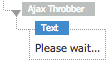
Next, click on the Ajax Throbber, and turn on the Modal option. "Auto Layout" should be turned on automatically. This is all you have to do; now, the user is prevented from interacting with the Screen every time an Ajax Update is triggered.

You can learn more in our Ajax Throbber Explained article.
Note: The Ajax Update needs to be asynchronous (i.e. the Async property must be set) for this to work. For synchronous calls, the browser is blocked, and can't draw anything while the Ajax Update is running. Except for very rare exceptions, you should not make synchronous Ajax calls.
When to use this solution:
Use this solution when you need one of the following features:
- The user should only be blocked for specific buttons, not for all Ajax Updates.
- You want to block the user from interacting with a Screen when the Screen is submitted to the server, not when an Ajax Update is triggered.
How to use this solution:
Go to the Screen component that triggers the server request. Open its Actions tab, and add a Block User action.
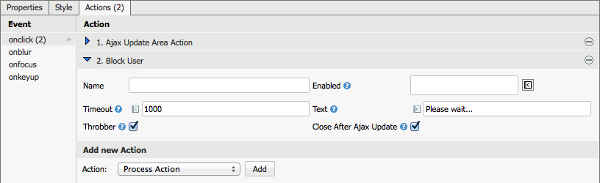
This Action has a number of properties:
- "Timeout" allows you to set how long Appway waits until it shows the overlay. This allows you to prevent the overlay from quickly flickering on and off when the Action only takes a short amount of time. It's set in ms, so 500 would be half a second.
- Text allows you to set the text shown in the overlay.
- Throbber allows you to turn on a turning wheel.
- Close After Ajax Update allows you to decide whether you want to close the overlay when the next Ajax Update finishes (if you're showing it when the user triggers an Ajax Update), or if you want it to remain visible until the browser refreshes the window (use this when the user reloads the Screen).
When to use this solution:
Use this solution when you need one of the following features:
- You want to design the Screen shown to the user while the server is working.
How to use this solution:
Go to your Process and add a new Screen. This new Please Wait... Screen is followed by a Script Task that makes the service call, and connects back to the original screen. On the main Screen, you now only have a button with a Process Action telling the process engine to move the token to the "Please Wait..." Screen.
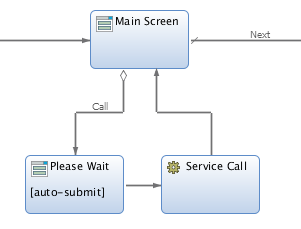
The Please Wait... Screen shows a message telling the user that the service call is in progress; you can design this Screen freely.
For more on this pattern, please read the article Handling Slow Services.