AI Agents
All AI Agent-related features in FNZ Studio require the license flag nm.license.studio.aiagents.enabled to be set to true. Please contact your FNZ account representative to enable this license.
What is an AI Agent
An AI Agent is a software system designed to use AI to process information, make decisions, and take actions to achieve specific goals.
It receives as input a System Prompt, that is, the set of instructions that define the AI Agent’s role, behavior, tone, and boundaries, and a User Prompt, that is, the specific question, instruction or command issued by the end user that reflects the immediate need. The System Prompt is processed before User Prompt to provide foundational context and guidelines for the AI Agent, thus ensuring accurate, consistent, and relevant responses within a specific framework.
The AI Agent uses an LLM (Large Language Model) which acts as the thinking "brain" of the agent.
Moreover, the AI Agent can use tools, which are external capabilities or functions that the Agent can employ to perform tasks beyond its core abilities. These tools allow the AI Agent to interact with the world, retrieve or process data, or generate content in more advanced ways. Typically, it is the LLM that instructs the AI Agent about which tool invocations are necessary and when.
Finally, the AI Agent can be configured to have a memory of previous messages in a conversation, hence retaining context and adapting based on it.
Based on all of the above, the AI Agent produces an output, which can either be plain text or a structured set of data points. The accuracy of the output must be evaluated by validating it against a set of expectations.
Introduction to FNZ Studio's AI Agents
AI Agents in FNZ Studio allow adding AI features to Solutions built with FNZ Studio. They allow developers to create their own AI agents according to business needs using the AI Agent Business Object editor and FNZ Studio low-code approach.
AI Agents in FNZ Studio support tool invocation (via Script Functions), they allow preserving memory of previous interactions and, if requested, they are able to produce a structured output (defined via a Data Classes).
AI Agents can use any Large Language Model (LLM) behind the scenes for maximum flexibility across cloud and on-premise installations. This is configured in FNZ Studio using the LLM Registry.
Moreover, they can be invoked from an FNZ Studio Process using the AI Agent Task, which allows providing inputs to the agent and retrieving its output.
Disclaimer: Remember that AI models are not always accurate. Always double-check results and evaluate the accuracy, cost, and performance of any implementation.
For an overview of AI Agents in FNZ Studio, see the following short video:
Using FNZ Studio's AI Agents
Using AI Agents in an FNZ Studio solution requires three steps (described in detail in the sections below):
-
Defining the list of available LLMs for an FNZ Studio instance. This task is performed by entitled administrators using the LLM Registry.
-
Creating AI Agents using the AI Agent Business Object. This task involves selecting an LLM among the configured ones and defining the Agent’s prompts, tools, memory and output structure.
-
Invoking the AI Agent in a Process using the AI Agent Task. This task requires providing inputs to the Agent and processing its output.
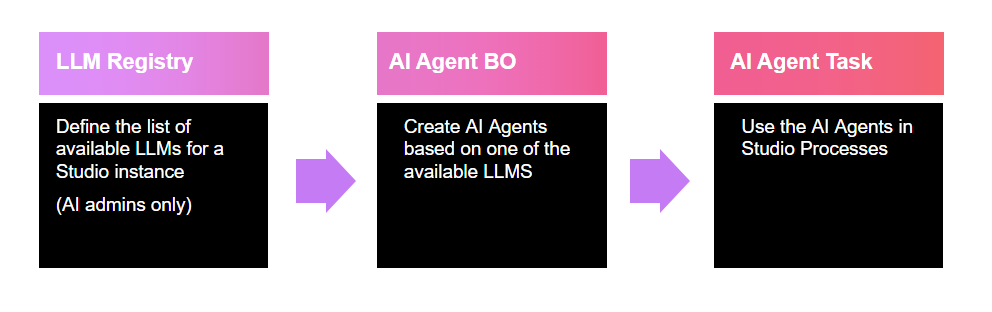
LLM Registry
The first step for using AI Agents in FNZ Studio involves defining the available LLMs using the LLM Registry. To do so:
-
Assign the necessary permission to selected administrators in FNZ Studio Composition under System Configuration > User/Group/Roles. SeeUsers, Groups and Roles.
-
In the Roles tab, define a Role containing all the administrators who should configure LLMs. Right click on this Role, and select Permissions. Scroll down to the AI Management Permission (System Configuration section). Assign Full-Access Permission for users to be able to create and edit LLM instances. See Advanced Studio Permissions.
-
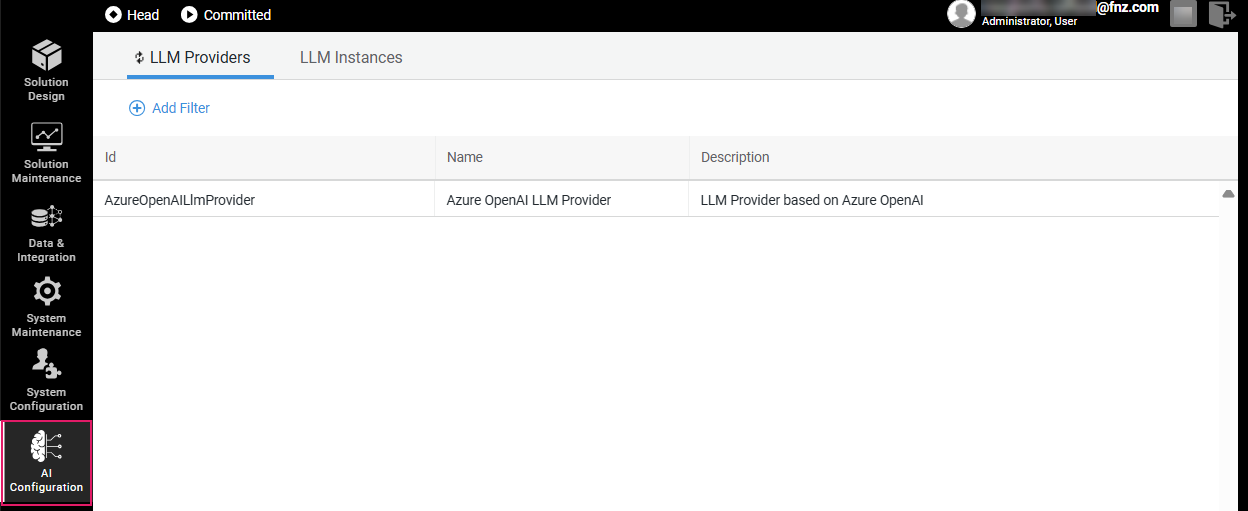
Navigate to the AI Configuration module in FNZ Studio Composition.
-
The LLM Providers tab lists all the available LLM Providers, including their ID, Name and Description. The list cannot be edited directly, since LLM Providers are installed via dedicated Extensions. For example, the AzureOpenAILLMProvider Extension defines a provider for Azure Open AI. Make sure the extension(s) related to the desired providers are installed. Note that cloud, on-prem and embedded LLM installations are all supported. Please, contact your FNZ account representative to obtain the extension(s) required for your selected provider.
-
The LLM Instances tab allows defining the list of LLMs available to AI Agents in FNZ Studio. It provides a table with an overview of all configured instances and their details. For each instance, the menu to the right of each row (or the context menu) allows accessing the Edit and Delete options. To create a new LLM Instance, click on the Add LLM Instance button. Provide the following information:
-
ID - Enter the LLM Instance identifier, it can contain only alphanumeric digits and underscores.
-
Name - Enter the LLM Instance name.
-
Description - Enter the LLM Instance description.
-
Provider - Select the LLM Provider among the ones available in the LLM Providers tab.
-
Endpoint - Specify connection details such as the LLM endpoint URL, the key to authenticate to it and the metadata required by the endpoint in JSON format, for example
{"metadata__deploymentName":"gpt-4o"}(this depends on the selected provider). -
Key - The key to authenticate to the endpoint is stored using the FNZ Studio Secrets Management Framework, according to the configured storage target.
-
Metadata - Add any additional metadata in
jsonformat.
AI Agent Business Object
Once one or more LLM Instances have been defined, it’s possible to create AI Agents using the AI Agent Business Object available in the Business Object library for each Package (except the Base Package).
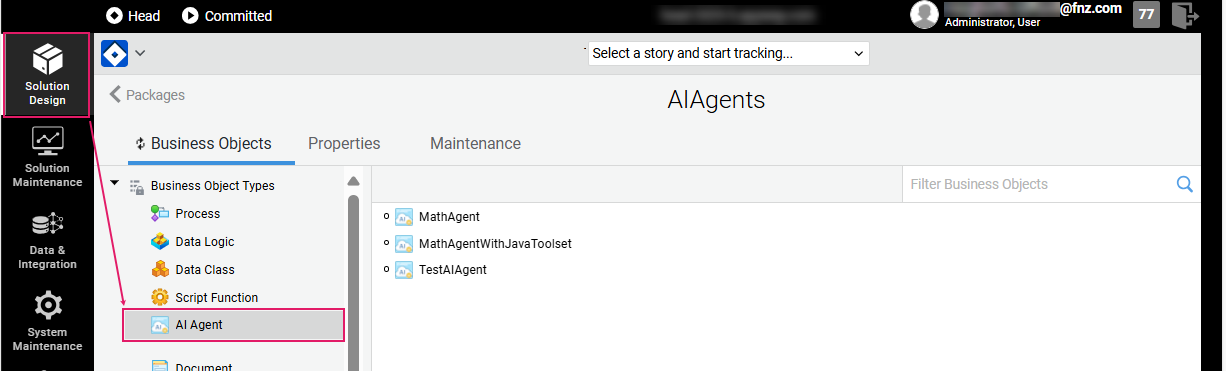
The Settings tab of the AI Agent Business Object has three configuration sections:
General Settings
-
LLM Instance: (mandatory) The LLM Instance to be used by this AI Agent, selected among the ones available in the LLM Registry under AI Configuration > LLM Instances (AI Agents). Note that not all models support all features (e.g., structured output or tool invocation), and this should be considered when choosing the model to be used for an Agent.
-
Message History: (optional) The list of previous messages in the conversation with the AI Agent, used to provide context about previous interactions, if needed. This represents the memory aspect of the Agent. The Message History is fed to the LLM after the System Prompt and before the current User Prompt. The Script must return an instance of
AI:MessageHistory. See Data Model section below. -
Output Type: By default, AI Agents produce plain text as output. If, instead, the Agent should structure the output according to a specific format (specified as a Data Class), select Structured Output. In this case, the output message will have a content of type
AI:DataEntityMessageContentwith an instance of the selected Data Class populated with the output of the AI Agent. See Data Model section below. Note that the availability of this feature depends on the capability of the selected LLM Instance/provider to produce a structured JSON output. -
Output Data Class: The Data Class that defines the structure of the output to be produced by the Agent. The semantics of the Data Class should be as clear and intuitive as possible so that the LLM can understand them. Properties and class names matter. If possible, add descriptions for Data Classes and properties so that the LLM knows how to fill the fields. Note that the selected Data Class is always used, even if it has children. This setting is mandatory if the selected Output Type above is Structured Output.
Consider that it is not possible to guarantee that the LLM always produces the output according to the specified Data Class, since using LLMs always include some degree of unpredictability.
Prompts
-
System Prompt: (optional) The set of instructions that define the AI Agent’s role, behavior, tone, and boundaries. It is processed before User Prompt to provide foundational context and guidelines for the AI Agent, ensuring it generates accurate, consistent, and relevant responses within a specific framework. By default, the prompt is specified as a static String. However, if a more complex or dynamic prompt is necessary, you can provide a collection of texts and images. In this case,
AI:MessageContent, which, at runtime, should contain instances ofAI:TextMessageContentorAI:ImageMessageContent. See Data Model section below. Note that the support for image content depends on the capability of the selected LLM Instance/provider to process such prompts. -
User Prompt: (mandatory) The specific question, instruction or command issued by the end user reflecting the immediate need. By default, the prompt is specified as a static String. However, if a more complex or dynamic prompt is necessary, you can provide a collection of texts and images. In this case,
AI:MessageContent, which, at runtime, should contain instances ofAI:TextMessageContentorAI:ImageMessageContent. See Data Model section below. Note that the support for image content depends on the capability of the selected LLM Instance/provider to process such prompts.
Tools
In the Tools tab (optional), you specify the tools that are available to the AI Agent. The Agent invokes the tools according to the instructions provided by the LLM, so the amount of times each tool is called and the sequence in which the invocations happen during the execution of the AI Agent is not controlled by the developer. Consider that the availability of this feature depends on the capability of the selected LLM Instance/provider to request tool invocation.
In the current implementation of FNZ Studio AI Agents, it is possible to invoke Tools defined by FNZ Studio Script Functions (see Script Function Reference). For each Tool, select the Script Function to be made available to the Agent. The semantics of the Script Function tool and its parameters should be as clear as possible. The Script Function documentation comment should contain the purpose of the Script Function, what the parameters are for, and what are the expected values/formats the LLM should call the tool with.
Note that it is possible to assign only a subset of the mandatory input parameters to the Script Function; in that case the AI Agent’s LLM is in charge of populating the blank mandatory parameters. If the value of an assigned parameter is crucial, for example in terms of security (e.g., the id of the user who executes a REST integration), then the solution developer must explicitly assign a value for that parameter, or add a default expression for it.
Since the AI Agent Business Object only supports tools that are defined by FNZ Studio Script Functions, only tools that can be executed at server-side are supported by the AI Agent BO. For client-side tools, the Script Function
AI:InvokeModel(see AI Agent Task) must be used instead and the tool invocation must be implemented at client-side. -
AI Agent Task
As a final step, you need to add an AI Agent Task to an FNZ Studio Process and configure it.
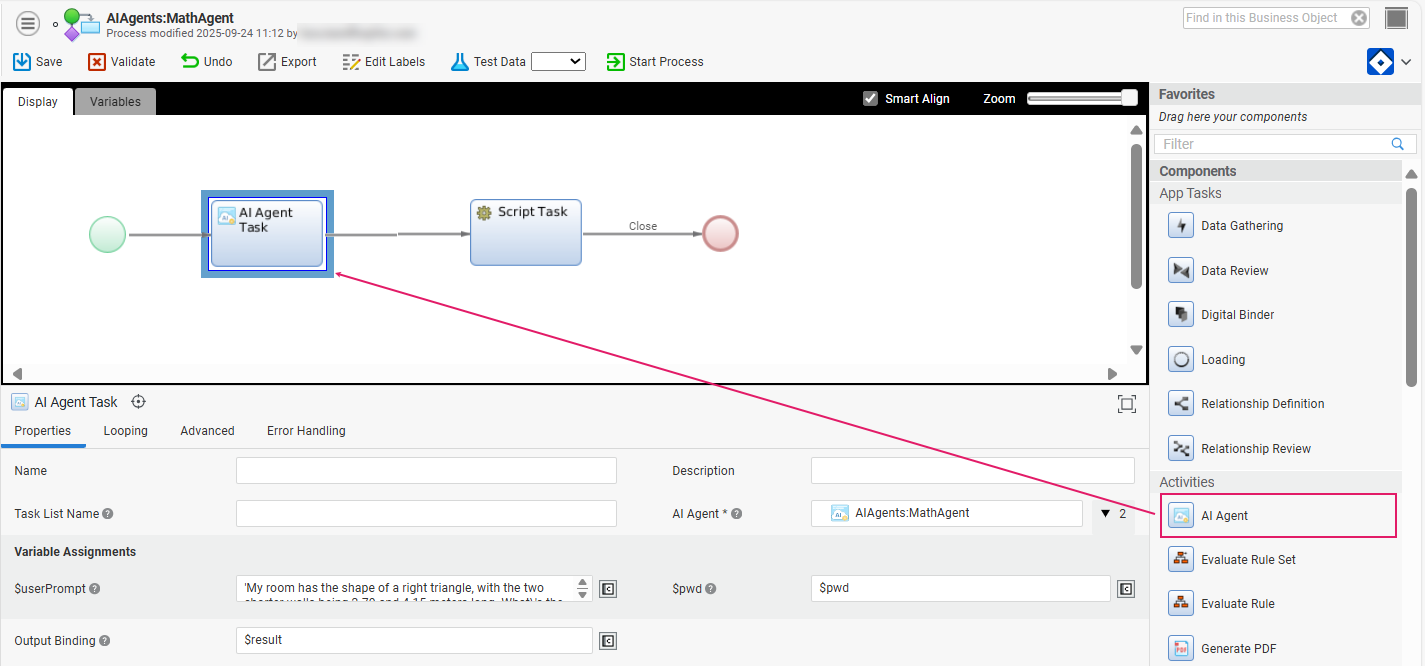
In the AI Agent Task Properties tab:
-
Select the AI Agent BO to be invoked from the AI Agent selector.
-
You can assign Variables to the Agent to provide the current context such as the User Prompt, previous messages (Message History) or the parameters for Script Function tools.
-
In the he Output Binding setting, set the output of the AI Agent. This must contain the variable path that defines the location where the output of the AI Agent should be stored, e.g.,
$agentInteraction.currentOutput. The target binding must be of typeAI:AgentMessage. See Data Model section below.
Since AI Agents can take quite some time to process, the execution of AI Agent Tasks in Processes is always asynchronous (executed in the background in a separate thread). Therefore, the AI Agent Task is designed to be used in combination with the Loading App Task, which handles the waiting time. This means that the AI Agent Task should be added to a Sub-Process to be selected in a Loading App Task.
Note that keeping a history of messages to be provided to AI Agents using the Message History setting of the AI Agent BO is the developer's responsibility (see AI Agent Business Object). If there are multiple invocations of Agents in the Process, and previous messages must be carried over as history from one Agent invocation to the other, the developer can, for example, add a Script Task that adds the output retrieved in the Output Binding field to a Process variable containing such history.
Data Model
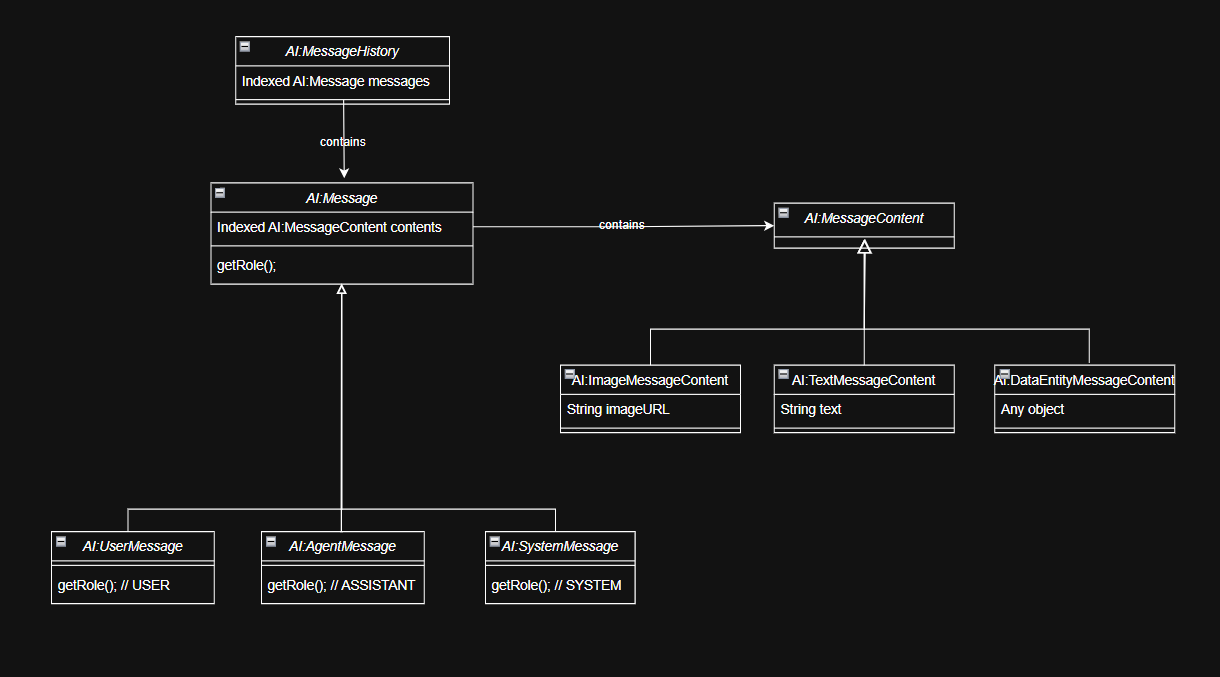
When working with the AI Agent BO and the AI Agent Task, refer to the following Data Model which describes the Data Classes that can be used to handle inputs and outputs of AI Agents.
-
AI:Message: A generic (abstract) message sent as part of an interaction between a user and an AI Agent. It has one or more contents (
AI:MessageContentinstances) that can be plain text, structured content, or an image. -
AI:SystemMessage: The System Prompt, that is a message sent to instruct an AI Agent or LLM about its purpose and behavior before the interaction with a user starts.
-
AI:UserMessage: The User Prompt, that is a message sent by a user as part of an interaction with an AI Agent containing the specific question, instruction or command.
-
AI:AgentMessage: The Agent output, that is a message sent by an AI Agent as part of an interaction with a user.
-
AI:MessageHistory: A collection of previous messages (
AI:Messageinstances) sent as part of an interaction between a user and an AI Agent. An instance of this object can be used to populate the Message History field of AI Agent Business Objects. A typical history contains a collection ofAI:UserMessageinstances andAI:AgentMessageinstances. -
AI:MessageContent: A generic (abstract) content of a message sent as part of an interaction between a user and an AI Agent, for example a text or an image. An Indexed Collection of these objects can be used to populate the System Prompt or User Prompt of an AI Agent dynamically.
-
AI:ImageMessageContent: The content of an image-based message sent as part of an interaction between a user and an AI Agent. The image is defined by the URL to be used by the LLM to retrieve the image, it must be a URL accessible by the used LLM, or a Data URI.
-
AI:TextMessageContent: The content of a textual message sent as part of an interaction between a user and an AI Agent.
-
AI:DataEntityMessageContent: The content of a message parsed to a Data Class instance, sent by an AI Agent as part of an interaction with a user. This content is generated when the Output Type setting of the AI Agent BO is set to Structured Output" The object field contains the structured output of the Agent. Note that this content type cannot be used in Prompts.
Script Functions
AI:InvokeAIAgent
In addition to the AI Agent Process task, there’s also the possibility to invoke an AI Agent via Script Language using the Script Function AI:InvokeAIAgent. In this case the execution of the Agent is synchronous.
Inputs
-
$aiAgentId(String): The ID of the AI Agent Business Object to be invoked. -
$variableAssignments(Named Any, Optional): The variable assigned to the AI Agent.
Output
AI:AgentMessage: the message containing the response from the AI Agent; the contents of the message can be of type AI:TextMessageContent, AI:ImageMessageContent and AI:DataEntityMessageContent (if the selected AI Agent BO is configured to return Structured Output).
AI:InvokeModel
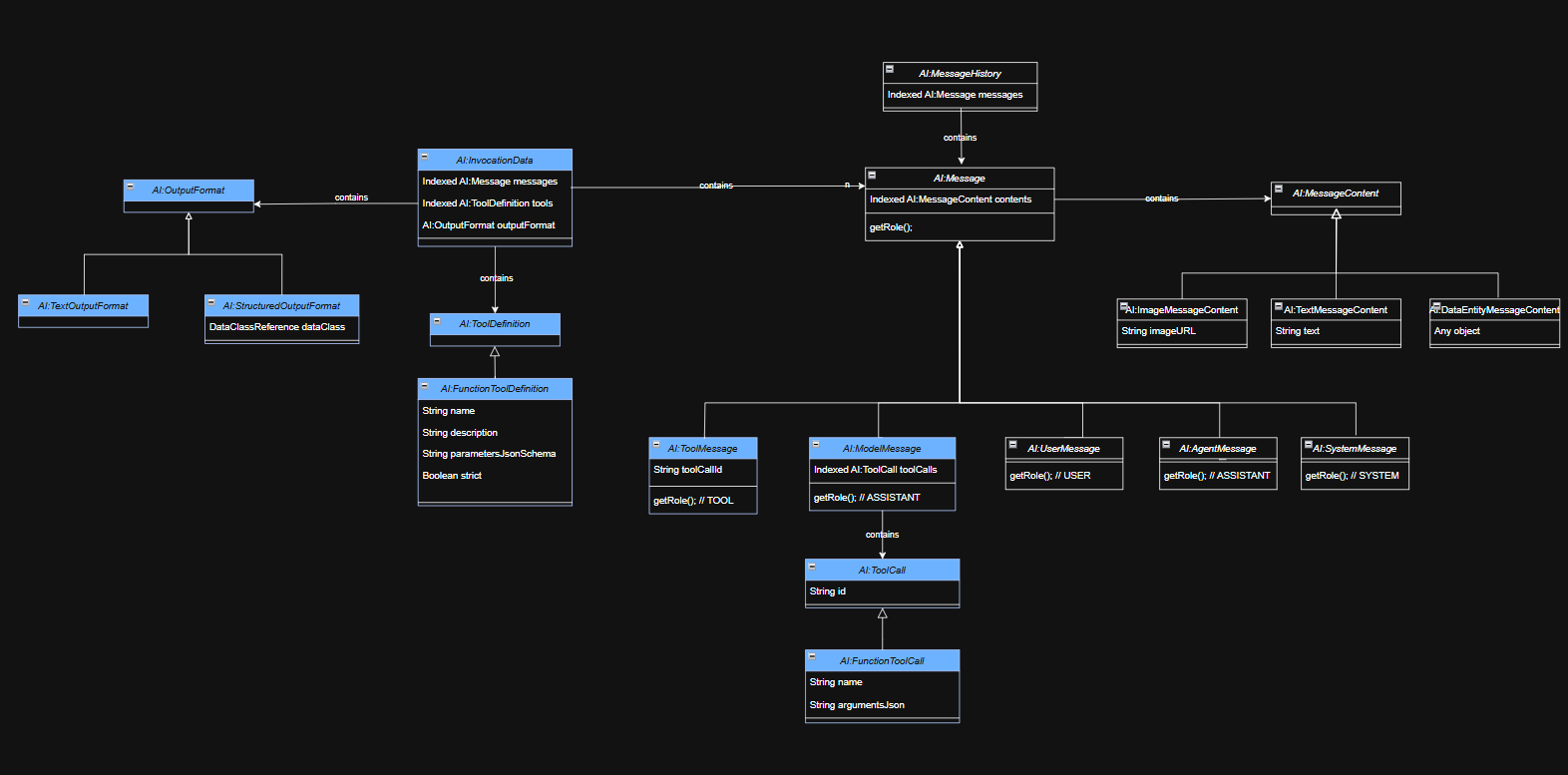
The AI:InvokeModel Script Function allows invoking the LLM directly without using an AI Agent Business Object. This can be useful when an AI Agent is not necessary or when it is implemented outside of FNZ Studio. The usage of this Script Function requires more coding since it does not benefit from the AI Agent Business Object visual editor, and a more complex Data Model represented below (in blue the additional Data Classes required for this use case - please, download the image here (PDF) if you are not able to see it properly):
-
AI:InvocationData: The inputs to be provided when invoking directly an LLM using the
AI:InvokeModelScript Function. This includes the collection of messages (history and current prompts), the definition of the tools that the LLM can request to be invoked and the output format to be produced by the LLM (plain text or structured). -
AI:ToolDefinition: The generic (abstract) definition of a tool that the LLM can request to be invoked.
-
AI:FunctionToolDefinition: The definition of a Function Tool that the LLM can request to be invoked, including the name and description of the function and the description of the inputs of the Function, in JSON format. Note that this format varies across LLM Providers, so it is recommended to check the Provider documentation to learn more about the specific format to be used. The "strict" flag allows specifying whether to enable strict adherence to the provided JSON schema.
-
AI:OutputFormat: A generic (abstract) format of the output to be produced by the LLM.
-
AI:TextOutputFormat: An Output Format that instructs the LLM to produce plain text as output.
-
AI:StructuredOutputFormat: An Output Format that instructs the LLM to produce structured output in the form of a Data Class instance.
-
AI:ModelMessage: The response returned by the LLM when invoking it directly using the AI:InvokeModel Script Function. It includes the list of Tool invocations requested by the LLM.
-
AI:ToolCall: A generic (abstract) invocation of a Tool requested by the LLM, identified by its id
-
AI:FunctionToolCall: An invocation of a Function Tool requested by the LLM, including the name of the Function to be invoked and the list of input values to be provided to the Function in JSON format. Note that this format varies across LLM Providers, so it is recommended to check the Provider documentation to learn more about the specific format.
-
AI:ToolMessage: A message that represent the result of the invocation of a Tool requested by the LLM. In includes the id of the requested invocation. The contents of this message is the output produced by the Tool.
The Script Function AI:InvokeModel receives as an input the Invocation Data and returns a Model Message containing the response.
Inputs
-
$llmInstanceId(String): The ID of the LLM Instance to be used among the ones defined in the LLM Registry -
$invocationData(AI:InvocationData): The invocation data including the collection of messages (history and current prompts), the definition of the tools that the LLM can request to be invoked and the output format to be produced by the LLM (plain text or structured), as described above
Output
AI:ModelMessage: the message containing the response from the LLM, including any necessary Tool invocation.
AI:ExportLLMInstances
The AI:ExportLLMInstances Script Function allows exporting the definition of LLM Instances configured in the AI Configuration - LLM Instances section to a JSON file for automated deployment purposes. Note that for security reasons the export file does not contain the endpoint keys which are to be handled separately using the Secret Manager features. This Script Function is part of the Deployment Extension. The execution of the Script Function requires the AI Management (Read-Only) Permission.
Inputs
$filePath (String): The path where the export file must be saved. Relative paths are interpreted relative to the data home, use '{DATA_HOME}' to refer to the data home location. The file name must end with .json and the target directory must be writable. Example: work/tmp/llmInstances.json
AI:ImportLLMInstances
The AI:ImportLLMInstances Script Function allows importing the definition of LLM Instances from a JSON file generated by the Script Function AI:ExportLLMInstances for automated deployment purposes. The Script Function sets a temporary endpoint key for the imported LLM Instances which should be replaced right after using the Script Function AI:StoreLLMInstanceKey (see below) to store the correct keys for each of the imported LLM Instances. This Script Function is part of the Deployment Extension. The execution of the Script Function requires the AI Management (Full Access) Permission.
Inputs
$filePath (String): The path where the export file to be imported is saved. Relative paths are interpreted relative to the data home, use '{DATA_HOME}' to refer to the data home location. Example: work/tmp/llmInstances.json
AI:StoreLLMInstanceKey
AI:StoreLLMInstanceKey stores the endpoint key for an LLM Instance to the selected storage configured with theSecrets Management Framework. It is used right after the AI:ImportLLMInstances Script Function for automated deployment purposes. The execution of the Script Function requires the AI Management (Full Access) Permission.
Inputs
-
$llmInstanceId(String): The ID of the LLM Instance -
$accessKey(String): The password to be stored. It cannot be empty.
Troubleshooting
All usages of LLM Instances and AI Agent BOs can be browsed in the Troubleshooting Console under Data and Integration > Integration > Troubleshooting Console > AI Agent Execution tab. Note that tracing must be enabled first by clicking on the Enable Troubleshooting for AIAgentExecution button.

In addition to the standard information reported by the Troubleshooting Console, the table reports the AI Agent Id, LLM Instance Id and LLM Endpoint, System Prompt and User Prompts and Output are reported in the calls table
The details of each call also include the Execution Trace and Statistics for the invocation. Details can be accessed by clicking on the table row.
AIAgentsEvaluation Extension (internal only)