PDF Output Table Business Object
The PDF Output Table Business Object allows generating content dynamically based on underlying data structures and can be used e.g., for reports, statements, and client summaries.
With the PDF Output Table Business Object, you can create, for example, a basic structure combining Table, Row, and Cell Components and expand this structure according to your needs.
The following sections of this document describe the PDF Output Table components and their properties.
Properties and Editor
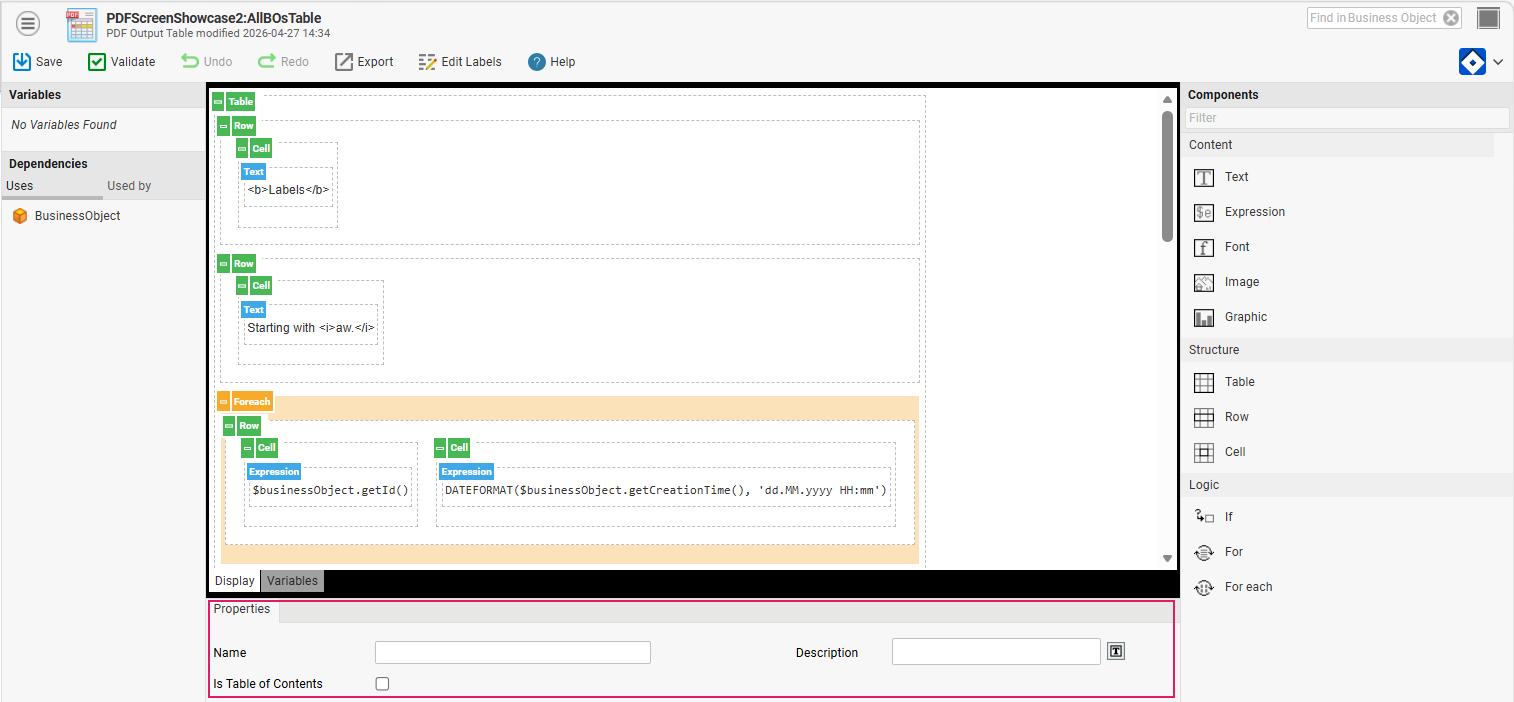
The PDF Output Table BO has the following general properties:
- Name – Business Object name
- Description – Business Object description
- Is Table of Contents – Enables the Table of Content (TOC) evaluation variable:
com.nm.sdk.data.pdfrenderer.Folder $fom
The editor, moreover, supports the following features:
-
Variable definition
-
Multiple selection of items:
-
Bulk copy, paste, and delete actions
-
For multiple components of the same type, bulk changing of properties
-
-
Context menu actions:
-
Paste before, inside, or after any component
-
Wrapping a component in an If, For, Foreach, or Font element
-
Removing a component while keeping its children
-
-
Highlighting of available drop zones when dragging components from the library into the editor
-
For each component, its Description property allows to better visualize complex content when collapsing the table
Components
All library components are split into three groups: Content, Structure, and Logic.
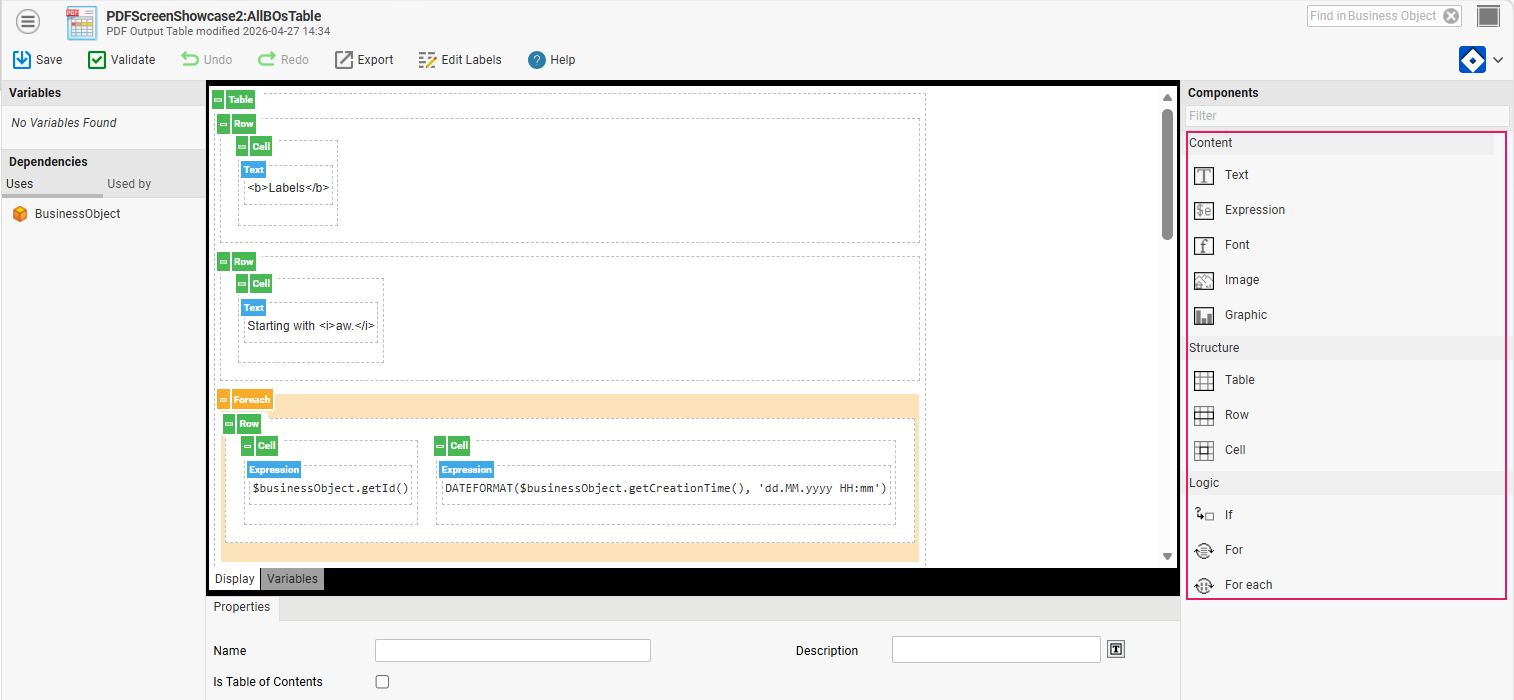
Content Components
Content components (marked in blue in the editor) are used fill the table cells with content.
Text
It is a simple text editor to add a static text to be rendered into a PDF.
- Supported placeholders are:
- Label – The Label Business Objects will be translated into text during PDF rendering. Use the standard syntax
[LABEL:MyPackage:salutation] - Expression – (Optional) Enter an expression manually by wrapping it into
${ … }. An example is${NOW()}, which will execute theNOW()Script Function and insert the current date. Note: After saving the PDF Output Table and reopening it in the editor, the inline expression will be visualized by the Expression component.
- Label – The Label Business Objects will be translated into text during PDF rendering. Use the standard syntax
- Formatting options are:
- Bold, Italic, Underline
- Superscript - The font size of the superscript is 60% of the original font size. Superscripts are raised by 33%.
- Subscript - The font size of the subscript is 60% of the original font size. Subscripts are lowered by 15%.
Expression
Instead of entering an inline expression with the Text component, you can use the Expression component, which offers regular Script Editor support.
- Expression – The Script expression. The output will be converted to its String representation.
Font
If the options offered by the Text component are not enough, you can wrap a Text component into the Font component.
-
General properties are:
-
Style – ID of the font style as seen in FNZ Studio Composition
-
Name – ID of the font as seen in FNZ Studio Composition
-
Size – Font size in mm or pt
-
Rise – Amount of shift (up or down) in mm or pt
-
Color – Font color. It can be an HTML color name ('red'), a hex value ('#FF0000') or a Color Business Object ID (e.g. '{#AppwayRed}'). If a Style is set, its color will be used unless a value other than 'black' is set here.
-
Description – Text that will be rendered in the editor when a component is collapsed.
-
- Text decoration:
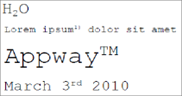
- Bold, Italic, Underline, Strikethrough
- Superscript - The font size of the superscript is 60% of the original font size. Superscripts are raised by 33%.
- Subscript - The font size of the subscript is 60% of the original font size. Subscripts are lowered by 15%.
Image
It is used to render an image into the PDF. An Image cannot be combined with any other content component inside a Cell.
General properties:
-
URL – Expression which evaluates to a String pointing to an external image resource URL.
-
Resource – Select or enter an expression that links to a Resource BO containing an image.
-
File path – Expression which evaluates to a String pointing to a local image file.
-
Scale – Scaling strategy. Three scale strategies can be applied relative to the cell in which the image is contained.
-
DPI – Dots per Inch value. It resizes the image according to the amount of pixels provided in the image.
Graphic
It is a plug-in custom graphics obtained through the FNZ Studio Graphics Listener interface (obtained through an extension, such as WorkflowImage). A Graphic cannot be combined with any other content component inside a Cell.
General Properties:
-
Listener – Name of the listener defined in the extension implementing the graphic interface.
-
Expression – Data binding expression to pass data to the extensions for evaluation and graphic display.
-
Version Filter – Expression evaluating to a String. The String produced must be the same as used for the
VersionFilter(String)Script Function. The Version Filter will then be applied for the evaluation of this graphic.
An example of how to insert a Graphic is:
-
Install the WorkflowImage extension
-
Choose Process Image as a Listener
-
In the Expression field, set the ID of a Process in your installation
-
Make sure the Cell has width and height values set
-
The PDF will contain a rendered vector image of the provided Process definition
Logic Components
Logic components (marked in orange in the editor) are used for conditional or repeated rendering.
Common properties for all components are:
-
Description – Text that will be rendered in the editor when a component is collapsed.
If
The content of an If component will only be rendered if the Condition will evaluate to true.
Note: If the Condition expression becomes complex or big, we recommend that you outsource the code to a Script Function or functions on a Data Class. This is also beneficial for script reuse.
Properties:
-
Condition – Conditional expression which will evaluate to a Boolean.
For
The content of a For component will repeatedly be rendered until the value of the Variable surpasses the End value.
Properties:
-
Variable – Variable name. All expressions inside the For component will have access to this counter.
-
Start – Start value
-
End – Expression which will evaluate to an Integer.
-
Increment
For Each
The content of a For Each component will repeatedly be rendered until the given collection is fully iterated.
Properties:
-
Collection – Expression which evaluates to an Indexed collection of type Type.
-
Variable – Variable name. All expressions inside the For component will have access to this counter.
-
Type – Type of an entry in the Collection. It also defines the type of Variable.
Structure Components
The structure of a dynamic PDF is table-based. Therefore, the composition consists of the basic elements (marked in green in the editor).
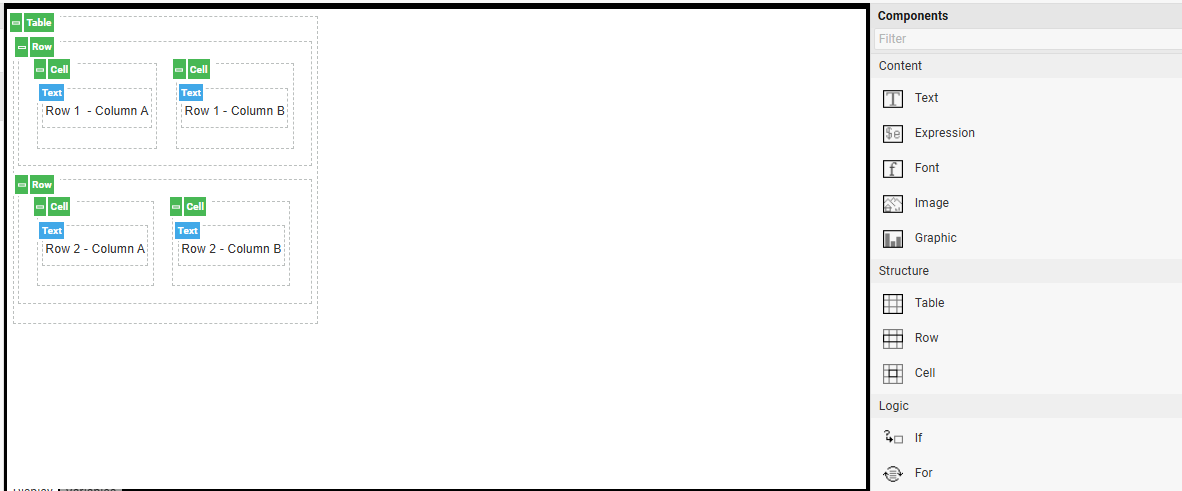
Common properties for all structure components are:
-
General
-
Width – Width in millimeter or point (“10mm” / “10pt”).
-
Width dynamic – If checked, it spreads a component across the remaining space.
-
Marker – Marker field to mark a cell. This is used during the generation of a TOC (PDF Table of Contents).
-
Description – Text that will be rendered in the editor when a component is collapsed.
-
-
Appearance
-
Background color – It can be a HTML color name ('red'), a hex value ('#FF0000') or a Color Business Object ID (e.g. '{#AppwayRed}').
-
Transparency – Background color’s transparency (0=transparent, 1=opaque).
-
Border – Borders can be set or unset by defining a width or leaving empty the dimension picker. Setting a value in the central input field will apply a border to all edges.
-
Border color – It can be a HTML color name ('red'), a hex value ('#FF0000') or a Color Business Object ID (e.g. '{#AppwayRed}').
-
-
Layout - Layout refers to the spacing between the component’s boundaries and the border, as well as the spacing between the border and the actual content, or nested structural component. It is controlled with cell spacing and padding attributes. Cell spacing and padding units are set in decimal millimeters, centimeters, inches or in points and set with the dimension picker
-
Padding – Distance from border to content.
-
Cellspacing – Distance from the enclosing component to the border.
-
Break – It defines a potential break point, meaning that the component can be 'interrupted' by a page brake if its content does not fit (e.g., an image will never be split, while text will break properly so it will not be cut off). The break attribute is checked by default. If unchecked, you need to make sure the content actually fits the printing area, otherwise extra pages could be introduced.
-
-
Font - Font styles and their properties are always inherited from enclosing components. The root table’s font style is inherited from the PDF Output’s Table component.
-
Font Style – ID of the font style (as reported in FNZ Studio Composition).
-
Font – ID of the font (as reported in FNZ Studio Composition).
-
Size – Font size in points
-
Lead – Lead font in points
-
Color – Font color. It can be a HTML color name ('red'), a hex value ('#FF0000') or a Color Business Object ID (e.g. '{#AppwayRed}'). If a Style is set, its color will be used unless another value than 'black' is set.
-
Table
The TABLE element is always the root component of every of every PDF Output Table Business Object. The Table can also be used nested within other Table elements. Note that the width and height available to the root table is determined by the area defined in the PDF Output’s Table component.
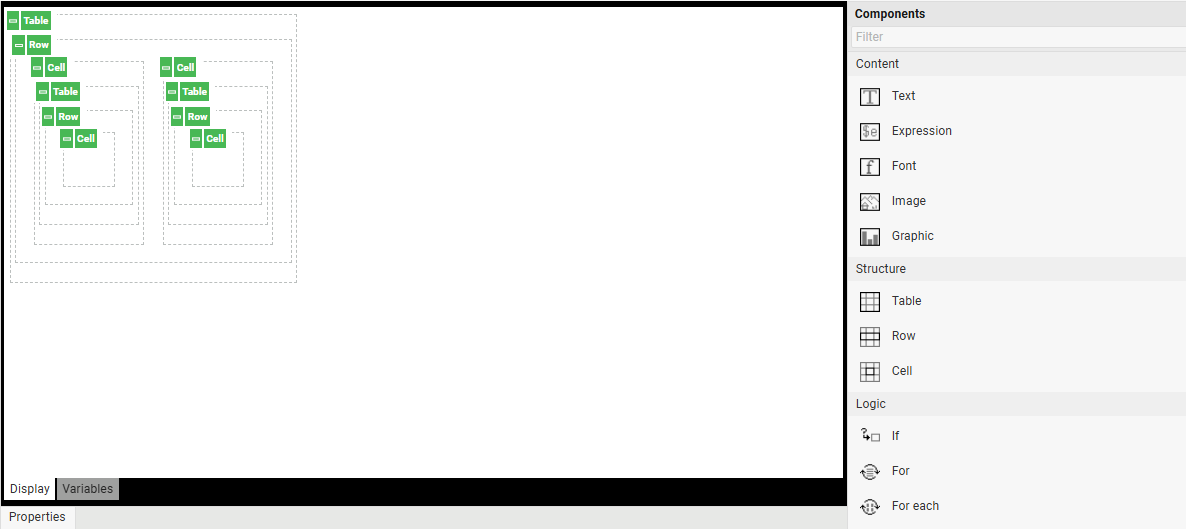
Tables do not have additional properties.
Row
A Row can only be placed inside a Table. It serves the horizontal grouping of cells.
Additional properties are:
- page break – The page break attribute forces a page break point before the row where it is configured.
Cell
A Cell contains the visible elements of text, bindings or images. It can also contain a nested Table.
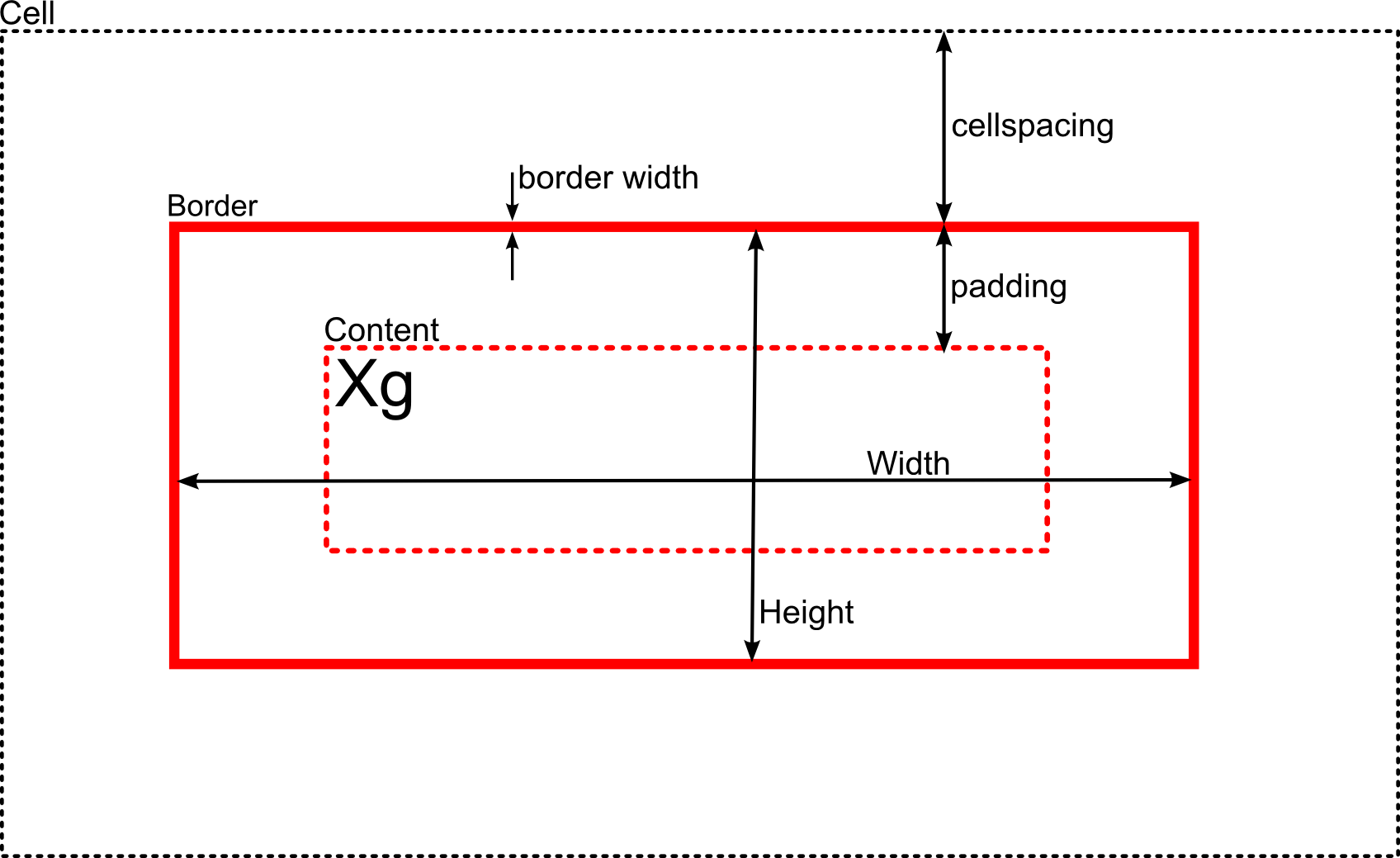
Additional properties are:
-
General
-
Height – Cell height (see image above)
-
URL – Defines the target URL of an external resource. In the rendered PDF, the area of the cell becomes clickable.
-
Scroll to element – Only available if PDF Output Table property Is Table of Contents is checked. It allows jumping to a target inside the PDF. For this, a reference to an internal tree node must be provided.
-
-
Layout
-
Align – Horizontal alignment
-
Valign – Vertical alignment
-
Run Direction – default or right to left
-