PDF Table of Contents
Creating a Table of Contents (TOC) is the result of extending your PDF Output Business Object by an additional page and adding a special PDF Output Table Business Object for rendering it.
Downloads
The example provided in this article extends the showcase described inPDF Overview. Download the following files to follow the instructions below.
-
First, download and install TOC Helper 2025 (FNZ Studio's
.awexportfile) -
Then, download PDF Screen Showcase 2025 (FNZ Studio's
.awdeploymentfile).
PDF Output BO
-
The PDF Output BO
AllBOsOutputmust receive an additional page where the TOC will be rendered. To do so: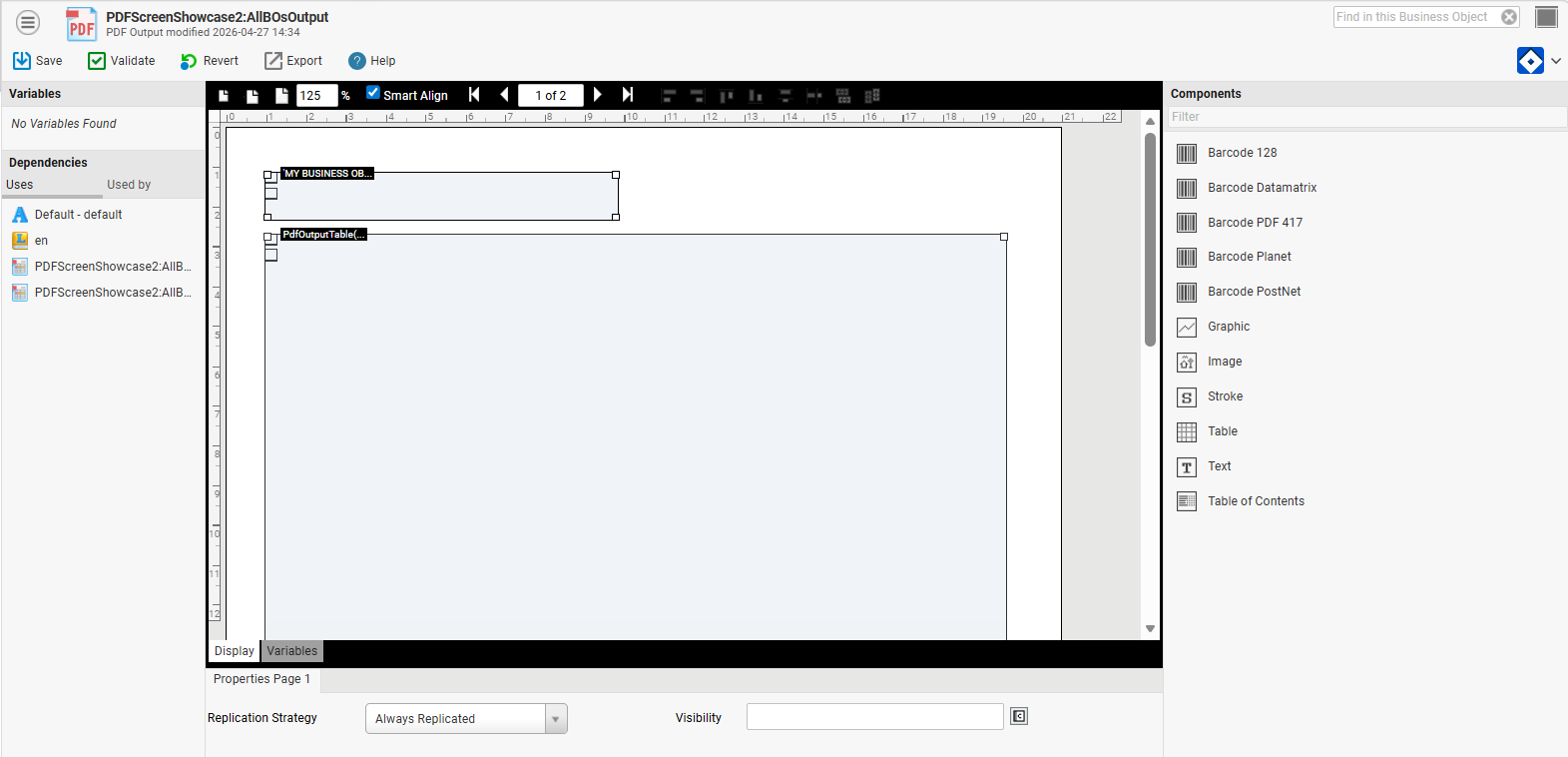
-
Go to FNZ Studio Composition > Solution Design > Packages –
PDFScreenShowcase> Business Objects > PDF Output, select the PDF Output BOAllBOsOutputand open it in the editor. -
Click Replace PDF, and add a two-paged empty PDF.
-
Open the PDF Output BO in the editor, copy and then delete the two fields contained in it.
-
Switch to the second PDF page. Paste and place the two fields where needed.
-
Change the Replication Strategy property to Always Replicated for the whole BO (all components must be unselected). This will ensure space for additional content.
-
Select only the Table field and change its Replication Strategy property to Replicated.
-
Go back to the first page. Add a Table of Contents component from the right-hand library and spawn it across the whole page.
-
Set its Expression property to
PdfOutputTable('PDFScreenShowcase:AllBOsTOC'). This Business Object will be created in a later step, therefore you can ignore the warning. -
Save and close
-
-
The PDF Output Table BO
AllBOsTablemust be enriched with markers and additional content. To do so: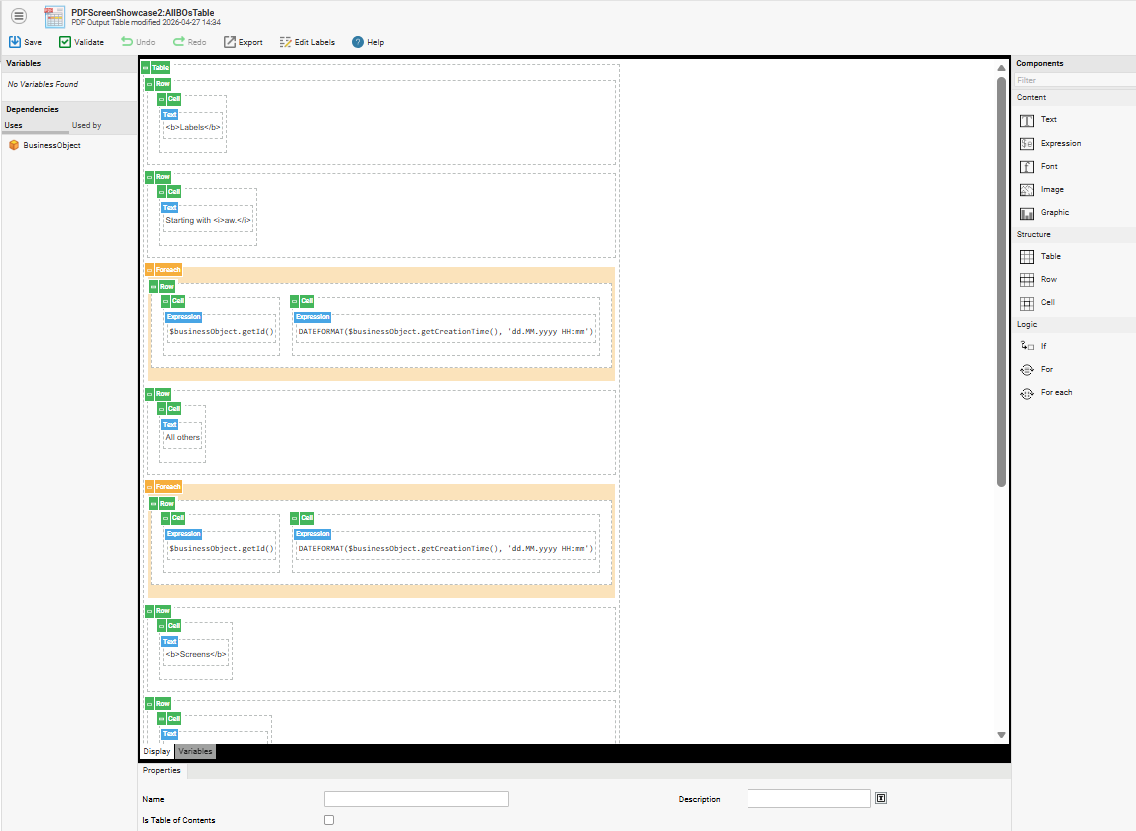
-
Go to FNZ Studio Composition > Solution Design > Packages –
PDFScreenShowcase> Business Objects > PDF Output Table, and select the PDF Output Table BOAllBOsTableand open it in the editor. -
Add a new Row before the Foreach component.
-
In its Cell, add a Text component and insert a title, e.g. Screen.
-
Select the Cell component and set its property Marker to Chapter.
-
-
Select and copy the first Row and the first Foreach component (with multiple selection); right-click and select Paste After.
-
Select this Row's Cell and
-
Change its Text to, e.g. Process .
-
Select the Layout tab for the Cell and change the Cellspacing property to
10pt,,,to visually separate the next chapter.
-
-
Select this Foreach and:
-
In its Cell component, change the Collection expression from Screen to Process.
-
-
-
Repeat the step above with as many types of Business Objects as you wish. Further types are Label, Language, Font, Resource, and so on.
-
To check the table hierarchy, in the last Row's Cell, change the Marker property from Chapter to Section. This row will be indented to the previous chapter.
-
Save and close
-
-
Add the PDF Output Table for the Table of Content
-
Go to FNZ Studio Composition > Solution Design > Packages >
PDFScreenShowcase> Business Objects > PDF Output Table -
Create a new PDF Output Table BO with ID
AllBOsTOC. Open it in the editor.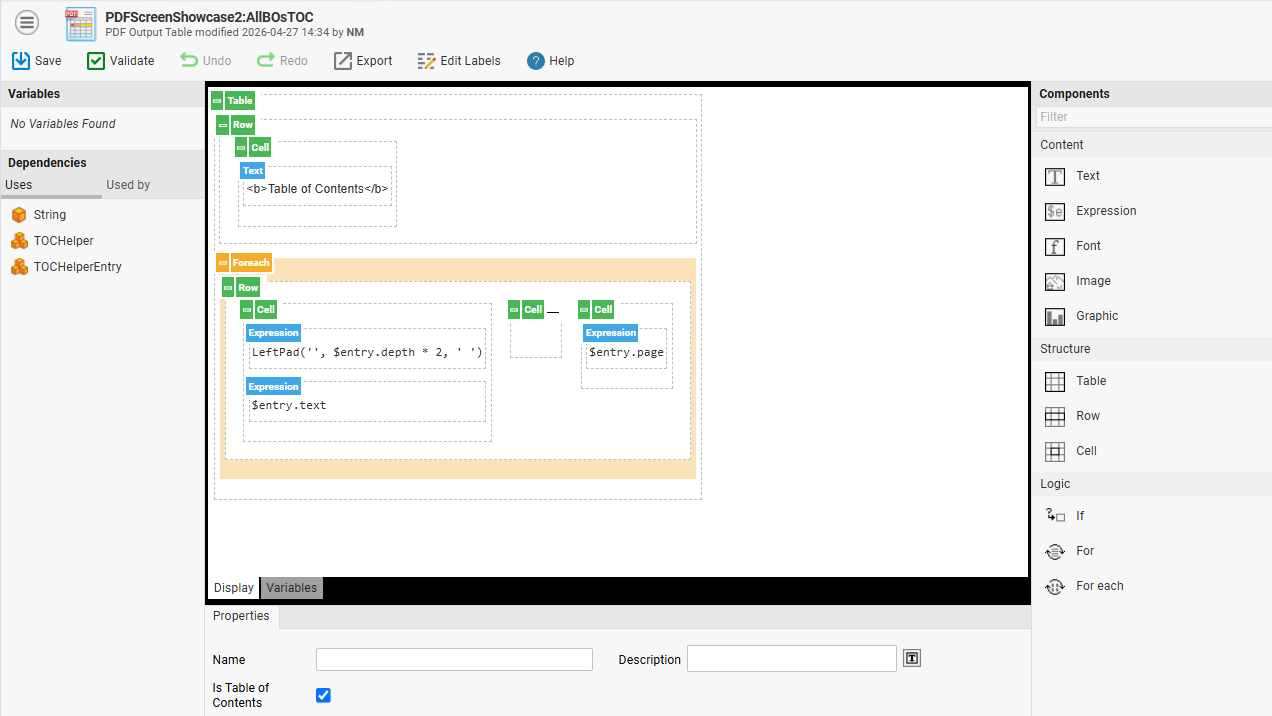
-
Select the Is Table of Contents checkbox. This enables the variable
$fomin all expressions. -
In the Row's Cell, change the Text property to e.g.
<b>Table of Contents</b>. -
Add a Foreach component after the cell:
-
In its Collection property, set an expression returning all Markers representing entries in the Table of Contents:
CopyIndexed String $hierarchy := ['Chapter', 'Section']:String;
TOCHelper $tocHelper := NewObject(TOCHelper, $hierarchy, $fom);
Return $tocHelper.getAllEntries(); -
In the Variablefield, enter the variable name you want to use in nested components, e.g.
$entry. -
In the Type field, select the type of variable, e.g.
TOCHelperEntry
-
-
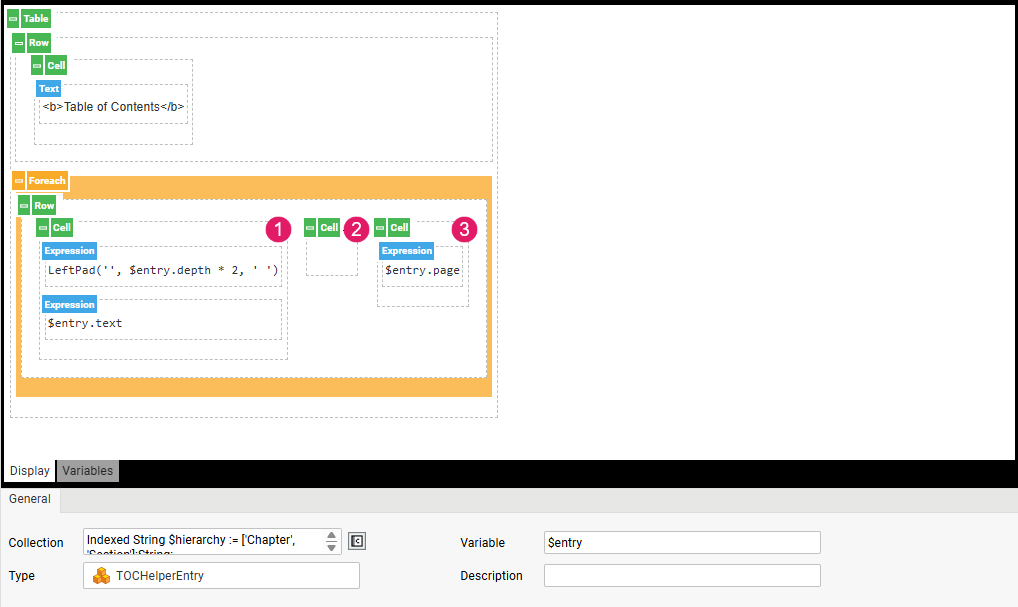
Inside the Foreach component, add a definition for a Table of Contents row as described below:
-
On the 1st Cell, deselect the Width dynamiccheckbox.
-
On the 2nd Cell, set the Border property (Appearance tab) to
,,0.1pt,, to draw a line -
On the 3rd Cell:
-
Deselect the Width dynamiccheckbox.
-
Set the Width property to 7.5mm
-
Set the Align property (Layout tab) to right
-
-
-
Save and close.
-
Start the
PDFScreenShowcase:AllBOsProcessProcess: the rendered PDF now starts with the Table of Contents on the first page and the list of Business Objects on the following pages.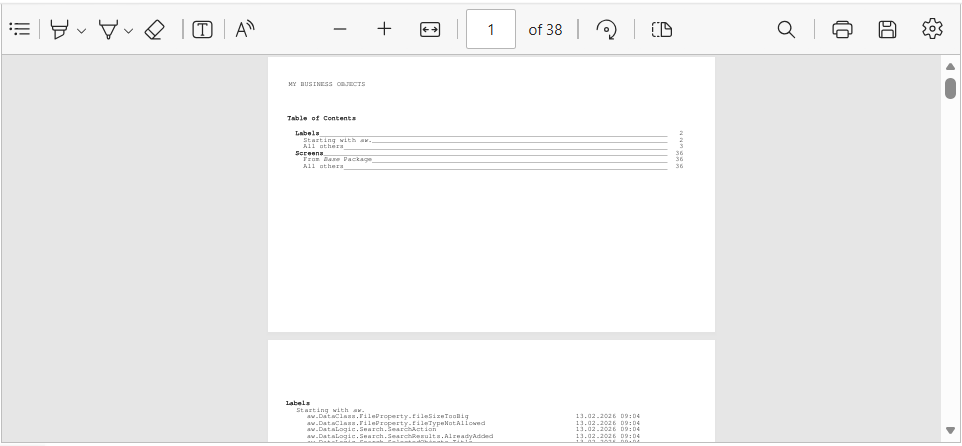
Important note: Currently, the Table of Contents is limited to one page only. It is not possible to spawn (replicate) it over multiple pages.
-
Helper Classes
Note that the script code to extract the markers is rather complicated. For this reason, we provide two Data Classes that help implement the algorithm.
Download TOC Helper 2025 (FNZ Studio's .awexport file)
TOCHelper
TOCHelper is the main helper class. Use it inside the PDF Output Table AllBOsTOC to examine your PDF and extract all markers into TOCHelperEntry objects. It supports a simple hierarchy configuration.
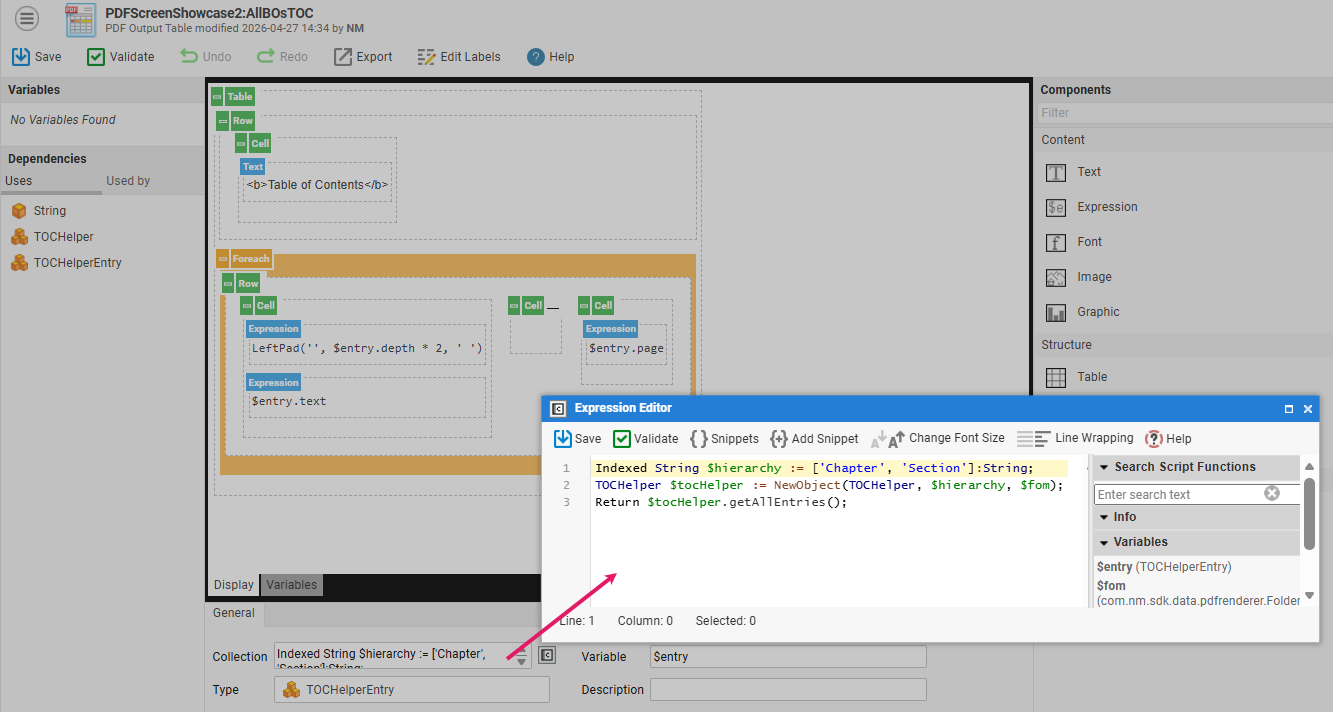
Click on the ForEach component and in the Collection field, define the following script code:
-
Define the hierarchy:
Indexed String $hierarchy. The hierarchy is used to properly indent a TOC entry. These values are used as Markers on the other components or PDF Output’s fields. The order in the collection matters, for example, Chapter is the topmost, Section is one level below Chapter , and so on. -
Create
TOCHelper: NewObject(TOCHelper, $hierarchy, $fom). Together with$hierarchyand$fom(the special variable enabled by configuring the PDF Output Table as Table of Contents, the helper can be created. In the constructor, the evaluation will be executed and the result will be stored in the internal property$entries. -
Flatten and return all the
TOCHelperEntryresults:Return $tocHelper.getAllEntries()
It flatten the $entries into an index collection list which can easily be iterated in sequence. The returned entries are the input collection for the Foreach component.
TOCHelperEntry
One instance of this Data Class represents one entry in a Table of Contents.
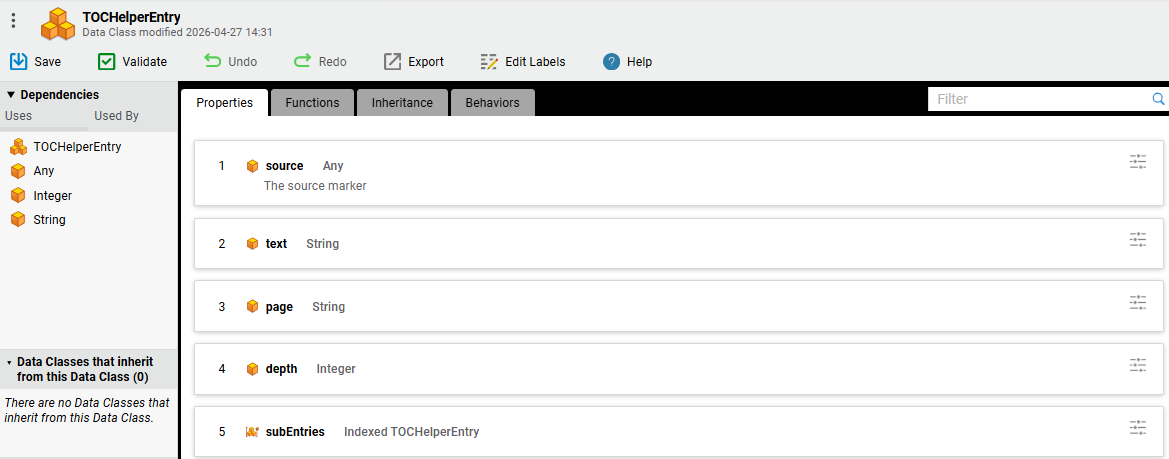
It provides the following properties:
-
source – The instance of the component where the Marker was defined.
-
text – The Marker’s text content, e.g. chapter title.
-
page – The Marker’s page location. Note: for convenience, this value is available as a String and not as an Integer. This prevents it from being converted manually, thus avoiding a validation warning.
-
depth – The depth in the hierarchy. It could be used e.g. to dynamically indent the entry.
-
subEntries – The sub-entries found in the hierarchy.