Events
Events are used to start, interrupt or end Processes. There are three main types of event:
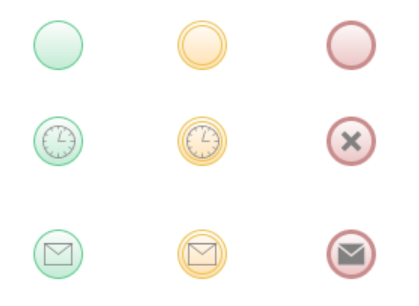
- Start Events (green icons) only allows outgoing connections, and represent different ways to start a Process Instance.
- Intermediate Events (yellow icons) allow outgoing and incoming connections. They represent events that occur during the process flow, such as interruptions, delays or triggers that affect the process flow.
- End Events (red icons) only allow incoming connections, and represent different ways to end a Process Instance.
These main categories have subtypes differentiated by specific icons. For example, a subtype for all three categories is Send Message, while Timer is a subtype for both the Start and Intermediate Events.
For full information on Process modeling, see Process Business Object
Start Events
Start Events are used to place start positions in the Process Model. When a Process is started, a Token is placed on every Start Event. Start Events must not have incoming Connections.
The types of Start Events are:

-
Start Event (standard): The Process is started explicitly by a user action, e.g., by clicking Start Process or visiting a URL that starts a new instance.
-
Message: A listener waits for an incoming message and starts the Process once it receives it.
-
Signal: A listener waits for a signal and starts the Process once the signal is raised. Signals have a limited lifetime.
-
Timer: Allows scheduling the start time of an event.
Intermediate Events
Intermediate Events can be used to suspend an execution path until a certain event occurs.
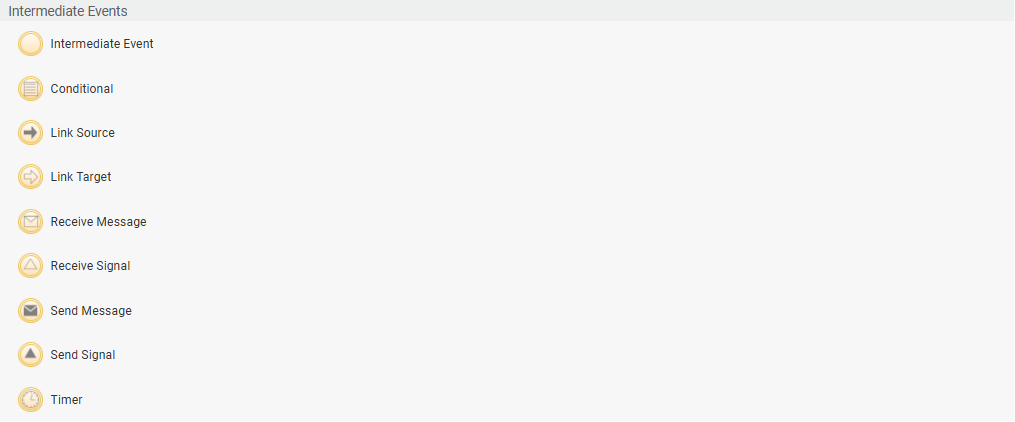
The types of Intermediate Events are:
-
Intermediate Event (standard): It is basically a design element, with no impact on the Process flow.
-
Conditional: When the token reaches this Event, the system checks the condition entered in the Condition field. If the condition is true, the token proceeds. If the condition is false, the token is stopped until the condition returns true, due to an event occurring in a different branch (e.g., a parallel path).
-
Link: It allows tracing a link between two items (source and target) without drawing an actual connection between them. See Link.
-
Message: The token waits for (Receive Message) or sends (Send Message) a message during the Process. For example, in an order placing process, a task may check if the item is in stock and send out a confirmation link when the item is available (Send Message). The Process progresses after the confirmation link has been successfully received (Receive Message). See Message and Receive Message.
-
Signal: The token waits for (Receive Signal) or sends (Send Signal) a signal during the Process.
-
Timer: The event stops the token for a given amount of time (e.g., until you meet a deadline). See Events
End Events
End Events are used to "consume" Tokens. Whenever a Token reaches an End Event, it is removed from the Token set. If there are no more Tokens in the Token set, the Process ends.
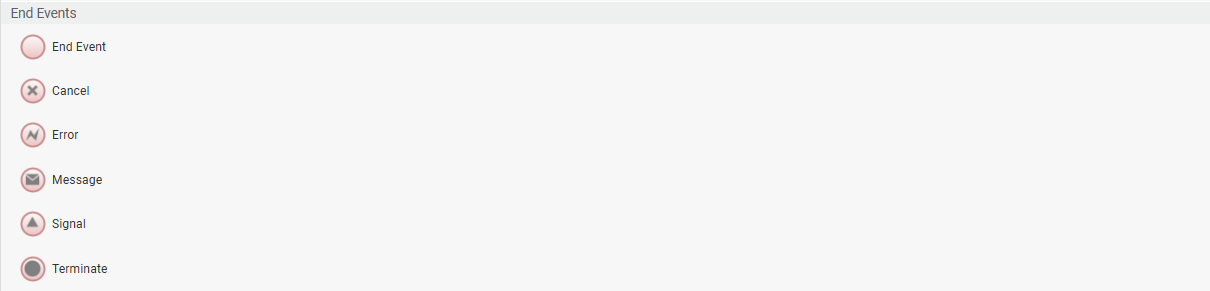
The types of End Events are:
-
End Event (None): The Token reaching the End event is removed from the Token set.
-
Cancel: It cancels the execution of the current Process. All Tokens in the Token set get removed as soon as one of them reaches the Cancel End Event. In the case of a Sub-Process, the parent Process continues as if the Sub-Process had completed normally. This event can also be triggered trough the Script Function
ThrowProcessCancel(). -
Error: The token that reaches the event is deleted and an error (with an error code) is thrown. This event can also be triggered trough the Script Function
ThrowProcessError(string $errorName). -
Message: The token that reaches the event is deleted and a message is sent.
-
Signal: The token that reaches the event is deleted and a signal is raised.
-
Terminate: It cancels a Process as well as all of its parent Processes. This event can also be triggered trough the Script Function
ThrowProcessTerminate().
Event Details
This section contains further information on specific Events.
Link
A Link Event is an Intermediate Event that allows tracing a link between two items (source and target) without drawing an actual connection.
In the example below, you want to connect the two tasks at the bottom-right and at the top-left of the Process. Drawing a connection between them may result in may result in unclear visual design, although it is functionally correct. To avoid this issue, you can use Link Source and Link Target events to "jump" from one task to the other directly.
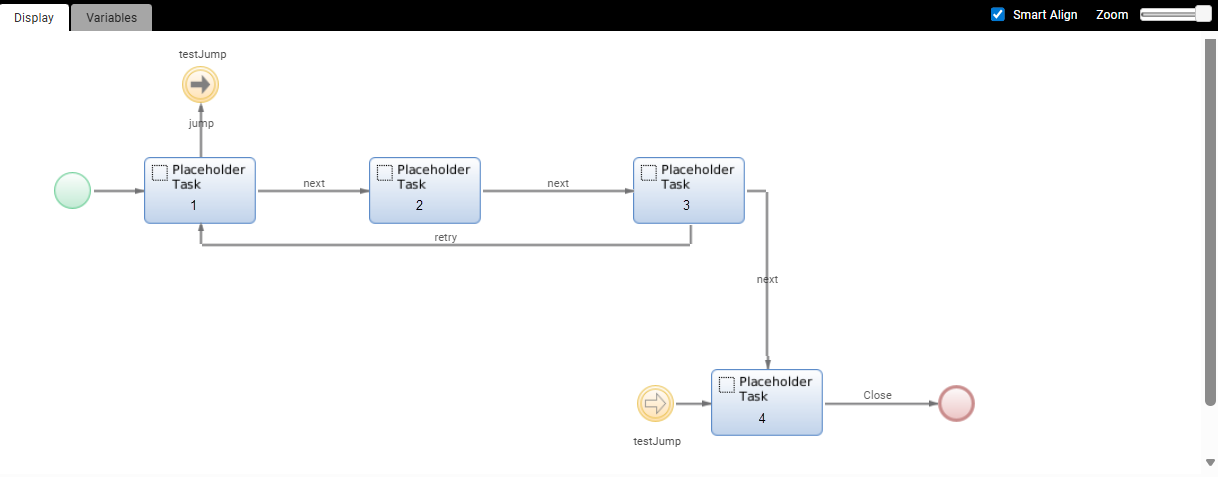
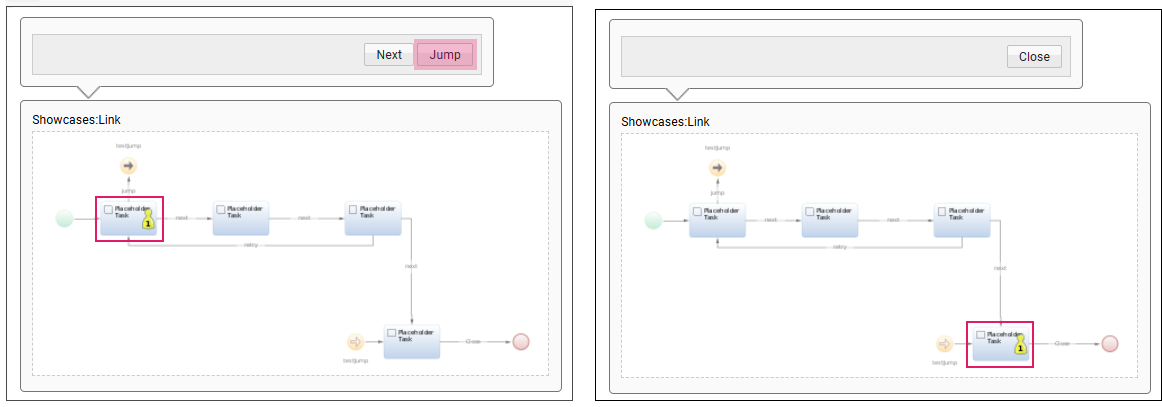
To set a Link Event, set the following essential properties:
| Type | Property | Description |
| Link Target | Link Name | Enter a name for this element. This will be referenced in the Link Source Event. |
| Link Source | Link Target Name | Enter the Link Name property set above for the Link Target Event. By clicking on the C icon next to the field, you can enter an expression to set a dynamic target. This means that you can set specific conditions under which you can jump to different tasks. |
Message
A Message event allows passing information from one Process to the other or within the same Process. The mechanism is based on a Message Sender (available for Intermediate and End events) and a Message Receiver (available for Start and Intermediate events). When the token reaches the Sender, the corresponding message is sent according to its configuration. When the token reaches the Receiver, it stops until the corresponding message in received.
Message Events can be of type:
-
Start: A listener waits for an incoming message and starts the Process once it receives it
-
Intermediate: They block Process execution until a certain message arrives.
-
End: The token that reaches the event is deleted and a message is sent.
Compared to a Signal, a Message has the following key differences:
-
Messages contain metadata such as recipient, process instance ID, sender, and lifetime.
-
Signals use a single queue for the entire system, while Messages allow you to have multiple queues.
-
For the receiver, you must specify which queue to listen to and whether or not to consume the message. Additionally, you can execute a Filter expression.
Properties
The properties available for Message Events are illustrated in the table below:
| Type | Property | Description |
| All | Message Queue |
Queue where the message should be posted. Available options are Signal (for Signal Events) and Default. However, you can select any of the queues created under System Maintenance > Process Messages. |
| Start | Priority | Determines the priority given to each Process in case of multiple Processes waiting on the same queue. A lower number indicates a higher priority. |
| Intermediate (Receive), Start | Filter | Script to determine the conditions under which a message is accepted. You can use the implicitly defined $message variable. |
| Intermediate (Send), End | Sender | Process or system that emits the message. It can be used as an additional filter. |
| Intermediate (Send); End | Recipient | Target process instance or participant that should receive the message. It can be used as an additional filter. |
| Intermediate (Send); End | Process Instance Id | Unique identifier of the process instance that should receive the message. It can be used as an additional filter. |
| Intermediate (Receive), Start | Consume Message | By selecting this option, the message is removed from the queue after being received. |
| Intermediate (Receive), Start | Message Variable | Variable used to store the received message. It must be an assigned variable of type WorkflowMessage. |
| Intermediate (Send); End | Data |
Message payload. A best practice is to send data in JSON format, e.g. |
| Intermediate (Send); End | Life Time | Message expiration deadline e.g., 5m. |
| Intermediate (Send); End | Persistent | If selected, the message is stored in a durable queue to persist after a restart. |
Example
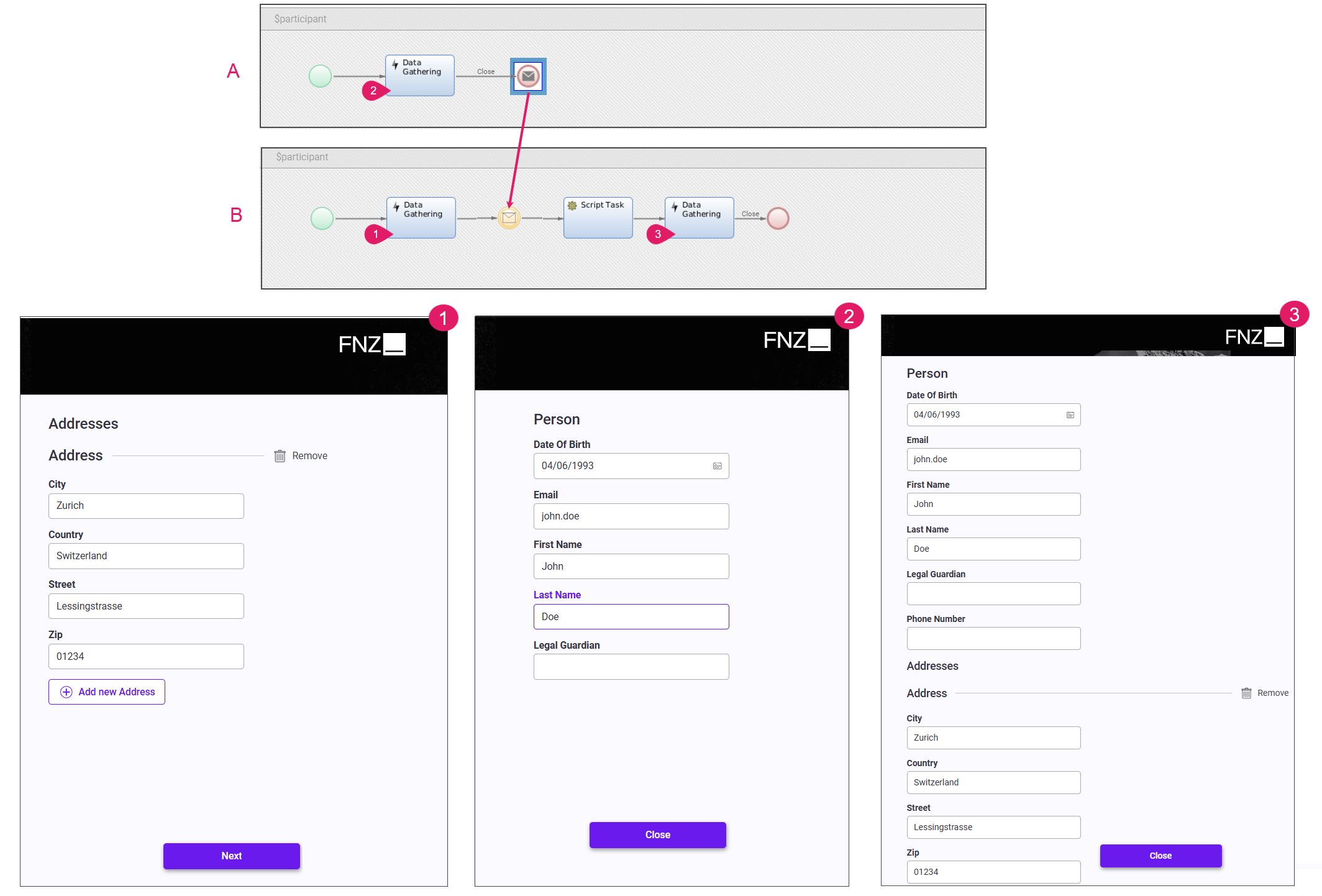
In the example above, the Data Gathering App Task 1 collects address data (e.g., city, country, and so on). After clicking Next, the token waits on the Intermediate Message Event, listening for data on the configured message queue with instructions to consume the message and store it in the $message variable. In this case, no filter is applied, therefore it accepts any incoming messages.
The Data Gathering App Task 2 collects additional personal data (e.g., name, last name, and so on). After clicking Close, the token transits to the End Message event and a message is sent. The data configured in the message event is translated to JSON and sent to the same message queue as above.
If the intermediate message in Process B is active and listening when the end message from Process A arrives, the data coming from both Data Gathering App Tasks is merged and then shown in Data Gathering 3.
This pattern can be useful in scenarios where different Process Instances need to share or update data.
Receive Message
When using the Receive Message event, follow these best practices:
- Configure every Receive Message event with a different Message Variable.
- Always set the scope of message variables to local, not inherited.
- Your Process contains Receive Message events on parallel branches (or even in parallel Sub-Processes) or
- You need to keep a Process Message for a longer time.
- All Receive Message events are on the same branch of the Process and
- Your business logic only needs access to the last Process message.
Signal
Signal Events allow setting interactions between different Processes or different points within the same Process. This mechanism is based on the interaction between a Signal Sender (available for intermediate and end events) and a Signal Receiver (available for start and intermediate events). When a token reaches a sender, the corresponding signal is sent. On the other hand, when the token reaches the receiver, it stops until the corresponding signal is received.
Compared to a Message, a Signal does not store any metadata.
Some of the possible patterns may be:
-
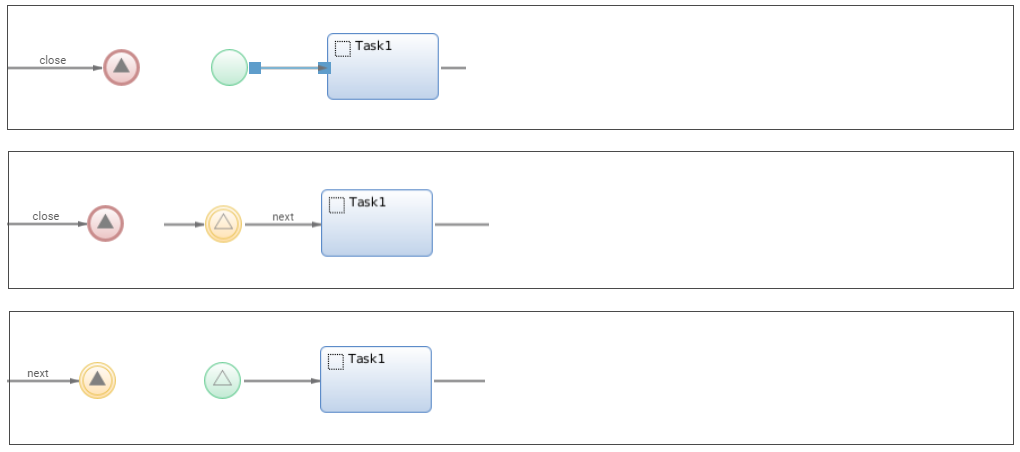
A process ends by sending a Signal and this starts a new Process Instance. Note that this can also be implemented through the
StartProcess()Script Function. -
A token reaches the Send Signal Intermediate Event and a signal is sent over a signal queue. The signal starts the new Process Instance.
-
A process ends by sending a signal and this enables a token. This token waits for the Receive Signal Intermediate Event to proceed to the next task.
For the Signal Event, you need to set the following properties:
| Property | Description |
| Signal Scope |
Available options are:
|
| Signal Name | Enter a name for the signal. For Sender and Receiver signals belonging to the same event, enter the same signal name. |
| Consume Signal | If selected, the first event reading the signal will cancel it. |
Timer
A Timer Event allows either scheduling the start time of an event (Start Timer Event) or stopping the token for a given amount of time (Intermediate Timer Event) before the process progresses.
If you are using Timer Events in your Solution, you need to know when the attached (i.e. linked to a Connection) Timer Event expression is evaluated and whether the timer event triggers once, or multiple times, in case the expression date is greater than the current date.
The general rule is as follows:
-
The attached timer event expression is evaluated immediately after the token has arrived at the activity. It happens even before the token is initialized.
-
If the expression evaluates to a date in the past, the token does not need to get initialized at all, and can leave the activity immediately.
-
If the expression evaluates to a date in the future, this date is stored in the token in a hidden property. As of that point, the value of this hidden property is used to decide when the timer triggers.
Note: If the expression was recalculated every time, expressions such as TIMEADD(NOW(),'7d') would not work as expected. They would always return a date seven days in the future, and the timer would never trigger.
Version Filters
Here is an exception to the rule above: If a Process instance is upgraded to a newer version of the Process (by changing its version filter), it could happen that a timer expression is evaluated after the token has been initialized.
Example:
- A token gets to an activity that does not have an attached timer event. The token is initialized as usual.
- The Process Instance is then upgraded.
- In the new Process model, the same activity has an attached timer event.
- If the Process Instance is updated, the Process engine notices that the expression of that attached timer event has not been evaluated: the hidden property mentioned above is missing.
- The Process engine then evaluates the expression, and stores the result in the hidden property.
Properties
For the Start Timer Event, you need to set the following properties:
| Type | Property | Description |
| Start | Trigger Type |
|
| Intermediate | Expression | Script determining the date and time until which process execution is suspended. It is expected to return a date or a time stamp (in milliseconds). See example below. |
Notes:
-
Make sure the Process BO is committed
-
You can check your trigger/s under Solution Maintenance > Process Engine > Process Triggers.
-
Example Expressions are:
TIMEADD(NOW(),'7d')

TIMEROUND(NOW(),'M','up')

TIMESTAMP() + 60 * 1000
Multiple Triggers
All Intermediate Events trigger only once for a given token. This is true until the token leaves that activity with the attached events. If the token later returns to the same activity, all events may trigger once again.
Note: If you restart a token on an intermediate timer event, or on an activity with an attached timer event, the token gets reinitialized, but the timer expression is not reevaluated!
Example: You need to generate escalation emails in your Solution. You implemented an interrupting Timer Event attached to a Screen and connected to an email task. From the email task you then draw a connection back to the Screen.
The Expression used in its configuration could be DATEADD(processStartDate, 30, 'D').
However, using this expression means that, after 30 days from the start of the Process, endless emails will be triggered as the token keeps leaving the activity and enter it again. An alternative would be using a non-interrupting Timer Event connected to an End Event.