Process Tokens (Workitems)
Workitems and Process Tokens
A Workitem is a Process Token which is assigned to a participant, meaning that the participant has an item on the to-do list for this Process Token. The Process Engine will wait for the participant to complete this work item (e.g., entering data into a form or approve a request) and, once the work item is completed, the Process Token will move on through the Process Model. This implies that the Process Token continues to exist even if the Workitem has been completed, as the Process Token may trigger an invocation of an integration link, wait on a connection to be merged at the following gateway, or wait for an incoming message on an intermediate message event, and so on.
Process Tokens Tab
Note: The Process Tokens tab was called Workitems tab in versions previous to FNZ Studio 2023.
The Process Tokens tab in FNZ Studio Composition displays information about all current Process Tokens which are not completed or canceled. This tab is useful for tracking the state of Process Tokens and troubleshooting issues, e.g. you can check for suspended Process Tokens or reassign Process Tokens to different users.
Access the Process Tokens tab via Solution Maintenance > Processes > Process Tokens.
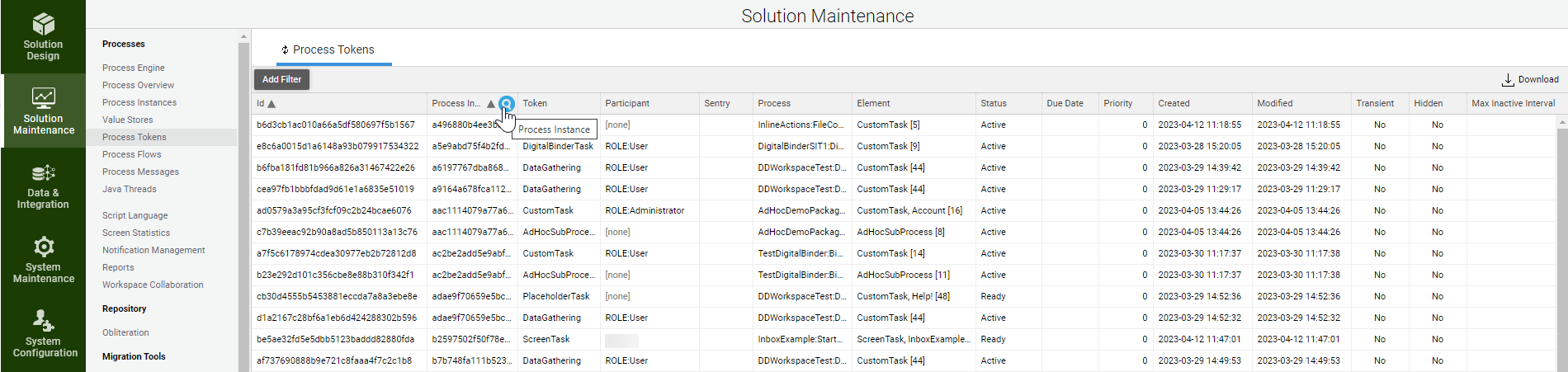
The table displays information about the most important aspects of the Process Tokens. Note that the data listed on the Process Tokens tab is gathered in a distributed manner from all cluster nodes:
-
Id - Process Token ID.
-
Process Instance - The ID of the Process Instance to which the Token belongs.
-
Token - Token type.
-
Participant - The User, Role, or Group assigned to the current Token.
Note: The entry is displayed in red if the User, Role, or Group assigned to the current Token is no longer available on your Platform instance. -
Sentry - The icon
 indicates that this Process Token has a Swimlane Sentry defined.
 -
Process - The parent Process to which the Token belongs.
-
Element - The place in the Process where the Token is located at the current time.
-
Status - The status of the Token, possible values are: None, Ready, Active, Outgoing, Suspended. Completed or Canceled Tokens are not displayed.
Note: The entry is displayed in red if the status of the Token or of the Process Instance to which the Token belongs is Suspended. -
Due Date - Property inherited from the Due Date field set on the component where the Token is located.
-
Priority - Property inherited from the Priority field set on the component where the Token is located. This property defines the order in which the Tokens are executed in case there are multiple Tokens at the same time.
-
Created - Date and time when the Token was created.
-
Modified - Date and time when the Token was changed.
-
Transient - Property inherited from the Transient field set on the component where the Token is located.
-
Hidden - Property inherited from the Hidden field set on the component where the Token is located.
-
Max Inactive Interval - Maximum time in which the Token is considered inactive. It is used by extensions or in Script Language.
Actions
Apart form sorting (through the small triangle in the column header) and filtering (through the magnifying glass above the column header), the following actions can be performed on Process Tokens through the right-click context menu:
- Assign - Enables assigning the Process Token to a different User, Group or Role.
- View Process Instance - Opens a new pop-up window which contains information about the Process Instance to which the Token belongs.
- Stack Trace - Displays important details about errors that occurred during Process execution. This action is disabled if the there is no stack trace available.
- Open in Workspace - Opens the Process Instance in a new window which displays a detailed view of the Process Token within the Process Instance. This action is available only if the current user has access to the Process Token.
- Open Interactive Script Editor for this Scope - Opens the Interactive Script Editor (ISE) in the context of the current task, thus allowing inspecting variables and evaluating expressions in its scope. Note that this debug functionality is only available for environments that do not contain sensitive data (e.g., dev environments).
Use Cases
Forwarding a Workitem to Another User
When you forward a Workitem to another user, you are actually forwarding the associated Process Token. For this reason, it is important to be aware of the behavior of Process Tokens when using multiple Swimlanes:
- Although it appears that a Process Token moves through a Process, it is in reality newly created every time it enters a Screen, Connection etc.
- Every time a Process Token is created, the Swimlane participant expression is evaluated and the Process Token is assigned to the user, role, or group the expression returns.
- If you reassign a Process Token to another participant (e.g. using the
AssignWorkitemToUserfunction), this reassignment only has an effect as long as the Process Token stays at its current location in the Process. - When the Process Token "moves" to the next Screen, Connection etc., it is newly created and reassigned to a user according to the Swimlane participant expression.
This section demonstrates the above behavior in detail, and answers the question how you can permanently reassign a Process Token – by modifying the result of the Swimlane Participant expression.
For this explanation, we assume the following values for the variables which are all defined in the top-most Process:
$creator:= 'bob';$validator:= 'alice';$advisor:= 'tom';
See this example:
-
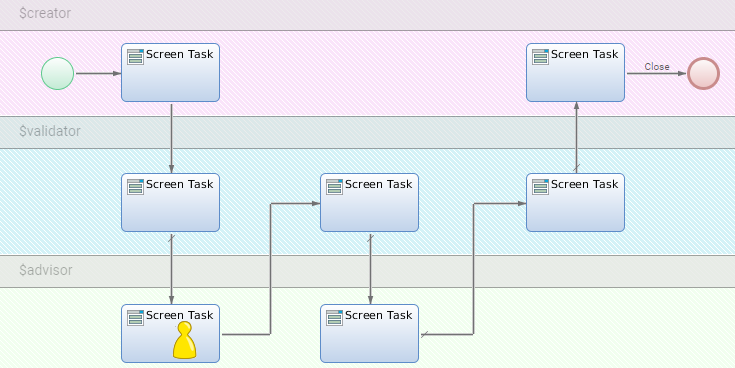
Here, the Process Token belongs to 'tom':
-
For certain reasons, we want to forward the Process Token to the user 'george'. For this purpose, we use the following function:
Copy$forwardUserId := 'george';
AssignWorkitemToUser($workitem, $forwardUserId);The Process Token now belongs to the user 'george'.
-
In the previous step, we didn't overwrite
$advisor. This means the Process Token now belongs to 'tom' again after moving to a further Screen: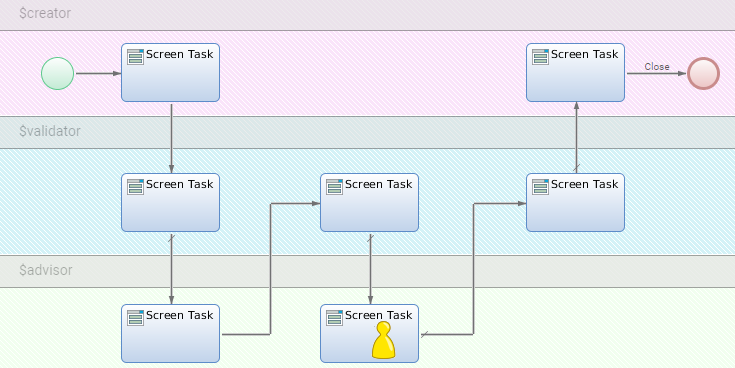
If we would have overwritten $advisor before, it would now belong to 'george'.
The correct way to overwrite $advisor would be to do the following:
$forwardUserId := 'george';
$variableAssignments['advisor'] := $forwardUserId;
AssignWorkitemToUser($workitem, $forwardUserId, $variableAssignments, true);
With the $variableAssignments parameter, we can overwrite variable values from the top-most Process (e.g. $advisor).
But remember that this only works if:
$advisoris defined in the top-most Process.- The participant of a Swimlane is a reference to a variable.
This could also be automated so you do not need to know the participant assignment. But you must be sure that the participant variables are defined on the top-most Process:
Global String $forwardUserId;
Global Named String $variableAssignments;
Global Workitem $workitem;
String $expr := $workitem.getParticipantUserExpression();
If $expr != null and MATCH($expr, '^\\$[a-zA-Z_][a-zA-Z_0-9]*$') Then
   $forwardUserId := 'george';
   $variableAssignments[SUBSTRING($expr, 1, LENGTH($expr))] := $forwardUserId;
   AssignWorkitemToUser($workitem.getId(), $forwardUserId, $variableAssignments, true);
End
Priority Criteria in Multiple Workitems
In some situations, the FNZ Studio Process Engine must select one among multiple workitems to be presented to a user. Which are the priority criteria applied to choose one among multiple workitems?
Terminology note: While the Process Engine works with so-called Process Tokens, when such tokens reach an activity that needs to be executed by a user, these are called Workitems. The algorithm described in this article refers specifically to Workitems. .
Situations in which Multiple Workitems are Produced
In some situations, multiple workitems are produced and the FNZ Studio Process Engine applies an algorithm to select one among multiple workitems to become active. This happens in the following cases:
- When starting a new Process which generates multiple parallel workitems for the same user in the new Process Instance.
- When opening a link from the Form /Process/< ProcessInstanceID > and FNZ Studio must select one of the workitems in the referenced Process Instance.
- When a user has completed a workitem and FNZ Studio scans for the next workitem to be presented to the user.
How are Priority Settings Applied
When multiple workitems are present for the same user in the same process, they become active based on the following general criteria (you can check these properties for all current Process Workitems in the Workitemstab under Solution Maintenance > Processes):
- Priority property: Higher values have higher priority.
- Transient property: Non-transient workitems have higher priority.
- Due date property: Workitems with a closer due date indicate higher propriety (workitems with no due date have the lowest priority).
- Participant property: Workitems assigned to a user have higher priority than workitems assigned to a group or role.
- Created property: Older workitems have higher priority.
- Id property: Workitem Ids are ordered alphabetically and the smaller Id has higher priority.
Note that, for the specific case mentioned in point 3 above (when a user has completed a workitem and FNZ Studio scans for the next workitem to be presented to the user), an additional criterion is taken into account and this has the highest priority: workitems produced as direct consequence of the completion of the previous workitem are preferred (for example if there is a process flow from the previous task to the a new task).