OIDC Authentication for Microsoft Entra ID
This article provides an example of how to set up OIDC authentication for Microsoft Entra ID (Microsoft Azure AD) and FNZ Studio.
Microsoft Entra ID Configuration
Our customers are usually in charge of IDP configuration. However, we can provide indications or suggestions if needed. A guideline document written by our Integration Team has been provided to our customer (see the attached AzureADSetup (PDF)).
Retrieving Information
Some information is needed on how the customer decides to configure the IDP. To configure the OIDC authenticator connector in the Tomcat web server, see OpenIDConnect (OIDC) Providers. The final configuration is a json file with, at least, the following fields:
issuerclientIdclientSecretusernameClaim: Name of the jwt field where we can find the user id to be mapped as an FNZ Studio UserusernameMapping: (if needed). See Username Mappings in OpenIDConnect (OIDC) Providers.rolesClaim: Name of the jwt field where we can find the role id to be mapped as an FNZ Studio Role (Roles are a key part of FNZ authentication)rolesMapping: (if neeeded). See Role Mappings in OpenIDConnect (OIDC) Providers.
For further reference, see:
Providing Information
On the other hand, we need to provide the customer with information on how to configure the Azure Portal correctly:
- redirect uri, e.g.:
- groups: (if needed) these are necessary for user permission mapping
Reliable Client Secret Exchange
It is necessary to find a reliable channel for the transmission of the "client secret". This information is shared by the authentication server (Azure AD) and the application server (FNZ Studio), and must be communicated from our customer to FNZ over a very secure channel. For the production environment, the choice can be an sftp server.
json config file for Authenticator Connector
Follow these steps:
- Write down a json for the authenticator and configure the Tomcat (application server) instance.
- If the Solution is installed on an FNZ Cloud, open a "Change Cloud Instance" ticket to FNZ Service Desk. Following is a sample of the json file configuration for our bank:
{


        "name": "Microsoft Azure AD for ABG",


        "issuer": "https://sts.windows.net/853e8b83-4054-4eb9-8b26-ec6513dd213d/",


        "clientId": "8793f385-149f-44a0-97a9-5bc5a8373033",


        "clientSecret": "___INSERT_HERE_THE_CLIENT_SECRET___",


        "usernameClaim": "unique_name",


        "rolesMapping":


        {


            "(.*)": "$1"


        },


        "rolesClaim": "roles"


    }
The OpenID provider configuration can be retrieved appending the ./well-known/openid-configuration endpoint to the app registration's authority URL (Final: OpenID Connect Discovery 1.0 incorporating errata set 1). In the OpenId configuration, you can find the issuer parameter, that should also be the base url of the well-known endpoint.
Test Connection
Test the connection together with your customer. After a successful login, you should be able to read the JWT id token in the logs. A sample jwt could be:
Header:

{

    "alg": "RS256",

    "kid": "-KI3Q9nNR7bRofxmeZoXqbHZGew",

    "typ": "JWT",

    "x5t": "-KI3Q9nNR7bRofxmeZoXqbHZGew"

}

Payload:

{

    "amr": [

        "rsa",

        "mfa"

    ],

    "aud": "8793f385-149f-44a0-97a9-5bc5a8373033",

    "email": "s.b@abgsc.no",

    "exp": 1695640877,

    "family_name": "B",

    "given_name": "S",

    "groups": [

        "24a40600-a5b9-42e7-a31e-1086c8b5aba8",

        ...

        "c782baf4-c67b-4134-ae91-a6fedd323329"

    ],

    "iat": 1695636977,

    "ipaddr": "158.248.11.18",

    "iss": "<https://sts.windows.net/853e8b83-4054-4eb9-8b26-ec6513dd213d/",>

    "name": "S A B",

    "nbf": 1695636977,

    "oid": "9ad5e148-9077-4740-bb1d-1cceeb3db5c1",

    "onprem_sid": "S-1-5-21-1525965511-843388469-930774774-22503",

    "preferred_username": "s.b@abgsc.no",

    "rh": "0.AQwAg4s-hVRAuU6LJuxlE90hPYXzk4efFKBEl6lbxag3MDOWAOY.",

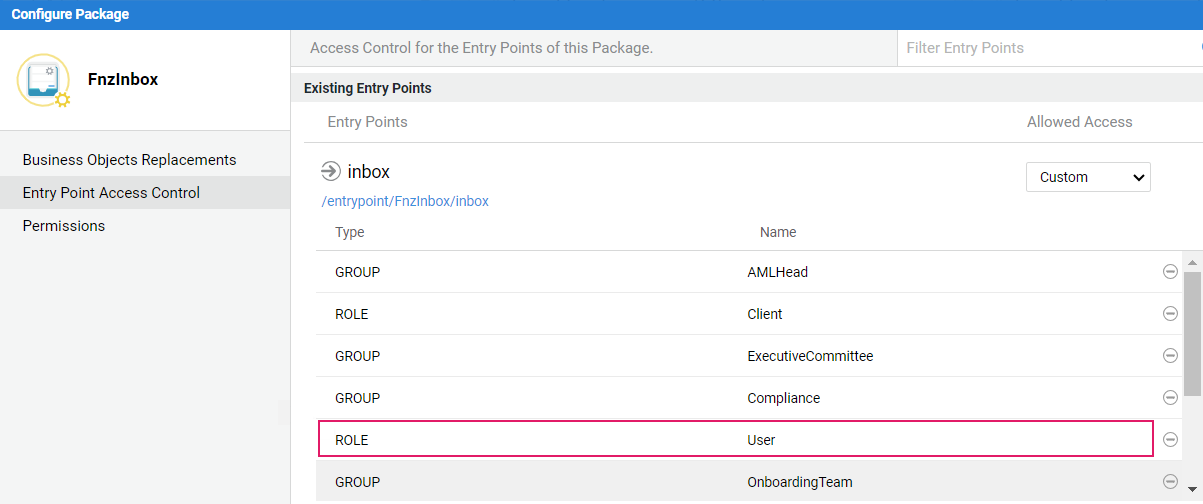
    "roles": ["User"],

    "sub": "R6tdr_lJ0L7YLuOuYAfJU66Yyv8pydQXyQcww_duavA",

    "tid": "853e8b83-4054-4eb9-8b26-ec6513dd213d",

    "unique_name": "s.b@abgsc.no",

    "upn": "s.b@abgsc.no",

    "uti": "4-kTEFkZX0GwDT6tMM8MAA",

    "ver": "1.0",

    "wids": ["b79fbf4d-3ef9-4689-8143-76b194e85509"]

}
JWT Manipulation
At times, it is necessary to manipulate tokens to map information, e.g. you may want to store given_name, family_name, or groups. There are some useful Interactive Script Editor (ISE) functions that can be used to retrieve tokens for the currently authenticated user:
Auth:DecodeJwt(Auth:GetAccessToken());

    this function also performs the token refresh

Auth:DecodeJwt(Auth:GetIdToken())

    the ID token usually contains valuable informations about the user