I imported the BAM Dashboards on Appway (or migrated the out-of-the-box dashboards) and all the BAM Business Objects are now in the Base Package. I would like to move them to a target Package (for example BAM) in order to better organize my Solution.
Starting from Appway 7, releases of the BAM dashboards are always delivered in the Base Package. The following sections provide detailed procedures on:
Following are the steps required to migrate your BAM Business Objects from the Base Package to a different Package:
-
Create the desired target Package.
This recipe uses BAM as an example Package name. If you decide to choose a different name for your Package, remember to use your chosen Package name instead of BAM: when updating the configurations below.
-
Use the Move Business Objects functionality on the Maintenance tab of the Base Package to move BAM Business Objects to your target Package. Move all BAM Business Objects except:
- (DataClass) BAMFilter
- (DataClass) BAMActivityFilter
- (Label) DOCUMENT_TITLE-BAM_SLAReport (this label is generated automatically)
- (Catalog) BAM_Attributes
- (Catalog) BAM_TokenAttributes
-
Keep the visibility settings and dependencies suggested by the system.
-
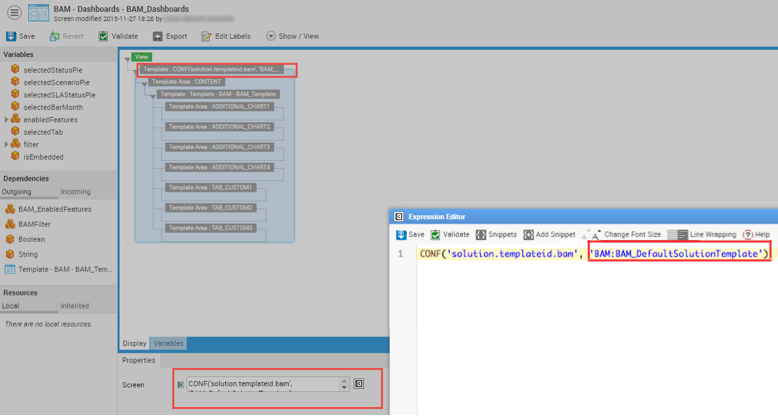
In the target Package, change the BAM_Dashboards Screen: Edit the first Template expression CONF('solution.templateid.bam', 'BAM_DefaultSolutionTemplate') to include the target Package ID in the default Screen ID e.g. BAM:BAM_DefaultSolutionTemplate
-
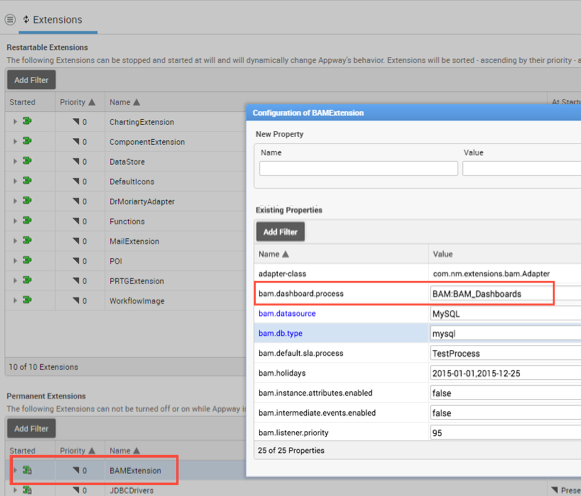
In the Studio, go to System Configuration>Extensions>Permanent Extensions>BAM Extension. Edit the BAM extension configuration property bam.dashboard.process so that it points to the moved BAM_Dashboards Process e.g. bam.dashboard.process = BAM:BAM_Dashboards
-
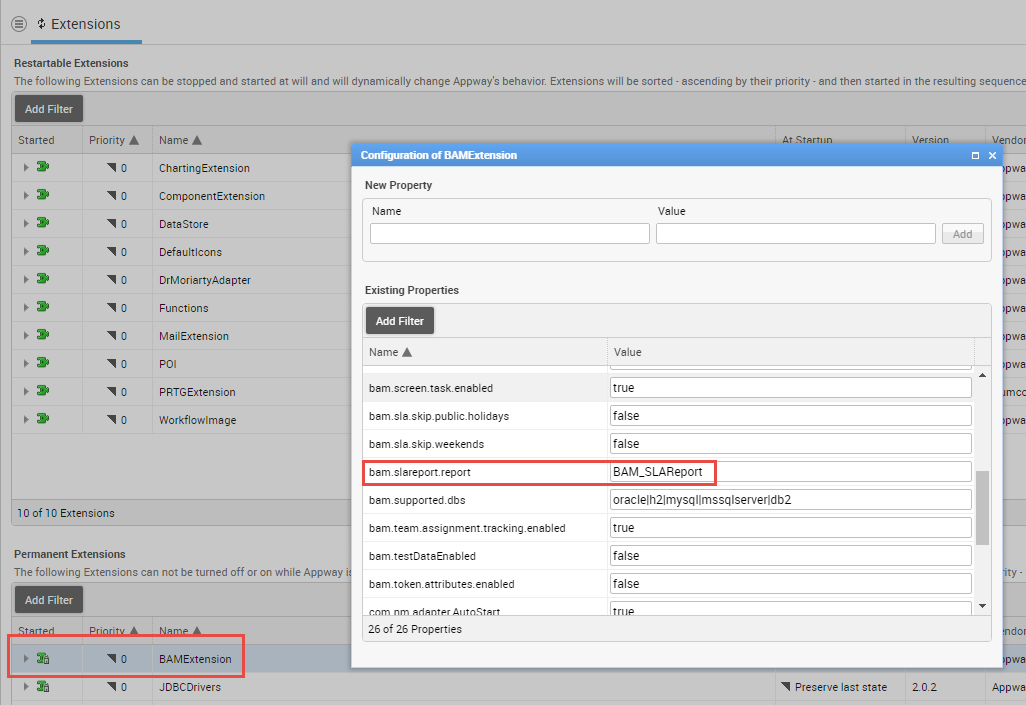
Edit the BAM extension configuration property bam.slareport.report to point to the moved BAM_SLAReport report e.g. bam.slareport.report = BAM:BAM_SLAReport
-
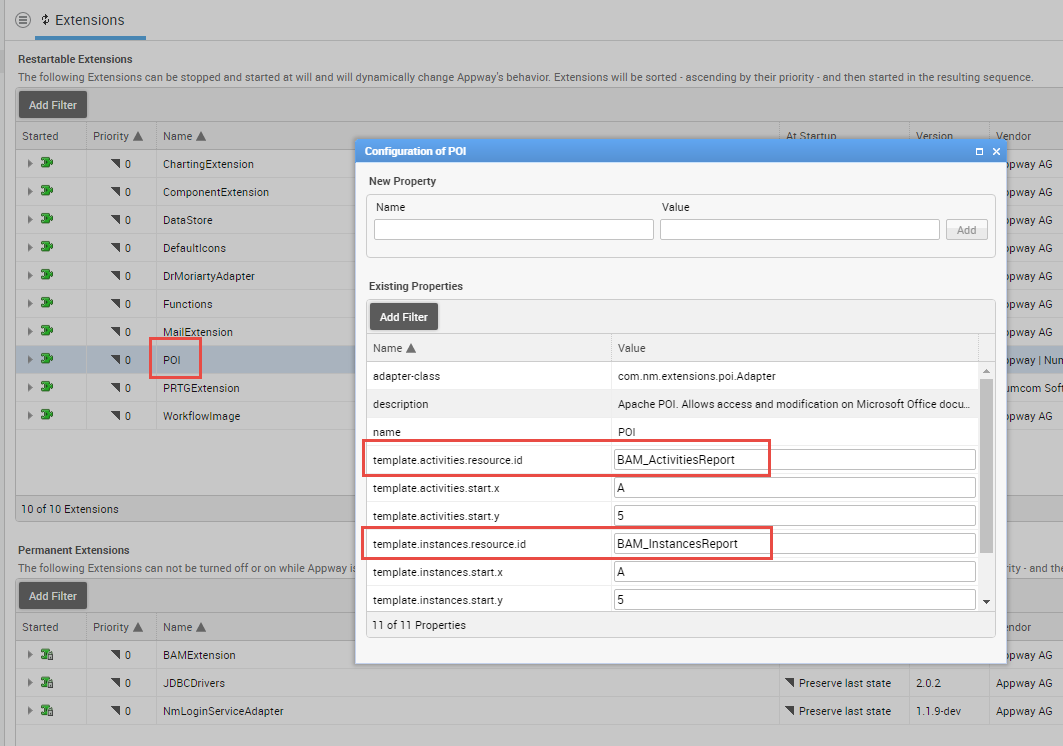
In the Studio, go to System Configuration>Extensions>Restartable Extensions>POI. Edit the POI extension configuration to point to the moved BAM template resources. For example:
template.activities.resource.id = BAM:BAM_ActivitiesReporttemplate.instances.resource.id = BAM:BAM_InstancesReport
-
Using the global search functionality, identify any dynamic references to the BAM_Dashboards Process. Update these references so that they point to the moved Process (BAM:BAM_Dashboards). A dynamic reference is the use of the Process ID as a string in an expression, for example.
- Remember to create necessary entry points and access control rules for the BAM Package if other Packages are dependent on it! You can find out more about entry points in the Packages documentation.
-
Add an entry point in the target Package with the ID GenerateExcelReport pointing to the Business Object BAM_GenerateExcelReport Process. Then update the access control rule to the entry point.
In the previous section, you moved BAM Business Objects out of the Base Package into the BAM Package of your Solution.
Let's assume that, at some point, you want to import a new version of the BAM dashboards in your Solution. The newly imported Business Objects will be imported to the Base Package and will not overwrite your current BAM Business Objects contained in the BAM Package (which have different Business Object IDs).
In order to take up the changes and new features included in the newer version of the BAM dashboards, you need to manually apply changes one by one to the BAM Business Objects located in the BAM Package.