The Document Generator is a legacy component and is End of Support (EOS) as of March 2023 (see
details). Recommended action: Consider adopting
Digital Binder v5 or higher.
Managing documentation is a common requirement in the banking industry, no matter what the segment or the interaction mode. Documents need to be generated correctly, prefilled, dispatched, signed, collected, tracked, approved, stored and archived. Document management has been paper-based and fragmented for a long time, leading to confusing and time-wasting tasks.
In this context, Appway supports the industry with a tool that ensures a seamless, efficient and effective document management across different banking segments, from Retail Banks to Private and Investment Banks.
Document management in Appway is performed through two main components:
- Document Generator (DG)
- Document Tracker (DT)
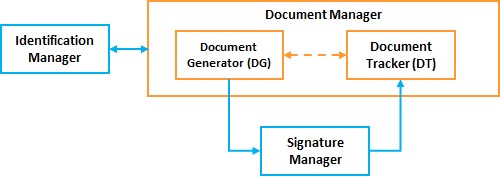
Document Generator and Document Tracker interact with other components such as the Identification Manager and Signature Manager:
- Identification Manager: during the identification process, the final customer uploads the ID card or passport, and this has to be automatically set in the DG/DT.
- Signature Manager: the final customer might decide to sign a document electronically. In this case, the Signature Manager needs to be plugged in between DG and DT.
The Document Generator handles two main complex types of item:
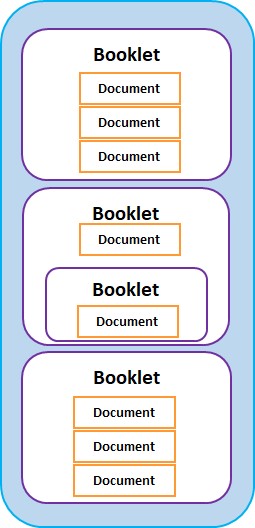
- Document: the document itself with its attributes
- Booklet: an aggregation of documents
Document Generator (DG) covers:
- The generation of correct sets of forms (client forms, internal forms, evidence coversheets)
- The processing method and details
- Signatory configuration
- Relations between document and entities
- Previews for printing
Note: There are differences in the implementation according to the banking industries. This component provides technical packages only for the Onboarding for Wealth solution, which is usually more complex than retail/consumer banking.
However, this document also provides some guidelines for the Onboarding for Retail solution.
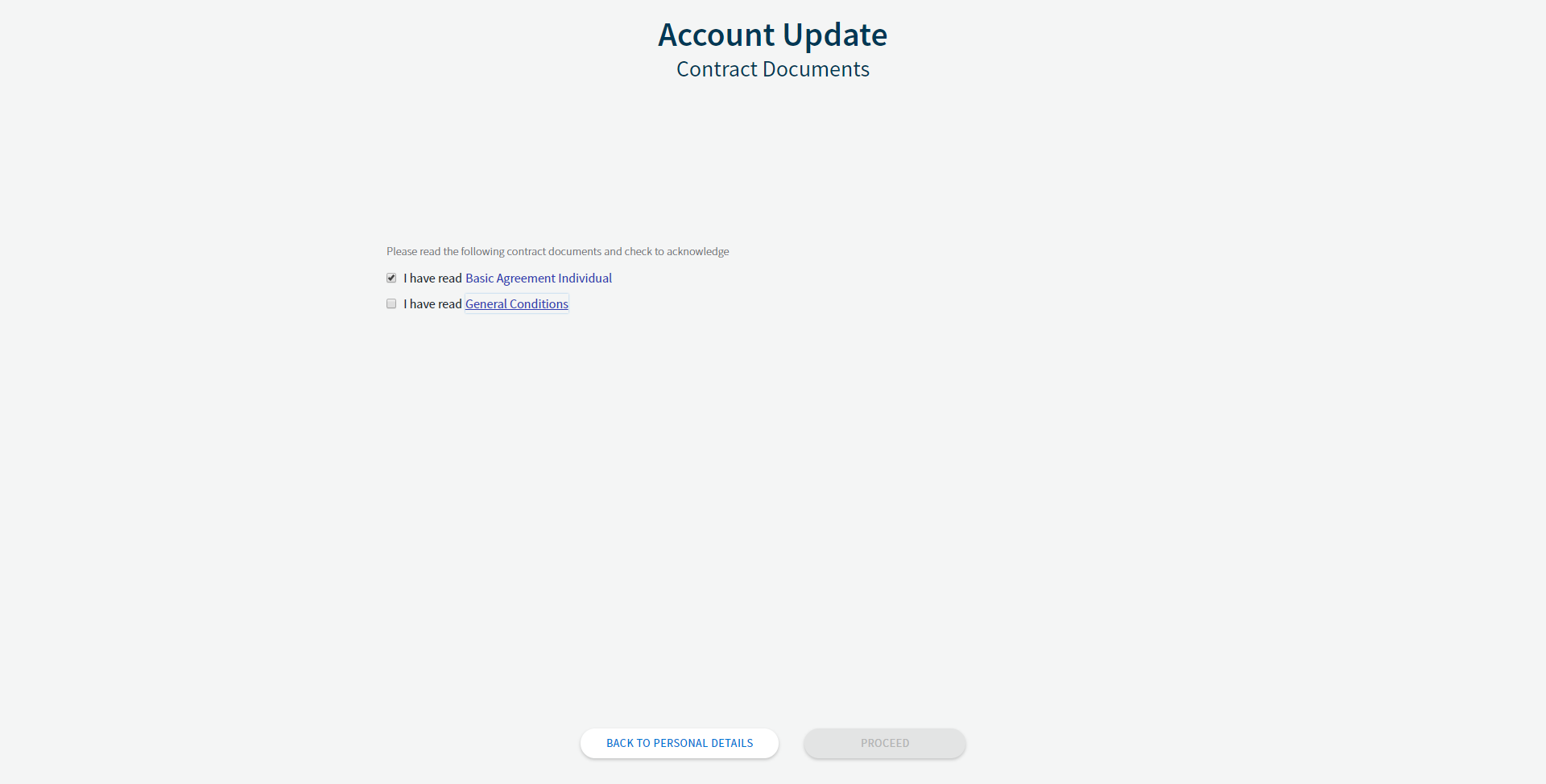
In the context of the Onboarding for Retail solution, the Document Generator behaves as follows for the end user:
- The list of required documents is generated ‘under the hood’ in PDF format (the grouping in folders is according to bank requirements).
- The list is not explicitly displayed on the screen (no thumbnails, grids or tiles are displayed).
A link and a checkbox are presented to the end user. The end user can:
- Click on the link and open another window showing the forms rendered in PDF (forms can be viewed and printed/emailed for later reference or for signature) and select the checkbox to confirm the understanding and acceptance of contracts.
Tip: opening a new window is a best practice especially on a mobile device.
- Select the checkbox to confirm the understanding and acceptance of contracts.
In the context of the Onboarding for Wealth solution, the Document Generator is usually managed internally by the bank Relationship Manager or Expert User, where all the core functionalities are made available.
- It is usually possible to perform activities atomically document by document.
- Documents are linked to the object they were created for in the relative business rule (party, portfolio, business relationship, and so on).
- Documents can be grouped in booklets (e.g. all the documents belonging to a party).
- Signatories and signature methods can be mixed (e.g. a document can be wet-signed while another one can be signed digitally).
Warning: this component does not allow having multiple types of signature on a single document.
- It is usually possible to print the entire document, whether it is prefilled or blank.
- Different attributes (like language) or actions (like escalation) are applicable to a single document.
Documents can be of three types:
- Documents generated by Appway (i.e. agreements)
- Optional / Mandatory
- Signature is requested / not requested
- Documents requested to the customer (i.e. evidences)
- Optional / Mandatory
- Provided via upload / referenced to a link
- Coversheet (i.e. page with a barcode attached to front of a document in case the handwritten version is needed)
A document has three main columns:
- Name: title of the document
- Signatures: list of signatories for the document
- Settings: generic settings, such as language, output (prefilled, blank), signature method.
The Document Generator uses the following patterns:
- Activity Screen
- Document list
- Sidebar
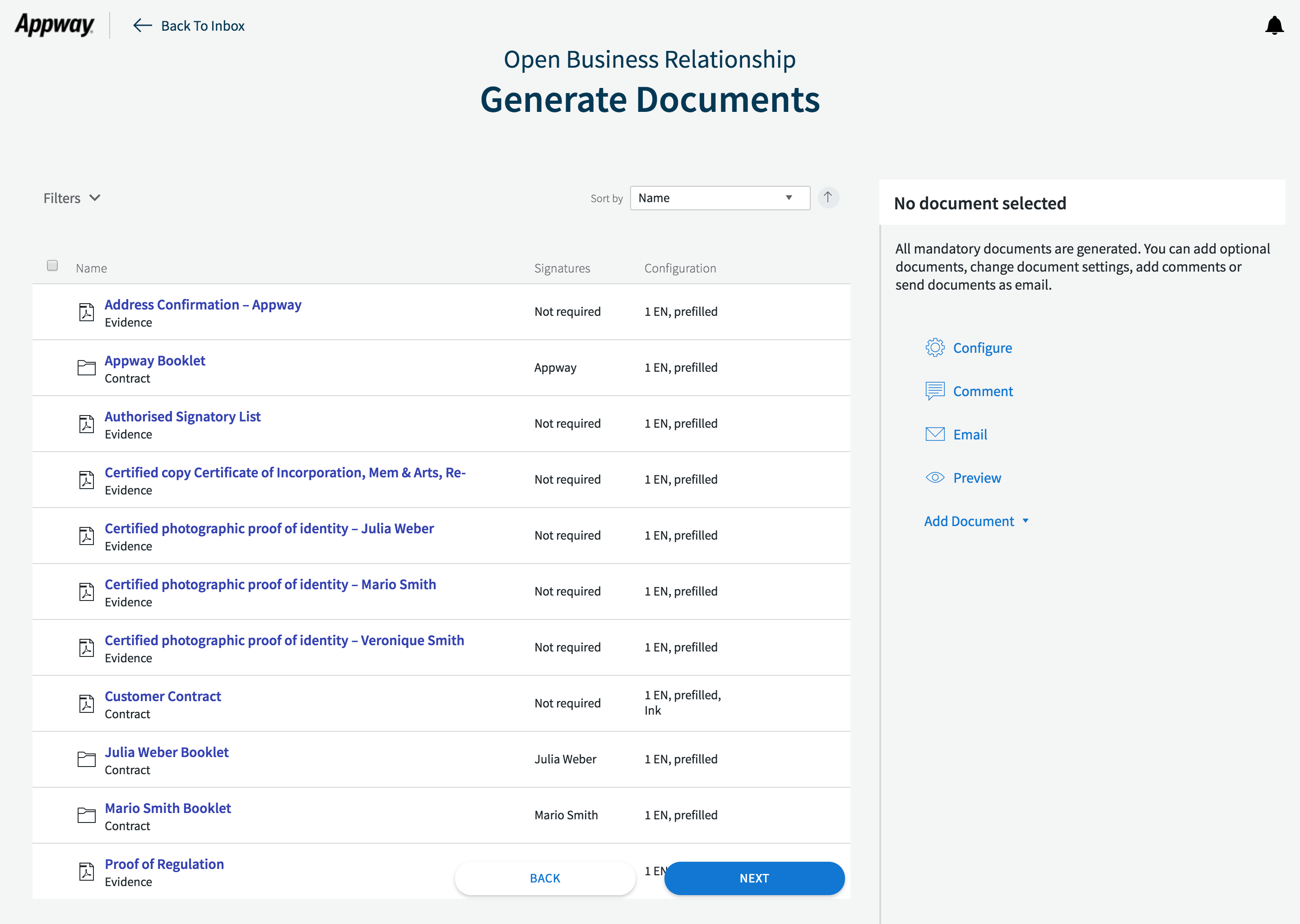
The following figure shows the Document Generator in its initial state — by default, all mandatory documents are going to be generated.
The content area of the document generation page is divided into two areas: the list of documents to be generated on the left, and the sidebar on the right. The two-column layout gives the users the overview of the documents while configuring a selected action in parallel.
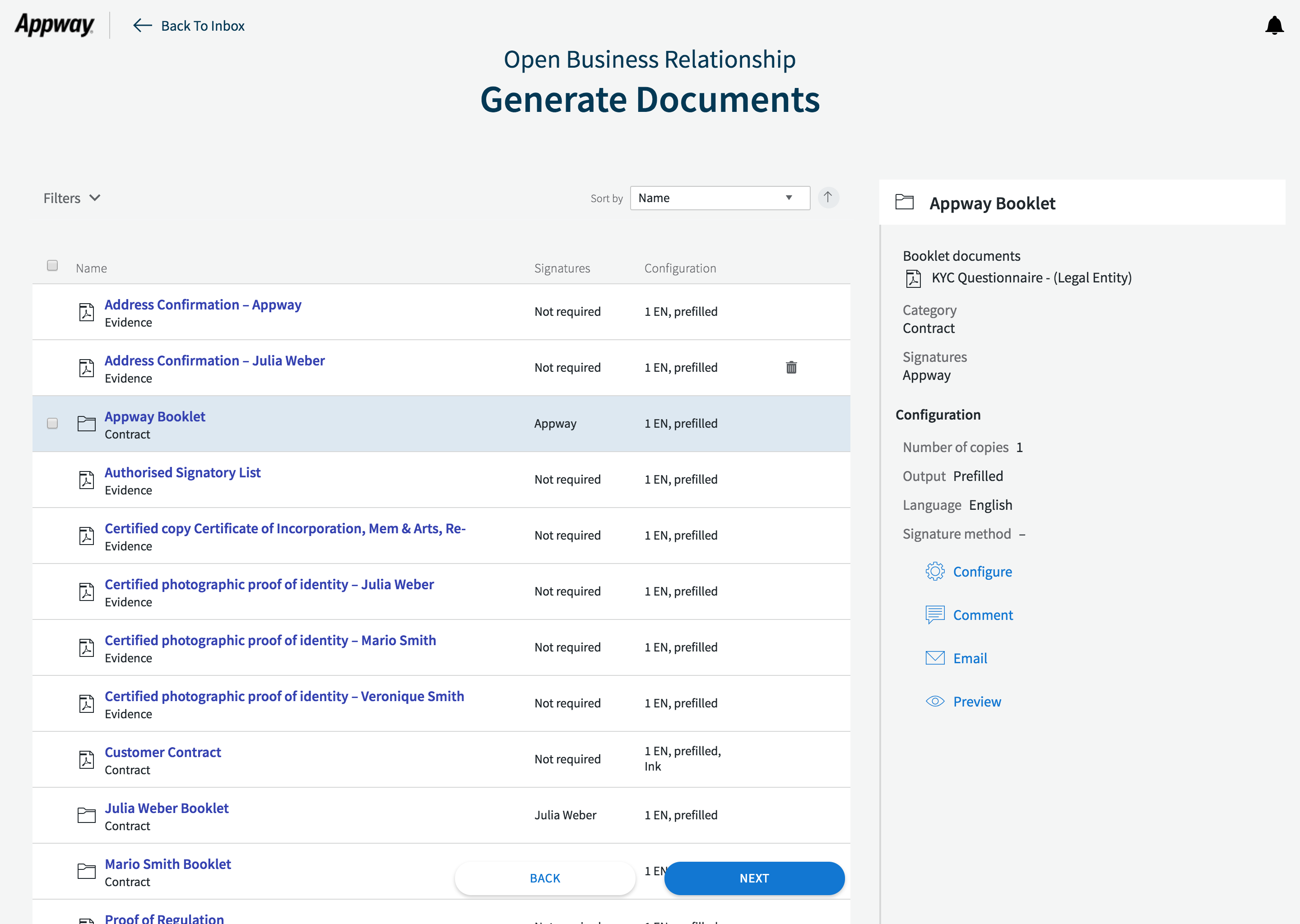
The Document List features single documents, and booklets. Booklet documents are characterized by a folder icon, with the enclosed documents shown in the selection detail in the sidebar. Documents containing comments are marked with an icon.
The system pre-populates the list with the mandatory contract documents. This allows users to proceed to the document tracking step right away, if no optional documents need to be added, and no documents need configuring.
The actions available in the Document List are:
- Filtering and sorting: Documents may be filtered and sorted according to configurable criteria.
- Preview: The document name links to the PDF preview. Each document indicates the number of required signatures, and the current settings (number of copies, language, type of output, and signature method).
- Removing documents: Documents added by the user may be removed by clicking on the trash icon.
Document actions are typically executed on a selection of multiple documents. These actions are available on the right-hand sidebar. By invoking a batch action, you select all documents by default and display the corresponding form. The document selection can be changed before the action is submitted.
The actions available in the sidebar are:
- Configure: You can change the settings of the selected documents, such as the number of copies, output method, language, and signature method.
- Comment: Comments are listed in a dedicated section. The comments added in the generation phase are available also in the document tracking phase.
- Email: You can send the document as an email. The email actions are logged in a dedicated section.
- Preview: View the document as a PDF.
- Add Document: Add documents for generation.
The Document Generatordepends on:
- The Core Package DocumentManager, which contains the interface and the functionalities to create the document set.
- The DocumentManagerCommon Package, which contains the common logic used between DocumentGenerator and DocumentTracker Packages.
Screen implementation is based on one simple rule: since Design System is used, templates and screens were wrapped, when needed, to extend basic functionalities.
Check the Products page for compatibility information with the Appway Platform.
The following extensions must be installed:
- Functions (version compatible with Appway Core)
- Component (version compatible with Appway Core)
- DefaultIcons (version compatible with Appway Core)
Performance testing allows determining how a system performs in terms of responsiveness and stability under a specific workload. Performance testing includes categories such as: Load Testing, Stress Testing, Spike Testing, Configuration Testing, Isolation Testing, etc.
As the goal of this initiative consists in removing bottlenecks in the Reference Implementation components and optimizing their code, lower priority was granted to Load and Stress testing as these are strongly influenced by the infrastructure the system is running on. Instead, the tests focus more on the isolation of bottlenecks in the different components.
Testing Approach:
- Manual testing was performed using the Reference Implementation with HTTP enabled.
- Multiple test cases were executed with the measurement of the execution time of each screen processing phase.
- 10 tests were executed for each use case and the average execution time was computed.
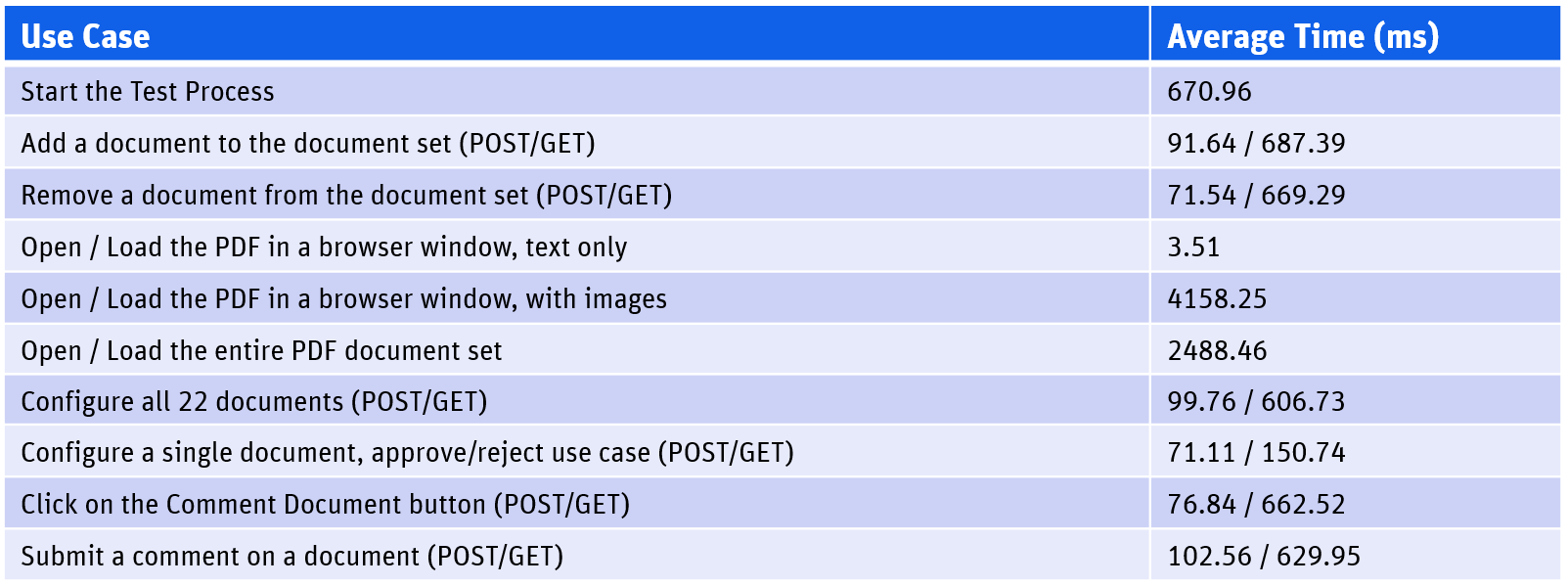
The Document Generator component has been performance-tested up to 22 documents. The response time for most operations was below 1s, except for the most expensive operations performed, which should be exceptional cases. Consider the following: 1. Results were achieved using the Reference Implementation without customizations. Adding rules, validations and logical operations to each interaction might significantly impact response times. 2. Tests were conducted on a system under no additional workload. Therefore, results under load might differ.
Common parameters:
- 22 documents defined in the test process for 21 parties
Test cases:
- Start the Test Process
- Add a document to the document set
- Remove a document from the document set
- Open / Load the PDF document in a browser window (text only)
- Open / Load the PDF document in a browser window (with images)
- Open / Load the entire PDF document set
- Configure all 22 documents
- Configure a single document (Approve/Reject use case)
- Click on the Comment Document button
- Submit a comment on a document
Following is the test result summary: