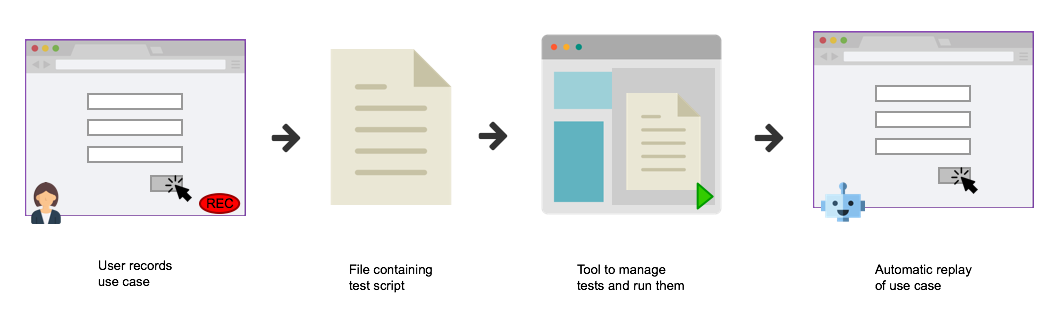
Appway End-to-End Testing (or E2E Testing, for short) enables you to test Appway Solutions in an easy, efficient, and effective way. E2E Testing allows you to test user-scenarios: While progressing through the steps of a Process, users interact with various Screens, selecting options, filling in data, and clicking on interaction elements such as Buttons or Links. E2E Testing lets you record these interactions, and then replay them automatically. This means that you can test the Process flow of your Solution and automatically detect cases where Screens no longer work as expected.
E2E Testing consists of the following steps:
-
Recording test cases – Recording is enabled by a browser extension which is provided as part of the E2E Testing functionality. Users simply interact with the Solution as intended, and every interaction is recorded by the extension.
-
Downloading the recorded test cases and importing them into a Test Management tool – The Test Management tool is a 3rd party tool and is not specific to Appway.
-
Running the recorded test cases in a Test Management tool – The Solution automatically proceeds from Screen to Screen according to the recorded test case, filling in form data, clicking on interaction elements etc. If all steps of the test are executed correctly, the end-to-end test is considered successful. Should any type of exception occur, a potential issue was identified which requires follow-up investigation.
In order to install and run E2E Testing, you need at least:
Note: If your Solution is using Business Components with sealed Packages, make sure you are using Package versions which come with predefined Test IDs. Check the release notes of the Business Component to see if the version of the Business Component you are using provides Test IDs.
End-to-End Testing consists of three main deliverables:
- Appway Workspace Recorder – A browser extension you use to record test cases. See Preparing for Testing for information on installing the extension.
- Appway End-to-End Testing Library – A Java library against which test cases are recorded. This library is required by your Test Management tool to replay the recorded test cases.
This library is developed and maintained by Appway and continuously evolves together with the Appway Workspace. Due to this continuous evolution, tests recorded using the E2E Testing functionality continue to work even when the technical implementation of the Workspace changes. - Appway Test ID Generator – With Appway 9.1 (or higher), the Appway Platform comes with a dedicated function (
Screen:GenerateAppwayTestIds) to automatically generate Test IDs for all Screen Components used in your Solution. While it is possible to manually set Test IDs, automatic generation is the more efficient approach to make a Solution ready for E2E Testing.
When using E2E testing, it's important to be aware of the scope and limitations of this functionality.
E2E Testing covers many of the Screen Components provided by the Appway Platform. The following table lists all supported Screen Components and which interactions can be tested for each component:
| Appway Screen Component | E2E Testing Library | Workspace Recorder | Setter | Getter |
|---|
| Adaptive Tab | ✓ | ✓ | ✓ | not available |
| Button | ✓ | ✓ | ✓ | n/a |
| Checkbox | ✓ | ✓ | ✓ | ✓ |
| Checkbox List | ✓ | ✓ | ✓ | ✓ |
Clear Icon
(Dropdown List and Search Field) | ✓ | ✓ | ✓ | n/a |
| Data Table Paging | ✓ | ✓ | ✓ | not available |
| Data Table Sorting | ✓ | ✓ | ✓ | not available |
| Date Picker | ✓ | ✓ | ✓ | ✓ |
| Dropdown List | ✓ | ✓ | ✓ | ✓ |
| File Chooser | ✓ | ✓ | ✓ | not available |
| File Upload | ✓ | ✓ | ✓ | not available |
| Filter Tray | ✓ | ✓ | ✓ | not available |
| Icon | ✓ | ✓ | ✓ | n/a |
| Info Table Row | ✓ | ✓ | ✓ | not available |
| Link | ✓ | ✓ | ✓ | n/a |
| Multiple Choice Filter | ✓ | ✓ | ✓ | not available |
| Radiobutton | ✓ | ✓ | ✓ | ✓ |
| Radiobutton List | ✓ | ✓ | ✓ | ✓ |
| Text | ✓ | not available | n/a | ✓ |
| Text Area | ✓ | ✓ | ✓ | ✓ |
| Text Field | ✓ | ✓ | ✓ | ✓ |
When using E2E Testing, be aware of the following limitations:
- E2E Testing only works for Screen Components that use Style Business Objects for styling. Styling based on Style Business Objects was introduced with Appway 7 and has since replaced the formerly used legacy styling capabilities. Screen Components that still use legacy styling cannot be tested with E2E Testing.
- Deprecated Screen Components are not supported by E2E Testing. Since deprecated Screen Components will be removed in future Appway versions, we strongly recommend to replace them with a current alternative.
- E2E Testing does not work for Screens or parts of Screens which are rendered based on Interaction Channels.
Perform the following actions to prepare your browser and Solution for recording tests, and your Test Management tool for running tests:
- Install the Appway Workspace Recorder
- Assign Test IDs
- Install the End-to-End Testing Library
Follow these steps to install the Appway Workspace Recorder extension for your Chrome Browser:
- In your Chrome browser, go to the Chrome Web Store.
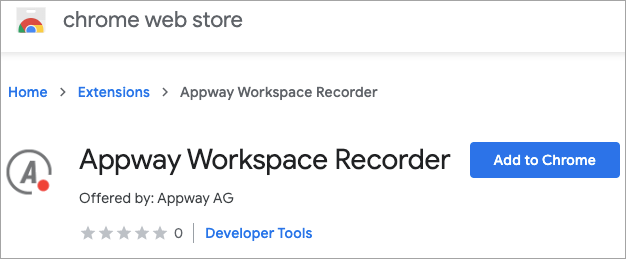
- In the Chrome Web Store, search for the extension "Appway Workspace Recorder" that is offered by "Appway AG" and install it:
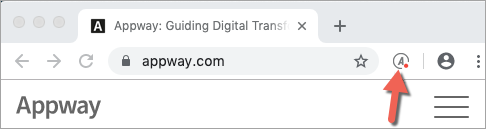
- The Appway Workspace Recorder is now visible in your Chrome menu:
Every testable Screen Component needs to have a Test ID assigned. While it would be possible to manually set Test IDs, we recommend doing this automatically:
- Open the Interactive Script Editor and execute the function
Screen:GenerateAppwayTestIds for each Package containing Screen Components to which you want to assign Test IDs.
- The first parameter defines the Package in which Screen Components are assigned Test IDs. Use an empty string, i.e. empty quotes, for the Base Package.
- (Optional) The second parameter allows you run a simulation. If set to
true, the function generates a comma-separated output showing the Test IDs that would be set, but without actually setting them (structure: Screen ID, previous Test ID, generated Test ID). Setting the parameter to false creates the Test IDs. - (Optional) The third parameter allows you to define if existing Test IDs should be re-created, potentially changing them in the process. Since Test IDs should be stable and should ideally never change, the recommended (and default) value for this parameter is
false.
- Execute the
Screen:GenerateAppwayTestIds function for every Package to which you want to add Test IDs. - (Optional) Setting the Test IDs on Screen Components modifies the Screen Business Object. We recommend committing all modified Screens and creating new versions of the Packages for which you've set Test IDs.
When using Appway and E2E Testing, all Screen Components which are suited for testing have a new property called Appway Test ID:
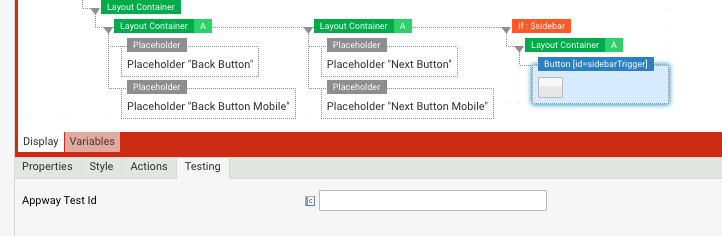
The Test ID is similar to the standard HTML ID. But, the HTML ID is not always available or configurable in all of the Screen Components, and it can change as you're building and evolving your Solution. The Test ID, in contrast, is specifically designed to identify Screen Components in a testing scenario and not intended for use outside of testing. The Test ID is used by the Appway Workspace Recorder to identify which Screen Component a user is interacting with, and is later used to automatically replay the interaction on the exact same Screen Component.
Some best practices for Test IDs:
- Test IDs must be unique – Since a Test ID identifies a Screen Component, it needs to be unique; not only within the current Screen Business Object, but within your entire Solution, as Screens can include other Screens.
- Test IDs should be stable over time – When recording a test, the Test IDs are explicitly listed in the test script. Changing the Test IDs in the Solution means you'll either have to re-record the test scenario, or update the test script to reflect the changes to the Test IDs.
- Test IDs should be meaningful – While a Test ID could e.g. be a random, unique string, we recommend using semantically meaningful Test IDs. Because the Test IDs are part of the test scripts, if you need to read or modify the test script directly, a meaningful Test ID makes it easier to understand the test's behavior.
An example of a semantically meaningful Test ID for a text input is: MyScreenId_NewAccountSection_LastName. - Use the function
Screen:GenerateAppwayTestIds to set Test IDs – It can be challenging to ensure that Test IDs are unique across your Solution while also being semantically meaningful. For this reason, we recommend using the Screen:GenerateAppwayTestIds function. It does not (by default) change any existing Test IDs, ensures that newly created Test IDs are unique, and constructs semantically meaningful Test IDs based on the data bindings of Screen Components (data bindings typically make for good semantic descriptors).
Important: The function Screen:GenerateAppwayTestIds does not generate unique Test IDs for Screen Components which are repeatedly created as part of a loop in a Screen. To ensure unique Test IDs are used in this scenario, make sure a loop iterator is part of the Test ID. Use the Best Practice Analyzer to identify Screen loops which require you to add a loop iterator to Test IDs.
The Best Practice Analyzer 2.0.0 or higher provides two automatic checks related to Test IDs:
- Test ID duplication – Checks the Test IDs in your Solution and flags any Test IDs that are not unique.
- Static Test ID used by Screen Component in loop – Flags Tests IDs if a Screen has a loop including Screen Components that are not using a loop iterator to ensure the Test IDs are unique.
The End-to-End Testing Library is needed to replay the recorded tests in your preferred Test Management tool:
- Request the library from your Appway Support contact.
- Add the library to your Test Management tool (follow the tool’s instructions when doing so).
Note: If you are using Katalon as your Test Management tool, you can use the Katalon template project which is provided together with the library (see
Katalon Studio Setup).
When you have installed the Appway Workspace Recorder and your Solution contains Test IDs, you can start testing:
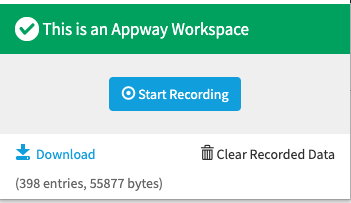
- The Appway Workspace Recorder extension informs you when you're on a Solution Screen by displaying This is an Appway Workspace on a green background:
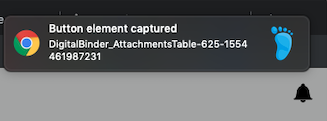
- Click on Start Recording and go through the test scenario to record your interactions. If browser notifications are enabled, Chrome informs you every time a new entry has been recorded and added to the test script:
- Once the test scenario has been completed, click on Pause Recording and then on the Download link. This downloads a ZIP file containing two files: one for Katalon and one for Java. These files contain the test script, based on the Appway End-to-End Testing Library.
- (Optional) Make further adjustments to the test script if needed (e.g. add login credentials). See the following section for details.
- Replay the test script in your Test Management tool.
In most cases, you will need to extend the recorded test script with some basic information that the Appway Workspace Recorder does not capture:
- The URL where the Solution is available. This is needed so that the replay can open new browser windows automatically.
- The login credentials for the user that should be used during the automatic replay.
Extend the test script by adding two lines of code, calling the method atf.openUrl() and atf.login(). Here's an example of a test script:
/** Automatically generated **/
import com.aw.test.AppwayTestingFramework;
import com.aw.test.Configuration;

// ... more generated code

Configuration configuration = new Configuration(DriverFactory.getWebDriver(),GlobalVariable.baseUrl);
AppwayTestingFramework atf = new AppwayTestingFramework(configuration);


/** The following two lines were added manually **/
atf.openUrl("/internal/entrypoint/Solution/start");
atf.login("testuser","testpassword");


/** Automatically generated **/
atf.triggerButtonById("DigitalBinder_AttachmentsTable-625-1554461987231");
atf.setTextFieldById("DigitalBinder_EditMetadata-77-_metadata_getMetadataItem__md_-name","a new attachment");
// .. more generated code
Appway End-to-End Testing does not include a Test Management tool. Many tools of this type are available, some even for free, and most likely your company already has a tool in place. This section provides an example of how one Test Management tool, Katalon Studio, can be used to manage and run your testing scripts.
Disclaimer: Katalon Studio (
https://www.katalon.com) is a 3rd party Test Management tool and descriptions and screenshots may vary. Appway has no affiliation with Katalon.
Follow these steps to set up Katalon:
- Go to the Katalon download page.
- Create an account with Katalon (this is free of charge). Note your account details, you will need them later to activate the software.
- Download Katalon Studio for your platform (Windows, Mac, or Linux) and install it.
- On first start of Katalon, enter your account details.
- Do NOT create a project in Katalon. Instead, use the pre-configured Katalon project provided by Appway:
- Unzip the file provided by Appway Support (see Install the End-to-End Testing Library for details).
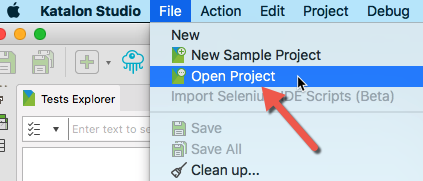
- In Katalon, click File > Open Project and select the unzipped project folder:
- The preconfigured project contains the Appway E2E Testing Library and all other artifacts you need to run E2E Testing.
- Configure the default profile to match the Solution you're testing (you only need to provide
baseUrl, username, and password):

Once you have recorded and downloaded a test scenario using the Appway Workspace Recorder, follow these steps to add the test script to your Katalon Studio project:
- Download the test script.
- Unzip the downloaded archive and open the file
katalon.txt with a text editor. Copy the content. - In Katalon Studio, create a Test Case:

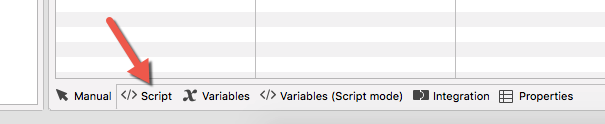
- In the Test Case, switch to the Script view:
- Paste the copied
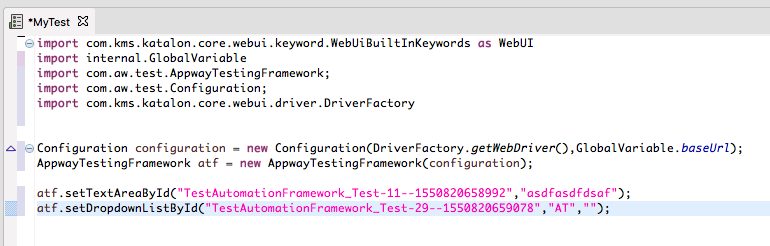
katalon.txt test case into Katalon:
- Manually set the Entry Point to the Solution and the Test User to the beginning of the Test case (i.e. before the generated
atf method calls start, see here for a full example):
atf.openUrl("/internal/entrypoint/DigitalBinderConfigurationKit/startDemo");
atf.login(GlobalVariable.username,GlobalVariable.password);
- Run the test case from Katalon Studio: