Our Platform uses a mechanism for displaying screens that provide you with guidance in case something unexpected happens. The screens provide clear explanations about what has occurred, and clear instructions on how to get back on track. There are two types of guidance screens that you can run into when working with a Solution, depending on the type of error that triggers them. You can also create your own custom error screens.
Our Platform differentiates between two categories of errors:
- Technical errors that can also be referred to as hard errors, or server errors.
- Business errors that can also be referred to as soft errors, client errors, or user errors.
Technical errors occur on the server side and are usually caused by a bug in the Platform (web application), a bug in the solution implemented with the Platform (model), incorrect configuration or installation, or an infrastructure problem. Most uncaught exceptions fall into this category.
Typical examples of technical errors are:
- Uncaught (unexpected) exceptions.
- Trying to access a suspended process instance.
- Trying to render a screen task (process element) without a reference to a Screen business object.
- Internal server errors — HTTP error 500.
A specific technical error occurs when:
Business errors occur, at least partially, on the client side. They are often the result of certain actions taken by the current user, or of issues in the communication between the client browser and the server.
Business errors include:
- Trying to access a process token that does not exist anymore (because it has been cancelled or completed).
- Trying to access a process token that is assigned to another user or group.
- Trying to access a page that does not exist — HTTP error 404.
- Trying to access a page for which the current user is not authorized — HTTP error 403.
- An access token mismatch after the session has expired (CSRF protection).
- Trying to access a process instance that has been completed, cancelled, paused or marked as 'deleted'.
The Platform can render three different error page designs:
The Platform uses the following logic to decide which error page to display:
- Inspects the URL path. The Platform decides whether the URL belongs to the Workspace (e.g.
/process/*, /screen/*), to the Studio (e.g. /admin/*), or to a service or integration endpoint (e.g. /rest/*, /JSON-RPC/*).
If the URL does not belong to the Workspace, the Platform renders the technical error page.
Special case: An error occurring in an Ajax update request in the Workspace also triggers the technical error page. - Checks the value of the configuration property
nm.errorpage.screen.
If it is defined and refers to an existing Screen business object, the Platform renders this Screen business object as a customer error page. - Checks if the error is on the list of known business errors.
If the error is a known business error, the Platform renders the auto-deployed Screen business object with ID aw.errorpage.ErrorPage as a business error page. - Otherwise, the Platform renders the technical error page.
A technical error page is a built-in error page design that is implemented as a JSP page /errors/error.jsp. It cannot be customized.
This design is used in the following scenarios:
- For all errors occurring outside of the Workspace, for example, errors in Studio.
- For errors in Ajax update requests in the Workspace.
- For technical errors in the Workspace, if no custom error screen has been configured.
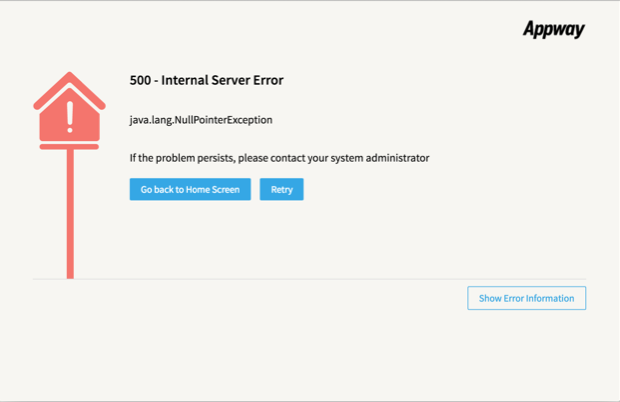
Technical Error Example: Internal Server Error
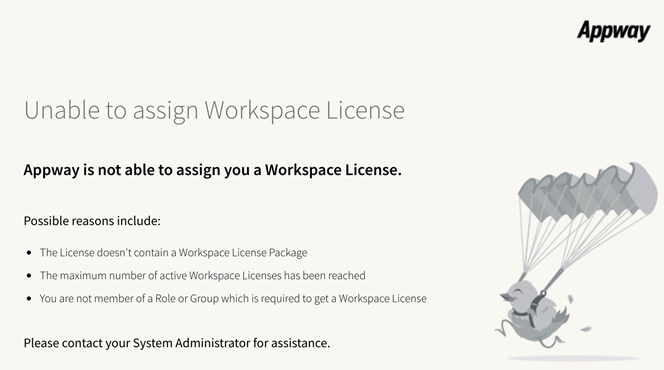
This is a specific case of technical error page where the user is redirected to when a Workspace license check fails. It is implemented as a JSP page /error/nolicense.jsp and it cannot be customized.
This design is used in the following scenarios:
- The License does not contain a Workspace License Package.
- The maximum number of active Workspace Licenses has been reached.
- The user does not belong to the required Role or Group according to the conditions set in System Configuration > Licenses >Licensing Assignment Rules.
The business error page is based on an automatically deployed Screen business object. It is automatically created by the Platform on first start-up.
It consists of the following business objects (all starting with aw.errorpage.):
- Screen
aw.errorpage.ErrorPage - Resource
aw.errorpage.AppwayLogoBlackSmall - Resource
aw.errorpage.ParaglideBird - Label
aw.errorpage.Cancel - Label
aw.errorpage.PossibleReasonsInclude - Label
aw.errorpage.SomethingWentWrong - Label
aw.errorpage.TakingYouHome
On start-up, the Platform checks for every object if it already exists in the business object repository. If it does not exist and if there has never been an object with this ID in the past, (no version, not even deleted and committed), the object is created. Note, that if the object has been deleted and committed by a user, it is not automatically redeployed on next start-up. An administrator can enforce a redeployment of these objects by running the following code in the interactive script editor:
com.nm.formservice.DefaultBusinessErrorPage.deploy(true)
Before using the screen aw.errorpage.ErrorPage as business error page, some checks are performed. The screen is considered to be used as business error page only if the following conditions are met:
- The screen is not empty (contains at least one component).
- The screen does not have a dependency on an extension that is not installed or not running.
The dependency check is performed only on this screen, not on any nested objects like included screens or script functions invoked in the screen. If one of the check fails, the screen is not used as a business error page. Instead, the technical error page is rendered. The behavior is then as if the screen would not exist.
The business error page is used in the following scenarios:
- For business errors in the Workspace, if no custom error screen has been configured (see point 3 above in ErrorScreenServlet section).
The ErrorScreenServlet will always render the latest committed version of this screen.
Information is passed to this screen through assigned variables:
| Variable | Type | Description |
$id | String | Error ID, a unique ID auto-generated for every occurrence of an error. Starts with the uppercase letter "E", followed by 8 random digits. For example: "E73911093".
This variable always has a non-null non-empty value. The ID is also required to open the details page at /errors/details.jsp?id=<ID>. |
$code | String | The original HTTP status code set by the application server, for example "403", "404", or "500". This value is passed to the ErrorScreenServlet as parameter "code".
This variable should always have a non-null non-empty value. |
$url | String | The original URL of the request that has been processed at the time the error has been occurred. May be null. |
$title | String | A title text for this error. For known errors, this may be a text like "Process Token not found". For unknown or unexpected errors, this is most likely a generic title based on the HTTP status code, for example "404 - File not found" or "500 - Internal Server Error". If there is no HTTP status code available, the title is set to "Unknown Error". |
$description | String | More details about the error, like a description or exception message. |
$reasons | Indexed String | List of possible reasons or explanations, may be empty. |
$actions | Indexed String | List of possible actions. Every value is a concatenation of a label (for example, "Go back to Home Screen") with a URL (for example, "/"). These actions can be rendered as links or buttons, allowing the user to leave the error page. |
Default layout of the business error page
First page:
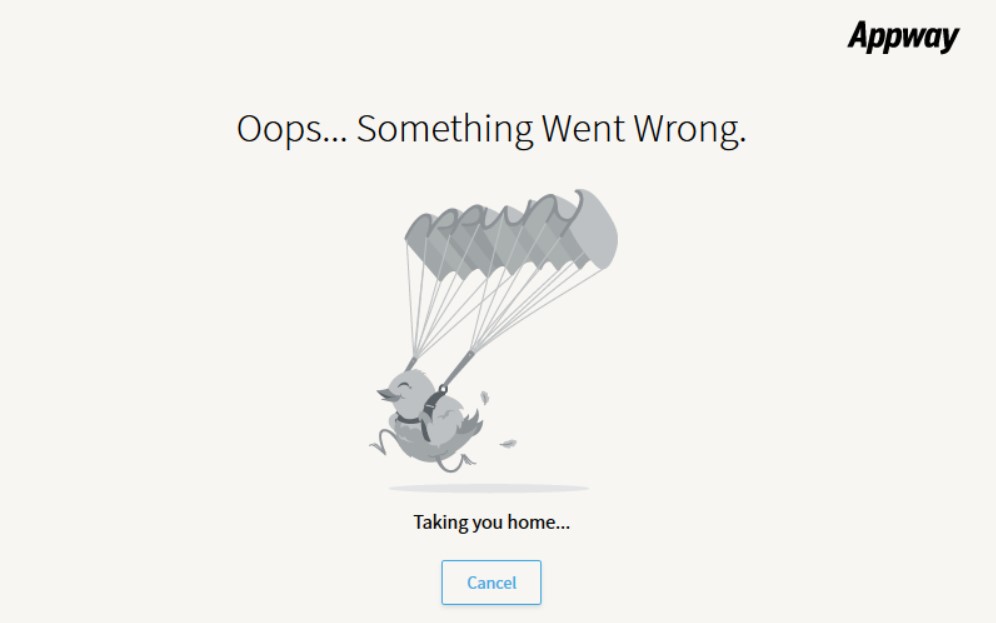
Second page, if the user clicks "Cancel" within 5 seconds:
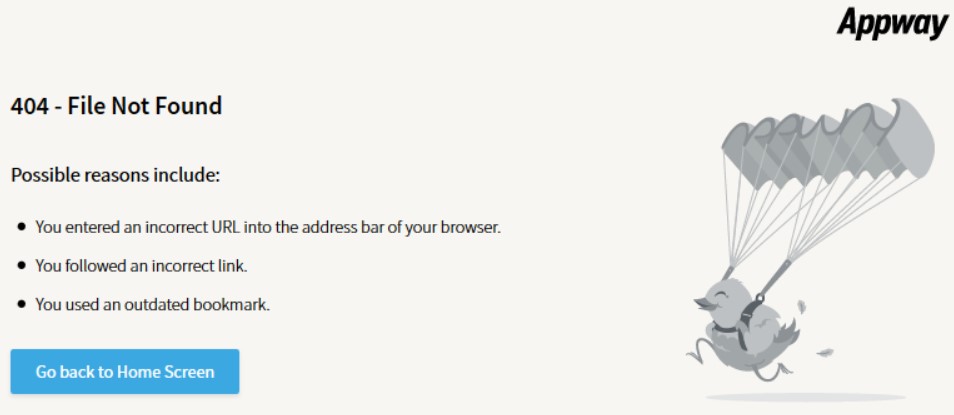
The custom error page is an ordinary Screen business object. It has to be created manually with the screen editor and committed. Then, to activate it, set the configuration property nm.errorpage.screen to the ID of this Screen business object. The ErrorScreenServlet always renders the latest committed version of this screen.
Information is passed from the ErrorScreenServlet to this screen in the form of inherited variables. The following variables are available:
| Variable | Type | Description |
$id | String | Error ID, a unique ID auto-generated for every occurrence of an error. Starts with the uppercase letter "E", followed by 8 random digits. For example: "E73911093".
This variable always has a non-null non-empty value. The ID is also required to open the details page at /errors/details.jsp?id=<ID>. |
$code | String | The original HTTP status code set by the application server, for example "403", "404", or "500". This value is passed to the ErrorScreenServlet as parameter "code".
This variable should always have a non-null non-empty value. |
$title | String | A title text for this error. For known errors, this may be a text like "Process Token not found". For unknown or unexpected errors, this is most likely a generic title based on the HTTP status code, for example "404 - File not found" or "500 - Internal Server Error". If there is no HTTP status code available, the title is set to "Unknown Error". |
$url | String | The original URL of the request that has been processed at the time the error has been occurred. May be null. |
$reason | String | More details about the error, like a description or exception message. |
$information | Any | A reference to a Java object of class com.nm.filter.ErrorInformation. This object holds all information about the error and information about the context in which the error occurred. This object may not be available any more, in which case the variable value will be null. The Platform only remembers information about the latest 32 errors. |