There are two possible scenarios for the migration of the Portal solution to Inbox when upgrading Appway 6.x to Appway 7:
- Existing clients on 6.x migrate to Appway 7.0 and want to move the existing Portal solution to Inbox.
- Existing clients on 6.x migrate to Appway 7.0 but do not want to move the existing Portal solution to Inbox.
Existing Portal solutions on 6.x are:
a) Portal Worklist: the Portal Worklist Extension is used and the Portal Screen contains one or more Worklist screen components. The Workitem sets used are the default sets provided by the Portal Worklist Extension (e.g. My Tasks, Members of my group etc.).
b) Portal Worklist with COB Filters: the Portal Worklist Extension is used and the Portal Screen contains one or more Worklist screen components. The Workitem sets are custom sets implemented with scripts that use the Workitem Filters provided by the COB Extension.
c) Data Table with COB Filters: the Portal Screen contains one or more Data Table screen components. As a data source, the Data Table uses a script that fetches the Workitems using the Workitem Filters provided by the COB Extension.
d) Data Table with Offline Worklist: the Portal Screen contains one or more Data Table screen components. As a data source, the Data Table uses a script that fetches the Workitems using direct SQL queries on the Offline Worklist database.
e) Other Custom Solutions (without COB Filters): any other custom Portal solution that does not use the Workitem Filters provided by the COB Extension.
Follow these steps to migrate the Portal Worklist to Inbox:
- Install the Inbox Extension and the Packages for Inbox.
- Replace the existing Portal screen(s) with the Packages for Inbox. All settings on the Worklist screen components must be manually moved to the new approach.
- Worklist Columns → fields in the replacement Task Entity – TaskEntityDataProvider data class and Task Entity – TaskEntitySecondaryInfo screen in the Inbox Configuration Package.
- Ownership “Buckets” → Filters in the Filter Tray – FilterSelectionManagerConfig data class and in the replacement Filter Tray – FilterTray screen in the Inbox Configuration Package.
- Sorting the Worklist → Sort criteria in the Filter Tray – FilterSelectionManagerConfig data class and in the replacement Filter Tray – FilterTray screen in the Inbox Configuration Package.
- Searching Worklist columns → Search criteria in the replacement catalogs Search – SearchDefaultFields, Search – SearchTokenAttributes and Search – SearchProcessInstanceFields in the Inbox Configuration Package.
- Paging the Worklist → configure page size in the replacement Settings – General Settings catalog in the Inbox Configuration Package.
- Translate existing Workitem set selections in the Worklist screen components to Inbox filter scripts in the getFilterChain method of the replacement data class Filter Tray – FilterSelectionManagerConfig in the Inbox Configuration Package.
- Default Workitem sets (MyTasks, MyRequests etc.) have corresponding Out-Of-The-Box (OOTB) Filters in the Inbox Extension. These filters can be used in the Inbox Filter scripts to implement the desired logic. See the Migrating Out-Of-The-Box Portal Worklist Workitem sets table for detailed mapping.
- Remove the Portal Worklist Extension.
Follow these steps to migrate the Portal Worklist with COB Filters to Inbox:
-
Install the Inbox extension and the Packages for Inbox.
-
Replace the existing portal screen(s) with the Packages for Inbox. All settings on the Worklist screen components must be manually moved to the new approach.
- Worklist Columns → fields in the replacement Task Entity – TaskEntityDataProvider data class and Task Entity – TaskEntitySecondaryInfo screen in the Inbox Configuration Package.
- Ownership “Buckets” → Filters in the Filter Tray – FilterSelectionManagerConfig data class and in the replacement Filter Tray – FilterTray screen in the Inbox Configuration Package.
- Sorting the Worklist → Sort criteria in the Filter Tray – FilterSelectionManagerConfig data class and in the replacement Filter Tray – FilterTray screen in the Inbox Configuration Package.
- Searching Worklist columns → Search criteria in the replacement catalogs Search – SearchDefaultFields, Search – SearchTokenAttributes and Search – SearchProcessInstanceFields in the Inbox Configuration Package.
- Paging the Worklist → configure page size in the replacement Settings – General Settings catalog in the Inbox Configuration Package.
-
Translate existing Workitem set selections in the Worklist screen components to Inbox filter scripts in thegetFilterChain method of the replacement data class Filter Tray – FilterSelectionManagerConfig in the Inbox Configuration Package
- Default workitem sets (MyTasks, MyRequests etc) have corresponding OOTB Filters in the Inbox extension. These filters can be used in the Inbox Filter scripts to implement the desired logic. See the Migrating Out-Of-The-Box Portal Worklist Workitem sets table for detailed mapping.
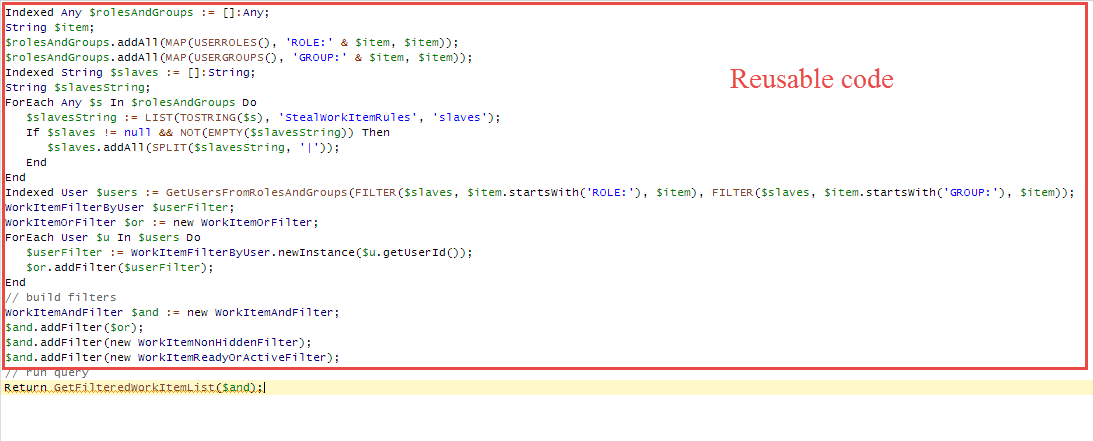
- Custom workitems sets implemented with COB Filters can be reused for the most part: the code that generates the filter structure (previously input of the function
GetFilteredWorkItemList) can be used to fill the getFilterChain method of the replacement data class Filter Tray – FilterSelectionManagerConfig in the Inbox Configuration Package.
[BREAKING CHANGE] if the WorkItemCustomFilter is used, verify that the variable passed to the filter (setVariable method) is of type WorkflowToken. If not, change the scripts to use the WorkflowToken variable type. See example in the notes at the end of the document.
-
Remove the Portal Worklist Extension.
Follow these steps to migrate the Data Table with COB Filters to Inbox:
-
Install the Inbox Extension and the Packages for Inbox.
-
Replace the existing portal screen(s) with the Packages for Inbox. All settings must be manually moved to the new approach.
- DataTable Columns → fields in the replacement Task Entity – TaskEntityDataProvider data class and Task Entity – TaskEntitySecondaryInfo screen in the Inbox Configuration Package.
- Ownership “Buckets” → Filters in the Filter Tray – FilterSelectionManagerConfig data class and in the replacement Filter Tray – FilterTray screen in the Inbox Configuration Package.
- Sorting the DataTable → Sort criteria in the Filter Tray – FilterSelectionManagerConfig data class and in the replacement Filter Tray – FilterTray screen in the Inbox Configuration Package.
- Searching DataTable columns → Search criteria in the replacement catalogs Search – SearchDefaultFields, Search – SearchTokenAttributes and Search – SearchProcessInstanceFields in the Inbox Configuration Package.
- Paging the DataTable → configure page size in the replacement Settings – General Settings catalog in the Inbox Configuration Package.
-
Translate existing DataTable source scripts (based on COB filters) to Inbox filter scripts in the getFilterChain method of the replacement data class Filter Tray – FilterSelectionManagerConfig in the Inbox Configuration Package.
-
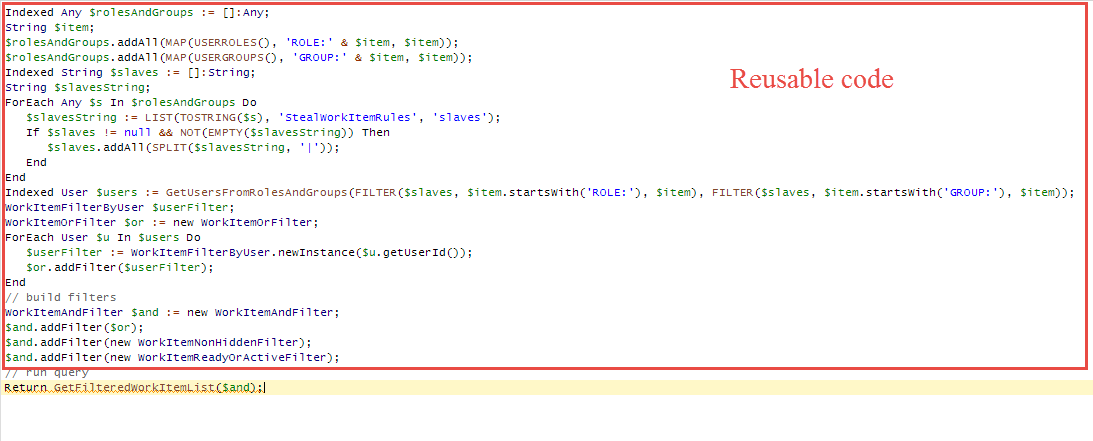
DataTable source scripts implemented with COB Filters can be reused for the most part: the code that generates the filter structure (previously input of the function GetFilteredWorkItemList) can be used to fill the getFilterChain method of the replacement data class Filter Tray – FilterSelectionManagerConfig in the Inbox Configuration Package
[BREAKING CHANGE] if the WorkItemCustomFilter is used, verify that the variable passed to the filter (setVariable method) is of type WorkflowToken. If not, change the scripts to use the WorkflowToken variable type. See example in the notes at the end of the document.
Follow these steps to migrate the Data Table with Offline Worklist to Inbox:
- Install the Inbox Extension and the Packages for Inbox.
- Replace the existing Portal screen(s) with the Packages for Inbox. All settings must be manually moved to the new approach.
- DataTable Columns → fields in the replacement Task Entity – TaskEntityDataProvider data class and Task Entity – TaskEntitySecondaryInfo screen in the Inbox Configuration Package.
- Ownership “Buckets” → Filters in the Filter Tray – FilterSelectionManagerConfig data class and in the replacement Filter Tray – FilterTray screen in the Inbox Configuration Package.
- Sorting the DataTable → Sort criteria in the Filter Tray – FilterSelectionManagerConfig data class and in the replacement Filter Tray – FilterTray screen in the Inbox Configuration Package.
- Searching DataTable columns → Search criteria in the replacement catalogs Search – SearchDefaultFields, Search – SearchTokenAttributes and Search – SearchProcessInstanceFields in the Inbox Configuration Package.
- Paging the DataTable → configure page size in the replacement Settings – General Settings catalog in the Inbox Configuration Package.
- Translate existing DataTable source scripts from SQL to Inbox filter scriptsin the getFilterChain method of the replacement data class Filter Tray – FilterSelectionManagerConfig in the Inbox Configuration Package.
Follow these steps to migrate other custom solutions (without COB Filters) to Inbox:
- Install the Inbox extension and the Packages for Inbox.
- Replace the existing portal screen(s) with the Packages for Inbox. All settings must be manually moved to the new approach.
The table below illustrates the Workitem sets/Filters mappings.
| Assignment | To | New Primitive Type (Inbox Extension) |
|---|
| Currently Assigned | My tasks | WorkItemMyTasksFilter |
| Currently Assigned | My groups | WorkItemMyGroupsFilter |
| Currently Assigned | Members of my group | WorkItemMemberOfMyGroupsFilter |
| Currently Assigned | My groups and members of my groups | WorkItemMyGroupsOrMemberOfMyGroupsFilter |
| Currently Assigned | My roles | WorkItemMyRolesFilter |
| Currently Assigned | Members of my roles | WorkItemMemberOfMyRolesFilter |
| Currently Assigned | My groups OR my roles | WorkItemMyGroupsOrMyRolesFilter |
| Participant Assigned | My participant tasks | WorkItemIWasParticipantFilter |
| Participant Assigned | My groups were participant | WorkItemMyGroupsWereParticipantsFilter |
| Participant Assigned | Members of my groups were participant | WorkItemMemberOfMyGroupsWereParticipantsFilter |
| Participant Assigned | My groups and members were participants | WorkItemMyGroupsOrMemberOfMyGroupsWereParticipantsFilter |
| Participant Assigned | My roles were participant | WorkItemMyRolesWereParticipantsFilter |
| Participant Assigned | Members of my roles were participant | WorkItemMemberOfMyRolesWereParticipantsFilter |
| Participant Assigned | My roles and members were participant | WorkItemMyRolesOrMemberOfMyRolesWereParticipantsFilter |
| Participant Assigned | My groups OR my roles were participant | WorkItemMyGroupsOrMyRolesWereParticipantsFilter |
a) Portal Worklist: no action required
b) Portal Worklist with COB Filters
AND
c) Data Table with COB Filters
Follow these steps for solutions b) and c):
- Install the new Inbox Extension in addition to the existing extensions.
[BREAKING CHANGE] if the WorkItemCustomFilter is used, verify that the variable passed to the filter (setVariable method) is of type WorkflowToken. If not, change the scripts to use the WorkflowToken variable type. See the example in the notes at the end of the document.
d) Data Table with Offline Worklist: no action required
e) Other custom solutions (without COB Filters): no action required
-
The PortalWorklist Extension and its screen components are deprecated in Appway 7 and are planned to be removed in Appway 9 or later
-
The GetFilteredWorkItemList function previously provided by the COB Extension is deprecated in Appway 7 and is planned to be removed in Appway 9 or later. Please, use the GetInboxWorkitems function instead (included in the Inbox Extension).
Example:
// old version
GetFilteredWorkItemList($filters);

// new version
// requires paging criteria to avoid full loads from the backend
InboxPageCriteria $pc := new InboxPageCriteria;
$pc.setPageNumber(1);
$pc.setPageSize(20);
GetInboxWorkitems($filters, null, null, $pc);
- The variable passed to the WorkItemCustomFilter (previously provided by the COB Extension) with the setVariable method is now of type WorkflowToken. If another variable type (such as Workitem) is used in one or more of the existing scripts, it is necessary to adapt them so that they use a variable of type WorkflowToken.
Example:
// old version
Workitem $workitem;
WorkItemCustomFilter $cf := new WorkItemCustomFilter;
$cf.setVariable($workitem);
$cf.setExpression(TODATE($workitem.getWorkflowToken().getCreationTime()) < TODAY());

// new version
WorkflowToken $workflowToken;
WorkItemCustomFilter $cf := new WorkItemCustomFilter;
$cf.setVariable($workflowToken);
$cf.setExpression(TODATE($workflowToken.getCreationTime()) < TODAY());
- For more information on Inbox, see the Inbox article which included information on the Packages for Inbox.
- For more information on upgrading from Appway 6.3 to 7.0, see the Upgrade Guide.