From Appway 6.3, a renewed Date Picker Screen Component is available to replace the legacy Date Picker from Appway version 6.2 or older.
The Date Picker (Legacy) Screen Components is deprecated in Appway 6.3 and will be removed in Appway 11 or later.
This article discusses the differences between the two versions of the component, and how to migrate to the latest component. This article does not cover the new features, but outlines the critical parts of the migration, and how to retain the same functionality.
You can migrate from the Date Picker (Legacy) component to the Date Picker component with help of the Migration Tool in Appway Studio (recommended) or perform this migration manually.
The Date Picker component provides more stability and seamless user experience on desktop and mobile devices. Apart from better browser support, the component also uses the built-in Date Formats of Appway for better localization.
Appway strongly recommends migrating to latest versions of the Date Picker to get future fixes and updates for the component.
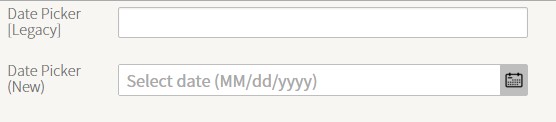
On a desktop device, the two Date Picker versions differ in some visual aspects. When the Date Picker is closed, it provides a placeholder which shows the date format (on a modern browser), and a little calendar icon to the right to make clear that this is a date field. The most important thing in the pop-up is that the header area remains consistent in the new version.
Date Picker field (Legacy Date Picker vs Date Picker):
Open Date Picker (Legacy):
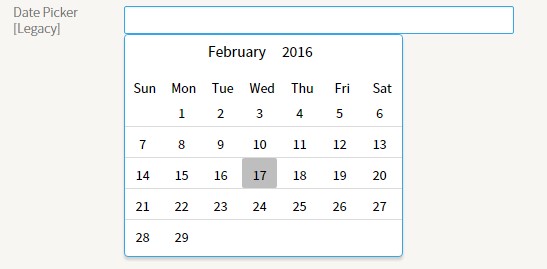
Open Date Picker:
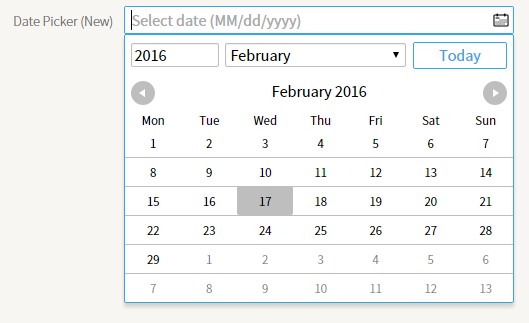
The latest Date Picker component also displays in full screen for smaller mobile devices, providing easier user interaction:
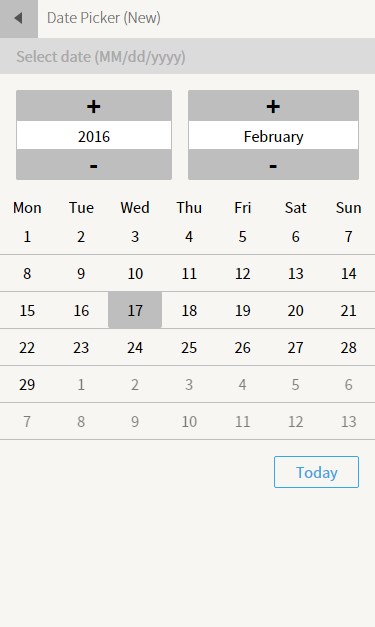
In addition, the new Date Picker supports mouse, touch, and keyboard interaction.
In the Screen Editor, the properties of the Date Picker have been changed as well. The following list presents how the properties of the Date Picker (Legacy) component work in the Date Picker component or by which properties they are replaced.
| Date Picker (Legacy) | Changes | Date Picker |
| Binding | | Binding |
| Format | Not needed anymore | The format cannot be chosen anymore for each component. Instead, it uses the built-in Date Format patterns. |
| Start Day | Removed | Cannot be chosen anymore for each component. |
| Max. Date | Property renamed | Earliest Selectable Date. |
| Min. Date | Property renamed | Latest Selectable Date. |
| Validate Min./Max. Date | Not needed anymore | This validation works out of the box. |
| Disable typing | Not needed anymore | Style and functionality are consistent for all Date Picker components. |
| Show Button Panel | Not needed anymore | Style and functionality are consistent for all Date Picker components. |
| Show Year Dropdown | Not needed anymore | Style and functionality are consistent for all Date Picker components. |
| Dropdown Year Range | Not needed anymore | This information is read from the Earliest & Latest Selectable Date property. |
| Text If Disabled | Property renamed | Show As Text If Disabled. |
| HTML Id | | HTML Id |
| | | |
| Styles | Removed | The Style tab is not available in Appway 6.3, therefore no styling is available. The Style tab is available in Appway 7 and higher to support styling through the Style Business Object. |
| | | |
| Converter | Not supported | The Custom converter is removed, since the Date Picker implements its own converter logic. For more information, see the FAQ section. |
| | | |
| Actions | Not supported | The onfocus and the onkeyup action events are not supported anymore. Please map them to another event type. |
The component properties have been simplified and some of them have been removed as they are no longer needed, since the latest Date Picker component is able to handle them. However, the overall functionality has been improved. Moreover, the component style and functionalities have been made consistent for a better user experience.
The best and safest way to migrate this component is to use the Migration Tool in Appway Studio. This tool detects and outlines critical parts and provides support in the auto migration of Screens.
What happened to the custom converter?
The latest Date Picker uses its own default converter to ensure the correct format communication between the client and the server. If you used a custom converter, you need to find a replacement or keep the Date Picker (Legacy) component.
Why can’t I change the format on the Date Picker component?
The format is not supposed to be set at the component level. Instead, the Date Picker uses the built-in Date Format Pattern service of Appway. This allows configuring the date formats globally and the Date Picker will display the dates always in sync with the user’s locale. More information about the Date Format Patterns can be found here.
The start of the date should be configured at the same level as the format pattern. Appway 6.3 does not provide this option.
What happens to the applied Styles?
All styles get lost in the process of migration. As a general recommendation, styles should not be applied directly at the component level as this makes the solution less maintainable. Try to aggregate the styles to a main style sheet and use Appway's built-in features to adapt your solution to your corporate design. In Appway 7 and higher styles can be applied by using the improved mechanism of Style Business Objects.
Is migration safe?
Since Appway Business Objects have a versioning mechanism, you will always be able to revert to a previous state of a Screen. This also applies to the migration performed with the Migration Tool in Studio.