Report Business Objects aggregate information about your business application and use this data to produce human-readable reports of various kinds. As an example, one report might gather all available information about business rules and produce a neatly formatted, printable overview. Another report might collect differences in field definitions between PDF Outputs used in the same Document. The content of the report is completely up to the user who defines the report.
A report can have two states: active or inactive. Active reports are listed in the Reports tool which is accessible through the main menu at the left hand side of the studio screen. You can change whether a Report is active using its properties editor.
The format of a Report — whether it is a PDF file, or a CSV file, or something else — is defined by the Report Generator used for generating the report. So, if a CSV Report must be defined, choose the CSV Report Generator.
Prior to generating a report, information needs to be gathered. We can do this in the Prerender Script, which is part of the Report Business Object. Global variables which are defined in the Prerender Script can be used in the definition of the report layout. For example, we can define a global indexed collection of rules in the Prerender Script. This collection can then be used in a dynamic document as a data base for rule information.
Reports are highly dynamic documents by nature. The building blocks of the default report generators are:
- Dynamic Documents, which define the structure of the report's content
- PDF Output, which uses the dynamic document to fill the content of a PDF page
- Prerender Script (a property of the Report Business Object), which gathers the data used to create the report
- Report Generator, which takes all the generating blocks and generates the report
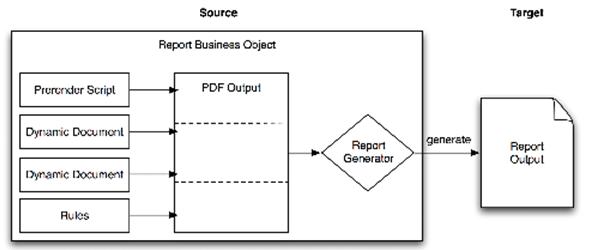
The application may not include any Report Generators by default. In order to create Reports you need to install an extension which provides Report Generators.
Studio has a built-in Report Generator. To create a new Report:
- Right-click the Report Library entry and select New Report...
- In the New Report dialog specify a unique ID, enter a short name and add a description for your new report.
- Finally, choose the Report Generator you wish to use, and click on the Save button.
Select the report whose properties you wish to change. The Properties column for the selected report appears on the right side of the Studio.
Report have the following properties:
- id — A unique identifier which identifies the Report Business Object in the system
- Name — The report's human-readable name, a short, descriptive text
- Description — A human-readable description, if needed
- Report Generator — The Report Generator used. Please note that different Report Generators need different Business Objects to properly generate their outputs.
- Active — Indicates whether the report is active (ready for usage, "true") or still under construction ("false")
- Prerender Script — The script that is executed before the report is generated
Double click the report or right click the report and choose "Open in Editor," and the report editor opens. Drag the available Business Objects listed at the right side of the Editor as needed to the left side in order to attach them to the report.
Change the properties shown at the bottom of the dialog to edit the Prerender Script.
The PDF Output based report generator takes PDF Output definitions and uses them to produce a PDF document containing the report.
PDF Output Objects used in reports usually contain a table whose content is defined by a Dynamic Document.
The Prerender Script of the report is used for gathering report data prior to generating the report.
The following section describes step-by-step how to create a simple rule report.
Script
// Define the global Rule list which is used in the Dynamic Document as a data source
Global Indexed Any $rules;
// Get all Rule definitions
$rules := GETBUSINESSOBJECTS('Rule');
End
The Prerender Script defines the global variable $rules. In the script, the list of all available Rule Business Objects is attached to the variable. For details about the scripting language see the Script Language guide.
It is important to note that the variable $rules is defined as global. This tells the generator to use the variable for the rest of the report generation process and not only during the interpretation of the Prerender Script.
Variables that are used in the Report's Dynamic Documents must be defined as global.
Create a new Dynamic Document and enter the following code:
<?xml version="1.0" encoding="ISO-8859-1"?>
<table xmlns:xsi="http://www.w3.org/2001/XMLSchema-instance" xsi:noNamespaceSchemaLocation="renderer.xsd">
<for variable="idx" start="1" end="$rules.size()" increment="1" >
<row>
<cell>${$rules[$idx].getId()}</cell>
<cell>${$rules[$idx].getDisplayName()}</cell>
</row>
</for>
</table>
The Dynamic Document uses the variable $rule which has been defined in the Prerender Script of the report in order to fill rule table's cells. For details about Dynamic Document description see the guide labeled "Dynamic Output Forms."
Create a PDF Output with a blank A4 PDF. Place a TABLE field on the document, resize it to match the page, and enter the following properties for this new field:
- Copy: Only on This Page (default)
- Expression: DYNAMICFORM('RuleReport')
- Replication Strategy: Replicated
Deselect the new field, and verify the page property, Replication Strategy: Always Replicated
Finally, save and add the newly created PDF Output "RuleReport" to the Report Business Object. You can now generate the report.
The Rule-based Report Generator allows the user to define a Rule which triggers document actions which are then transformed into a report document.
Using this Report Generator opens all possibilities of Rule-based document generation to reports, and gives fine-grained control over when and how parts of a report are built.
For more information on the basic concepts of the Rule based Report Generator, please see the chapter on the PDF Output based Report Generator.
- Use Dynamic Documents for the definition of the dynamic parts of the report
- Use PDF Outputs to place the dynamic parts into PDF documents
- Create a Document object for each PDF Output object
- Use the Document in the Rules as appropriate
- Add the Rules to the Report
- Specify the Prerender Script for data preparation
Click on the Reports tool on the left side of the Business Object Browser. In the center column, you see the active reports. Choose one of the reports.
If the selected report has not already been generated, the Report Generator starts immediately after clicking the report. Otherwise, the most recently generated report is shown.
At the top of the report screen is a link to the most recently generated report. The report can be downloaded and saved to the local disk by right-clicking the link and choosing Save Target As...
Clicking the Generate Report button starts the generation of a new report.