Style Packages are used to define and manage the appearance of one or even multiple Applications, bundling all the style definitions of a theme. A single reference to a Style Package on a Template allows you to apply a theme to a Solution globally.
Note: This article is about theming, which refers to the customization of an application's look and feel. The additional related recipes are:
Style Packages are standard Packages used specifically to manage the styling of one, or even multiple, applications. Style Packages hold Style Business Objects and other Business Objects related to styling, such as Style Business Objects, Style Value Business Objects as well as Resources defining logos, or fonts. The Platform is instructed to use Style Business Objects from the declared Style Package (instead of the Style Business Objects already assigned to the different Screen Components from the Base or the DesignSystem Packages).
A step-by-step procedure on how to apply Style Packages can be found in the Applying the Style Package to your Application section.
The Design System Package 3.3 and above includes all the mechanisms necessary to brand applications using the Design System’s prebuilt modules based on Style Packages (see more information on your Design System version in the Products page). Concretely, the Design System Package updates all Screen Templates to contain a default 'BrandTemplate' as the topmost element.
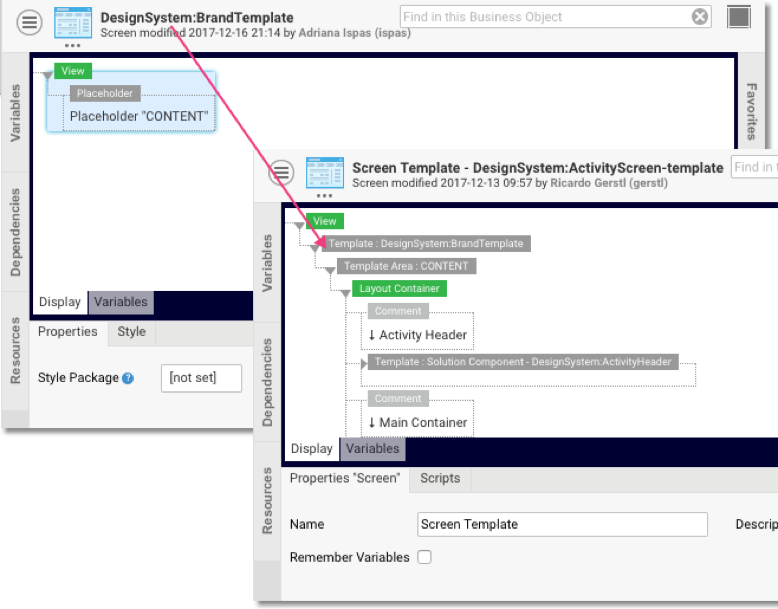
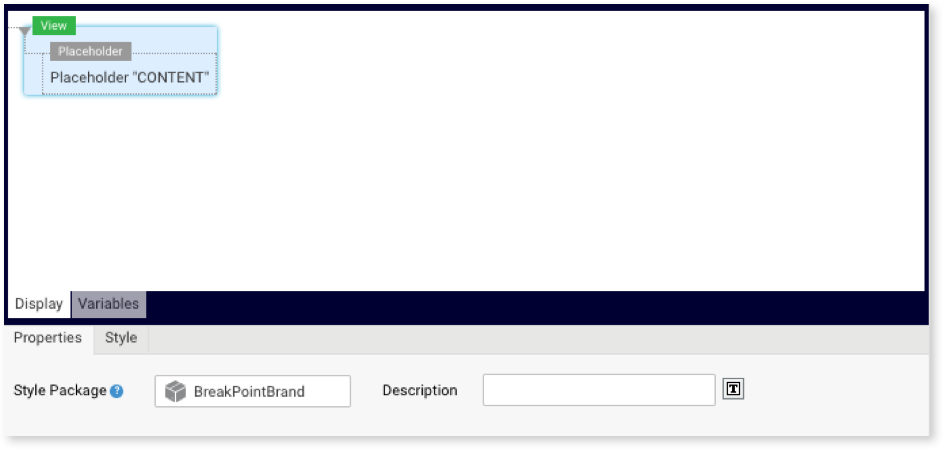
The 'DesignSystem:BrandTemplate' Screen's View component has no predefined Style Package ID. This ensures that applications using the Design System have, by default, the look and feel defined by the Style and Style Value Business Objects in the Base and DesignSystem Packages.
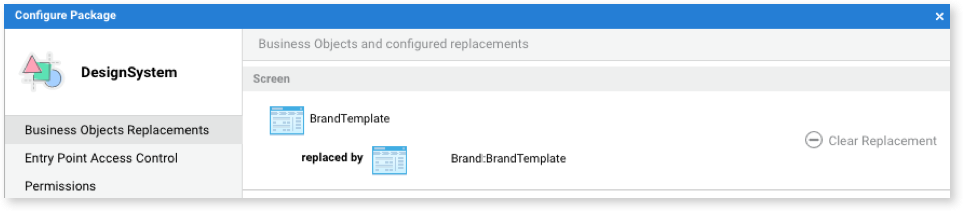
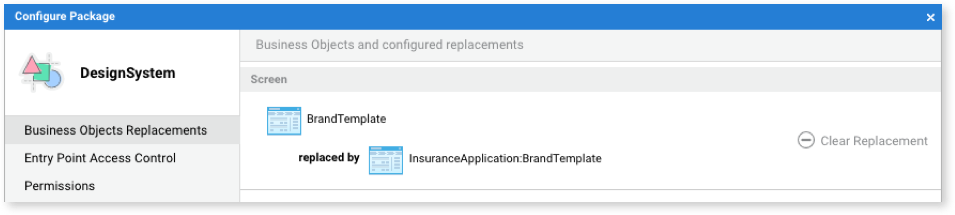
The 'DesignSystem:BrandTemplate' Screen is configured as replaceable. This means that for an application based on the Design System, you can specify a Style Package by replacing the 'DesignSystem:BrandTemplate' with an equivalent Screen in your own Style Package.
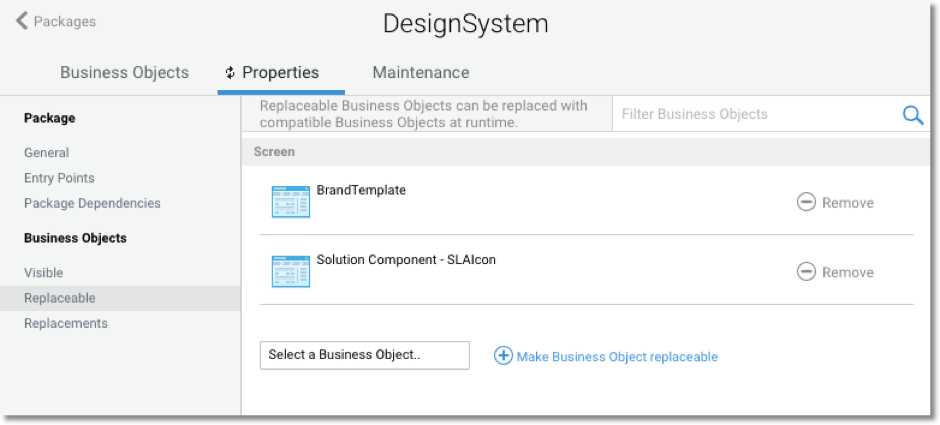
Style Packages bundle all the Business Objects of an Application’s themes. There are two possible ways to create a Style Package:
- Create a Style Package using the Style Package Tools
- Create an empty Style Package from scratch
The easiest way to create your own Style Package is by using the Style Package Tools. These tools allow you to create a new Style Package, and to copy the Style Business Objects and Style Value Business Objects you selected from other Packages. It can also be used for maintenance, e.g. when updating the styles of your Style Package. The Style Package Tools can be downloaded from the Products page.
Creating an empty Style Package from scratch requires more effort. Follow these steps:
- Inside the custom Style Package, create Style Business Objects with the same short IDs as the default Style Business Objects (found in either the Base or DesignSystem Packages) that you want to customize.
- Assess dependencies on other Style Business Objects and Style Value Business Objects. For example, if you have created a 'TextField' Style Business Object in your Style Package, you also need to consider the styling of the 'ErrorBusiness Objectx' and 'TextInput' Style Business Objects —as well as further Style and Style Value Business Objects referenced by them (such as 'ErrorBusiness Objectx_Text' or 'Unit – SizeXXS'). For those Style and Style Value Business Objects used by a Style Business Object that is replaced at runtime by the Style Package mechanism, you also need to define Business Objects with the same short IDs in the Style Package. Moreover, you need to make sure that the references point to the respective Business Objects in your custom Style Package.
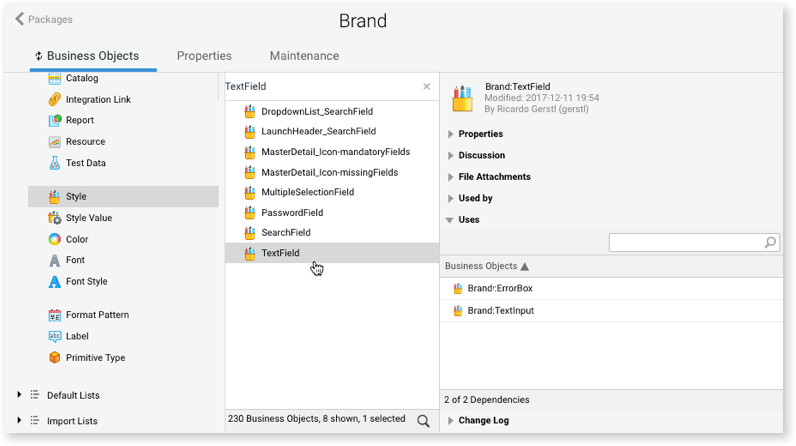
Remember: Style Packages rely on a mechanism that is executed at the level of the Style Business Objects assigned to Screen Components encountered at Screen rendering: it does not travel down the dependency tree. Style Business Objects housed in a Style Package may have references to Style Business Objects or Style Value Business Objects from other Packages (such as the Base or DesignSystem Packages). You must handle dependencies with care, otherwise, the look and feel of the application may be inadvertently and unexpectedly defined by Style Business Objects outside your brand Style Package.
Note that the Style Package Tools supports resolving dependencies across Style Business Objects.
Follow these steps to apply your Style Package to your application:
- Create your application (in this example 'Client Application'), and use the necessary Design System prebuilt modules. These are already configured to use predefined Style Business Objects from either the Base or the DesignSystem Packages.
Note: When dragging Screen Components such as Buttons or Text Fields into predefined Template Areas, make sure to use the Style Business Objects predefined in either the Base or the DesignSystem Packages. The predefined Style Business Objects, and when to use which Business Object, is explained on
design.appway.com.
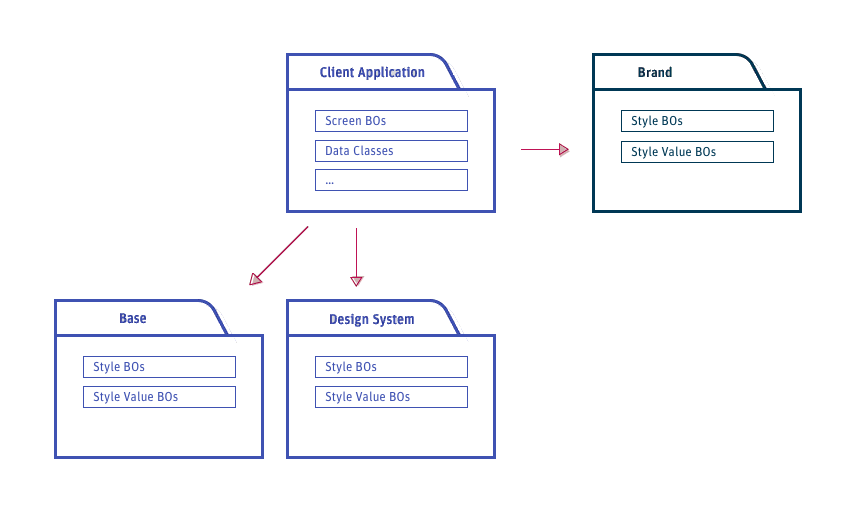
- Add a dependency from the 'Client Application' Package to your custom Style Package, 'Brand' in this example. Dependencies will look like in the diagram below:
- Add a 'BrandTemplate' Screen Business Object to the Style Package, and set it as a replacement for the 'DesignSystem:BrandTemplate'.
- On the View component of your BrandTemplate, select your custom Style Package ID.
- Add a Placeholder named CONTENT to your BrandTemplate Screen to add the normal content of your Screens. The 'Brand:BrandTemplate' Screen might look as shown:
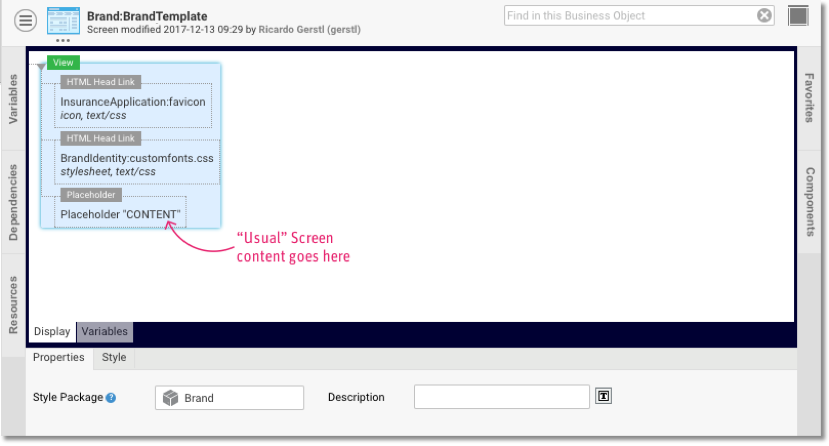
- Add the required extra styling elements, such as favicons or font family specifications, to the BrandTemplate of your Style Package. For more details, please refer to the Adapting Your Solution to a Corporate Design article.
- Identify the Style Business Objects to be adjusted to your theme specifications. Apply the custom style definitions to the Style Business Objects in your Style Package.
- If your application requires using your own prebuilt modules (that is, the Design System Package does not contain anything suitable for your needs), there is another step to take: create the additional Style Business Objects required by your own modules in your application Package.
Important: Customized styles should be managed exclusively in the Application's own Style Package.
Note: Avoid creating new Style Business Objects unless absolutely necessary. Using Appway system of predefined Style and Style Value Business Objects ensures coherent styling for your application, supports the evolution of your application, and provides resilience to updates.
In some cases, you need to applying multiple themes to an Application built on our Platform.
Let's imagine that multiple brands, A, B and C, share one common Platform installation. Clients of each brand see the same Application. But clients of brand A see an Application styled in line with the corporate identity of brand A, while clients of brand B see an Application in line with the corporate identity of brand B. The same holds for clients of brand C.
In this situation, you require multiple Style Packages.
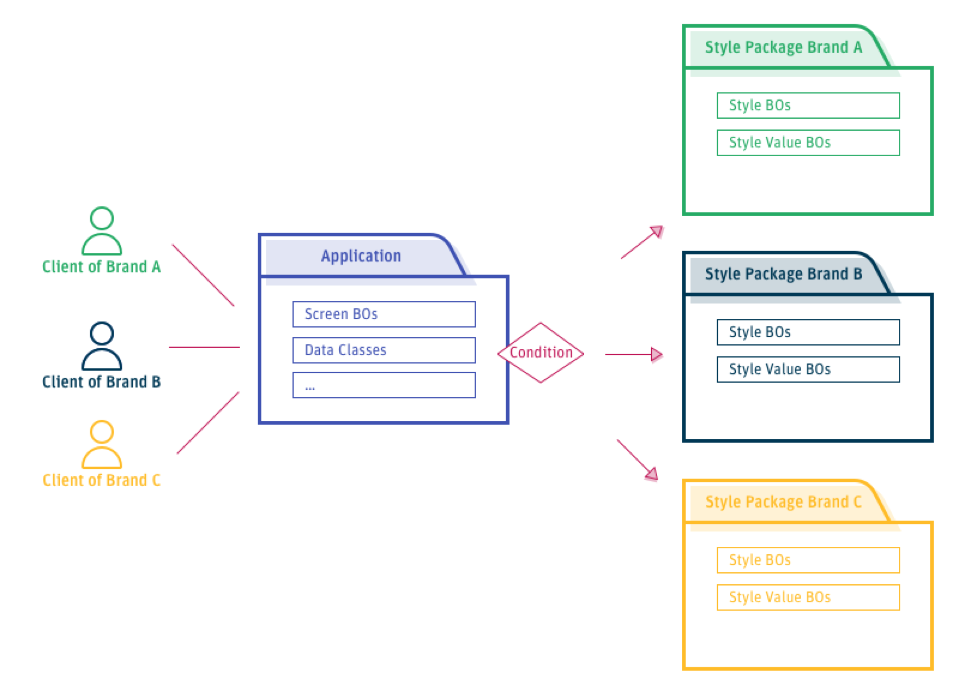
Simply replacing the 'DesignSystem:BrandTemplate' with a Style Package’s 'BrandTemplate', as explained previously, does not suffice. However, by using the typical 'If', 'Else If' and 'Else' Screen Components and Appway Script, we can define the logic of which Style Package will be chosen at runtime. This logic is implemented in a BrandTemplate Screen that must be placed in your Application Package (with the example, the 'Client Application' Package). Do not put this Screen in any of the Style Packages used for multi-branding.
To create a new Style Package based on an existing one:
- Create an empty Package and give it a suitable name, e.g. 'Style Package Brand A'
- Add a 'BrandTemplate' Screen.
- Use the Style Package Tools to copy your Business Objects from your original Style Package to the newly created Package.
If you would rather do this operation manually, make sure you do so in one batch (for example, move all Objects from 'Brand' to 'Style Package Brand A').
The batch move operation ensures that the dependency tree, and all references between Business Objects, are correctly recreated inside the new Style Package. - For each subsequent new Style Package (e.g. 'Style Package Brand C'), repeat step 3. In this example, we use a variable called
brandPackage, to define which of the three Style Packages should be used at runtime, along with a fallback to the Design System default styling. In this example, the variable is inherited from the parent Process: this is where we implemented the logic to choose between the different themes. For the case where a specific Style Package is used, include the respective Style Package's BrandTemplate Screen and a CONTENT placeholder. Remember that the Style Package ID is set on the View Component inside the Style Package BrandTemplate.
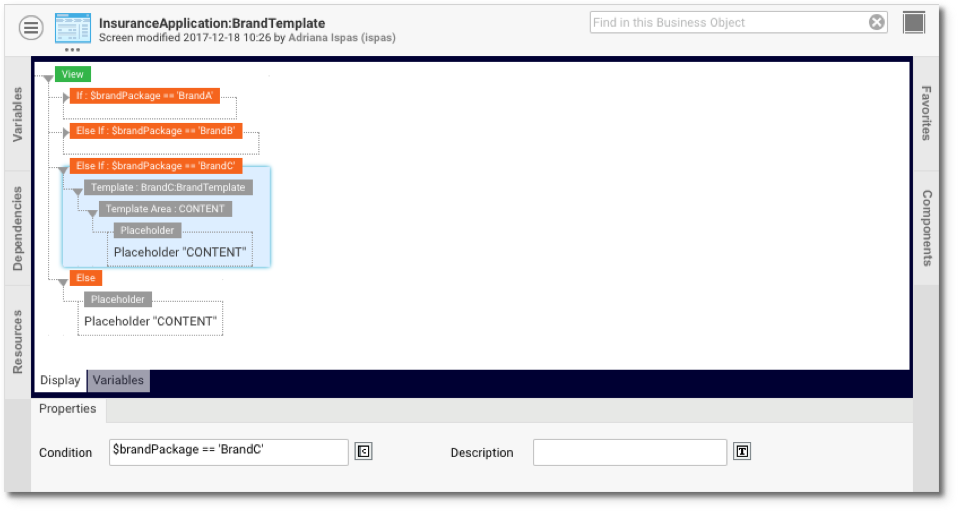
For the fallback case, we only add the CONTENT placeholder. - Finally, configure a replacement for the 'DesignSystem:BrandTemplate' by using the previously mentioned BrandTemplate from your application's Package.
After upgrading to a newer version of our Platform, or the Design System, you also might want to update your Style Package with the added or changed default styles. Use the Style Package Tools to copy the affected Style Business Objects and Style Value Business Objects from the Base or DesignSystem Packages.