Behaviors have been designed specifically to be used with
App Tasks (e.g. Data Gathering, Relationship Definition). See the
Products page for information on each Application Business Component.
Data Class Behaviors provide semantic information at Data Class level to ensure that the final representation of the Data Class in a Data Driven UI is coherent with the data contained in the Data Class. In other words, a Behavior defines the way in which a Data Class behaves when it is represented in an automatically-generated UI. When the Data Logic is translated in a Data Driven UI, controls are rendered as form elements by default. However, in some situations, specific Data Classes need to be shown in a different way. For example, an Address in a list of addresses could be shown using a more compact UI element than a full list of form elements.
The Behaviors tab of the Data Class Editor allows setting which Behaviors are implemented by the Data Class. Based on the context, the Data Driven Workspace uses the information provided via Data Class Behaviors to automatically generate a UI.
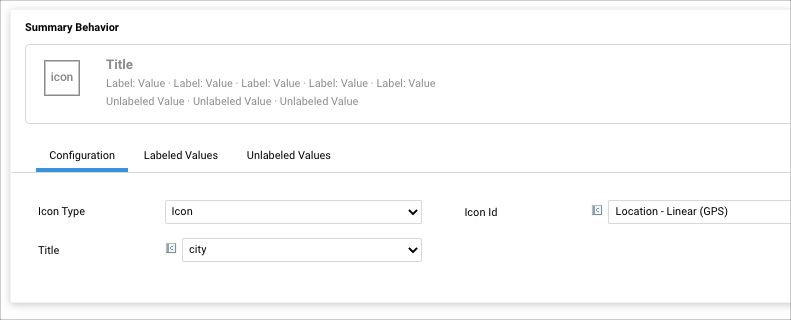
Consider the following information when working with Behaviors:
- In case of inheritance, child Data Classes inherit the Behaviors set on their parent, and can override them.
- Each Data Class can have at most one Behavior of the same type (e.g. you cannot have a Data Class with two Summary behaviors).
A Summary Behavior can be used to display a summary of each element (a single object or an element of a collection) instead of all its fields.
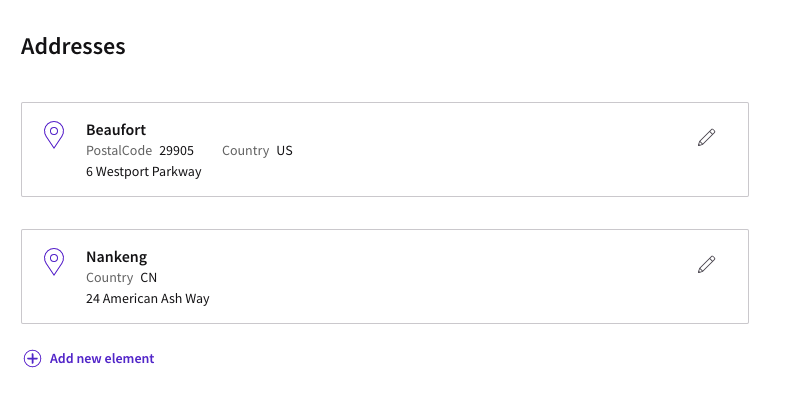
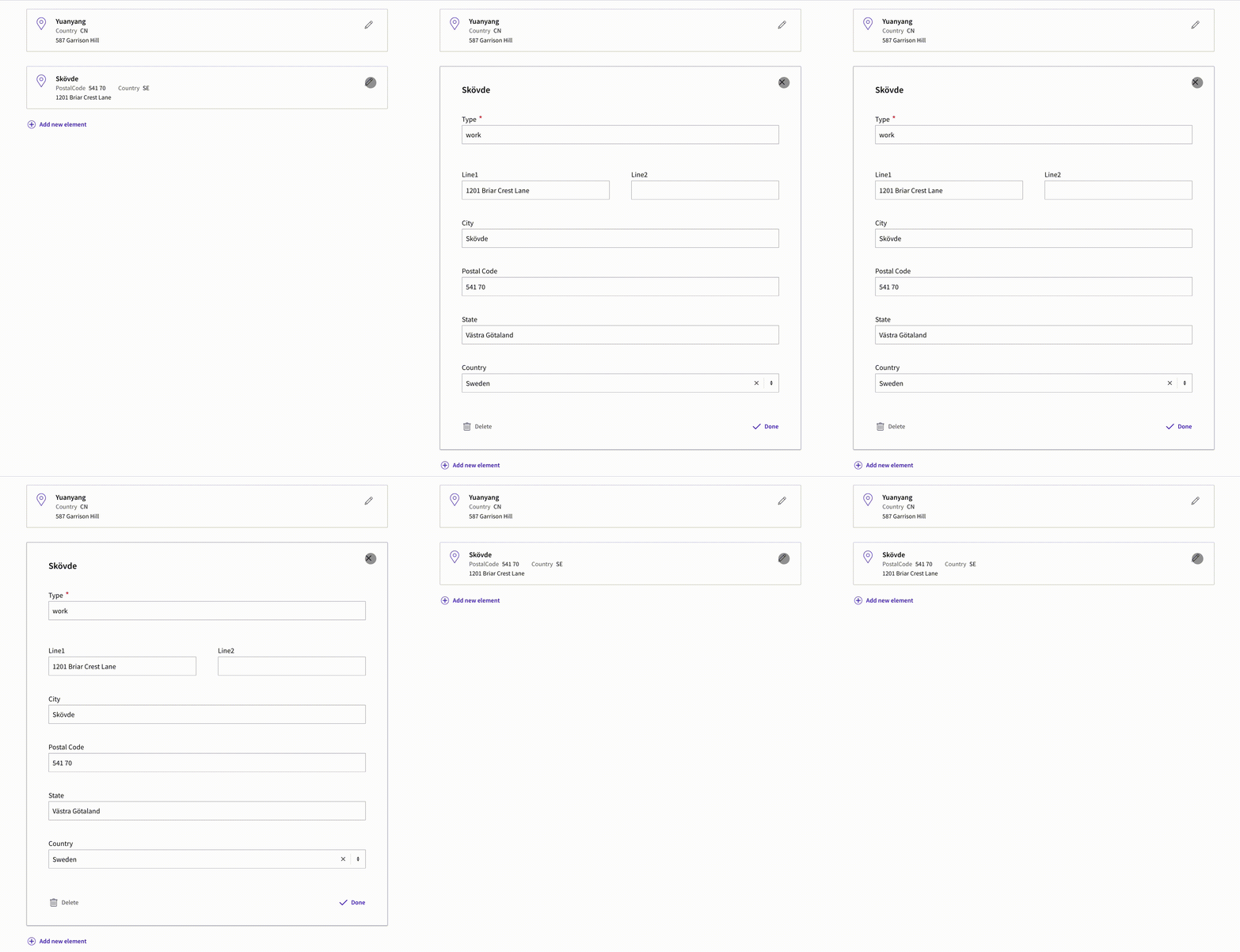
The Summary Behavior allows organizing the list of data in a list of entities in order to have a condensed view of a large amount of data. The Summary Behavior improves the readability of data and allows seeing and edit only a part of it.
The Summary Behavior allows showing data in two different modes:
- Condensed Mode (default) — Only a predefined subset of data is shown in read-only mode and cannot be edited.
- Extended Mode — All data contained in the list is shown. Data can be edited and you can delete a whole item from the list.
Tip: Use the filter field to filter by Behavior name.
- In the Data Class editor, drag and drop the Summary Behavior from the library on the right sidebar.
- In the Configuration tab, optionally, set the Icon Type / Icon Id / Resource Id properties: an icon can be chosen from the set of default icons provided by Appway or by selecting a Resource Business Object.
- Set the Title property, representing the title displayed on top of the card. It can either be chosen from the String properties of the Data Class, or defined using a Script.
- In the Labeled Values tab, you can create a list of Label-Value pairs used to provide more contextual information in the Auto-generated UI. Each Label is a Label Business Object representing the name of the field, and each Value is the value written next to the label. The value can either be a property of the Data Class or can be built using a Script.
See full information on how to create a new Label in the related
article.
- In the Unlabeled Values tab, you can create a list of additional values to be shown in the Auto-generated UI. Each value can either be a property of the Data Class or can be built using a Script. You can reorder Unlabeled values through drag-and-drop.
The Document Behavior provides advanced file uploading features, such as adding Solution-specific business metadata to your uploaded files, and organize documents in folders.
The Document Behavior was called
File Folder Behavior in versions previous to
Appway 11.1.0.
The configuration of the Document Behavior requires two steps:
- Configuring the properties of the Data Class that represent the business metadata. All the properties of the Data Class other than
Blob:File or Indexed Blob:File represent business metadata. - Configuring the Document Behavior itself.
As mentioned above, the Document Behavior allows adding Solution-specific business metadata to your uploaded files.
- Configure the properties of the Data Class that represent the business metadata. All the properties of the Data Class other than
Blob:File or Indexed Blob:File represent business metadata, that is, business-related information attached to the file (e.g. Category, Expiration Date, Related Party, and so on).
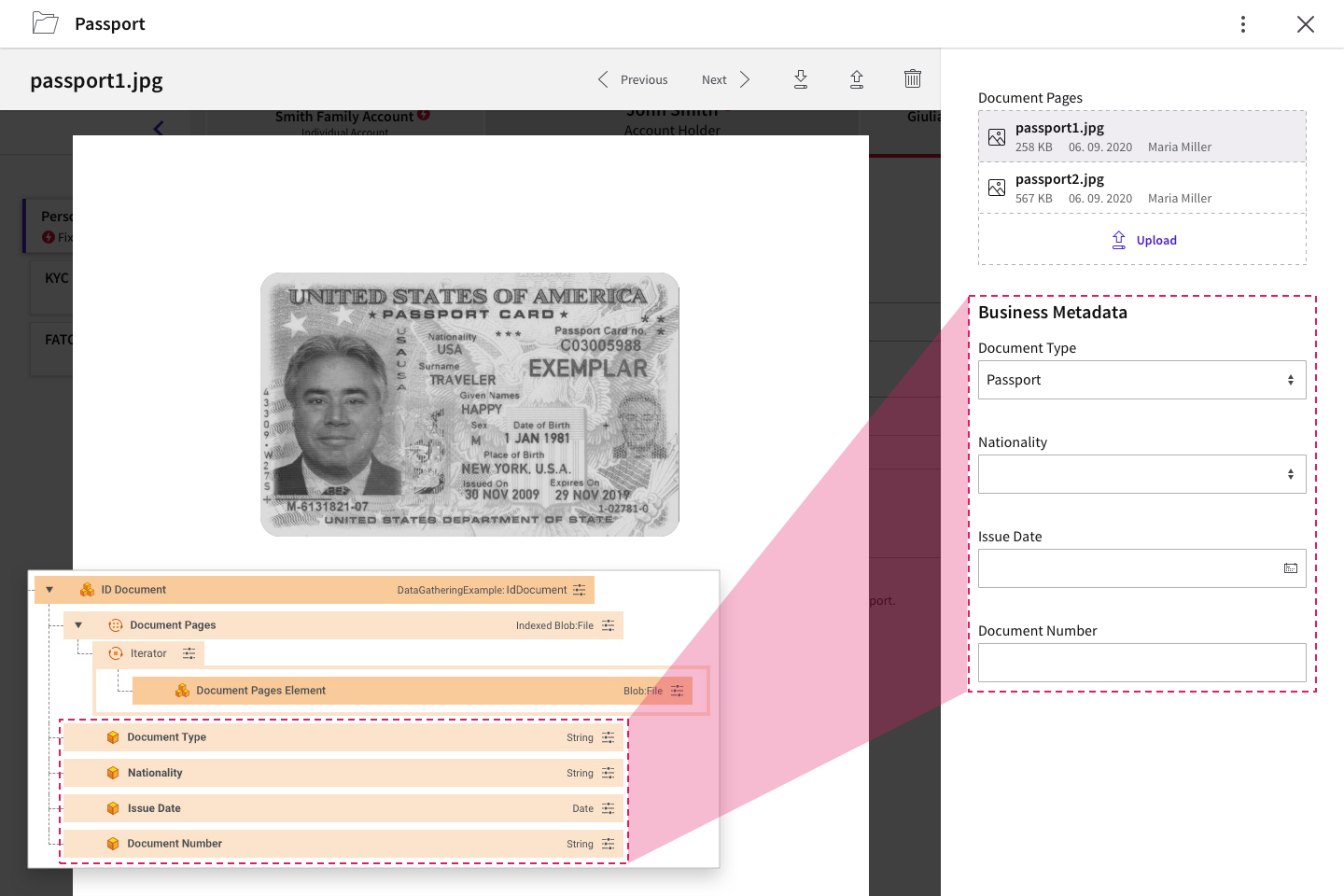
The Document Behavior allows further document organization, such as organizing documents in folders in the Data Gathering App Task, or managing document preview and mandatoriness in the Digital Binder App Tasks.
Tip: Use the filter field to filter by Behavior name.
- In the Data Class editor, go to the Behavior tab, and drag and drop a Document Behavior from the library on the right sidebar.
- In the Configuration tab,
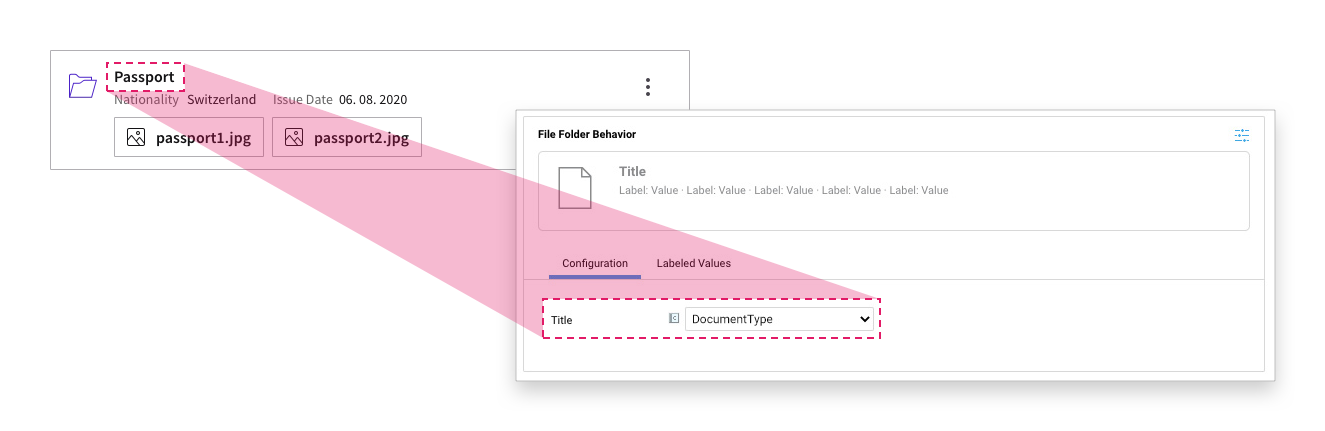
- Set the Title property, which represents the folder or document title. The title is to be chosen among the Data Class properties of type
String.
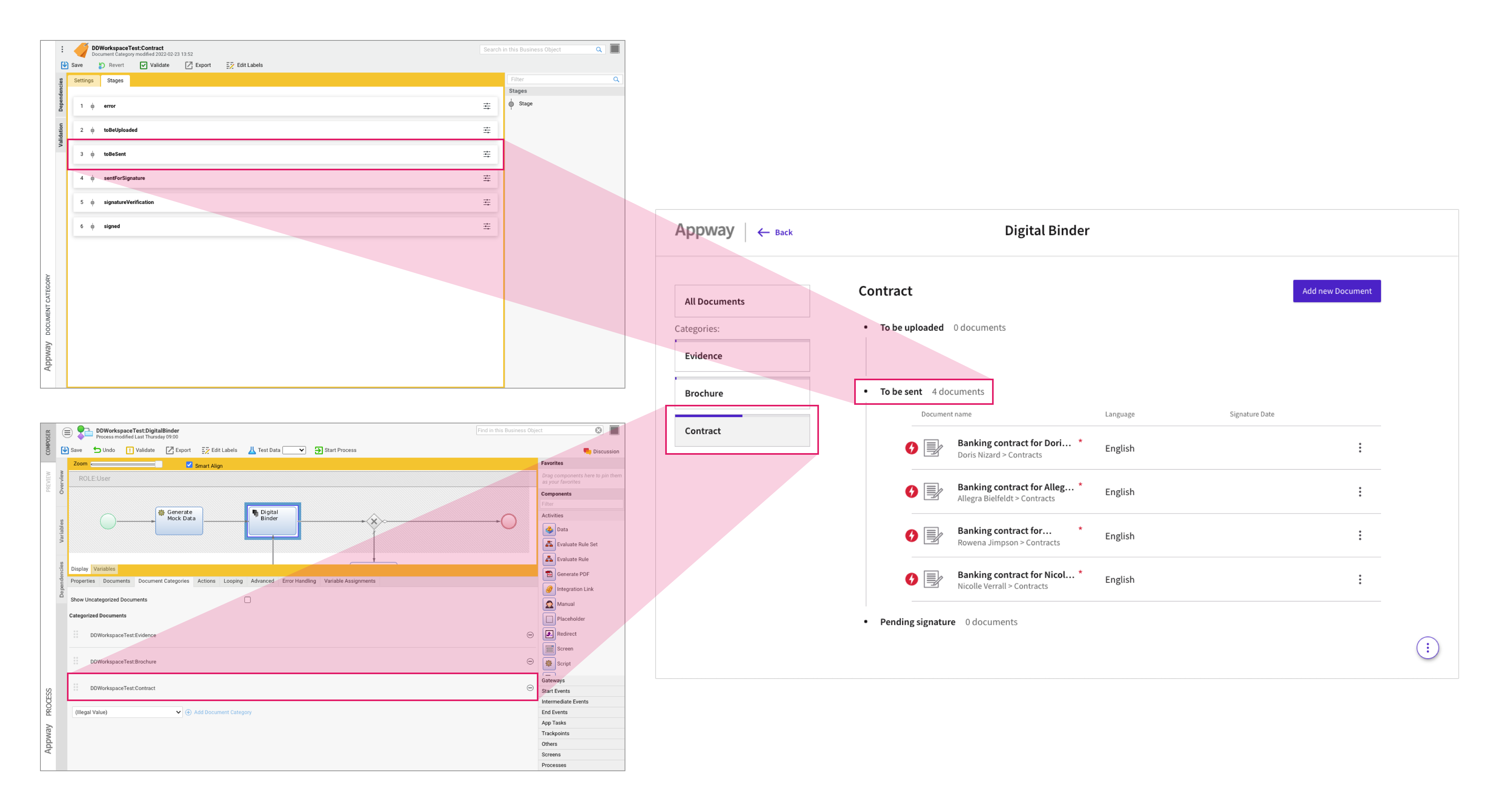
- (Digital Binder App Task only) In the Document Category field, select the desired Document Category Business Object.
- (Digital Binder App Task only) In the Stage ID, select the property to be used to store the current Stage (a step in the Digital Binder document workflow). This selector lists all Data Class properties of type
Single Element/String.
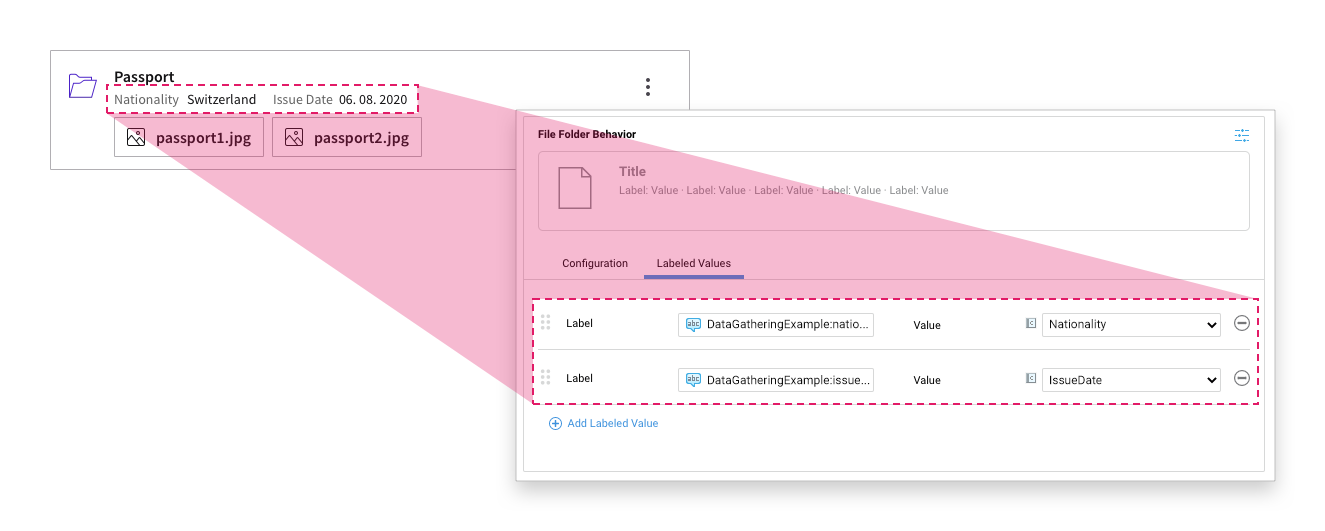
- In the Labeled Values tab, you can create a list of Label-Value pairs used to provide contextual information in the autogenerated UI. The Value can either be a Data Class property of type
String (see section above) or can be built using a Script (e.g. $this.addresses[0].street). The return type is expected to be of type String.
See full information on how to create a new Label in the related
article.
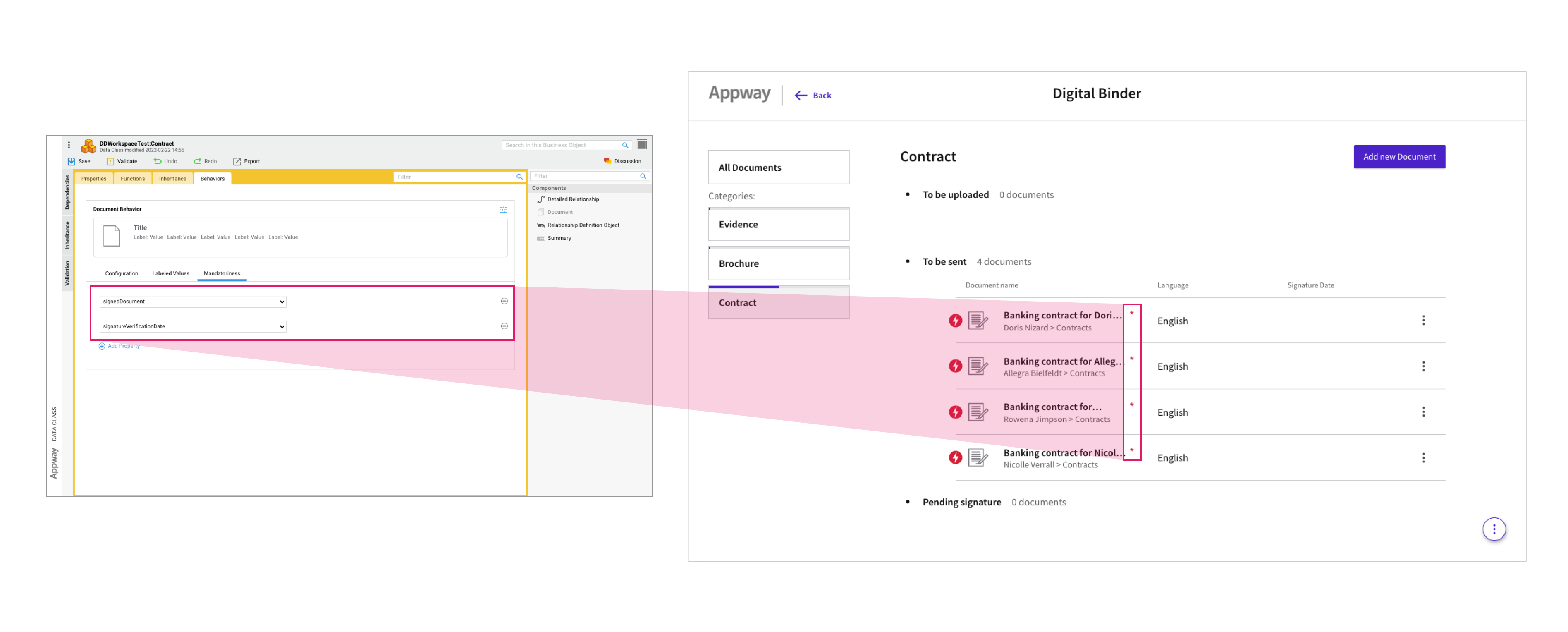
- (Digital Binder App Task only) In the Mandatoriness tab, use the Add Property selector to set those properties (language, title, and so on) that make the whole Document appear marked as "mandatory" in the Digital Binder Table View.
Note that, if any of the properties selected in the Document Behavior (Data Class) is made mandatory by a Mandatory Fields Data Rule (Data Logic), the Document itself is marked as mandatory in the Digital Binder. This is only a visual indicator, since violations are driven solely by Data Rules.
Following is an example of how you can configure a File Uploader with a Document Behavior in the Data Gathering App Task.
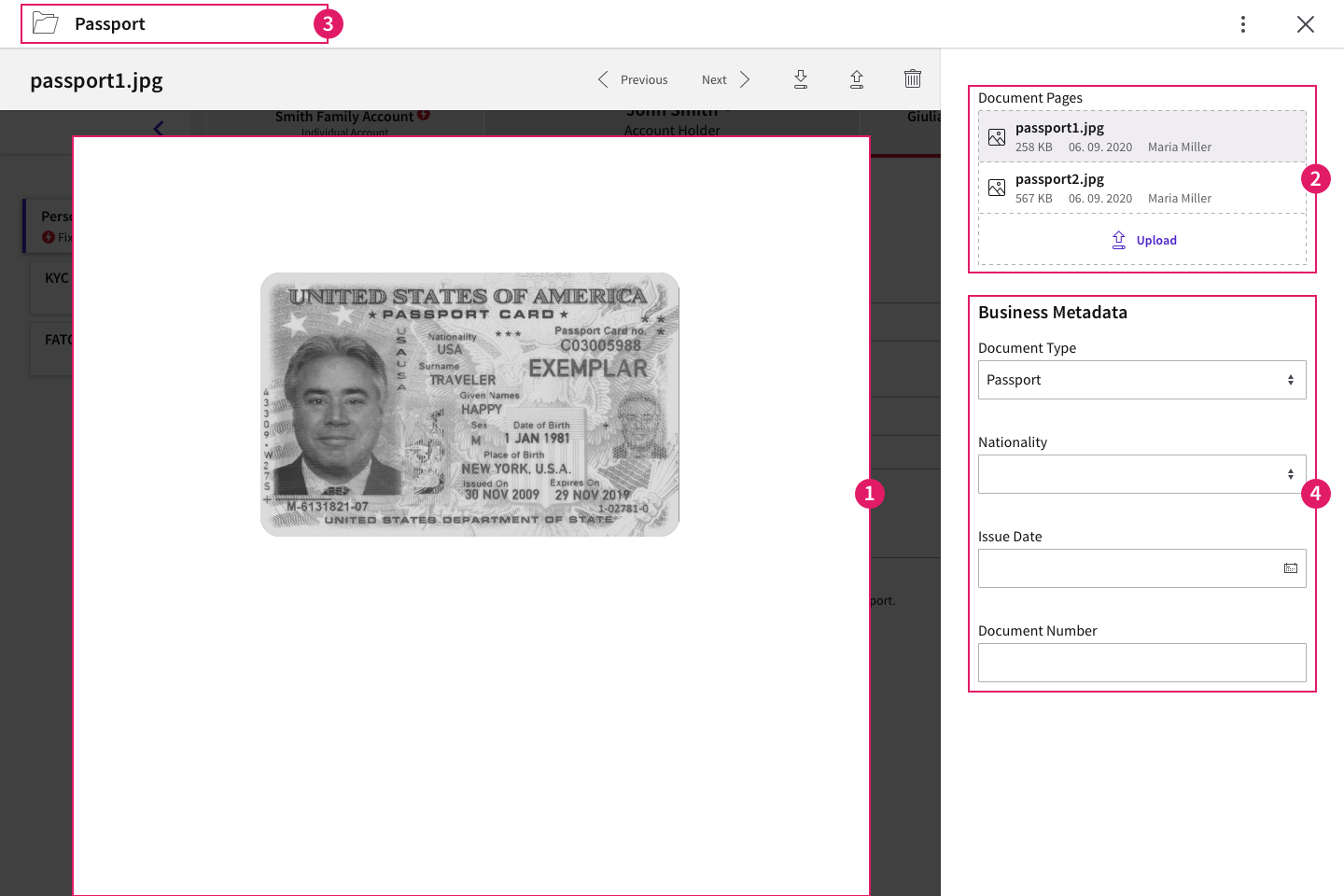
- The capability of previewing a file is managed by the
nm.blob.storage.rest.preview.media.types configuration property set by the Appway administrator. - The File Uploader Component in the Data Gathering is configured by adding a property of type
Blob:File or Indexed Blob:File to your Data Class. Constraints on the type and size of files can also be set at Data Class level. - The organization of files in folder is possible by adding a File Folder Behavior to your Data Class.
- The File Folder Behavior also allows adding business metadata (e.g. ID issuing country) to your uploaded files. For this you need to configure Data Class properties
The Relationship Definition Application Business Component (ABC) provides capabilities to define Relationship Objects. Relationship Definition Object Behavior allows showing the relevant information for each Object in the Relationship Definition App Task.
The content of a Relationship Definition Object Behavior is the same as the Summary Behavior, but it is used only in the context of Relationship Definition App Task.
The The Relationship Definition Object and the Detailed Relationship Behaviors are used in:
Relationship Definition App Task (they can be combined to cover different use cases).
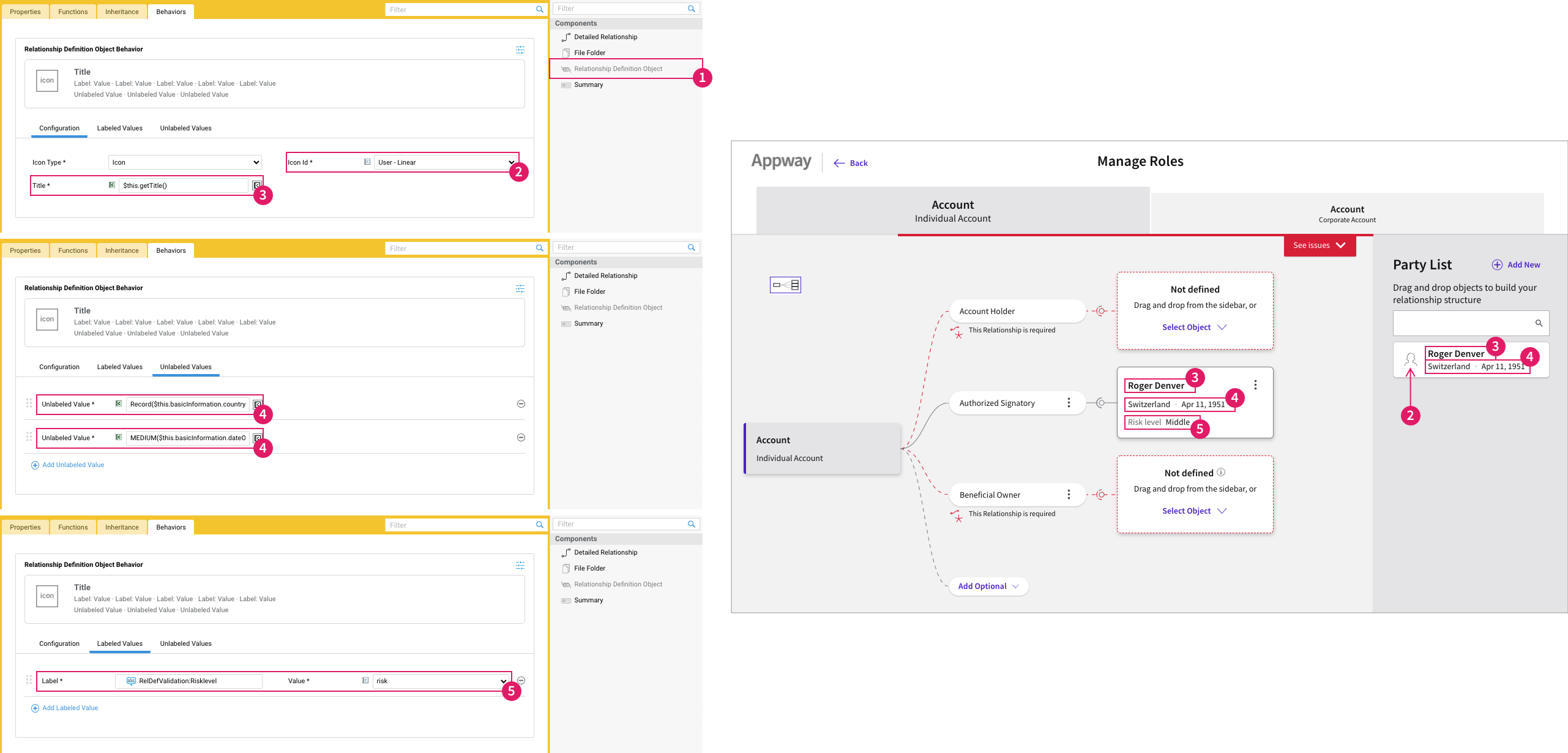
- In the Data Class editor, drag and drop the Relationship Definition Object Behavior from the library on the right sidebar (
1). - In the Configuration tab, optionally, set the Icon Type / Icon Id / Resource Id properties: an icon can be chosen from the set of default icons provided by Appway or by selecting a Resource Business Object (
2). - Set the Title property, representing the title displayed on top of the card. It can either be chosen from the String properties of the Data Class, or defined using a Script (
3). - In the Unlabeled Values tab, you can create a list of additional values to be shown in the Auto-generated UI. Each value can either be a property of the Data Class or can be built using a Script. You can reorder Unlabeled values through drag-and-drop (
4). - In the Labeled Values tab, you can create a list of Label-Value pairs used to provide more contextual information in the Auto-generated UI. Each Label is a Label Business Object representing the name of the field, and each Value is the value written next to the label. The value can either be a property of the Data Class or can be built using a Script (
5).
The Relationship Definition Application Business Component (ABC) provides capabilities to define Relationships between Objects. The Detailed Relationship Behavior allows enhancing the details and information shown next to each Relationship in the Relationship Definition App Task.
Detailed Relationship Behavior is meant to be applied only to Data Classes that are actual Relationships for the Relationship Definition App Task. This is represented in the data model through the inheritance from the Data Class RelationshipDefinition:Relationship. Therefore, if a Data Class has Detailed Relationship Definition Behavior but is not inheriting from RelationshipDefinition:Relationship, a validation error is shown.
The The Relationship Definition Object and the Detailed Relationship Behaviors are used in:
Relationship Definition App Task (they can be combined to cover different use cases).
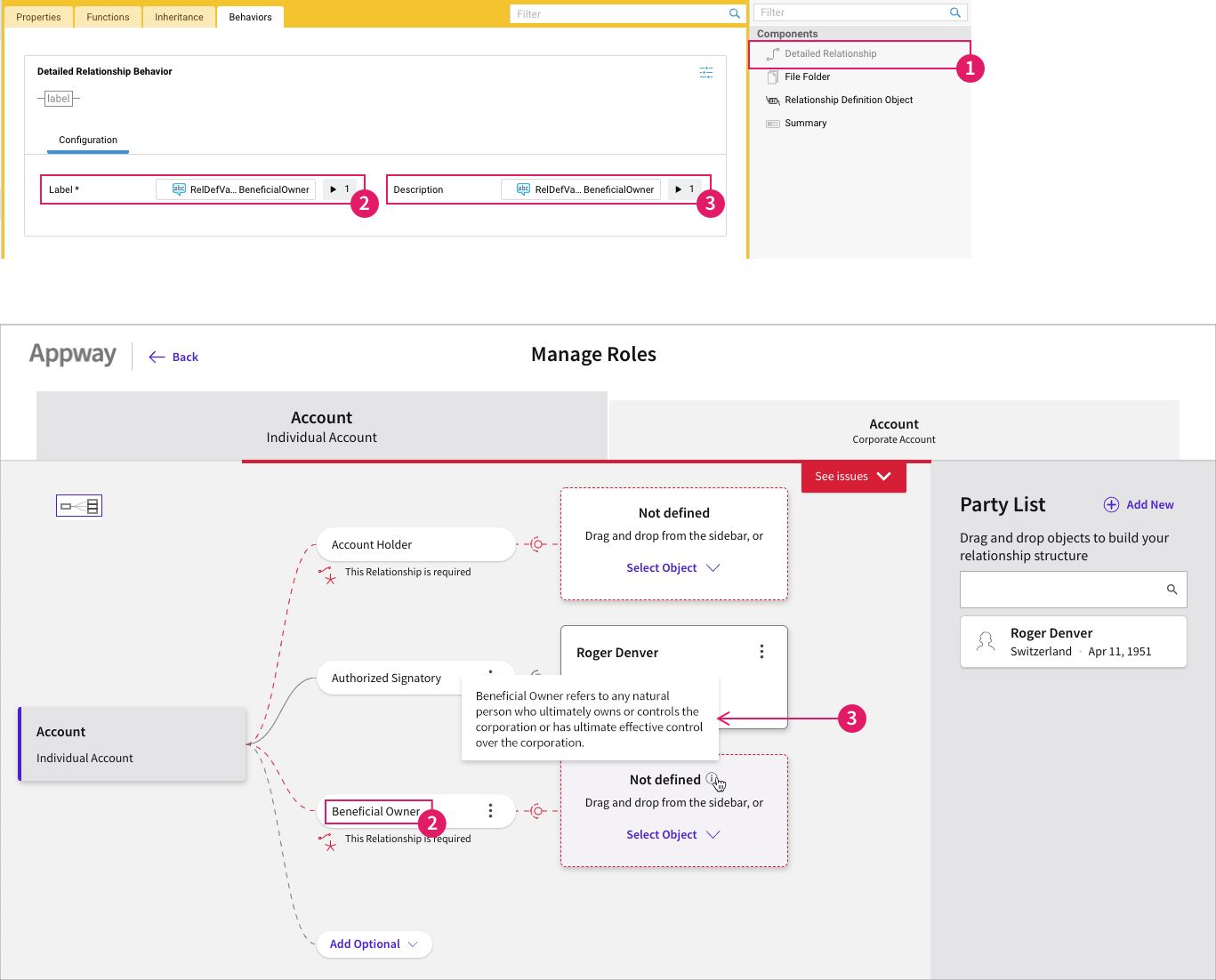
- In the Data Class editor, drag and drop the Detailed Relationship Behavior from the library on the right sidebar (
1). - In the Configuration tab, set the Label property, representing the title displayed on the connection. It can only be a Label Business Object (
2). - Optionally, set the Description property, representing the connection description. It can only be a Label Business Object. See full information on how to create a new Label from the Label selector (
3).