Data Gathering is the Platform’s one stop shop for all data gathering use cases. It provides a modern, intuitive and fast approach to gathering client data for business cases of any complexity. It can be used for complex party and account profiling steps of a solution, as well as smaller but equally important activities such as defining mailing instructions.
This document contains configuration information and technical details on Data Gathering ABC and,specifically, the Data Gathering App Task, and is intended for users in charge of Data Gathering configuration. See also:
The access to an App Task is managed through Users, Groups and Roles. As with all types of Process, you can define Swimlanes in your App Task, and each Swimlane can be associated with one or multiple Participants. Such Participants are the Users/Groups/Roles defined in FNZ Studio for Access Control.
Starting with FNZ Studio 2023, anonymous users can access specific features of the Data Gathering App Task. This is to allow unregistered users to access some specific tasks. Note, however, that access is forbidden for certain features, as described in detail below.
To allow anonymous users, do the following:
- Do not add Swimlanes to your Process
- Enable the
nm.workspace.resource.filetypes.anonymousaccessallowed configuration property.
Anonymous user access is granted to the Data Gathering App Task with the exclusion of these ABC features (note that Data Review features, such as Review Requests, are always excluded):
All the necessary ingredients are provided by Support. Always check the Products page for information on all available ABC versions, their specific ingredients, and their compatibility with FNZ Studio Platform.
Data Gathering basic ingredients are:
- AppTask Extension (included in the FNZ Studio Platform)
- AppTaskAPI Extension (included in the FNZ Studio Platform)
- DataGathering Extension
- (optional) WorkspaceCollaboration Extension (if using Collaboration features).
Note that you may need to install further extensions, if you are using internal (FNZ only) features. Check the
Products page.
- Check the Platform version compatible with your Data Gathering version in the Data Gathering Products card. Moreover:
- Make sure that your Platform installation includes all other mandatory extensions to be checked on the System Upgrade guide in addition to the AppTask and AppTaskAPI mentioned above.
- Make sure that your Platform installations includes the mandatory Packages to be checked on the System Upgrade guide.
- Upload the extensions:
- AppTask
- AppTaskAPI
- DataGathering
- Optionally, for an example of configuration of the Data Gathering, install the DataGatheringExample Package:
- Upload the WebServices extension (only needed for the DataGatheringExample Package).
- Download the DataGatheringExample Package from the Products page
- Import the DataGatheringExample Package.
When upgrading from to Data Gathering 2023.x.x from a lower version (e.g., Data Gathering 4.0.3), you need to consider the following information:
Major changes have been applied to optimize layout and navigation.
Note that these changes affect all (including running) Processes.
The following image illustrates the changes in Data Gathering layout and navigation (see all details in the App Task- Generic Configuration article):

The approach to show issues and the look-and-feel of error messages have been changed to be less invasive (see all details in the App Task- Generic Configuration article).
Business Object versioning has changed and the Latest Committed version (at the time of the execution) is now applied for most Process Instances. See all details in the App Task- Generic Configuration article.
Note that this change also affects all (including running) Processes.
Some Labels have been refactored in the Data Gathering App Task 2023, therefore some actions may be necessary when upgrading:
- Added Labels — The following Labels have been added to the specified Platform Packages with default English texts. You can add and edit translations for such Labels in FNZ Studio Composition (Solution Design > Translations tab). Note that the following Labels have been introduced specifically for the new Search functionality available in Data Gathering and Relationship Definition App Tasks:
DataGathering:DataClass.DeletedElementApptask:BooleanControl.CheckedApptask:BooleanControl.UncheckedApptask:SummaryControlError.MultipleIssuesApptask:ControlError.SingleIssueAppTask:Collection.AddingElement.Loading
- Removed Labels — The following Label has been removed. If you set a translation for such Labels you can optionally remove it (from Solution Design> Translations tab):
DataGathering:Control.MultipleIssues
- Changed Labels — The default text of the following Label has been changed. If you are already using this Label in your Solution, you need to edit its translation manually in FNZ Studio Composition (Solution Design > Translations tab):
aw.DataLogic.Search.SearchResults.AlreadyAdded (default translation changed from "Selected" to "Added")
After following the installation steps above, the Data Gathering App Task will be available in your Platform installation in the Process Editor that you can drag into the central composition area. Thanks to the Data Logic Business Object, the Data Gathering App Task generates a User Interface (UI) whose main scope is gathering data from the end user.

| Tab | Description |
|---|
| Properties | Configure general properties of the App Task:- Task Title field: Select the Label Business Object containing the title for the whole Data Gathering page. In case the property is not set, it shows 'FNZ'.
- Task type dropdown: Select the Task pattern (details).
|
| Data | Configure specific Data Gathering properties: - Data Logic field: Define the Data Logic Business Object that governs the overall UI generation (Data Logic configuration details).
- History Enabled checkbox: If selected, change history is enabled for all fields from the tracking start point.
|
| Actions | Configure Global Actions (generic to all App Tasks) (Action configuration details). |
| Collaboration | Configure features such as Comments and Review Requests, which are common to the Data Gathering and Data Review App Tasks (Collaboration details). |
Other configurations, such as the
Home button configuration, are not performed in the Process Editor but through configuration properties. See the
App Home button in the App Tasks - Generic Configuration document.
The Data Gathering App Task provides features for file uploading. These are provided by the so-called File Uploader, which is available in the Data Gathering and Digital Binder App Tasks and is configured through Data Classes.
When building a solution that uses Data Driven UIs, the User Interface is automatically generated based on:
- The specific App Task used in the Process, such as the Data Gathering App Task
- The business logic defined in one or more Data Logic Business Objects
- The data model defined through Data Classes
When the Data Logic is translated in a Data Driven UI, such as in the Data Gathering, controls are rendered as form elements by default. However, in some situations, specific Data Classes need to be shown in a different way. For example, an Address in a list of addresses could be shown using a more compact UI element than a full list of form elements.
Data Class Behaviors provide semantic information at Data Class level to ensure that the final representation of the Data Class in a Data Driven UI is coherent with the data contained in the Data Class.
See more resources:
- General information on Data Class Behaviors, their different types, and configuration details in the Data Class Behaviors document.
- Specific information on how Behaviors impact the Data Gathering App Tasks in the sections below.
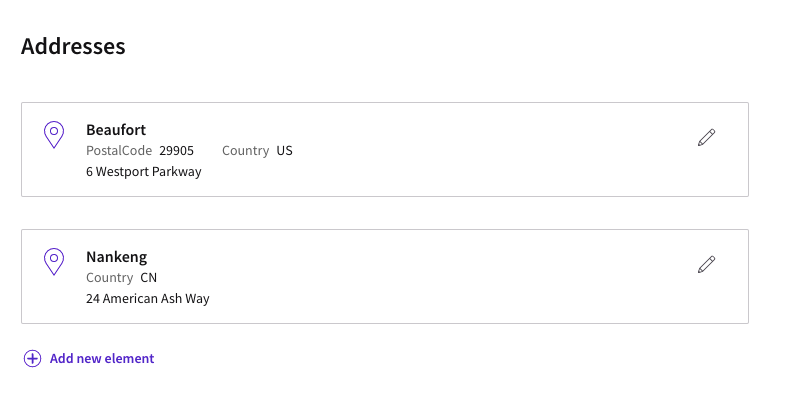
The Summary Behavior allows organizing the list of data in a list of entities in order to have a condensed view of a large amount of data.
Consider the example of a Data Gathering process in which the information about a Person has to be filled in through the form. In the business model required by the application, consider that a piece of information attached to a person is a list of Addresses.
This situation can be represented by a Person Data Class, containing a property addresses of type Indexed Address, where Address is another Data Class containing the address information items country, city, street and number.
Following is an example of an Address Data Class with a Summary Behavior:
The Document Behavior was called File Folder Behavior in versions previous to Data Gathering v2.3 (Appway 11.1.0).
The File Component mentioned above already provides a File Uploader.
However, by adding a Document Behavior, you can obtain advanced file uploading features, such as adding Solution-specific business metadata to your uploaded files, and organize documents in folders.
Language, date and number localization is available for App Tasks.
Moreover, you can brand your solution through the Theme Editor, a tool available in the runtime side of App Tasks out of the box.