The functionality formerly covered by the Party Management Business Component is now provided as part of the Entity Search Configuration Kit Package (unsealed). The Entity Search Configuration Kit is based on the Entity Search Application Business Component (sealed), as was previously the case for the Party Management Package (unsealed). Since the latter Package was unsealed, it can be continued to be used in Solutions while benefiting from continuous upgrades to the Entity Search Application Business Component.
The Entity Search Application Business Component provides all the building blocks necessary for implementing a search and the selection of search results in your Appway application. It includes the user interface, as well as an extensible Data Model that allows specifying the search logic and applicable business restrictions.
The component is built along our core principles of modularity, reusability, and usage through assembly and configuration.
The goal is supporting the implementation of a search for multiple use cases occurring in one or multiple Appway applications. While the user interface comes with standardized front-end modules to define the search criteria, issue a search request, and inspect and select search results, these can be configured to reflect a variation of requirements and object types to be searched for. To support the integration into a broader application context that requires a search module, the component comes with helper methods to pass over selected search results.
The Entity Search Application Business Component is available together with the Entity Search Configuration Kit, which shows how to use the component for a prototypical scenario.
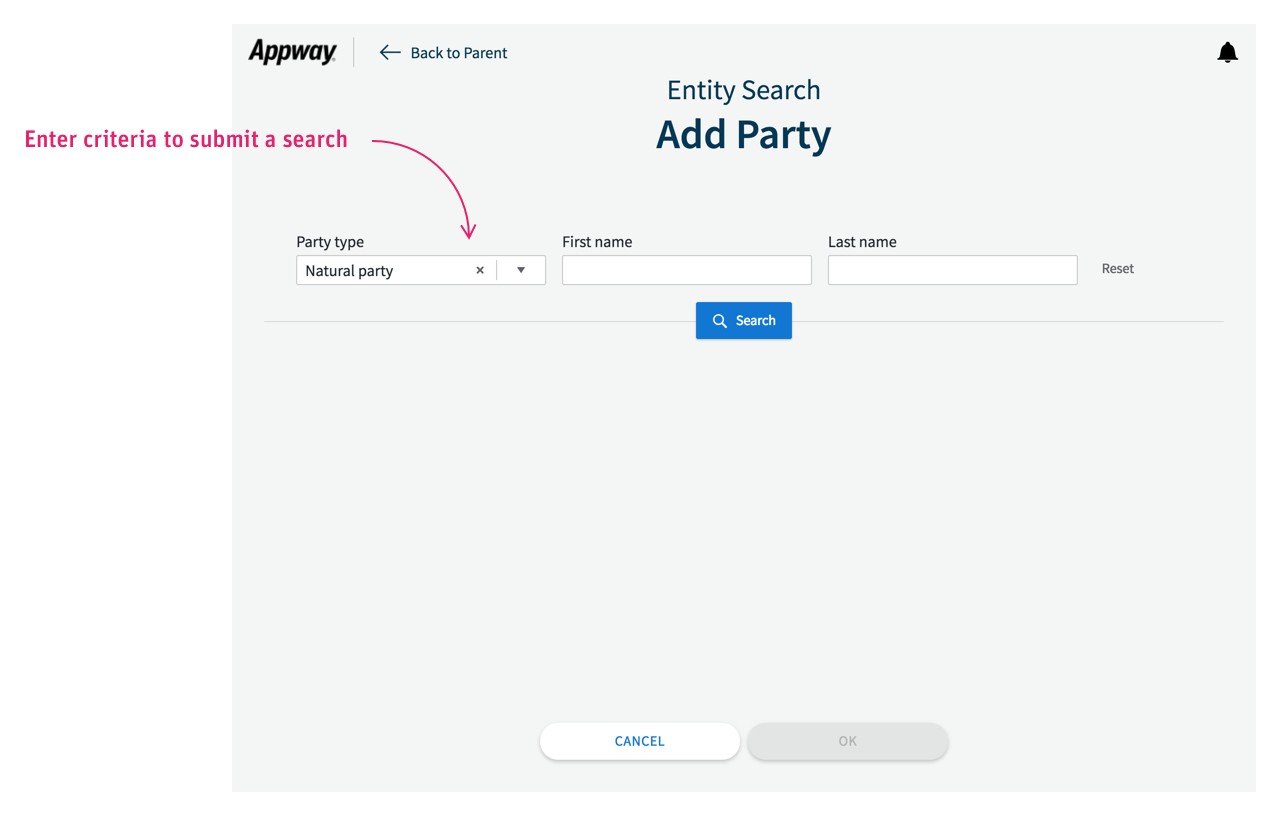
The Entity Search Application Business Component comprises three front-end modules: the Search Form, the Search Results, and the Selected Search Results. These modules are used for searching and selecting parties and are combined into a single Screen that contains the entire logic of the component.
The basic user interaction involves the following steps:
- Fill in criteria to submit a search.
- Browse the returned search results.
- Select a search result.
The Search Form Module contains the criteria to issue a search. If required, these criteria can be defined as mandatory. Clicking the Search button submits the search.
The Search Form Module is designed in a way that it can hold any number of criteria – form fields are arranged in a horizontally flowing layout. If required, a master criterion can be defined which allows switching among different sets of options. A master criterion is used, for example, when allowing searching for different types of parties, such as natural parties, or legal entities, and each party type contains different search criteria.
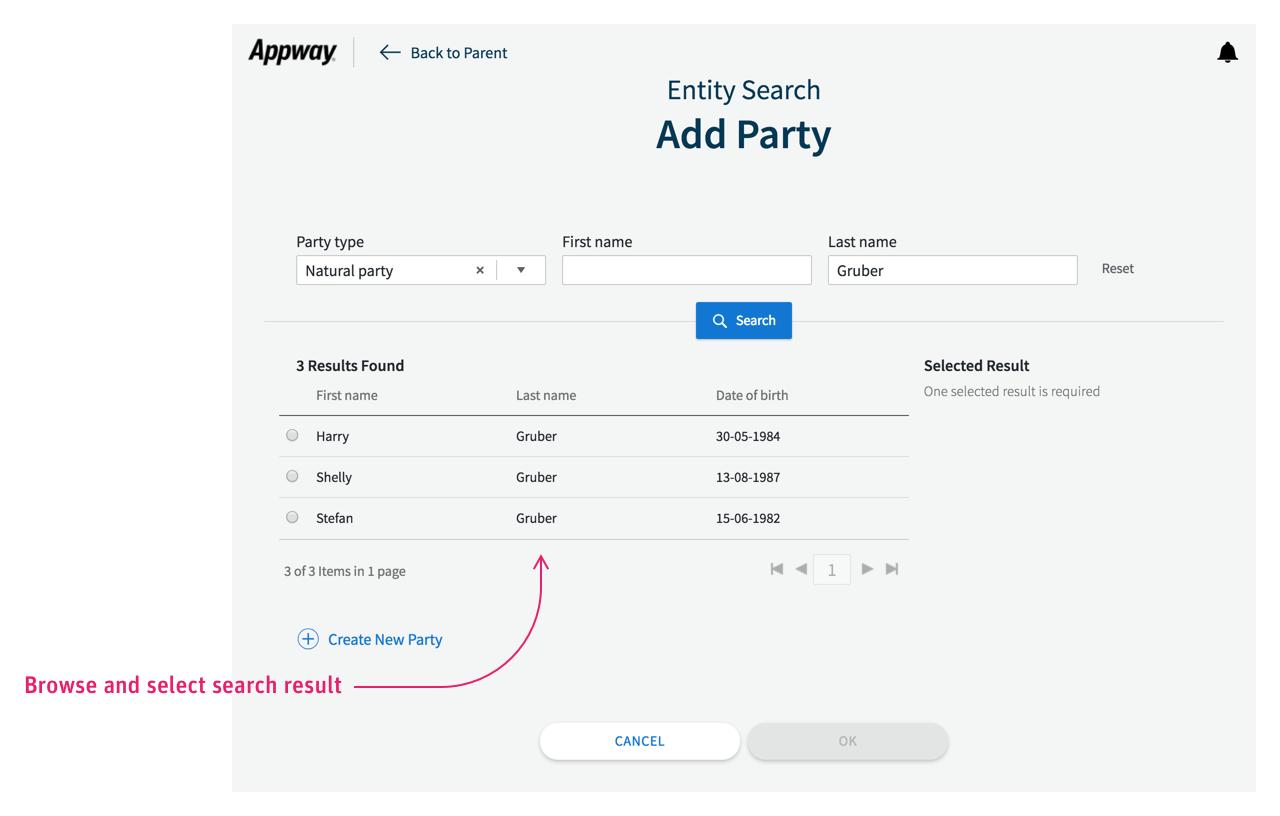
The Search Results Module lists the results returned by the search. In case no results are found, an information message is shown. The module offers two configuration options for selection: single selection, or multiple selection. For single selection, each row has a radio button, allowing only one item to be selected. Multiple selection, on the other hand, is performed through checkboxes, supporting the selection of a defined minimum and maximum number of items.
Search results are arranged as a table, with result properties organized in columns. The number and content of the columns can be configured. The Search Results Module displays 10 results at a time. Users can browse results by scrolling, or by sorting the columns.
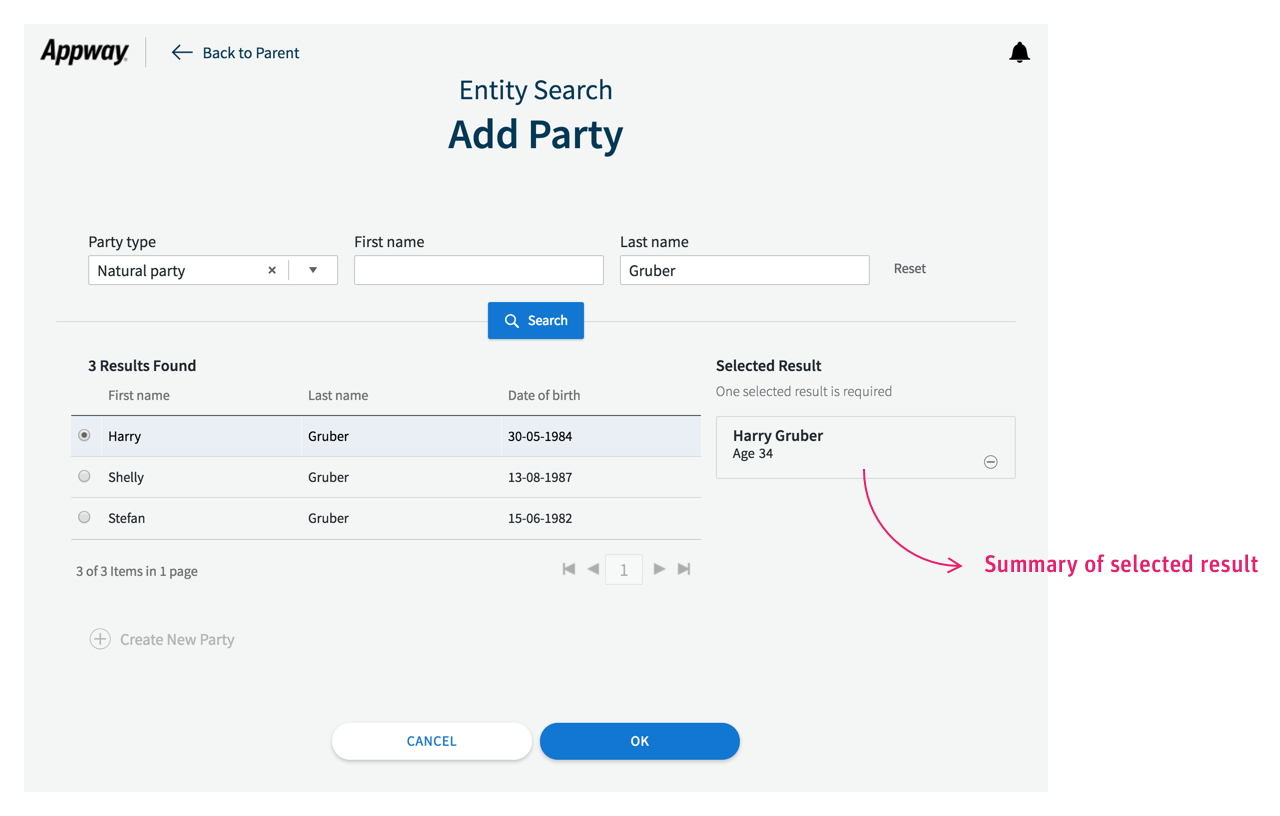
The Selected Search Results Module shows the selected search result, or an entire list of selected results, if the Search Module is configured for multiple selection. The module is placed on the right-hand side, so it is always visible to users if a selection exists, including the case of a long search result list that is in a scroll position where the selection is not shown.
The
Create New Party functionality is not covered by the Application Business Component itself. To add the use case of adding a new party, refer to the Configuration Kit described in the
Entity Search Configuration Kit section.
The Entity Search Application Business Component consists of the following Packages provided in the component bundle:
- Entity Search
- Entity Search Configuration Kit
The Entity Search Configuration Kit requires:
- Appway Core 8.0 or higher and Design System 5.0 or higher for Entity Search 1.1.0.
- Appway Core 9.0 or higher and Design System 6.0 or higher for Entity Search 2.0.0.
The following extensions must be installed:
- DataTable 2.1
- DefaultIcons (version compatible with Appway Core)
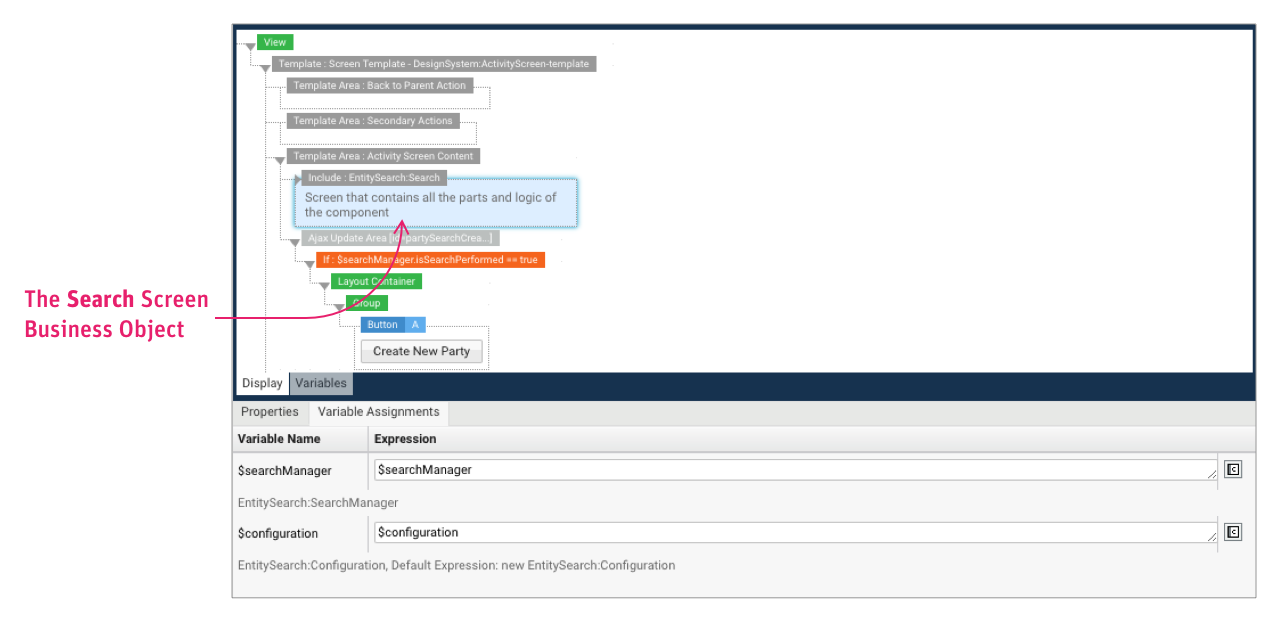
The Entity Search Package interface is shown in the following figure: a Visible Screen that contains the core part of the component and an extensible Data Model that can be used to configure the component and define the application-specific search logic.
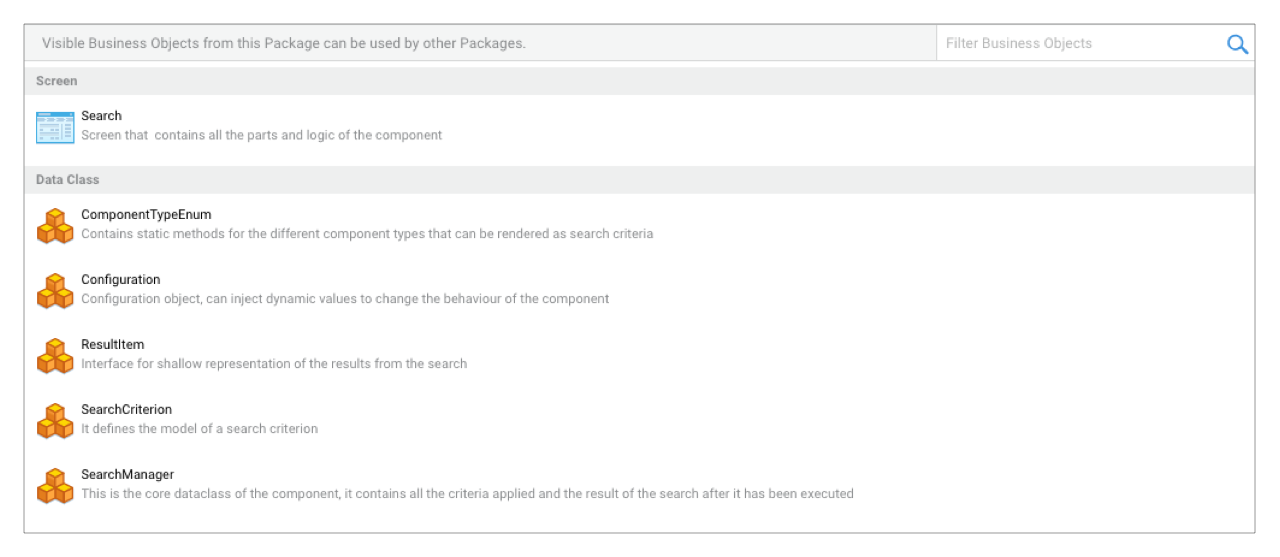
To use the component, the Visible Search Screen Business Object must be placed into an application Screen as a Screen Include, as part of a Screen Template.
This already contains the three modules that make up the interaction of the Application Business Component: Search Form, Search Results, and Selection Summary. The interaction between the three modules is transparent to an application developer.
The Search Screen Business Object is then configured by passing in instances of two of the Visible Data Classes: Configuration and Search Manager.
The Search Manager Data Class is the core of the logic of the component and defines the interface of the Entity Search component. It uses two additional classes: SearchCriterion and ResultItem.
The Search Criterion is a modeled representation of a search criterion. The constructor of the Search Manager Data Class accepts an Indexed Collection of the SearchCriterion Data Class. This collection must be prepared and passed from outside the Search Manager Data Class. The results of the search operation are modeled by ResultItem.
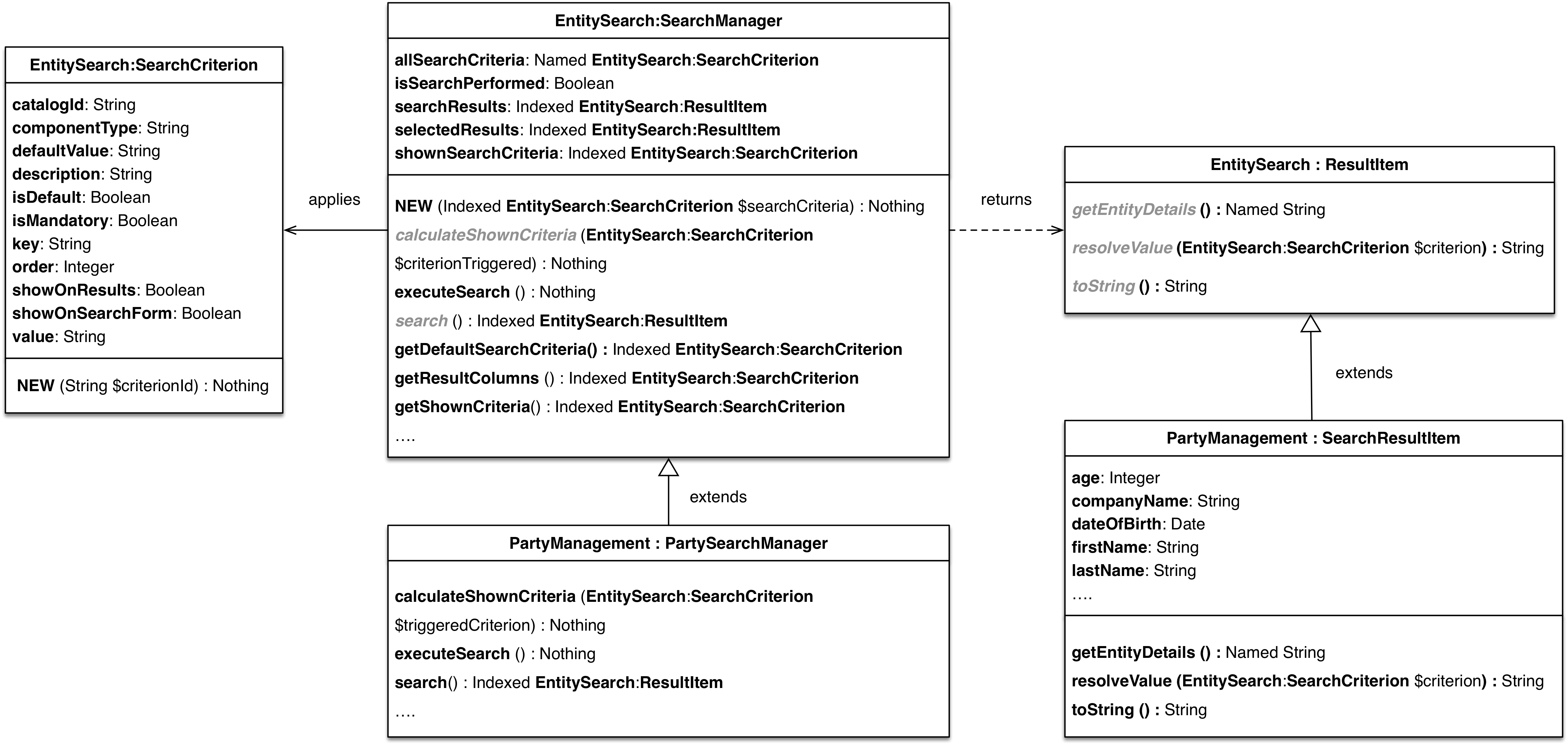
The Search Manager Data Class MUST be extended from your application as follows:
- The search method MUST be implemented by your application by calling the correct service to retrieve the collection of entities matching the applied search criteria. It returns a collection of EntitySearch:ResultItem.
- The calculateShownCriteria Data Class method MUST be implemented by your application and it should calculate the changes in the search criteria as a result of user interaction (e.g. dropdown list value changes → calculate new set of criteria, if needed).
The Search Criterion Data Class comes with important properties such as the possibility to show the criteria on the search form or show the property in the result table.
- isDefault – Used only for initialization (no longer used afterwards). It allows knowing what to show on the page when first loading the component.
- isMandatory – Indicates whether the search criterion is mandatory for the search.
- showOnSearchForm – Indicates if the search criterion should be used as part of the search form.
- showOnSearchResults – Indicates if the search criterion should also be visible as one of the columns of the result table.
- extendedLabel (optional) – Indicates the label to be used for an extended description of the search criterion.
The Result Item Data Class is an abstract class. It is used to represent the results of the search for the purpose of the display.
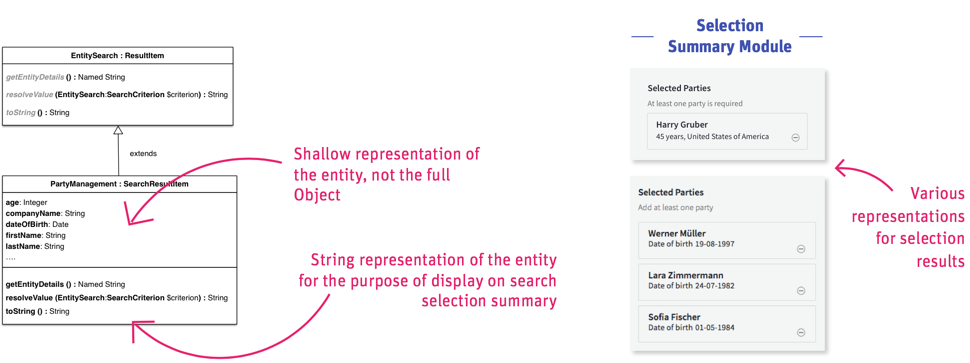
We strongly advise not to load the full object, but just a shallow representation.
This Data Class MUST be extended by your application as follows:
- The toString Data Class method MUST be implemented by your application and it should return a String representation of the entity itself. It is used to show the title (e.g. first name and last name for natural people).
- The getEntityDetails Data Class method MUST be implemented by your application and it should return a Named Collection of Strings. It is used as a key-value pair collection in the Entity Selection summary to show the details of the entity itself. The key of the collection is used as the label and the value as the actual value of the single detail. It is used for the second line.
- The resolveValue Data Class method MUST be implemented by your application and should return a String representation of the value indicated by the input SearchCriterion parameter.
The Configuration Data Class is used to configure some of the possible features in the Screen.
- Set the isMultiSelection property to
true to render the result table with checkboxes that allow multiple selection. If set to false, the result table is rendered with radio buttons. - Set the isAjaxUpdate property to
true to issue a search without the need to trigger a Process Action. If set to false, the Process Action is triggered. - Use the addAreaToUpdateOnRowSelect method to add Ajax Update Area IDs to be updated when selecting a row and remove them by using the removeAreaToUpdateOnRowSelect method.
- Use the addAreaToUpdateOnSearch method to add Ajax Update Area IDs when clicking on the Search button and remove them by using the removeAreaToUpdateOnSearch method.
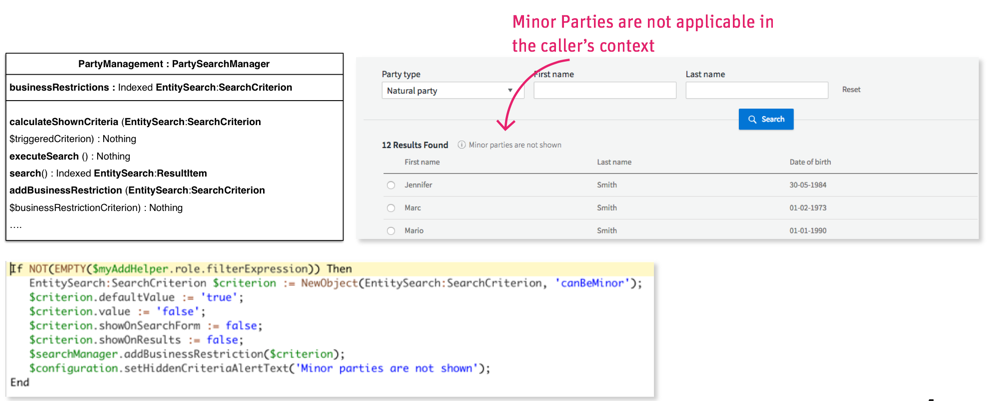
- Use the setHiddenCriteriaAlertText method to show a warning message in case of hidden search criteria. This can be used to define search criteria to be excluded from the search result set for the purpose of modeling business restrictions. For example, if minors are not allowed in the calling context, this can be set as hidden search criteria — “hidden” in that it is not shown in the search form, but it is applied nevertheless. See the Add Business Restrictions section for an example of how this can be used.
- Use the setRowObjectNameSingular method to specify the label to be used to identify a search result (e.g. 'Party').
- Use the setRowObjectNamePlural method to specify the label to label to be used to identify multiple search results (e.g. 'Parties').
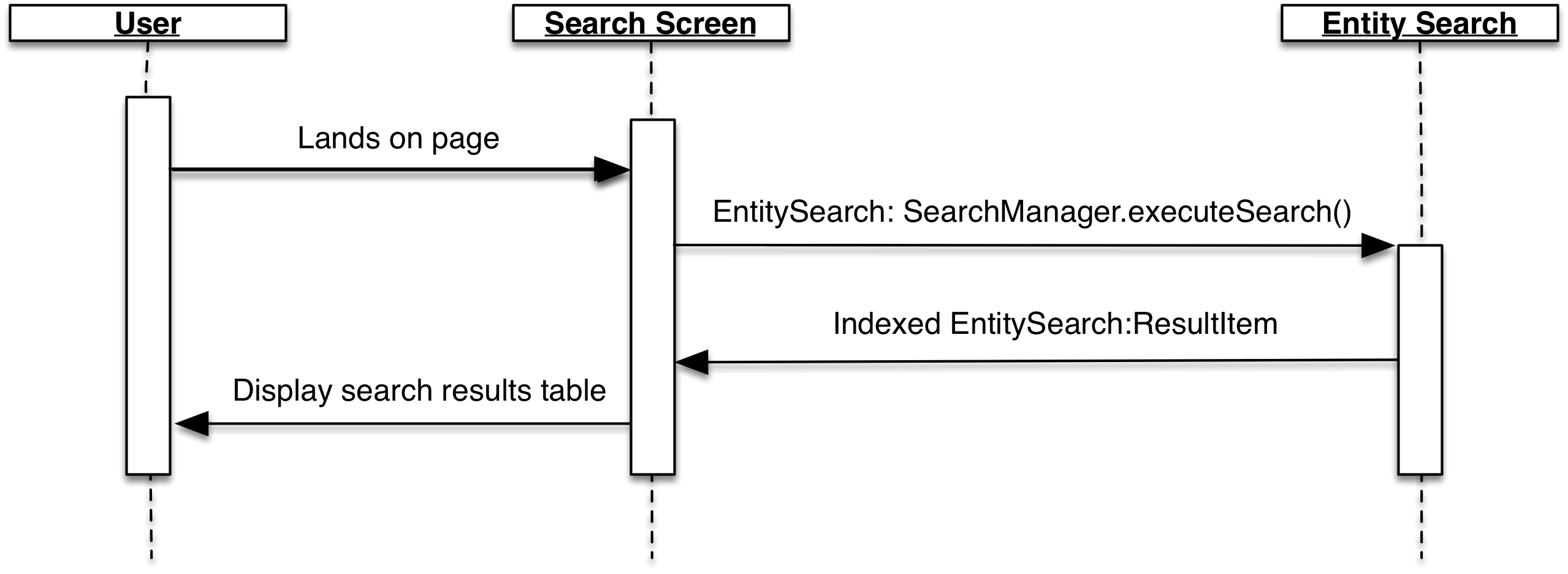
The sequence diagram of how the Application Business Component works is illustrated below:
Defines the model of a search criterion.
| Property | Description |
|---|
| catalogId | In case of a componentType 'Dropdown List' or 'Radiobutton List', it indicates the Catalog to set as a Data Source. |
| componentType | Type of component to be rendered on the page as a search criterion. |
| defaultValue | The default value to be set initially (if any). |
| description | The name of the field that is rendered in the search criterion Infobox. |
| isDefault | Flag that shows if the search criterion must be shown as a default when first landing on the page. |
| key | The unique key of the search criterion. |
| isMandatory | Flag that shows if the search criterion is mandatory. |
| order | The order in which the search criterion must be shown on the page. |
| showOnSearchForm | Flag that shows if the search criterion must be visible in the search form. |
| showOnResults | Flag that shows if the field must be visible in the result table. |
| value | The value of the search criterion. |
It contains static methods for the different component types that can be rendered as search criteria.
| Method | Description |
|---|
| DROPDOWN | Static method that returns the type 'Dropdown List' for the component type. |
| RADIOBUTTON | Static method that returns the type 'Radiobutton List' for the component type. |
| TEXTBOX | Static method that returns the type 'Text Field' for the component type. |
| DATE | Static method that returns the type 'Date Picker' for the component type. |
Core Data Class of the component, which contains all the criteria applied and the result of the search after it has been executed.
| Property | Description |
|---|
| allSearchCriteria | Named Collection that contains all the possible search criteria. |
| isSearchPerformed | Flag that shows if the search has been performed. |
| searchResults | Contains the search results. |
| selectedResults | Contains the selected results from the search performed. |
| shownSearchCriteria | Indexed Collection that contains all the search criteria to be shown on the page. |
| Method | Description |
|---|
| addSearchCriterion | Adds a search criterion to the allSearchCriteria and shownSearchCriteria collections. |
| calculateShownCriteria | Interface method that MUST be implemented in the inheriting class. It should contain the logic to switch the search criteria shown on the page after a certain action. |
| disableSearchCriterion | Disables a search criterion from being shown on the page. |
| enableSearchCriterion | Enables a search criterion to be shown on the page. |
| executeSearch | Executes the search and sets the flag isSearchPerformed to true. |
| getApplicableSearchCriteria | Returns the applicable search criteria, usually the ones visible on the Screen. |
| getCriterionComponentType | Gets the component type of the search criterion. |
| Property | Description |
|---|
| getDefaultSearchCriteria | Gets the search criteria that are flagged as the default ones in the list. |
| getResultColumns | Gets the search criteria that are flagged as showOnResults = true. |
| getSearchCriterionById | Gets the search criterion that has the specified ID. |
| getSearchCriterionSelectedValue | Gets the search criterion value from the search criteria list. |
| getShownCriteria | Gets the search criteria that must be shown on the page. |
| hideSearchCriterion | Hides a search criterion from the page. |
| initializeDefaultSearchCriteria | Initializes the default search criteria used when first landing on the page. |
| isDateCriterion | States if the search criterion must be rendered as a Date Picker. |
| isDropdownCriterion | States if the search criterion must be rendered as a Dropdown List. |
| isRadiobuttonCriterion | States if the search criterion must be rendered as a Radiobutton. |
| isSelectedEntity | States if the input parameter is selected or not. |
| isTextCriterion | States if the search criterion must be rendered as a Text. |
| removeSearchCriterion | Removes a search criterion. |
| removeSearchCriterionById | Removes a search criterion based on the ID. |
| resetAllSearchCriteria | Resets all the search criteria values. |
| resetSearchResults | Resets the current search results. |
| resetSelectedResults | Resets the current result selection. |
| resetShownCriteria | Resets the values of the search criteria shown. |
| search | Interface method that must be implemented in the inheriting class. It contains the actual search implementation. |
| showSearchCriterion | Makes the search criterion visible on the page. |
| toggleEntity | Toggles the selection on the ResultItem instance provided as argument. |
Configuration object, it can inject dynamic values to change the behavior of the component.
| Property | Description |
|---|
| areasToUpdateOnRowSelect | Contains the list of Ajax Update Areas to update when a result row is selected. |
| areasToUpdateOnSearch | Contains the list of Ajax Update Areas to update when the Search button is clicked. |
| hiddenCriteriaAlertText | Contains the alert text that is shown when there are hidden search criteria. |
| isAjaxSearch | States if the Search button triggers a Process Action or just refreshes the page with an Ajax Update Area. |
| isMultiSelection | States if the component allows multiple selection on the result table. |
| searchActionName | The name of the action triggered when clicking the Search button. Default is 'Search'. |
| selectedEntitiesSubtitle | Contains the subtitle of the selected search results module. |
| selectedEntitiesTitle | Contains the title of the selected search results module. |
| Method | Description |
|---|
| addAreaToUpdateOnRowSelect | Adds an Ajax Update Area ID to the list to be updated when selecting a row. |
| addAreaToUpdateOnSearch | Adds an Ajax Update Area ID to the list to be updated when clicking the Search button. |
| getAreasToUpdateOnRowSelect | Gets the list of Ajax Update Areas to update when selecting a row. |
| getAreasToUpdateOnSearch | Gets the list of Ajax Update Areas to update when clicking the Search button. |
| getHiddenCriteriaAlertText | Gets the alert text in case of hidden search criteria. |
| getSearchActionName | Gets the name of the Process Action triggered by the Search button. |
| isAjaxSearch | Returns true if the search is configured so not to trigger the Process Action when clicking the Search button; returns false otherwise. |
| removeAreaToUpdateOnRowSelect | Removes an Ajax Update Area ID to the list to be updated when selecting a row. |
| removeAreaToUpdateOnSearch | Removes an Ajax Update Area ID to the list to be updated when clicking the Search button. |
| setAjaxSearch | Sets the flag to configure the Application Business Component so as to trigger the Ajax Update Area when clicking the Search button. |
| setHiddenCriteriaAlertText | Sets the alert text in case of hidden search criteria. |
| setSearchActionName | Sets the name of the Process Action to be triggered when clicking the Search button. It is used only if isAjaxSearch() returns false. |
ResultItem
Interface for the shallow representation of the search results.
| Method | Description |
|---|
| getEntityDetails | Interface method that should return a Named Collection of Strings. This is used to show details of the selected entity in the Entity Details module. |
| resolveValue | Interface method that should resolve the value to be rendered in the search result table based on a search criterion provided as an argument. |
| toString | Interface method that should return a String representation of the object. |
In this section we describe the minimal set of steps required to configure the component. This is meant to serve as a starting point and help you get up to speed with using the component.
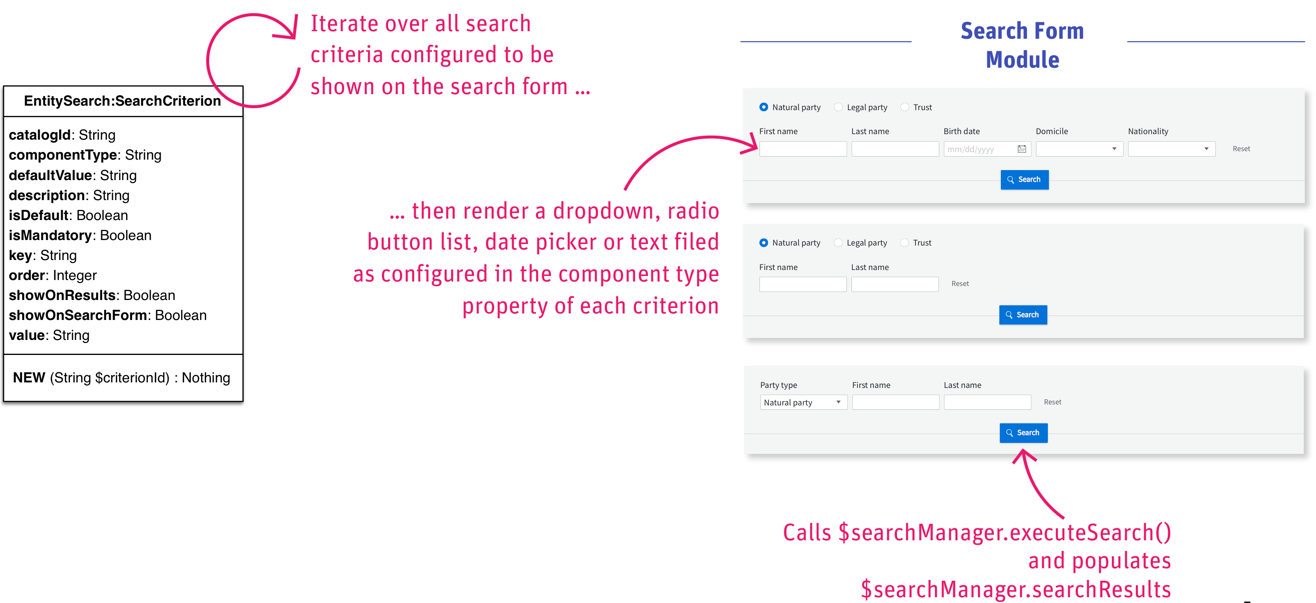
To render the desired search criteria when first landing on the page, it is necessary to set the value of two properties of the SearchCriterion Data Class for each of the criteria in the collection passed in as an argument for the SearchManager constructor:
- isDefault should be set to
true - searchEnabled should be set to
true
The component takes care of rendering the correct Screen Component according to the given configuration. It iterates over the $searchManager.getShownCriteria() collection and renders a textbox, dropdown list, radiobutton list, or a date picker. The minimum set of settings required to create a Search Criterion is to provide the key — a mandatory parameter of the constructor. All the other properties have default values that can be changed while defining the list of desired search criteria.
The only requirement is to extend the SearchManager Data Class and implement the two interface methods search() and calculateShownCriteria (). You can now trigger the search by calling the executeSearch() method.
In your calculateShownCriteria() implementation, you need to invoke the resetShownCriteria() method to be able to switch among different sets of options based on the value of a master search criteria.
If the $configuration.isAjaxSearch() method of the Configuration instance returns true, the method gets called in the page and the Ajax Update Areas returned by the method $configuration.getAreasToUpdateOnSearch() get refreshed. Otherwise, a Process Action whose default value is ‘search’ is triggered.
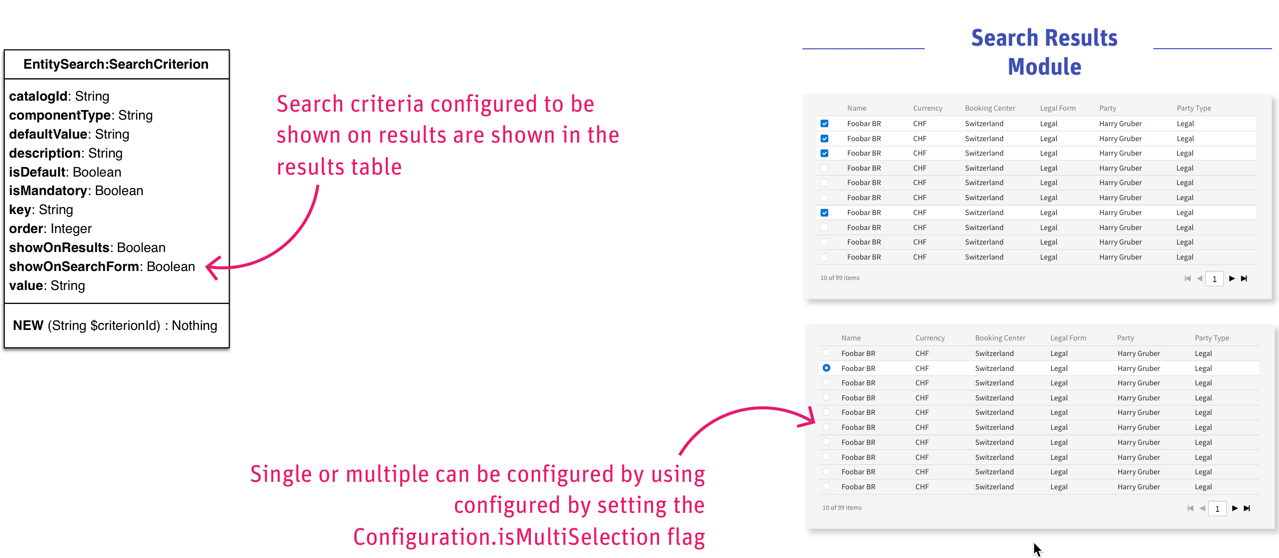
To render the desired result values in the result table, the following property of the SearchCriterion Data Class needs to be set to true:
To display the correct data in the result table, the component uses the EntitySearch:ResultItem.resolveValue(EntitySearch:SearchCriterion $criterion) method. This method needs to be implemented in your application and return the String representation of the corresponding value of the search criterion.
Important: We highly recommend not to load the "full" results from the database or other queried system. Instead, you should only load a shallow representation of the results as required by the display (for example, only the properties configured to be shown in the Data Table). This is done by extending the EntitySearch:ResultItem Data Class, implementing the requested methods and adding the desired properties.
Various representations of the selected entities shown in the selection summary are possible. The details shown for an entity can be configured by implementing the toString() and getEntityDetails() methods. The toString() method is used for the title row, whereas getEntityDetails() is used to create the collection key-value pairs shown in the second row of additional entity details.
There are situations where entities should be excluded from the final result set because of business restrictions. For example, minors might not be allowed as account holders. The component provides support to exclude these entities from the result set upfront, instead of having to filter them out after the end user has already made a selection. For this, you can define search criteria that are not shown on the search form, but which can nevertheless be used when retrieving the results from the third-party system. For a good user experience, you need to pair this approach with a suitable configuration of information messages for the end users. You need to use the provided setHiddenCriteriaAlertText() method for this.
Below is an example where we extended the Search Manager with a helper method called addBusinessRestrictions(). We are configuring a ‘hidden’ search criterion and adding a suitable text message to be shown on the page to inform the users that certain results are excluded from the list.
After the search phase, you need to re-issue a search and relieve the actual objects from persistence storage (e.g., database, web service call, etc.). Based on this, any third-party component that uses the search modules can re-issue a search and load the full set of properties of the respective objects, if required.
The full list of selected results is stored in $searchManager.selectedResults collection.
Starting from version 2.3.0 and 3.1.0, the Entity Search allows applying custom validation to the search form. To implement any custom validation logic, the Data Class EntitySearch:SearchCriteriaValidationManager must be extended by your custom Data Class, and the method doValidate must be implemented. This method typically analyzes the search criteria ($this.criteria) and returns true if validation is passed, false otherwise. Moreover, this method can update the validation error messages ($this.errorMessages).
For a sample implementation of custom validation logic, see the Process EntitySearchConfigurationKit:DemoCustomValidation and the Data Class EntitySearchConfigurationKit:CustomValidator in the Package EntitySearchConfigurationKit.
The Entity Search Configuration Kit contains an example configuration of the Entity Search Application Business Component for the use case of adding parties to a business relationship. For this purpose, it provides an interaction flow to load existing party data from a third-party system or create new parties when they do not exist.
Note: The Entity Search Configuration Kit is delivered in the Entity Search Configuration Kit Package.
Please, consider that the Configuration Kit provided by Appway is just an example of how a Solution works. If you wish to use the Configuration Kit as a starting point for configuring your Solution, you may do so, but make sure you create a copy of the Configuration Kit and apply your changes to this copy. Otherwise, all your customizations will be overwritten when you upgrade to a new Configuration Kit.
When defining the parties for a business relationship, some parties are already known and can be accessed from a third-party system and added to the application. When a party does not exist in the third-party system, users need to create the party in the application.
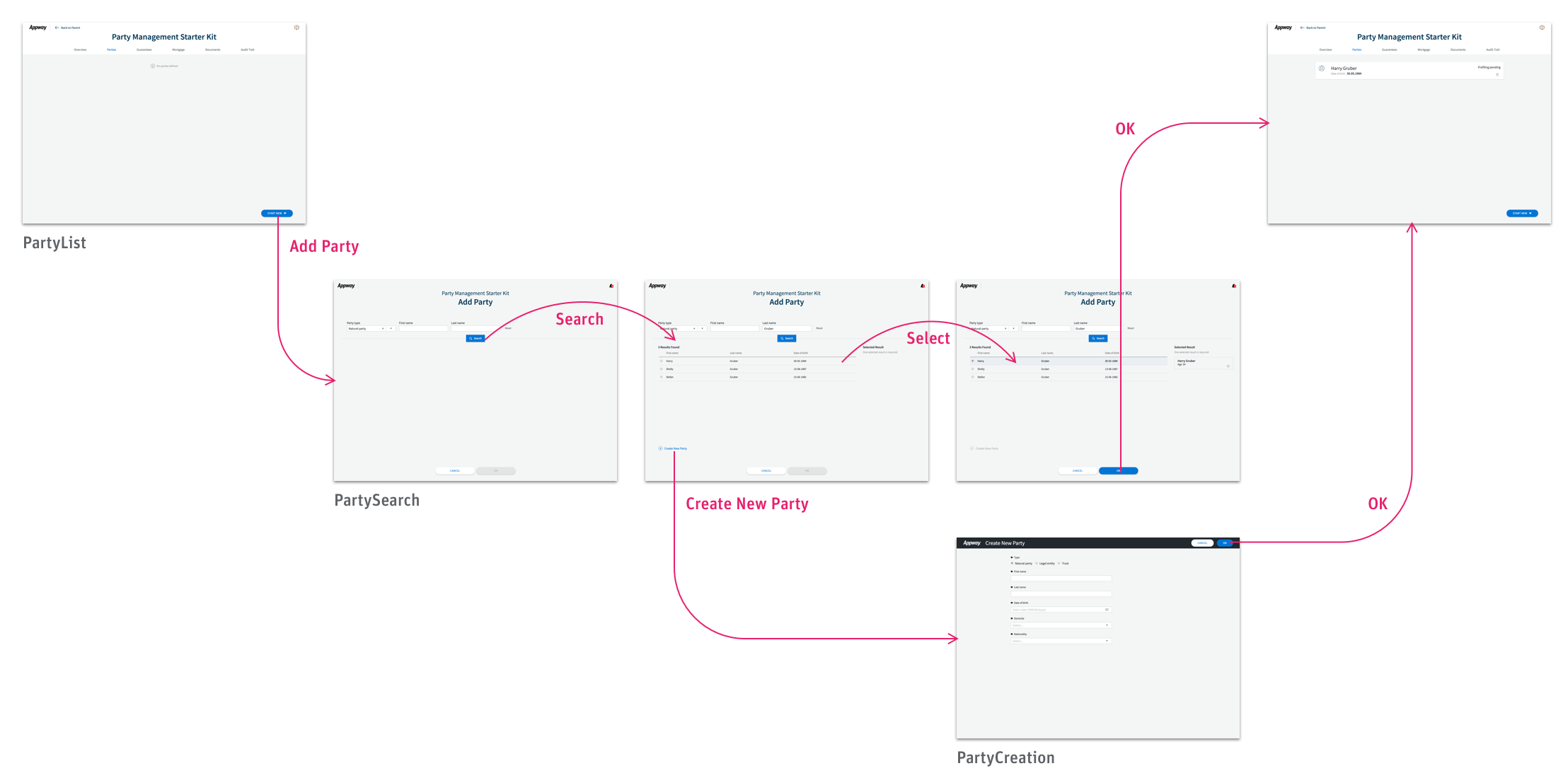
Download Image
The Entity Search Configuration Kit covers the following user flow:
- On the PartyList Screen, click on the Add Party button.
- On the PartySearch Screen, click on the Search button to find results.
- After performing a search, you can either select an existing party, or create a new one:
- To add an existing party, select a result and click on the OK button.
- To create a new party, click on the Create New Party button and confirm by clicking on OK.
- After adding/creating a party, you return to the PartyList Screen with the selected party listed.
Watch the movie below to see the interaction flow of the Configuration Kit in action:
The Entity Search Configuration Kit is delivered in the Entity Search Configuration Kit Package. This Package contains Business Objects required to configure the Entity Search for the party management use case, as well as additional Screen and Process Business Objects, and it is unsealed. In the following sections, we briefly describe the most important Business Objects.
Note: Since the Entity Search Configuration Kit functionality is based on the Entity Search, please check the full configuration options of the search step of the interaction flow described in the
Entity Search Package section.
CriteriaBuilder
| Method | Description |
|---|
build | Static method that builds the list of search criteria that will be passed to the search manager as a constructor parameter. |
PartySearchManager (extends EntitySearch:SearchManager)
| Method | Description |
|---|
calculateLegalRelatedSearchCriteria | Convenience method that calculates the search criteria for legal entities. |
calculateShownCriteria | Implementation of the base method, manages changes of the search criteria. |
resetAllSearchCriteria | Helper method that resets all the search criteria values. |
search | Implementation of the base method of the EntitySearch:SearchManager Data Class — implements the search mechanism for finding parties in the mocked-up implementation. |
PartyTypes
| Method | Description |
|---|
LEGAL | Static method that returns the type of a legal party. |
PHYSICAL | Static method that returns the type of a physical party. |
TRUST | Static method that returns the type of a trust party. |
SearchResultItem (extends EntitySearch:ResultItem)
| Property | Description |
|---|
age | The age of the party for physical parties |
dateOfBirth | The date of birth of the party for physical parties |
firstName | The first name of the party for physical parties |
lastName | The last name of the party for physical parties |
companyName | The company name for legal parties and trusts |
dateOfIncorporation | The date of incorporation for legal parties and trusts |
| Method | Description |
|---|
getEntityDetails | Implementation of the base method in the EntitySearch:ResultItem Data Class. Returns a Named Collection with the age of the party as a key-value pair. |
resolveValue | Implementation of the base method in the EntitySearch:ResultItem Data Class. Returns a String representation of the value indicated by the input SearchCriterion parameter. |
toString | Implementation of the base method in the EntitySearch:ResultItem Data Class. Returns the joined string firstName + lastName. |
The Package contains the following Processes:
- Demo. It contains 3 main parts:
- The landing Screen in which the selected parties are shown
- The integrated Search Entity component
- A Screen to create a new party if needed
- DemoCustomValidation (see dedicated section)
- DemoMinimumCharacters
| Screen | Description |
|---|
| PartyCreation | Screen containing the basic logic to create a new party. |
| PartyList | Screen containing the list of selected parties. |
| PartySearch | Screen wrapper for the EntitySearch:Search Screen. |
| Catalog | Description |
|---|
| PartyType | Contains the Data Source for the party type search criterion. |
There are three resources which are wrappers for JSON files that contain mocked party data.