The POI extension allows you to extract Appway data to a preformatted Microsoft Excel file. Conversely, data from an existing Excel file can be used in Appway via a Catalog or Functions.
While the core Appway Platform supports CSV exports, its POI extension offers a better human-readable XLS/XLSX format. It supports reading data from a file as well as writing to it.
The POI extension lets you define a fully formatted template Excel file, which can then be filled with Appway data. By default, data is exported in bulk in table style. It is also possible to write specific values into single cells distributed over the template.
The functionality of the Catalog Business Object is extended with Source type Excel. A Catalog can then read an Excel file and make its data available as regular Catalog records. Alternatively, the extension offers a set of functions to read data from a file.
This is a regular Appway extension. To install it, follow the product documentation on how to install extensions. Once started, the extension adds the following functionality to the Appway Platform:
- Catalog Source type Excel
- Built-in functions:
PoiFillExcelTemplatePoiFillExcelTemplateSQLPoiReadWorkbookPoiReadWorkbookFromStreamPoiReadCellValuesPoiReadCellValuesAssocPoiEvaluateCellsPoiReadExcelSheetCells
This extension is based on the Apache POI library: http://poi.apache.org
To extract Appway data to Excel, you first need to create a template Excel file and configure the POI extension to access it. Each template file can then be filled with bulk data in table form and/or single cell values using the function PoiFillExcelTemplate() or PoiFillExcelTemplateSQL().
A template file is a regular Excel file with arbitrary content. Simply define the region that you want to fill with data.
A different set of configuration properties must be defined for each template you wish to use:
-
Create a template Excel file and save it in the file system, as a cluster file or as a Resource Business Object.
This extension supports the following Excel formats:
We highly recommend using the .xlsx format, since the underlying library is able to optimize the memory usage for this format. For more details, see the Memory Usage. section.
-
In the Extensions menu, right-click on the POI extension to open its configuration dialog.
-
Set the source file (file path, cluster file ID, or Resource ID)
-
Set the column letter and row number of the first cell where bulk data must be filled.
-
(Optional) Indicate whether the format of the first row to be filled should be applied to all data exported in bulk.
To distinguish between the configuration settings of multiple templates, each template’s name is included in the corresponding configuration properties. Replace "[NAME]" with the name you wish to give to your template, for example:
- template.[NAME].path --> template.monthlyReport.path
- template.[NAME].path --> template.yearlyReport.path
The following configuration properties are available:
-
template.[NAME].path (Mandatory unless a cluster file ID or Resource ID is set) – Path pointing to a template on the file system. The path may be absolute or relative to Appway's 'Data Home' directory. The template file itself must be included in the path.
One of the following properties must be set:
template.[NAME].pathtemplate.[NAME].cluster.file.idtemplate.[NAME].resource.id
Example: templates/test.xls /home/appway/templates/test.xlsx
-
template.[NAME].resource.id (Mandatory unless a path or cluster file ID is set) – ID pointing to an Appway resource. Provide a Resource Business Object's ID. The extension will use the current thread-wide version filter to access the correct version of the Resource.
One of the following properties must be set:
template.[NAME].pathtemplate.[NAME].cluster.file.idtemplate.[NAME].resource.id
Example: PoiTest
-
template.[NAME].cluster.file.id – ID pointing to an Appway cluster file. Provide an existing cluster file's ID.
One of the following properties must be set:
template.[NAME].pathtemplate.[NAME].cluster.file.idtemplate.[NAME].resource.id must be set.
Example: PoiTest
-
template.[NAME].start.x (Mandatory) – Letter(s) indicating the Excel column where the bulk insertion of data in table style must start.
Example: C
-
template.[NAME].start.y (Mandatory) – Number indicating the Excel row where the bulk insertion of data in table style must start.
Example: 7
-
template.[NAME].formatted.row (Optional) – Enter true if the template file contains a formatted row defining the styles to be applied to the inserted bulk data. If the file does not contain a formatted row, enter false.
Example: true
You have the possibility to format a master row in your template file. The styles of this row are then applied to any data inserted in bulk.
In the formatted row, define each cell's style - for example date format or horizontal alignment. When inserting bulk data, the POI extension copies the styles from the formatted row and applies them to each new row. The content of the formatted row will be overwritten by the first row of your data when inserted.
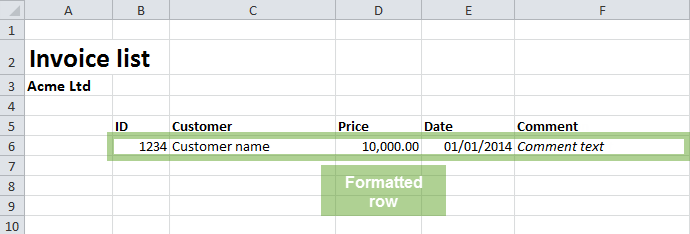
Figure 1 : Template with formatted row
The function PoiFillExcelTemplate fills the Excel template file with the data provided and returns the location of the new local file.
PoiFillExcelTemplate($templateName, $rows)
| Parameter | Description | Examples |
$templateName | Name of the template to be filled; the template must have been configured first for the POI extension (see section 2.1).
If no template is defined, a new empty POI.xlsx workbook will be used. Data will then be inserted at A1. | $templateName monthlyReport |
$rows (Indexed Any) | Bulk data to be filled into each row. It tries to set the cell's value with the corresponding Excel data type. If there is no match, a string representation will be set. | $rows
(See Example - Bulk Extraction) |
$sheetName (String or Integer optional) | Name of the workbook sheet where the data must be filled. By default, the first sheet in the template file is used.
If you set an Integer, the sheet will be chosen by index (zero-based) | $sheetName 'Sheet2' or 1 |
$singleValues (Named Any, optional) | Single values to be inserted into specific cells of the sheet. The target rows must already exist.
Restriction: When using an .xlsx template, you can't insert single values at or below the first row (‘template.[NAME].start.y’)
Key: cell coordinates
Value: value to insert | $singleValues {'K9'=1234,'K11'='foo!'} |
| Return value | Description |
| String | Location of the new local file. |
It is recommended to move the file to a common storage to which all users have access. This is especially important in clustered setups.
Bulk extraction is the default use case. Below is an example of script using the PoiFillExcelTemplate function to export bulk data. It inserts two rows of data into a template file containing a formatted row.
Indexed Any $rows := new Indexed Any;
Indexed Any $columnData;
//
$columnData := new Indexed Any;
$columnData[1] := 2982;
$columnData[2] := 'Alice';
$columnData[3] := 345.35;
$columnData[4] := DATEPARSE('2014-01-20', 'yyyy-MM-dd');
$columnData[5] := '';
$rows[1] := $columnData;
//
$columnData := new Indexed Any;
$columnData[1] := 2983;
$columnData[2] := 'John';
$columnData[3] := 20350;
$columnData[4] := DATEPARSE('2014-02-13', 'yyyy-MM-dd');
$columnData[5] := 'Call when ready to ship';
$rows[2] := $columnData;
//
PoiFillExcelTemplate('test', $rows);
Code 2 : Example: Fill bulk data
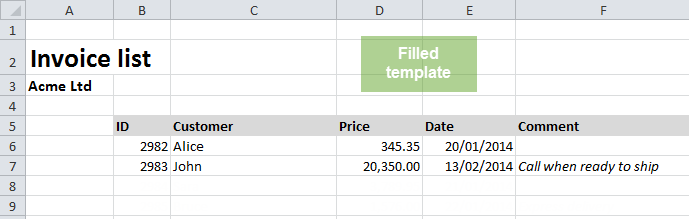
Figure 2 : Filled template
The optional parameter $singleValues can be used to insert one or several values into specific cells in the template. For example, you may want to insert a timestamp or the ID of the user who exports the data.
To export single values, provide a named collection with the cell coordinates as key and the value to insert as value.
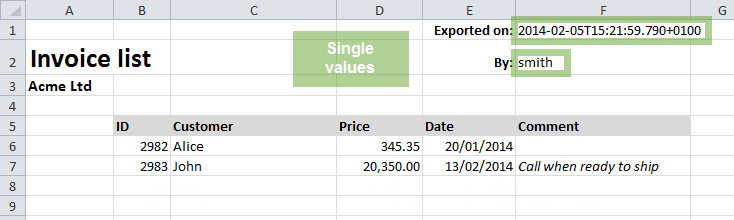
Figure 3 : Filled single values
1	Indexed Any $rows := new Indexed Any;
2	Indexed Any $columnData;
3	Named Any $singleValues := new Named Any;
4	//
5	$columnData := new Indexed Any;
6	$columnData[1] := 2982;
7	$columnData[2] := 'Alice';
8	$columnData[3] := 345.35;
9	$columnData[4] := DATEPARSE('2014-01-20', 'yyyy-MM-dd');
10	$columnData[5] := '';
11	$rows[1] := $columnData;
12	//
13	$columnData := new Indexed Any;
14	$columnData[1] := 2983;
15	$columnData[2] := 'John';
16	$columnData[3] := 20350;
17	$columnData[4] := DATEPARSE('2014-02-13', 'yyyy-MM-dd');
18	$columnData[5] := 'Call when ready to ship';
19	$rows[2] := $columnData;
20	//
21	$singleValues['B3'] := NOW();
22	$singleValues['B4'] := USERID();
23	//
24	PoiFillExcelTemplate('test', $rows, 'Sheet1', $singleValues);
Code 3 : Example: Fill data bulk and single values
The function PoiFillExcelTemplateSQL provides the same functionality as PoiFillExcelTemplate. However, instead of passing over row data, you provide a SQL statement which streams data from a database directly into an Excel template file.
PoiFillExcelTemplateSQL($templateName, $dataSourceName, $sql)
| Parameter | Description | Examples |
$templateName (String) | Name of the template to be filled; the template must have been configured first for the POI extension (see section 2.1).
If no template is defined, a new empty POI.xlsx workbook will be used. Data will then be inserted at A1. | $templateName monthlyReport |
$dataSourceName (String) | Data Source to use. | $dataSourceName |
$sql (String) | SQL statement to use.
Use '?' as placeholder for dynamic values (prepared statement). A CLOB is automatically converted to a String. BLOBs are not supported. | $sql ‘SELECT 1 FROM data WHERE id BETWEEN ? AND ?’ |
$attributes (Indexed Any, optional) | The attributes of the SQL query for a prepared statement. Each '?' in the query will be replaced by the corresponding value of this collection. | $attributes ‘[$a, $b]:Any’ |
$sheetName (String or Integer, optional) | Name of the workbook sheet where the data must be filled. By default, the first sheet in the template file is used.
If you set an Integer, the sheet will be chosen by index (zero-based). | $sheetName 'Sheet2' or 1 |
$singleValues (Named Any, optional) | Single values to be inserted into specific cells of the sheet. The target rows must already exist.
Restriction: When using a .xlsx template, you can't insert single values at or below the first row (‘template.[NAME].start.y’).
Key: cell coordinates
Value: value to insert | $singleValues {'K9'=1234,'K11'='foo!'} |
| Return value | Description |
| String | Location of the new local file.
It is recommended to move the file to a common storage to which all users have access. This is especially important in a clustered setup. |
Bulk extraction is the default use case. Below is an example of script using the PoiFillExcelTemplateSQL function to export bulk data directly from a database.
String $dataSourceName := CONF(‘reports.dataSourceName’);
String $sql := ‘SELECT id, customer, price, shopping_date, comment FROM purchases WHERE shopping_date BETWEEN ? and ?’;
Date $shoppingDateFrom := DATEADD(NOW(), -1, ‘M’);
Date $shoppingDateTo := NOW();
Indexed Any $attributes := [$shoppingDateFrom, $shoppingDateTo]:Any;
PoiFillExcelTemplateSQL('test', $dataSourceName, $sql, $attributes);
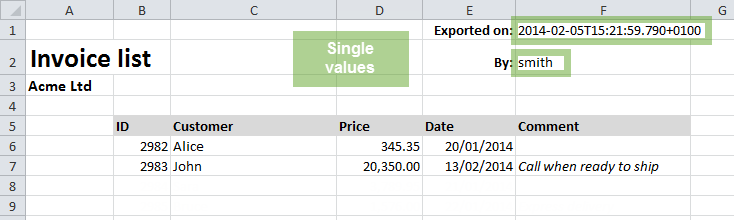
Figure 4 : Filled single values
Writing a lot of data into an Excel file may use a lot of the server memory. This is especially the case if you work with the PoiFillExcelTemplate function and .xls templates. An example:
- You want to store 50’000 rows.
- You have some data structure(s) representing these rows.
- You have to prepare the data structure that the
PoiFillExcelTemplate function accepts. - The
PoiFillExcelTemplate function internally converts the data into the data structure that the underlying POI libraries need. - The file is written.
In this example, the data is stored three times in memory (at steps 2, 3 and 4). The Java virtual machine cannot free this memory because it is still referenced, and this causes a high memory usage. In the worst case, at step 2 you loaded the data from a database, which you then have to completely load into memory.
When using the PoiFillExcelTemplate function, you can mitigate this problem by using an .xlsx template. For this file format, the POI library is able to stream the data while writing it to the file (step 4). The memory used in this step is low and easy collectable by the Java virtual machine.
If you need to load data from a database and write it into an Excel file, use the PoiFillExcelTemplateSQL function. This circumvents steps 2 and 3, and also supports streaming when using an .xlsx file. The memory used is always collectable by the Java virtual machine. Its usage will stay low and spare your system's memory.
A Catalog source of type Excel allows you to directly attach Excel files to Appway. The Catalog reads the Excel file selected and provides its data as Catalog records.
You can choose between a file within Appway (Resource or cluster file) or one from the local file system.
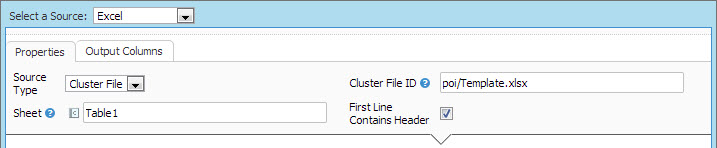
Figure 5 : Excel Source
| Property | Description |
| Source Type | Where the Excel file is stored; may be a Resource, a cluster file or a location on the local file system. |
| Cluster File ID | ID of the cluster file representing the source Excel file |
| File Path | Path to the source Excel file in the local file system You can enter a relative path: its root is the Appway Data Home directory. |
| Resource | ID of an existing Appway Resource, or expression returning a valid Resource ID as String. |
| Sheet | Name of the workbook sheet from which values must be read, or number "n" to select the "n-th" sheet. |
| First Line Contains Header | Check if the first row in the source Excel file contains a header. |
A set of functions is available to read data from an Excel file. For simple operations, the PoiReadExcelSheetCells function allows you to directly access a file or cluster file and read its cells.
For scripts which require accessing a file multiple times:
- Load an Excel workbook, either from a file or from a Java InputStream:
PoiReadWorkbookPoiReadWorkbookFromStream
- Once you have a workbook object, pass it to the following functions in order to read or evaluate cells:
PoiReadCellValuesPoiReadCellValuesAssocPoiEvaluateCells
The function PoiReadExcelSheetCells reads cells from an Excel sheet and returns them as a two-dimensional Indexed collection of type String. It directly accesses a file or cluster file and does not require a workbook object as parameter.
PoiReadExcelSheetCells($excelFilePath, $sheetName, $selector)
| Parameter | Description | Examples |
$excelFilePath
(String) | Path to the Excel file | $excelFilePath |
$sheetName
(String) | Name of the workbook sheet in which cells must be read | $sheetName 'Sheet 2' |
$selector
(String) | Selection of cell(s) to be read | 'A1' 'B3:F10' |
$isClusterFile
(Boolean, optional) | Set 'true' if $excelFilePath is a cluster file.
Default: 'false' | false |
| Return value | Description | Examples |
| Indexed String | Two-dimensional indexed collection of type String containing the values of the selected cells. | 'A1' = [[A1]:String]:Any 'A1:B3' = [[A1, B1]:String, [A2, B2]:String, [A3, B3]:String]:Any. |
The function PoiReadWorkbook loads an Excel file from the local disk or from a cluster file. It returns a workbook object wrapped into a SerializableWrapper (Java type). The workbook object can then be passed to functions with a $workbook parameter.
PoiReadWorkbook($excelFilePath)
| Parameter | Description | Example |
$excelFilePath
(String) | Path to the Excel file. | $excelFilePath |
$isClusterFile
(Boolean, optional) | Set 'true' if $excelFilePath is a cluster file.
Default: 'false' | false |
| Return value | Description |
| Any | Excel workbook wrapped into a SerializableWrapper (Java type); can be used for Functions requiring a $workbook parameter |
The function PoiReadWorkbookFromStream loads an Excel file from a Java InputStream. It returns a workbook object wrapped into a SerializableWrapper (Java type). The workbook object can then be passed to functions with a $workbook parameter.
PoiReadWorkbookFromStream($javaInputStream)
| Parameter | Description | Example |
$inputStream
(java.io.InputStream) | The file input stream object | $inputStream |
| Return value | Description |
| Any | Excel workbook wrapped into a SerializableWrapper (Java type); can be used for Functions requiring a $workbook parameter |
The function PoiReadCellValues reads selected cells from an Excel sheet and returns them as a two-dimensional indexed collection of type Any.
PoiReadCellValues($workbook, $sheet, $selector)
| Parameter | Description | Examples |
$workbook
(Any) | Excel workbook object | $workbook |
$sheet
(String) | Name of the workbook sheet in which cells must be read
May not be null! | 'Sheet 1' |
$selector
(String) | Selection of cell(s) to be read | 'A1:F37' |
| Return value | Description | Examples |
| Indexed Any | Values of the selected cells as a two-dimensional indexed collection of type Any | 'A1' = [[A1]:Any]:Any 'A1:B3' = [[A1, B1]:Any,[A2, B2]:Any, [A3, B3]:Any]:Any |
The function PoiReadCellValuesAssoc reads the cells of an Excel sheet and returns them as a indexed collection of type named collection of Strings.
Here, each value within a row is associated with the name of the corresponding Excel column (A, B, C, D, ...). For large data sets, it makes it easier to identify a value's column than in a simple collection.
PoiReadCellValuesAssoc($workbook, $sheet, $selector)
| Parameter | Description | Examples |
$workbook
(Any) | Excel workbook object | $workbook |
$sheet
(String) | Name of the workbook sheet in which cells must be read
May not be null! | 'Sheet 1' |
$selector
(String) | Selection of cell(s) to be read | 'A1:F37' |
| Return value | Description | Examples |
| Indexed Any | Values of the selected cells as a two-dimensional indexed collection of type Any | 'A1' = [{'A'=a1}:Any]:Any 'A1:B3' = [{'A'=A1, 'B'=B1}:Any, {'A'=A2, 'B'=B2}:Any, {'A'=A3, 'B'=B3}:Any]:Any |
The function PoiEvaluateCells evaluates the result of formulas for selected cells in a workbook.
PoiEvaluateCells($workbook, $sheet, $selector)
| Parameter | Description | Examples |
$workbook
(Any) | Excel workbook object | $workbook |
$sheet
(String) | Name of the workbook sheet in which cells must be read
null: all sheets | 'Sheet 1' null |
$selector
(String) | Selection of cell(s) to be evaluated
null: all cells | 'A1:F37' null |
$evaluateInCell
(Boolean, optional) | Set to true if the cell value should be replaced with the value of the evaluation
Default: false | true |