The Phase Chevron Screen Component displays all the phases of the root process in which the screen is used. The phase corresponding to the current screen is highlighted:

The Phase Chevron Screen Component is responsive to screen size: when not all phases can be shown due to space restrictions, the phase labels are cut (with the exception of the current, previous and next phases, which are still displayed):

In case of smaller screen sizes, the Phase Chevron switches to reduced view and is displayed vertically. The phases that cannot be shown are indicated by a number:
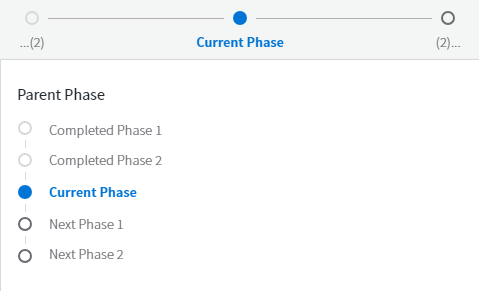
From a business point of view, a process consists of various steps or phases. Each step or phase can consist of multiple screens and/or Sub-Processes. Phases are defined in the Process Editor. The Phase Chevron component allows users to visualize the current process step as part of the screen template.
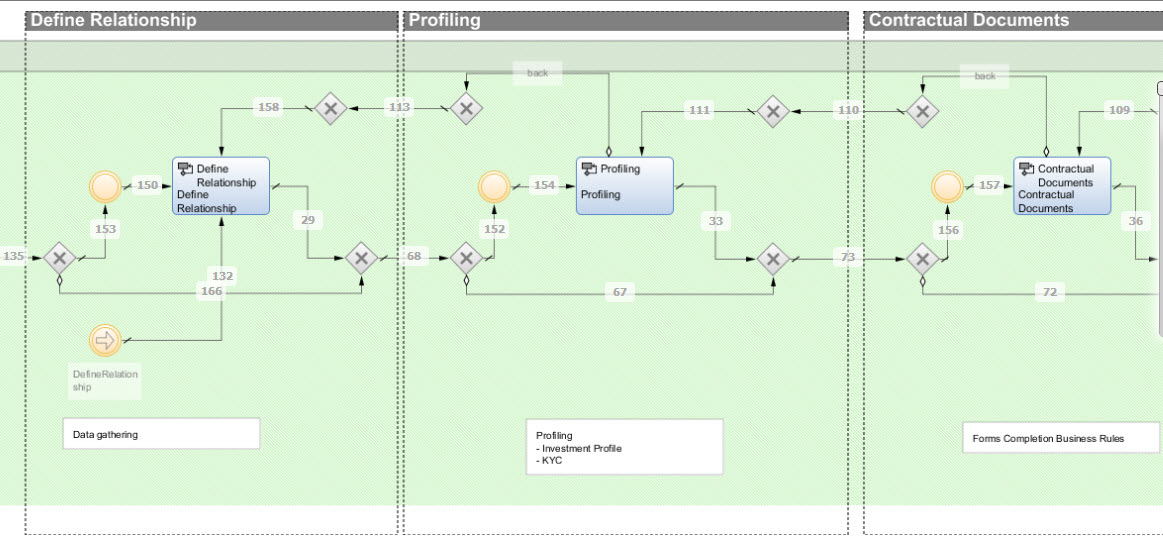
The following properties are available:
- Display Name – Select the property value from the phases component which should be displayed.
- HTML Id – Each Phase Chevron component must have one unique HTML ID.
The Phase Chevron Style Business Object only displays the Default state.
Other states, such as Below and Above are inherited from other Style Business Objects (in this case, the PopUp Style Business Object).
- Icon Current Phase (Interactive Element) – Sets the style (type, color and spacing) of the icon indicating the active phase.
- Icon Next Phase (Interactive Element) – Sets the style (type, color and spacing) of the icon indicating the following phase.
- Background – Sets the background color for the component.
- Border – Sets the border color, thickness and type.
- Icon Completed Phase (Interactive Element) – Sets the style (type, color and spacing) of the icon indicating that a phase is completed.
- Inner Spacing – Defines the space between the Phase Chevron itself and the border.
- Outer Spacing – Defines the space between the Phase Chevron outside the border.
- Label Phase – Refers to a Text Style Business Object to set the style of the label for all phases. Moreover, it allows defining whether to display (Show option) or not (Hide option) the phase label.
- Label Current Phase – Refers to a Test Style Business Object to set the style of the label for the current phase. Moreover, it allows defining whether to display (Show option) or not (Hide option) the phase label.
- Label Parent Phase – Refers to a Test Style Business Object to set the style of the label for the main phase.
- Line Completed Phase – Sets the style (color, thickness and type) of the line connecting the phases that are already completed.
- Line Next Phase – Sets the style (color, thickness and type) of the line connecting the upcoming phases.
- Starting Line – Allows you to set a specific style (color, thickness and type) for the line indicating the Process start.
- Ending Line – Allows you to set a specific style (color, thickness and type) for the line indicating the Process end.
The Phase Chevron can also be displayed as a progress bar at the top of the Screen. The first section of the bar (in blue in the image above) represents the completed phases of the Process, while the second section (in gray in the image above) represents those phases that are not yet complete.

You can display the Phase Chevron as an activity screen header by configuring the following properties of the related Phase Chevron Style Business Object:
- Icon Completed Phase- Icon: None
- Icon Current Phase - Icon: None
- Icon Next Phase - Icon: None
- Label Phase - Display: Hide
- Label Current Phase - Display: Hide
- Line Complete Phase / Line Next Phase: set two different styles for these lines
For more information, see the Activity Screen Header section of the 'Phase Chevron for Appway 7.2' recipe.
The Phase Chevron can display a starting and ending line, which indicate the beginning and end of the Process (in blue in the image below).

These lines are transparent by default, but you can display and style them by configuring the following properties of the related Phase Chevron Style Business Object:
- Starting Line – Sets the style of the starting line
- Ending Line – Sets the style of the ending line