Follow the tasks outlined in this article to upgrade your Appway installation from version 6.3.x to 7.x.
Perform these steps while still running Appway 6.3.x, as a preparation before the actual upgrade. This is a major upgrade and requires careful preparation and planning.
Requirements with regards to browsers, Application Servers, JDK, and Servlet API have changed. Consult the Technical Requirements page and ensure your system complies before continuing with the upgrade.
Libraries updated in Appway 7 include:
- Apache Camel (from 2.12.5 to 2.16.4)
- Spring Framework (from 3.2.4 to 4.1.9)
- Apache HttpComponents HttpClient (HttpClient 4) is now used across all of Appway.
In Appway 6.3, Apache Commons HttpClient (HttpClient 3) was still in use in certain areas.
With regards to UI libraries, Appway 7 has moved to jQuery version 2.2. Other updates to UI libraries include:
- jQuery UI (from 1.10 to 1.12)
- Masonry (from 3.1 to 3.3)
- jsTree (from 3.1 to 3.3)
Review your solution and verify that custom libraries and other extensions are compatible with the updates outlined above.
Before upgrading, go to Administration > Repository > Validation and run a global validation. Solve any errors or warnings and ensure that the Appway 6.3.x model is clean before moving on.
It is especially important to make sure that the Appway model is error-free before upgrading. Issues without visible consequences in the current application can cause problems after upgrading.
With Appway 7, a number of Screen Components, Script Functions, and other features have been deprecated, as their use is discouraged. Features deprecated in Appway 7 will continue to work as before, we plan to remove these deprecated features in Appway 9 or later.
In addition, several features deprecated in previous Appway versions have been removed in Appway 7.
What this means for you:
- Features removed in Appway 7.0 – Before upgrading, check if any of these removed features are used by your solution and if yes, modify your solution to work without these features.
- Features deprecated in Appway 7.0 – Deprecated features do not require any action before migrating to Appway 7. Deprecated features will continue to work as normal in Appway 7, we plan to remove them in Appway 9 or later. This time frame gives you plenty of time to check your Solution and implement any needed changes.
Note: With Appway 7.1 and 7.2, some further
features have been deprecated. Again, these deprecated features do not require any actions before upgrading to Appway 7, as we plan to remove them in Appway 10 or later.
From Appway 7, the following IDs can no longer be used for Data Class or Primitive Type Business Objects:
- "indexed"
- "named"
- "none"
- "array"
Using any of these names as an ID can trigger an exception on startup. Refactor your solution to ensure these IDs are not used for Data Classes / Primitive Types.
If these names are part of automatically created Data Classes / Primitive Types, like the XSDToDataClass function creates, use prefixes or namespaces.
Data Table screen components for which Entity Index is selected in the Source option on the Properties tab will no longer function in Appway 7, the table will be empty. It is recommended to refactor any Data Tables with this setting before migration.
To review all Data Tables, go to Administration > System > Global Search, and search Screens for 'Data Table'.
To search directly for Data Tables using Entity Index as a Source, run the following script in the Interactive Script Editor (start the editor with Ctrl+Shift+I):
Function checkComponents(Any $components, String $boID) : Nothing Begin
   ForEach Indexed com.nm.sdk.data.pages.views.components.Component $component In $components Do
      If $component isa com.nm.datatable.DataTableComponent Then
         com.nm.datatable.DataTableComponent $dataTable := CAST(com.nm.datatable.DataTableComponent, $component);
         If $dataTable.getSourceType() == 'entity_index' Then
            PRINTLN($boID);
         End
      End
      Try
         If $component.getComponents() != null Then
            checkComponents($component.getComponents(), $boID);
         End
      Catch
      End
   End
End
ForEach com.nm.sdk.data.screens.Screen $screen In GETBUSINESSOBJECTS('Screen') Do
   checkComponents($screen.getView().getComponents(), $screen.getId());
End
Note: You can safely ignore any validation errors returned by the Interactive Script Editor, the script will function correctly regardless of these errors.
The RoleManager functionality is available with the Appway Onboarding solution. If you are using the RoleManager, follow the steps outlined in this section.
In Appway 6, the HierarchyTree extension supports the RoleManager functionality. The scope of the HierarchyTree extension has changed with Appway 7, with most features required for the RoleManager functionality now being covered by Appway Business Objects. This means:
- To ensure that currently running Processes continue to function after upgrading to Appway 7, remember to update the HierarchyTree extension to a version compatible with Appway 7 later in the upgrade process (see Update / Add Extensions).
- To enable starting new Processes in Appway 7, it is necessary to adapt your solution to the new RoleManager 4 functionality before upgrading to Appway 7 and upgrading the HierarchyTree extension.
Contact Appway Support for assistance.
From Appway 7.2, behavior has changed if you call setValue(...) on a DataValue which has been added to a Named or Indexed Collection. In general, we strongly recommend against calling setValue(...) on a DataValue in all cases.
The following script code can be used to find dependencies on the Java method setValue in the Java class DataValue:
CONTEXT().getDependencyService().getIncomingDependencies(NewObject(com.nm.sdk.data.references.JavaMethodRef, 'com.nm.sdk.data.dataitems.DataValue', 'setValue'))
If the returned collection is not empty, contact Appway Support to discuss further steps.
From Appway 7.2, IMap.flush() should no longer be used in solutions. When the write-behind queue contains invalid entries that cannot be written, those invalid entries have to be removed manually instead. IMap.flush() will not solve this issue and should not be used in such cases as it prevents any other entries from the same map partition to be written.
Note: If IMap.flush() was used in Appway 7.2 and now prevents other entries from the same map partition to be written, you can resolve the problem by removing invalid entries manually.
If your Appway installation contains custom extensions, make sure that they are compatible with the Appway 7.x release before upgrading. Contact your CSM or Appway Support for more details.
Create a backup of the existing 6.3 installation.
Follow the steps in this chapter to upgrade your system once it is ready.
You will need the following files:
- Latest Appway 7.x version
- Corresponding Appway extensions, based on those available in the current environment. Download the extensions into a local temp location.
Contact Appway Support to request them.
Run a clean shutdown of the Appway installation to remove any files that are not required. For more information, see the recipe Shutting down a large cluster.
If your Appway installation uses a Relational database or Cassandra as a cluster storage backend, create the following tables:
dataentitiesvaluestoretodataentitieschatunreadinfoslicenselogentrylistscryptokeys
When upgrading to Appway 7.1, create this additional table:
When upgrading to Appway 7.2, create this additional table:
Note: If you are using a Relational database, tables can be created automatically with Appway 7.2 and higher. See the following section for details.
Script examples for creating new tables on different databases are provided below. The examples below create the dataentities table, but can be reused for creating the other tables by replacing the table name in the script:
- MySQL
CREATE TABLE dataentities (id VARCHAR(4000) NOT NULL, data LONGBLOB NOT NULL, INDEX USING BTREE(id(255))); - Oracle
CREATE TABLE dataentities (id VARCHAR(4000) NOT NULL, data BLOB NOT NULL); CREATE INDEX dataentities_idx ON dataentities (id); - DB2
CREATE TABLE dataentities (id VARCHAR(4000) NOT NULL primary key, data BLOB (1G) INLINE LENGTH 28600 NOT NULL COMPACT LOGGED) in tspc_data index in tspc_index long in tspc_long; - Cassandra
CREATE TABLE dataentities (id ascii PRIMARY KEY, data blob); - MS SQL Server
CREATE TABLE dataentities (id VARCHAR(4000) NOT NULL PRIMARY KEY, data varbinary(max) NOT NULL);
From Appway 7.2, the above mentioned tables can be created automatically if you are running a Relational database. Prerequisites for automatic table creation are:
- Use version 12.0.0 or higher of the RelationalDbHazelcastStore extension.
- In the RelationalDbHazelcastStore extension, define the
com.nm.cluster.relationaldb.dialect configuration property, possible values are Db2, MsSQLServer, MySQL, or Oracle.
If the property is missing, Appway tries to infer the correct dialect from other configuration properties such as com.nm.cluster.relationaldb.connection.url or com.nm.cluster.relationaldb.jndi.path. If the dialect cannot be inferred and some tables are missing, startup is aborted. - Ensure the user performing the upgrade has privileges to create tables, or define a special admin user with privileges to create tables and define the according admin connection in the appropriate configuration properties of the RelationalDbHazelcastStore extension:
-
For JDBC:
com.nm.cluster.relationaldb.admin.connection.urlcom.nm.cluster.relationaldb.admin.usernamecom.nm.cluster.relationaldb.admin.password
-
For JNDI:
com.nm.cluster.relationaldb.admin.jndi.path
Notes:
- To update the extension properties, you have two options:
- While the system is running, update the required configuration properties using Studio (System Configuration > Extensions). The properties are propagated automatically to all nodes and take effect after the system is restarted.
- While the system is stopped, update the required configuration properties on all nodes (in the extension CFG file), the properties take effect after the system is started.
- If you need to run customized queries to create tables, you have two options:
- Create the tables before startup, or
- Update the tables after they are automatically created.
If you forget or neglect to create the tables mentioned above when upgrading your installation, errors of this type are displayed when restarting the application (if your installation uses a Relational database or Cassandra as a cluster storage backend):
ERROR [cached3] com.nm.extensions.relationaldbhazelcaststore.AbstractRelationalDbHzStore - Problem loading all keys from relational database store: Table 'appway.cryptokeys' doesn't exist
To fix these errors, follow these steps:
- Stop Appway and the application server.
- Create all of the missing tables according to the instructions provided above.
- Restart the application server and Appway.
Depending on the type of installation, update the core:
- Standalone installation: Go to the Appway home directory and replace the ROOT.war with the new version.
- Application Server: Open the control center of your application server and deploy the new version of the WAR file.
Important! If you have customized the
web.xml file, merge your custom
web.xml with the new
web.xml delivered with Appway 7. Make sure that your customized
web.xml includes all new entries delivered with Appway 7. Failure to do so can lead to unexpected behavior in the Appway Studio.
Contact
Appway Support if you require assistance when creating the updated custom
web.xml file.
You can find more information in the System Installation article.
Replace each extension with its corresponding new version in AppwayHome/data/extensions. Make sure you replace only the JAR files; any CFG files should remain the same as on your 6.3.x system, in case you made any custom configurations.
!Important! Update all of the extensions. Even if the version of an extension has not changed and it contains no new features, you must replace it with a version compiled against Appway 7.x.
Check the subsections below for information on prerequisites for specific extensions and new extensions you might need to install if you require certain functionality.
Changes are only necessary if you are using the IntegrationLinkComponents extension together with JNDI to reference connection factories and queue names. In this use case, ensure the following libraries are present in the application server libs directory:
- hawtbuf-1.10.jar
- Suitable JMS provider libraries
The Apache Camel library has been upgraded from Camel 2.12.5 to Camel 2.16.4 for enhanced security. In the context of this upgrade, some Camel libraries (camel-restlet, camel-http, camel-crypto) have been removed from Appway Core and packaged into the new ILBackwardCompatibility extension.
You need to install the ILBackwardCompatibility extension if your solution uses an Integration Link that fulfills these two conditions:
- Uses either the 'Camel Queue' start element or the 'Camel Queue Notify' component,
- with an Endpoint URI parameter starting with: restlet, http or crypto.
Note: ILBackwardCompatibility is a permanent extension which means it cannot be started or restarted while Appway is running.
In Appway 6.3, you can search for Integration Links fulfilling the conditions mentioned above by running the following script in the Interactive Script Editor (start the editor with Ctrl+Shift+I):
Function isAMatch(com.nm.integrationlink.IntegrationLinkElement $element) : Boolean Begin
   String $endpointURI := $element.getProperty('endpointURI');
   Boolean $isAMatch := ($element.getName() == 'Camel Queue' || $element.getName() == 'Camel Queue Notify') && ($endpointURI.startsWith('restlet') || $endpointURI.startsWith('http') || $endpointURI.startsWith('crypto'));
   If ! $isAMatch && SIZE($element.getChildren()) > 0 Then
      Return isAMatch(CAST(com.nm.integrationlink.IntegrationLinkElement, $element.getChildren().get(0)));
   End
   Return $isAMatch;
End
Boolean $match;
ForEach BusinessObject $bo In GETBUSINESSOBJECTS('IntegrationLink') Do
   $match := false;
   com.nm.integrationlink.IntegrationLink $il := CAST(com.nm.integrationlink.IntegrationLink, $bo);
   $match := isAMatch($il.getRoot());
   If $match Then
      PRINTLN($il.getId());
   End
End
Return '';
The JAVAEXEC and EXEC functions have been moved from Appway Core to the UnprotectedExecutionFunctions extension. If you are using these functions and want to continue to do so, install the UnprotectedExecutionFunctions extension when upgrading to Appway 7.
In Appway 6.3, you can run a global search to search for usages of these functions:
- Go to Administration > System > Global Search
- Search for "[function name](". Example: "JAVAEXEC("
To search usages of both functions simultaneously, run the following script in the Interactive Script Editor (start the editor with Ctrl+Shift+I):
String $functions := 'EXEC,JAVAEXEC';
ForEach String $function In SPLIT($functions.replace(' ', ''), ',') Do
   com.nm.sdk.data.references.Reference $reference := CONTEXT().getReferenceService().parseReference('FunctionRef-' & $function);
   Indexed Any $dependencies := CONTEXT().getDependencyService().getIncomingDependencies($reference);
   Integer $count := 0;
   ForEach com.nm.sdk.data.references.Reference $dependency In $dependencies Do
      $count := $count + 1;
      PRINTLN($dependency.toString());
   End
   If $count > 0 Then
      PRINTLN($count & ' dependencies found for ' & $function);
   End
End
Note: You can safely ignore any validation errors returned by the Interactive Script Editor, the script will function correctly regardless of these errors.
With Appway 7, all Script Functions deprecated in Appway 5.1 have been moved to the new DeprecatedFunctions extension. Install the extension if you continue to require any of the following Script Functions:
- AgeFunction, AssignWorkitemFunction, CarFunction, CdrFunction, ConsFunction, DefinedFunction, FalseFunction, HasaFunction, ListEvalFunction, PostfixFunction, PrefixFunction, SinglelineFunction, TrueFunction, UndefFunction, UndefinedFunction, WhileFunction
- ScreenflowIdFunction, ScreenflowInstanceFunction, ScreenflowInstanceIdFunction, ScreenflowSessionFunction, ScreenflowSessionIdFunction, ScreenflowTokenFunction, ScreenflowTokenIdFunction, ScreenflowURLFunction
- STARTWORKFLOW, StartWorkflowExt, WORKFLOWID, WORKFLOWINSTANCE, WORKFLOWINSTANCEGETATTRIBUTE, WORKFLOWINSTANCEID, WORKFLOWINSTANCEQUEUENAMES, WORKFLOWINSTANCEREMOVEATTRIBUTE, WORKFLOWINSTANCESETATTRIBUTE, WorkflowQueueCheckAccess, WorkflowQueueNames, WORKFLOWTOKEN, WORKFLOWTOKENGETATTRIBUTE, WORKFLOWTOKENSETATTRIBUTE, WORKFLOWTOKENREMOVEATTRIBUTE, WORKFLOWURL, CANCELWORKFLOW, UPDATEWORKFLOW, DELETEWORKFLOW, GetWorkflowStatistics
- HASA
Note: This extension will no longer be available from Appway 9 onwards.
In Appway 6.3, you can run a global search to search for usages of these functions:
- Go to Administration > System > Global Search
- Search for "[function name](". Example: "HASA("
To search usages of all functions simultaneously, run the following script in the Interactive Script Editor (start the editor with Ctrl+Shift+I):
String $functions := 'AgeFunction, AssignWorkitemFunction, CarFunction, CdrFunction, ConsFunction, DefinedFunction, FalseFunction, HasaFunction, ListEvalFunction, PostfixFunction, PrefixFunction, SinglelineFunction, TrueFunction, UndefFunction, UndefinedFunction, WhileFunction, ScreenflowIdFunction, ScreenflowInstanceIdFunction, ScreenflowSessionIdFunction, ScreenflowTokenFunction, ScreenflowTokenIdFunction, ScreenflowURLFunction, STARTWORKFLOW, StartWorkflowExt, WORKFLOWID, WORKFLOWINSTANCE, WORKFLOWINSTANCEGETATTRIBUTE, WORKFLOWINSTANCEID, WORKFLOWINSTANCEQUEUENAMES, WORKFLOWINSTANCEREMOVEATTRIBUTE, WORKFLOWINSTANCESETATTRIBUTE, WorkflowQueueCheckAccess, WorkflowQueueNames, WORKFLOWTOKEN, WORKFLOWTOKENGETATTRIBUTE, WORKFLOWTOKENSETATTRIBUTE, WORKFLOWTOKENREMOVEATTRIBUTE, WORKFLOWURL, CANCELWORKFLOW, UPDATEWORKFLOW, DELETEWORKFLOW, GetWorkflowStatistics, HASA';
ForEach String $function In SPLIT($functions.replace(' ', ''), ',') Do
   com.nm.sdk.data.references.Reference $reference := CONTEXT().getReferenceService().parseReference('FunctionRef-' & $function);
   Indexed Any $dependencies := CONTEXT().getDependencyService().getIncomingDependencies($reference);
   Integer $count := 0;
   ForEach com.nm.sdk.data.references.Reference $dependency In $dependencies Do
      $count := $count + 1;
      PRINTLN($dependency.toString());
   End
   If $count > 0 Then
      PRINTLN($count & ' dependencies found for ' & $function);
   End
End
Note: You can safely ignore any validation errors returned by the Interactive Script Editor, the script will function correctly regardless of these errors.
See the Inbox Migration Guide article for more details.
The GetScreenHTML function provided with the Mail extension renders a 'Screen' Business Object and returns HTML code. With Appway 7, the scope of this function has changed, meaning that only the following subset of Screen Components is supported:
- Text, Heading 1, Heading 2, Preformatted Text and similar components
- Link and Link Container
- Image and Div
- Info Table and its subcomponents
- If, For, For Each and other logic components
- Include, Template, Template Area, Placeholder
- HTML Head Style, Script, Raw Code and Raw Code Container
If you use the GetScreenHTML function, verify that the Screens you are using with this function contain only supported Screen Components.
Ensure you have the latest compatible version of the HazelcastForceUnlock extension installed, as it is a required 'Core' extension from Appway 7.
The purpose of this extension is to release:
- Hazelcast locks on Process Instances if the ‘Force Unlock Process Instances’ thread dies for whatever reason.
- Old, long-living locks on Users.
See Hazelcast Force Unlock Extension for details.
If you use IBM JVM in your Appway installation (included in WebSphere), you must add two configuration properties in <data-home>/conf/conf.properties. These properties set the compressor to Snappy, since LZ4 does not work with most versions of IBM JVM. LZ4 is only supported with the following IBM JVM versions:
- Version 8
- Version 7.1 Service Refresh 2 FixPack 10 (released in February 2015)
- Version 7 Service Refresh 8 FixPack 10 (released in February 2015)
Add the following configuration properties:
nm.cluster.dataentity.compressor = Snappynm.cluster.valuestoretodataentities.compressor = Snappy
Your 6.3 environment should already have several similar configuration properties which are set to Snappy as well.
When Upgrading to Appway 7.2
Hazelcast was updated to version 3.8.7 in Appway 7.2.
If you did not make any manual changes to the conf/hazelcast.xml, you can skip this section. If there are manual changes, we recommend that you validate your local modifications by comparing your hazelcast.xml with the default hazelcast.xml provided with Appway 7.2.
When Upgrading to Appway 7.0 or 7.1
Hazelcast was updated to version 3.6 in Appway 7 (from version 3.5). Therefore, your <data-home>/conf/hazelcast.xml file needs to be updated as well.
Follow these steps:
-
Change the schema definition from 3.5 to 3.6
Old:
<hazelcast xsi:schemaLocation="http://www.hazelcast.com/schema/config hazelcast-config-3.5.xsd"
New:
<hazelcast xsi:schemaLocation="http://www.hazelcast.com/schema/config hazelcast-config-3.6.xsd"
-
Do not use Lite members
Add <lite-member enabled="false"/> before the final, closing hazelcast tag.
To validate your local modifications, compare your hazelcast.xml with the default hazelcast.xml provided with Appway 7.
After performing the actual upgrade, follow these steps to test your installation:
- Start Appway.
- When completely started, check the log output of the startup. Carefully examine all errors and warnings before continuing to the Studio.
- Check that the Appway version number has been updated in System Maintenance > Overview.
- Check that extension version numbers have been updated in the System Configuration > Extensions > Version column.
- Re-run the Validation report (Solution Design > Validation). Browse the validation logs (Show Validation Logs) and use its diff viewer to compare versions. Apply fixes for any new errors or warnings.
- Thoroughly test your solution.
Perform the steps outlined in the following sections when Appway 7.x is running.
Note: After upgrading to Appway 7, all existing Business Objects (including the full version history) are placed into the Base Package. Running Process Instances are not affected by this change.
Important Note: Once you have upgraded to Appway 7, importing Business Objects exported from Appway 6.3 or an earlier version of Appway is NOT supported. Update your Appway 6.3 (or older) instances to version 7 before exporting Business Objects you want to import to an Appway 7 instance.
Appway 7 brings a host of new features. While adopting these new features requires manual effort, the new features do not create any migration effort to keep existing solutions in working order.
For detailed information on the new features and how to integrate them into your solutions and benefit from them, see the following sections in the Appway Knowledge Base on community.appway.com:
- Appway Design System:
- Style and Style Value Business Objects
Notes:
- A Migration Tool is available to support the migration from legacy styles to the new 'Style' Business Objects.
- If you are upgrading to Appway 7.2.9 or earlier versions, take into account that Style Business Objects are only compatible with CSS Version 3.
- From Appway 7.2.10, Style Business Objects are also compatible with CSS Versions 1 and 2, but only if the custom CSS in use does not use 'rem' units. If 'rem' units are used, they need to be changed to different units to enable compatibility of Style Business Objects with CSS versions 1 and 2.
- Events and Actions
- Layout Containers
- Case Management and Form Channel
- Packages
- Inbox
- Value Store Splitting
- New Screen Components:
entityIndexDefinitionsMap
The distributed map 'entityIndexDefinitionsMap' is no longer needed. Depending on the Cluster storage approach you are using, perform the following action:
- For a filesystem-based Cluster storage, remove the directory under 'cluster' called 'entityindexdefinitions'.
- For a relational-database-based Cluster storage, remove the table 'entityindexdefinitions'.
- For a Cassandra-based Cluster storage, remove the table 'entityindexdefinitions'.
MapStore
Two changes were made in this context:
- The 'Parallel Writes' queue was removed. This feature is no longer needed, because Appway now offers multi-threading for all MapStore instances. The system property
nm.cluster.persistence.valuestores.writercount can be removed. - The experimental Custom Write Queueing feature was removed and is no longer available with Appway 7. The following system properties can be removed:
nm.cluster.persistence.processinstances.queuetimenm.cluster.persistence.processinstances.threadcountnm.cluster.persistence.valuestores.queuetimenm.cluster.persistence.valuestores.threadcount
In the Library, remove the following Primitive Type Business Objects:
- EntityIndexFilterBuilder
- EntityIndexLookupResults
- EntityIndexRow
- EntityIndexSorterBuilder
!Important! Before removing these Primitive Types, check for dependencies to ensure they are not used anywhere. If they are used, refactor your solution so that it does not use these Primitive Types (the exact approach depends on your use case). If in doubt, contact
Appway Support for assistance.
The default value of the configuration property nm.workspace.validation.mandatory.ignoreWhiteSpacesAsInput has changed from false to true.
This means that from Appway 7, the default behavior is to ignore white space entered in fields with a Validator of the type mandatory; this means that the field will not validate in such cases.
With Appway 7, KeyService is no longer accessible via scripts. Instead, use the new script function: ChangeMasterPassword('oldPassword', 'newPassword')
This script function wraps the Java method while ensuring that the user running it has Server Administrator rights.
The default value of the configuration property nm.pdfrenderer.encoding has changed from Cp1252 to Identity-H.
This means that from Appway 7, PDF documents generated with Appway support Unicode characters by default. This change should not have any effect on existing solutions. In case a solution requires creating PDF documents with Cp1252 encoding, set this configuration property explicitly to Cp1252.
Some small modifications have been made to the default business error page in Appway 7. While the look and feel has not changed, some deprecated Screen Components and Actions were exchanged. If you have not modified the error page and would like to use the latest version shipped with Appway 7, follow these steps:
- Log in to Appway Studio.
- Open Interactive Script Editor (CTRL + SHIFT + I).
- Run the following code:
com.nm.formservice.DefaultBusinessErrorPage.deploy(true);
This code redeploys and auto-commits the newest version of the default business error page. It consists of one Screen, two Resources, and four Labels. All of these Business Objects share the ID prefix aw.errorpage.* and are available in the Base Package:
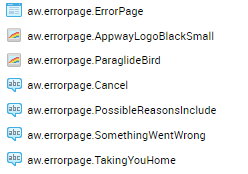
Every Resource BO has a Url through which it is accessible. Up to Appway 7, access to Resource BOs via Url was not protected by default. It was however possible to add Resource BOs to an Access Policy to restrict access if needed.
With Appway 7, this behavior has changed. Resource BOs are now protected by default, except for Resource BOs using the file types white-listed in the configuration property nm.workspace.resource.filetypes.anonymousaccessallowed (default value: js,css,jpg,jpeg,png,gif). You can:
- Add file types you do not want to protect to the configuration property.
- Remove file types that you want to protect from the configuration property.
- Set the configuration property to '*' to grant access to all Resource BOs (matches the default functionality in Appway 6.3 and lower).
- Leave the value of the configuration property empty to deny access to all Resource BOs.
Important! For Resource BOs in the Base Package, you can continue to define access through Access Policies. Access Policies take precedence over any settings made in the configuration property.
Adapt your solution to ensure it continues to work as designed and Resource BOs are protected as necessary.
In Appway 6.3, the default user roles are aligned with the top-level modules available in the Studio. Users assigned a certain role are granted access to the according part of the Studio:
- Composition Administrator (access to Library module)
- Deployment Administrator (access to Deployment module)
- Server Administrator (access to Administration module)
- Extension Administrator (access to Extension module)
- User Administrator (access to Users module)
- Console Administrator (access to Console module)
After the reorganization of the Studio in Appway 7, the top-level modules to which user access was linked no longer exist. Instead, access control is now based on new and more fine-grained permissions. To ensure backward compatibility, the default user roles have been retained and the according permissions are assigned to them to ensure access provided to users in these roles resembles the access granted in Appway 6.3. This means you can continue to use the same default roles as in Appway 6.3.
There are a few small differences in the exact access granted to users; the rule of thumb is that if a user in a certain role can see more in Appway 7 than in Appway 6.3, it is read-only access. This list shows the exact mapping of permissions to the default user roles in Appway 7:
Composition Administrator
- Manage Packages – Create, modify, and delete Packages. Import and Export Packages and Business Objects. If not granted, all Packages are read-only and only Export is available.
Deployment Administrator
- Manage Packages – Create, modify, and delete Packages. Import and Export Packages and Business Objects. If not granted, all Packages are read-only and only Export is available.
- Manage Application Locks – Lock Appway Studio and the Workspace. If not granted, the 'Platform Locking' sub-module is hidden.
Server Administrator
- Manage Configuration Properties – Write access to the Platform's Configuration Properties. If not granted, the 'Configuration Properties' sub-module is accessible in read-only mode.
- Manage Data Sources – Create, update, delete, and manage Data Sources. If not granted, the 'Data Sources' sub-module is hidden.
- Manage Email – Configure the inbound and outbound email servers. If not granted, the 'Email Configurations' sub-module is hidden.
- Manage Job Scheduler – Define policies for job execution. If not granted, the 'Job Scheduler' sub-module is hidden.
- Manage License – Inspect and manage Appway licenses for this Platform. If not granted, the 'Licenses' group is hidden.
- Manage Encryption – Access and modify Studio's system keys via Script Functions. If not granted, the encryption system keys cannot be accessed.
- Manage Logs – Inspect, configure, and manage the Platform's loggers. If not granted, configuration and management of logs is disabled.
Extension Administrator
- Manage Extensions – Upload, update, delete, start, and stop Extensions. If not granted, the 'Extensions' sub-module is hidden.
User Administrator
- Manage Users – Create, update, and delete Users, Groups, and Roles. If not granted, the 'User/Groups/Roles' sub-module is accessible in read-only mode.
Console Administrator
- Manage Process Engine – Configure or kill the threading of Appway and configure or kill Process Jobs. If not granted, the 'Process Engine' sub-module is hidden.
- Manage Process Instances – Modify the state of Process Instances. If not granted, the 'Process Instances' sub-module is hidden.
- Manage Process Messages – View messages, purge messages, and configure process message queues. If not granted, the 'Process Messages' sub-module is hidden.
- Manage Value Stores – Inspect and manage Value Stores. If not granted, the 'Value Stores' sub-module is hidden.
- Manage Integration Links – Start, stop, manage, and inspect Integration Links. If not granted, the 'Integration Link Management' sub-module is hidden.
- Manage Notifications – Configure and manage notifications. If not granted, the 'Notification Management' sub-module is hidden.
With Appway 7, the way Screens are rendered has changed. This change affects how Appway handles situations where the same HTML ID is assigned to two different components on the same Screen.
In accordance with general HTML standards, Appway now requires that HTML IDs are unique to a Screen. From Appway 7, using duplicate HTML IDs on the same Screen can lead to issues when executing Screen Actions, as Screen Actions are mapped to components using the HTML ID.
Check all Screens of your solution for duplicate HTML IDs and fix any duplicate occurrences. Additionally, it is recommended to test your solution and verify that all defined Screen Actions continue to function as designed.
Note: If you have duplicate HTML IDs on Screens in running Processes, contact
Appway Support to discuss further steps.
Note: This change was implemented in the Component Extension 6.3.25, meaning the change of behavior described here is only relevant if you are upgrading to Appway 7 from an installation using the Component Extension 6.3.24 or lower.
Up until Component Extension 6.3.24, the Dropdown List displays "Select..." in the following scenario:
- No option is selected
- The Dropdown List is in read-only mode, meaning:
- The Dropdown List is disabled
- Show as text if disabled is selected
From Component Extension 6.3.25 (and in Appway 7), the Dropdown List displays the value of the LABEL:aw.DropdownList.textIfDisabled.noSelection label instead of "Select..." in the above scenario. By default, this label contains an empty string.
Note: In some cases, running Processes that were started in an installation using the Component Extension 6.3.24 or lower will not find the correct version of the Label on the upgraded environment. If this issue occurs, contact
Appway Support to discuss further steps.