Some features described in this article may subject to separate surcharge. See the
Digital Binder Licensing article for detailed information.
The Digital Binder is an Application Business Component (ABC) that acts as a central hub for accessing and managing Documents through pre-defined document workflows.
There are multiple use cases for Digital Binder. Digital Binder can be the core of a process - for example, back-office automation, or Digital Binder can be part of a larger process like Onboarding in the Productized Workspace.
Each use case requires different types of documents, with different document workflows and different actions to be performed per document - with Digital Binder this is easy to do.
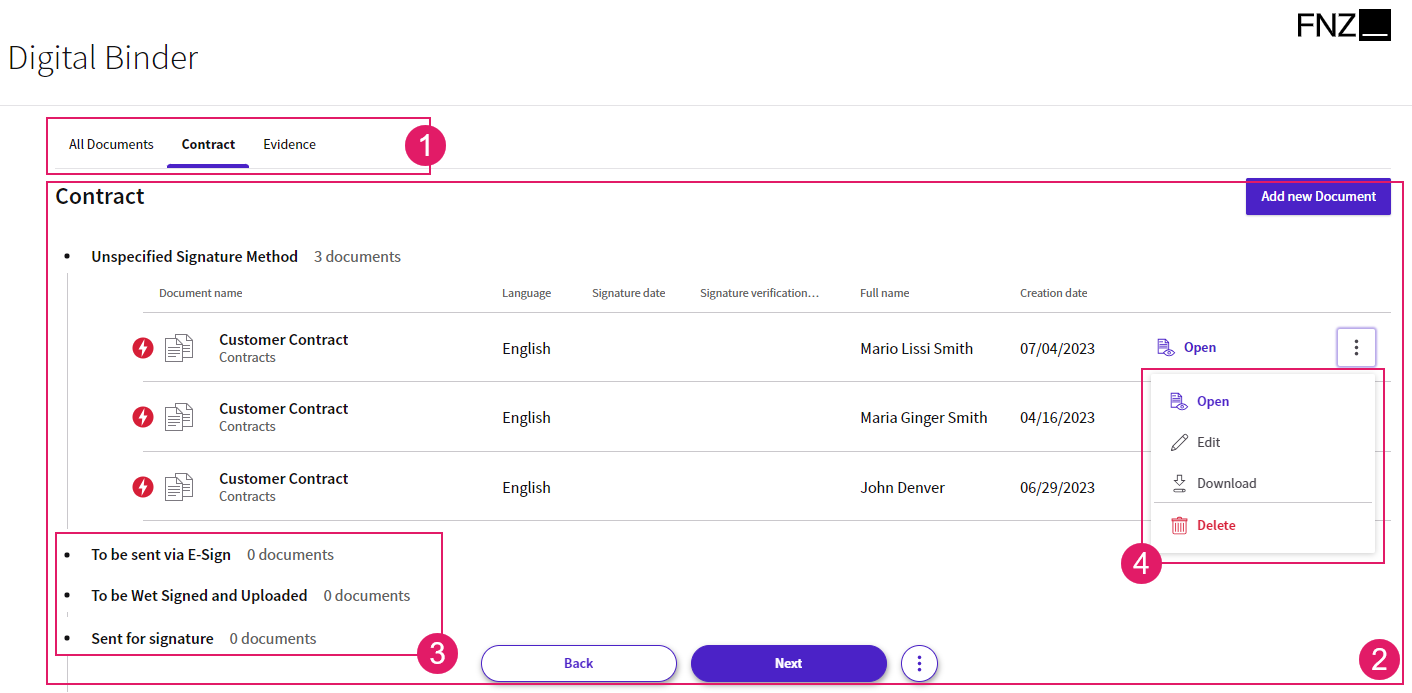
- Document Categories — (
1) Categories represent a collection of documents that have the same workflow. You also have the option not to use categories if it does not add value to your specific use case. Here are some examples that are specific to Onboarding, but the configuration allows you to create categories specific to your use case:
- Evidences — Documents that need to be received from the end user and uploaded, e.g., copy of passport, or proof of ownership.
- Contracts — Documents that need to be sent out to the end user, tracked and then sent back, e.g., contracts that need to be signed.
- Brochures — Documents that are sent out to the end user, but do not need to be tracked nor sent back, e.g., terms and conditions, brochures, or info sheets.
- Documents — (
2) A document represents a collection of files and properties. For example, a document could be a contract with multiple files (pages), or a passport with two files (a scan of the front and a scan of the back). In Digital Binder, the list of records are Documents that may contain zero or many files. - Stages — (
3) Stages represent the different points in the document category workflow that a document needs to go through. For example, a contract that needs to be sent to the client, signed and returned could have the following stages: unspecified signature method, to be sent via e-signature, sent for signature, and received. - Actions — (
4) Actions are specific to each stage and represent the primary action required to progress a document through its workflow to the next stage. We support a few native actions out of the box, but custom actions can be created using the Platform so you can create actions specific to your use case.
- Productivity — Digital Binder boosts productivity working with document workflows by clearly showing the status per document, what action needs to be taken and guides the user on how to take the next action (see the User Experience section below for details)
- Accessibility — Provides interface features that guarantee the highest efficiency with any audience. The product is designed based on the WCAG 2.1 guidelines; therefore, it is accessible to users with low vision, limited dexterity, and other disabilities (see the Accessibility) section below for details).
- Shared configuration — Digital Binder follows our data-driven configuration to render complex interfaces based on modeled business logic, reducing development effort. Digital Binder uses existing Appway Business Objects to configure Digital Binder behavior, instead of introducing Digital Binder-specific configurations (see the Digital Binder App Task article for details).
- Theming — The look-and feel of the Digital Binder can be edited to achieve the desired branding through the Theme Editor (see the Digital Binder App Task article for details).
This section illustrates the Digital Binder user experience. Configuration details are illustrated in the
Digital Binder App Task article and the linked related documents.
Digital Binder provides multiple views for your documents:
- All Documents View — This view provides a holistic view across all documents in Digital Binder.
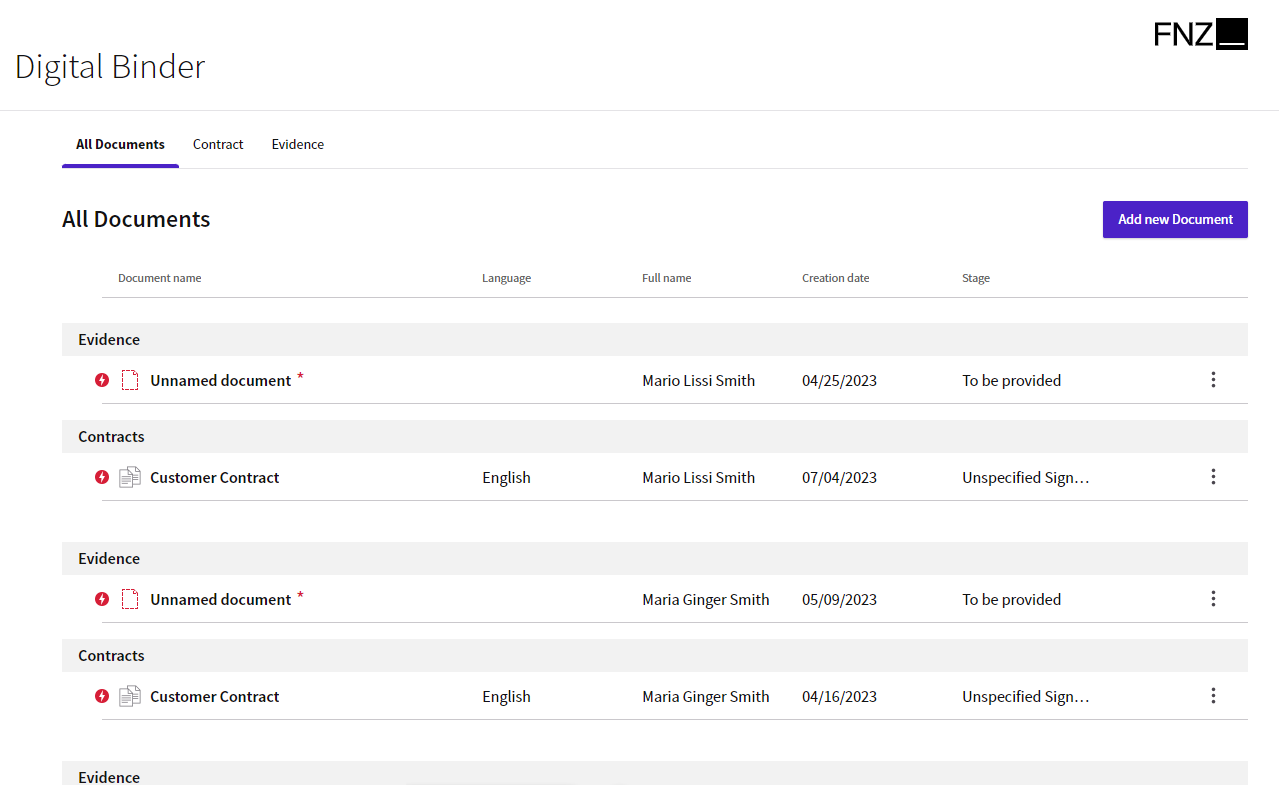
- Categories View — This view provides a filtered view of documents based on the each document category defined by the developer. The Categories view may display a progress meter to provide an approximation of the work that remains to be done per category, which corresponds to the number of documents that are not in their final stage. This is configurable by the developer, who can assign weights to each stage per category through the Document Category Business Object.
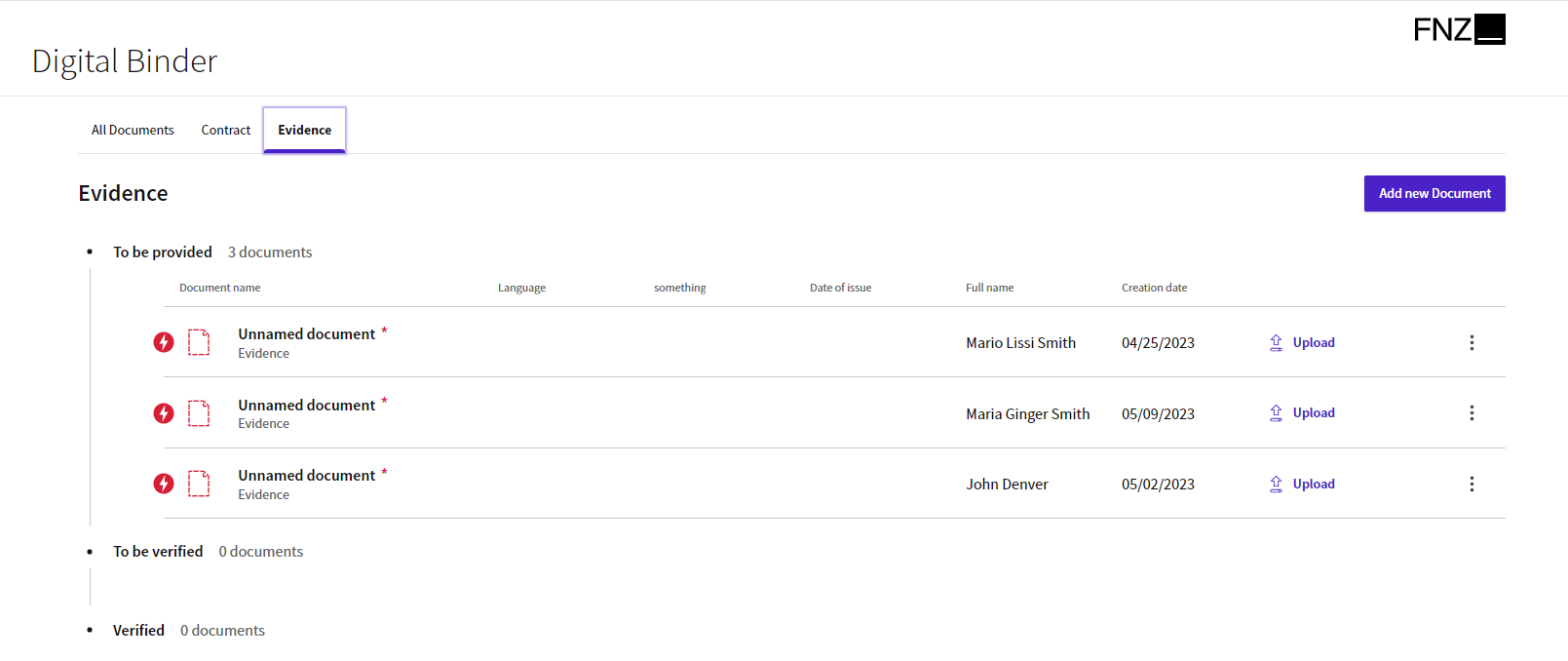
- Table View — The table in both the All Documents and Categories view is rendered as a table. The columns of the table are automatically created and set based on the configuration defined in the Document Behavior. Not every document in a table will have the same columns, a table with multiple documents will show the joint list of column values. This means that some documents may not have values for every column.
With Digital Binder, it is possible to preview document while viewing and editing metadata. Metadata can be collected per document, and the configuration potential of document metadata is broad, since it uses the Data Logic Business Object.
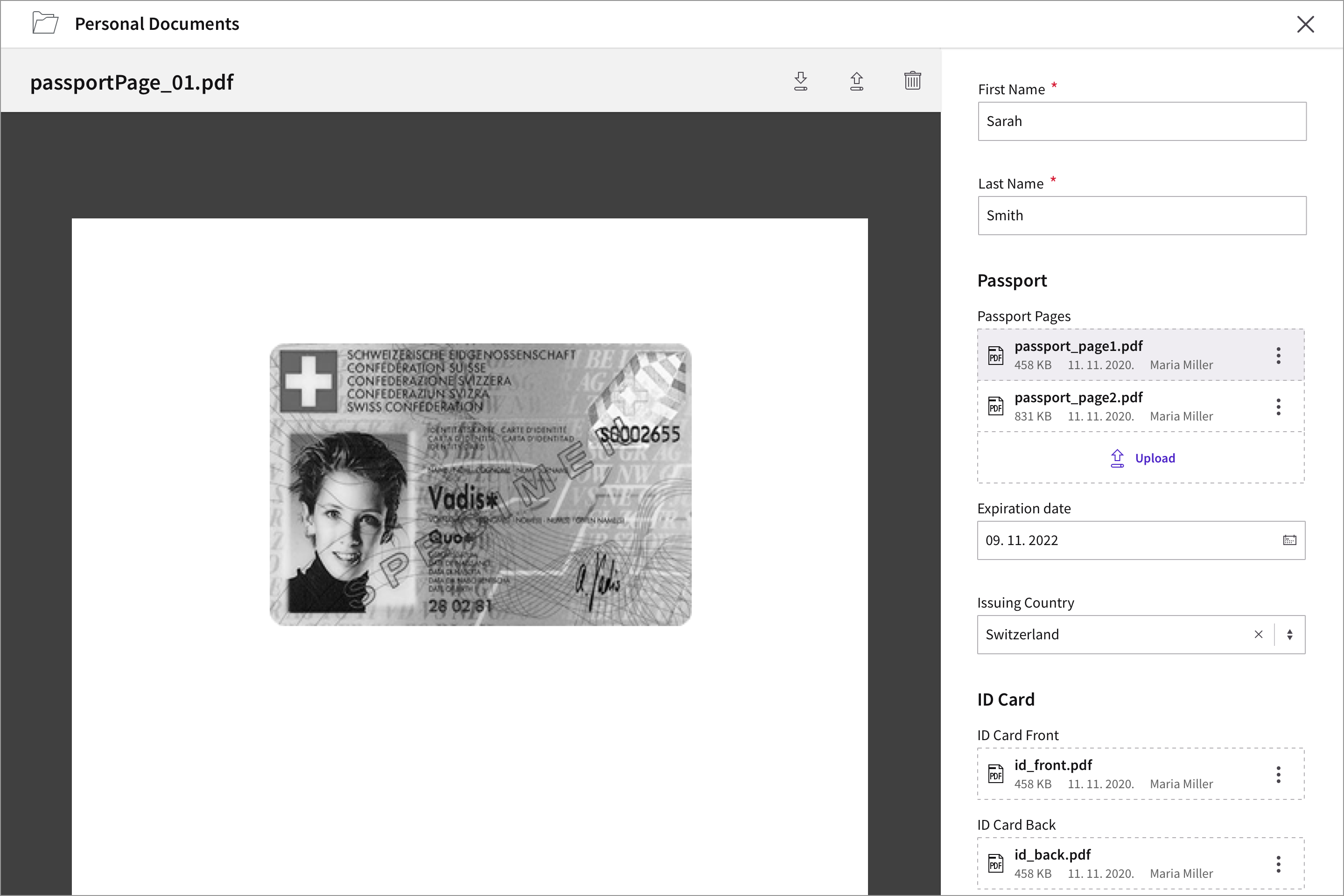
Following is a brief overview of what else can be configured in the Data Logic Business Object:
- Data fields and layout:
- Text, Date, Email, Phone number, Dropdown list, Radio button, and File upload field types
- Navigation and layout (configuring how fields are ordered and grouped)
- Data validation:
- Configuring validation on each data field using Data Rules through the Data Logic Business Object.
- Data violations:
- Configuring which data fields are required or optional
- Configuring which data fields are required per document
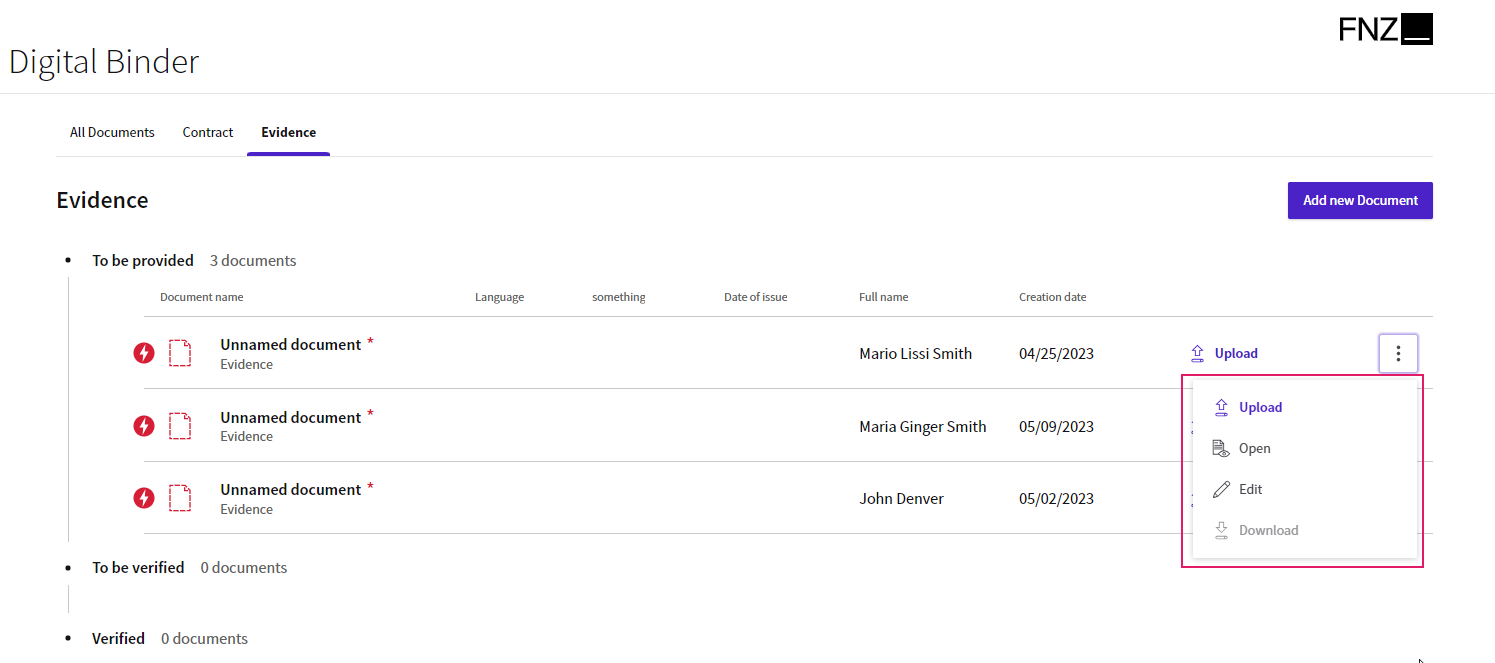
Primary actions are specific to each stage and represent the main action required to progress a document through its workflow to the next stage. The primary action per stage is shown on each document. Secondary actions exist per document, but are hidden in the three-dot menu. Secondary actions can include custom actions that you have built for your specific use case.
Actions can be performed on one or more documents at a time across categories and stages. For example, you can use actions to select multiple documents and send for e-signature, or select multiple documents and set the preferred language.
E-signature workflows can be supported with the Digital Binder, however there is no native e-signature capabilities provided out of the box. We will look to make enhancements in this area in the near future. To build an e-signature workflow you can use our custom action feature described above.
Digital Binder is based on the Data Logic and Data Class Business Object, so configuring document rules and restrictions can be easily accomplished and support a wide variety of configurations. For example, you can restrict file upload type, file upload max size, and so on. For more details, please refer to the Digital Binder App Task Configuration.
Digital Binder is designed based on the WCAG 2.1 guidelines, therefore it provides interface features that guarantee the highest accessibility for any audience. Most accessibility features are included by design, as they are provided by the UI itself:
- Easy navigation is made possible by a clear structure, that helps users easily understand the hierarchy of data and quickly grasp where they are in the page structure.
- Content organization supports users in easier and faster readability through the following features:
- Content grouping
- Typography
- Spacing
- Color contrast — Default theme colors are chosen to provide the correct contrast.
- Shapes and text are also used to communicate information (e.g blocking issue and warning annotations).
- Screen responsiveness — All screens are responsive and adapt to any device.
- Keyboard navigation — The whole page can be navigated using the keyboard only.
- Screen reader — Screen readers are fully supported so that the page can be easily read by people with visual impairment.
See all details on Accessibility in the related
blog post.