Note that the Appway Platform has been renamed
FNZ Studio (also referred to, generically, as Platform in this article). Appway Studio (design-time environment) and Appway Workspace (runtime environment) have been renamed
FNZ Studio Composition and
FNZ Studio Runtime, respectively. Refer to our Renaming
article for full information.
Defining the relationships among different parties is a common use case in business.
The Relationship Definition Application Business Component represents the evolution of the Role Manager and Household Structure.
Based on our thorough analysis, we have designed a product which provides the following capabilities:
- Continuous guidance to allow users to know exactly where they are in terms of navigation, and what they need to do or fix at any time. Our product structure should adapt to business use cases of any complexity.
- Diagram overviews of the business relationships, focusing on all kinds of relationships, and not only roles.
- A declarative approach to configure the presentation of relationships and objects.
- Reusability of complex structures across accounts.
- Modularity: complementary products can be used to cover complete workflows, ad defining relationships is not an atomic activity and requires integration with other tasks in the Workspace.
Appway's Application Business Components (ABCs) are pre-fabricated software products that serve as Solution building blocks. They solve recurring business problems out-of-the-box, can be used for a wide range of business scenarios thanks to powerful configurations, and come with continuous evolution that is taken care of by the Platform.
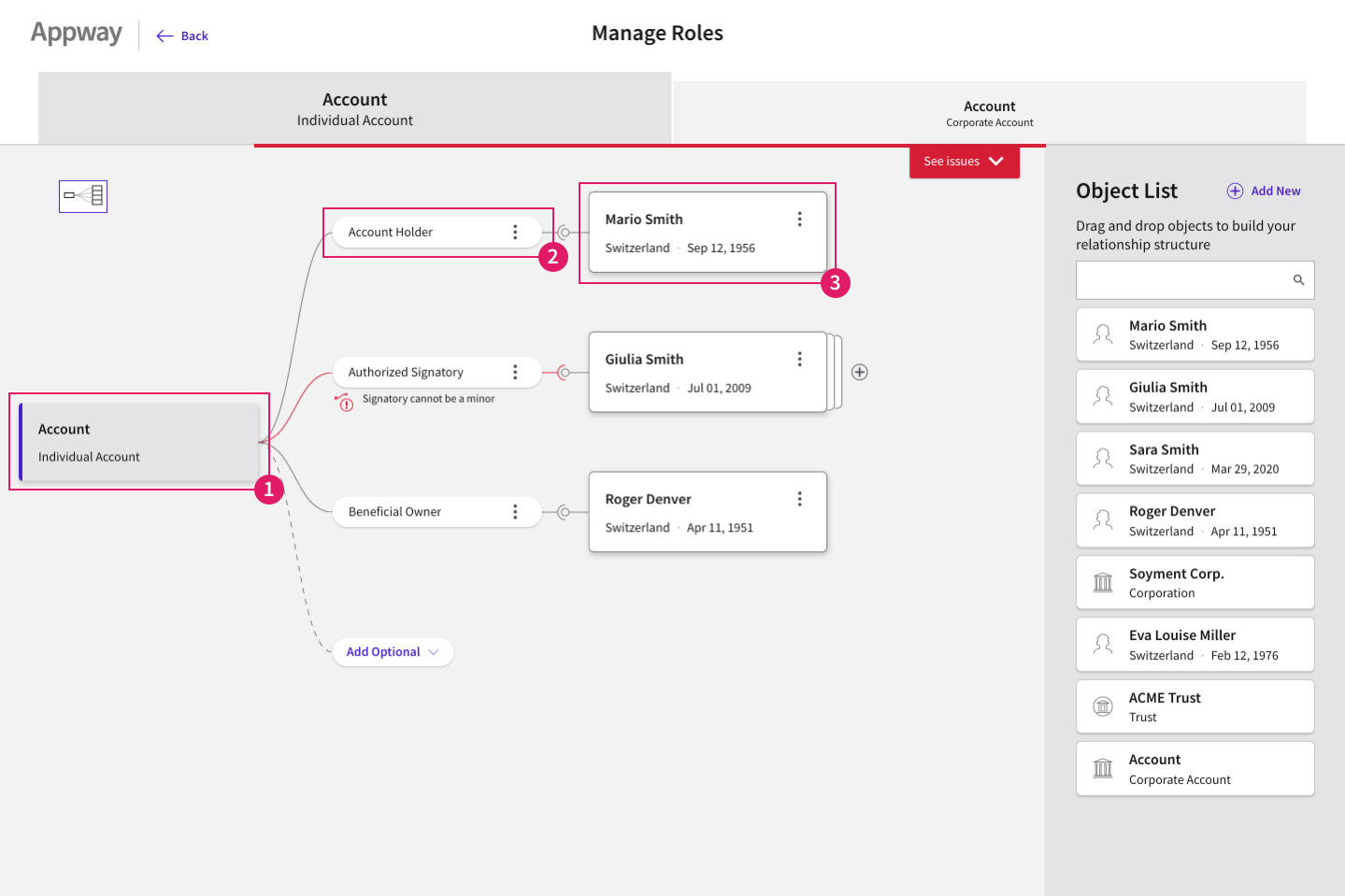
- Root Objects — Collection of Data Class instances that represent the set of Objects used as "entry points" for navigation in the Relationship structure. These are shown as tabs in the Workspace.
- Relationships — Relationships are represented in the Business Object model as Data Class Instances. For example, the fact that the client
Mark Smith is the account holder for the bank account BA12345678 can be represented by an instance of a Data Class called AccountHolder. - Objects — Objects are the Data Class instances that can be used as sources and targets of Relationships (e.g. Client Data Class instance, Party Data Class instances etc).
These concepts are illustrated in detail in the Relationship Definition Configuration
documentation.
Relationship Definition boosts front office efficiency thanks to its UX and increases client satisfaction by guiding the user to understanding business cases and collaborations. This involves three main focus areas:
- Diagram overview and navigation: Relationship Definition adapts to different contexts, from a simple individual account opening with few parties involved to scenarios where multiple accounts need to be defined at the same time and the relationship can reach higher complexity. Its graphic visualization allows zooming in or out on a structure to check relationships, households or parties.
- Continuous guidance: The user is guided through the whole process to ensure that the defined structure is compliant with business regulations. The structure is pre-defined automatically based on your rules and ready to be populated. Parties can be created with imported banking/registry system data or added manually; moreover, they can be added or edited on the fly.
- Accessibility: Relationship Definition is designed based on the WCAG 2.1 guidelines, therefore it provides interface features that guarantee the highest accessibility for any audience.
Relationship Definition also provides optimal developer experience by focusing on the configuration of business logic rather than non-differentiating UI customization. This reduces development time, lowers maintenance effort and guarantees a fast reaction to change (complete information is found in the Relationship Definition App Task Configuration guide).
- A data-driven and configuration-oriented approach
- Minimal effort for visuals and a reduced implementation effort thanks to its auto-generated UI.
- Modularity and reusability by sharing basic concepts with other App Tasks (Data Rules, validation, actions) thus improving overall efficiency.
- Theming capabilities
Relationship Definition is meant to be used in different contexts: from a simple individual account opening with few parties involved to an 'onboarding for trust' scenario where multiple accounts need to be defined at the same time and the relationship can reach higher complexity.
Depending on the Relationship Definition configuration, some features may not be available, as illustrated in the figures below. This depends on the configured App Task, namely:
- A Relationship Definition App Task allows creating a structure of Objects and Relationships (Figure 1).
- A Relationship Review App Task allows seeing Relationships in read-only mode for review use cases, therefore no edit operations are available (Figure 2).
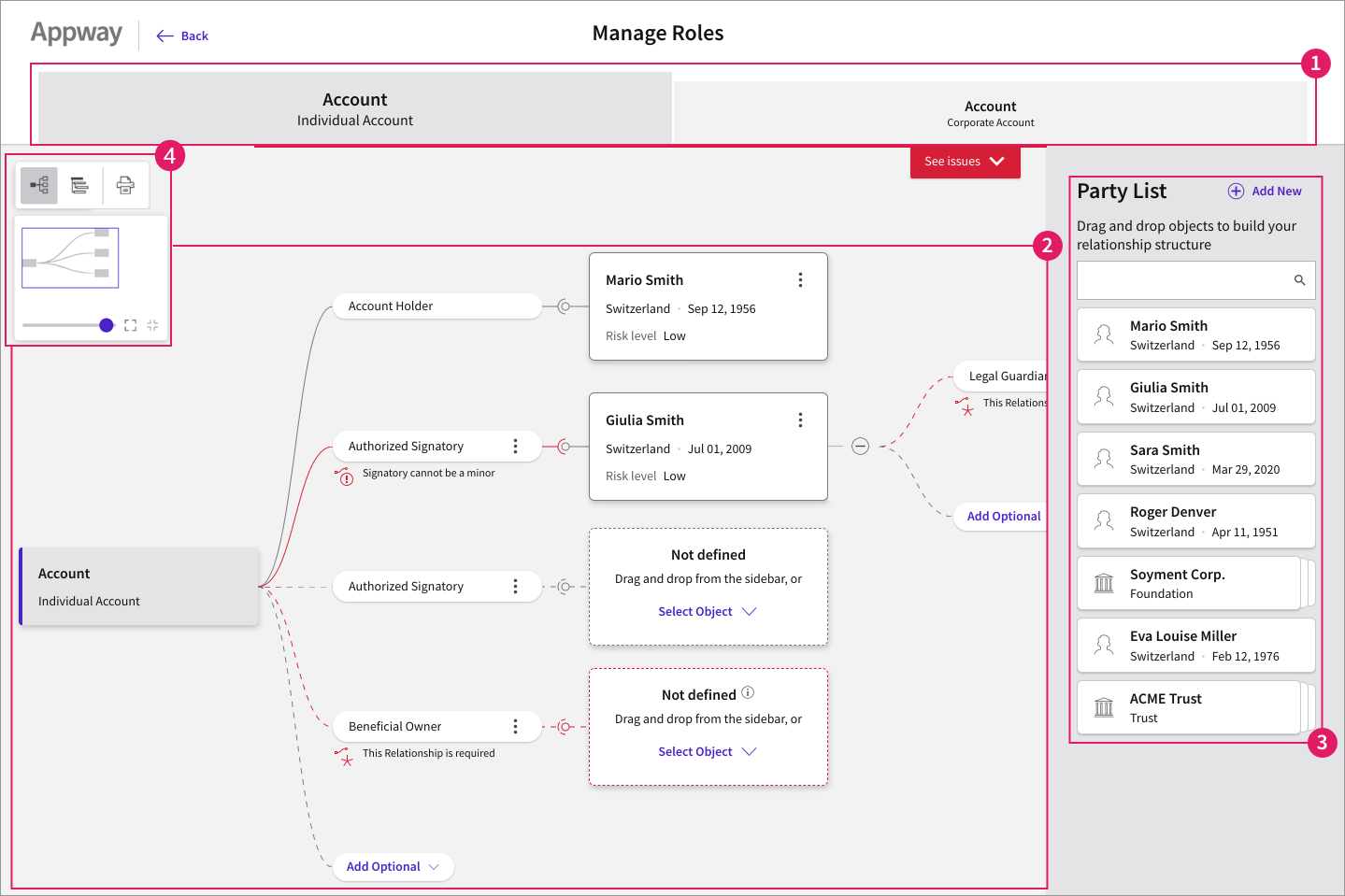
Figure 1: Relationship Definition ABC with a configured Relationship Definition App Task
- The navigation structure supports such complexity by highlighting the relationship structure of one account at a time (
1). - A diagram overview allows for a visual and comprehensive outline of defined business relationships to better support decision making and auditability (
2). - The Objects List displays all the Objects involved in the business relationship. Objects already involved in relationships can be easily identified, and existing relationships are automatically added once the Object is associated with the account. It is also possible to search in the Objects List (if there are more than 10 items), and add a new item by clicking on the Add New button (
3). - The View selector allows displaying the whole relationship structure as a Tree
 or as a List
 . In the case of the Tree view, a smaller-scale map (minimap) provides an overview of the relationships and allows navigating through the diagram. Moreover, the Print option
 optimizes the printing of the relationship in List View (
4).
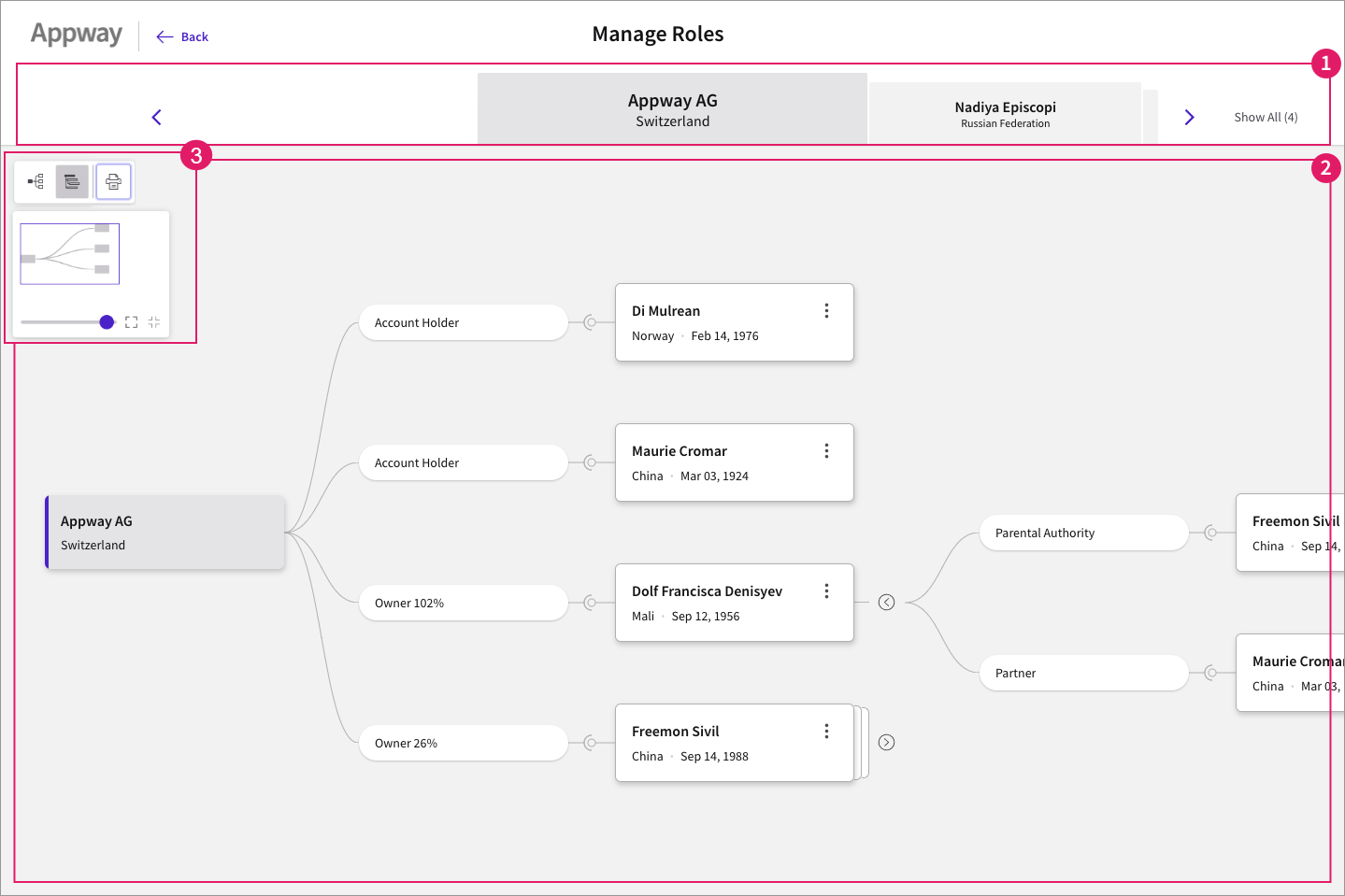
Figure 2: Relationship Definition ABC with a configured Relationship Review App Task
- The navigation structure supports such complexity by highlighting the relationship structure of one account at a time (
1). - A diagram overview allows for a visual and comprehensive outline of defined business relationships to better support decision making and auditability (
2). - The View selector allows displaying the whole relationship structure as a Tree or as a List . In the case of the Tree view, a smaller-scale map (minimap) provides an overview of the relationships and allows navigating through the diagram. Moreover, the Print option optimizes the printing of the relationship in List View (
3).
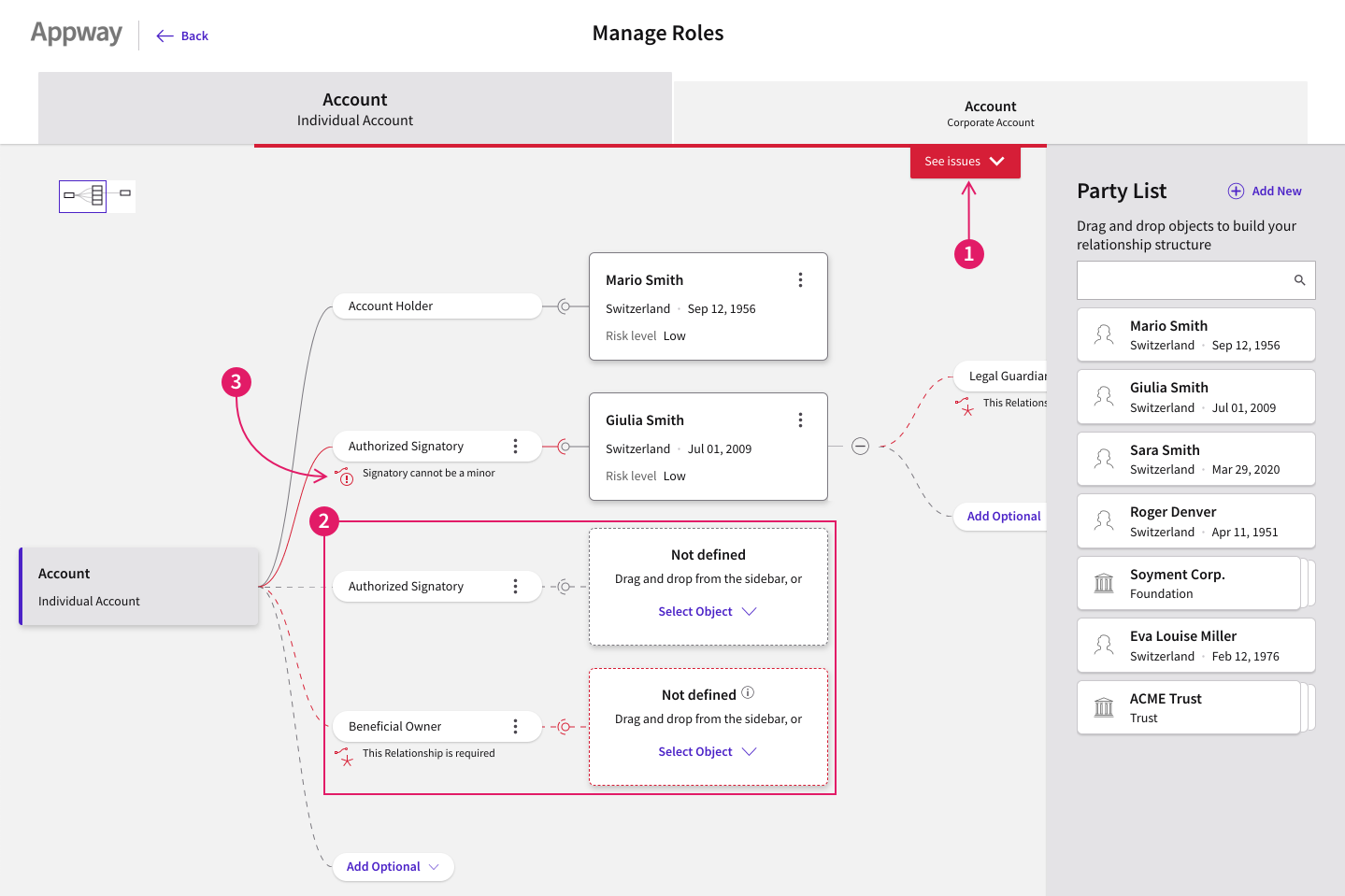
While defining business relationships, the user needs to be guided through the whole process to ensure that the defined structure is compliant with business regulations. Relationship Definition, as other Application Business Components, such as Data Gathering, provides constant guidance by providing a set of tools:
- The Violation Panel displays possible issues and allows jumping to the corresponding item directly to fix the error or warning (
1). - Violations are also highlighted contextually at Object and Relationship level so that the user views the issue and is guided to fix it immediately (
3). - When defining business relationships, it is important to understand which roles are mandatory. Relationship Definition creates mandatory roles for you, thus making it easy to spotlight any missing roles to be associated with an Object before proceeding (
2). Optional roles need to be added manually, and they are clearly distinguishable from mandatory Relationships. A Relationship is complete when it is associated with an Object by drag-and-drop or by clicking the Select Object button. Both actions prevent the user from associating a wrong type of Object with a Relationship.
Rule violations are crucial information for the user. A rule violation occurs when a predefined rule is violated. There are two different types of violations:
- Blocking Issues — (red) Must be fixed in order to proceed and end the task.
- Warnings — (yellow) Suggestions on how to improve the quality of the data entered. Fixing them is not required to proceed and end the task, but it is recommended.
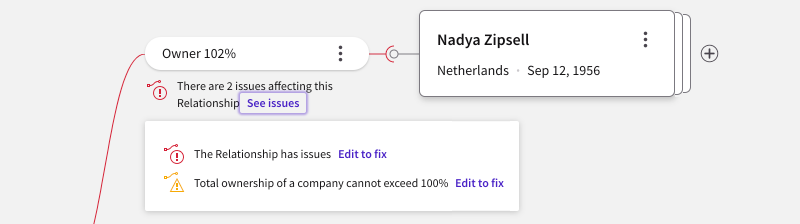
If an item is affected by more than one violation, all of them are grouped and a message is displayed next to the affected field. By clicking the button next to the message (e.g. See issues), you open the tooltip containing all the issue details.
The violation panel can be displayed every time the page contains at least one violation, and shows a recap of all the violations present in a page.
In the panel, violations are grouped by type, with blocking issues (red) shown first, and warnings (yellow) shown below. Relationship Definition supports different types of validation violations, each of them represented by a different configurable message (see the Localization section for details):
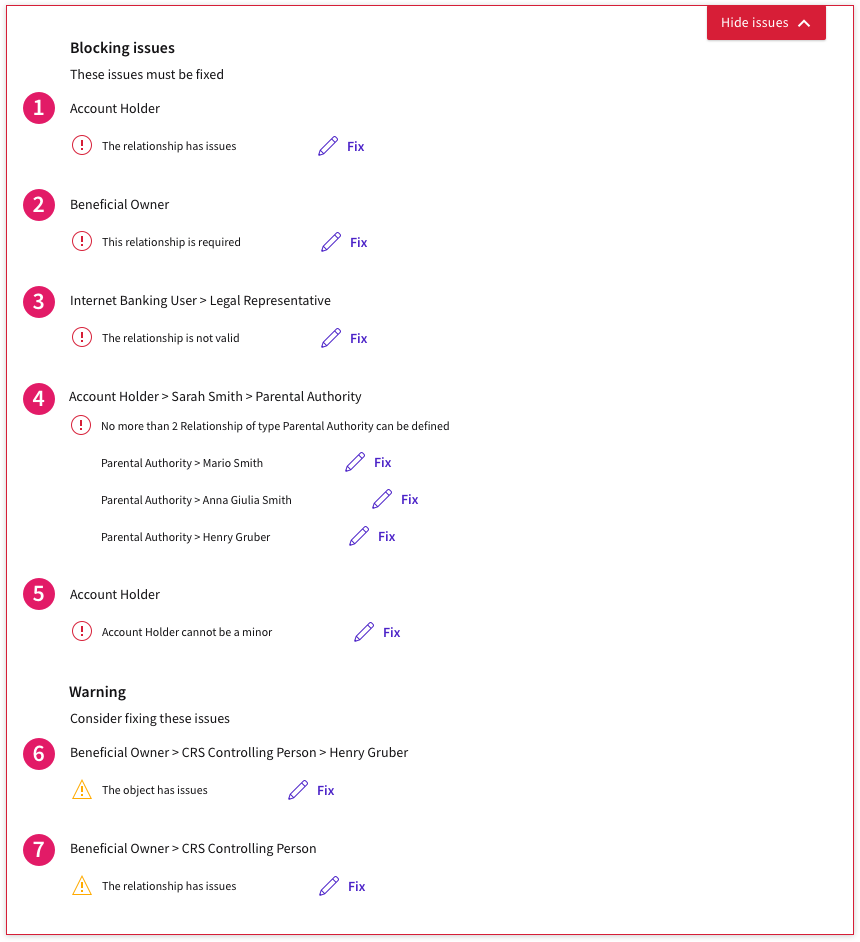
- Relationship has issues (blocking) (
1) — Indicates that the Relationship properties have a blocking issue affecting Data Logic metadata, e.g. A mandatory signature power for an authorized signatory is not specified. - Relationship is required (blocking) (
2) — Indicates that a mandatory Relationship is currently not associated with a target Object. - Relationship is not valid (blocking) (
3) — Indicates that the affected Relationship is not valid, e.g. the account has been changed from corporate to individual and, therefore, the Settlor is no longer required. - Relationship exceeds cardinality (blocking) (
4) — Indicates that the number of Relationships exceeds the maximum cardinality, e.g. a private account can have no more than three beneficial owners. - Object is not valid (blocking) (
5) — Indicates a blocking issue affecting the Object, e.g. the Object is a minor. - Object has issues (non-blocking) (
6) — Indicates a non-blocking issue affecting the Object. - Relationship has issues (non-blocking) (
7) — Indicates that the Relationship properties have a non-blocking issue affecting Data Logic metadata.
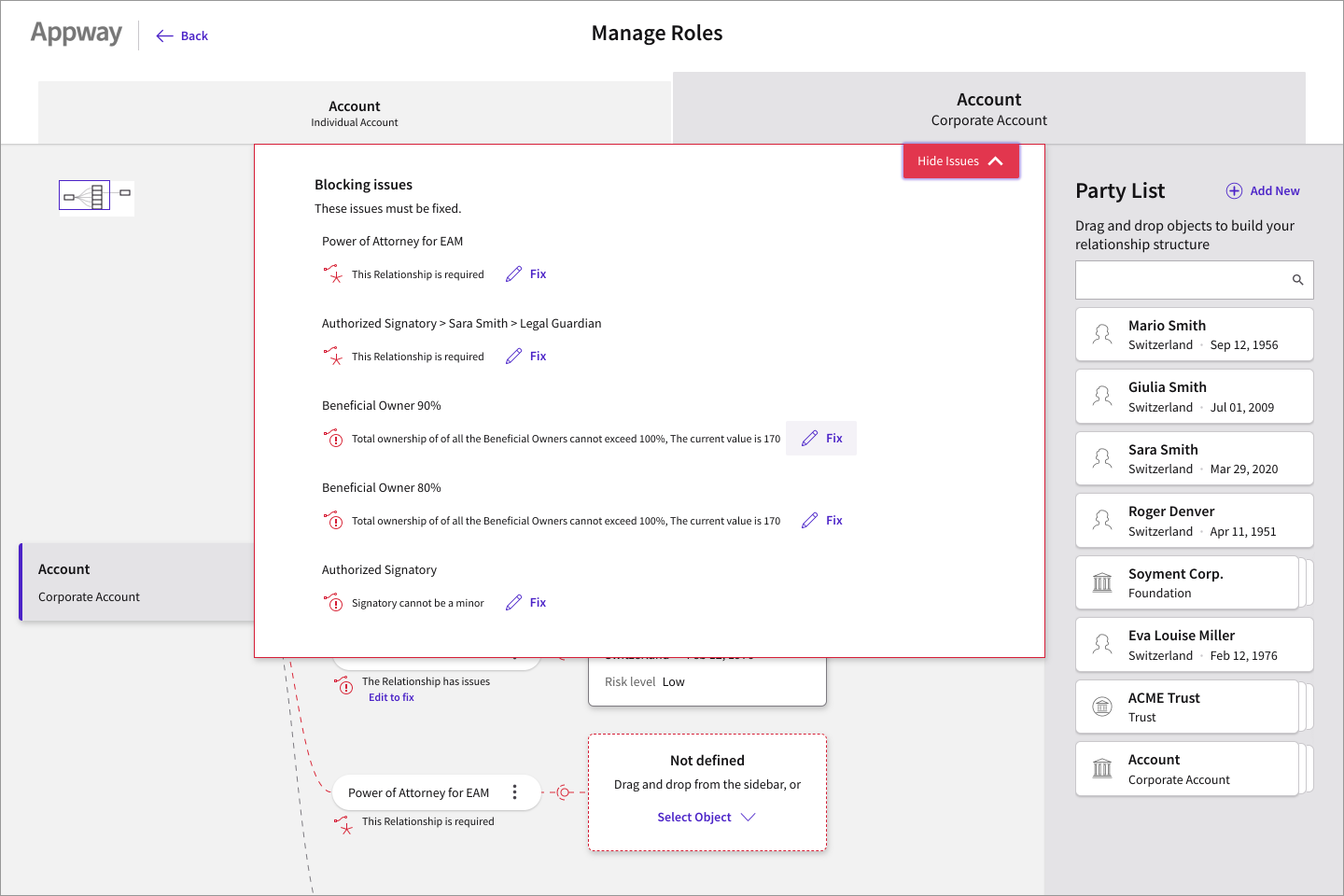
You are guided in fixing the violations by clicking on the button (e.g Fix) next to the affected field. When the Fix button is clicked, the panel is hidden and the page scrolls to the field field.
The following sections describe the main user interactions.
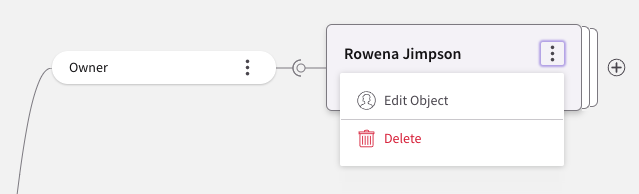
Clicking on an Object allows:
- Editing Object details, by redirecting the user to Data Gathering.
- Deleting an Object: its content is deleted and is displayed as an undefined Object (placeholder).
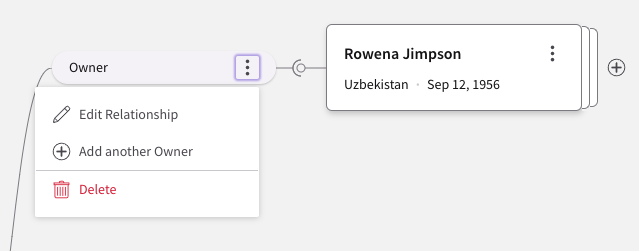
Clicking on a Relationship allows:
- Editing Relationship details.
- Deleting a Relationship: its content is deleted and is displayed as an undefined Relationship (placeholder)
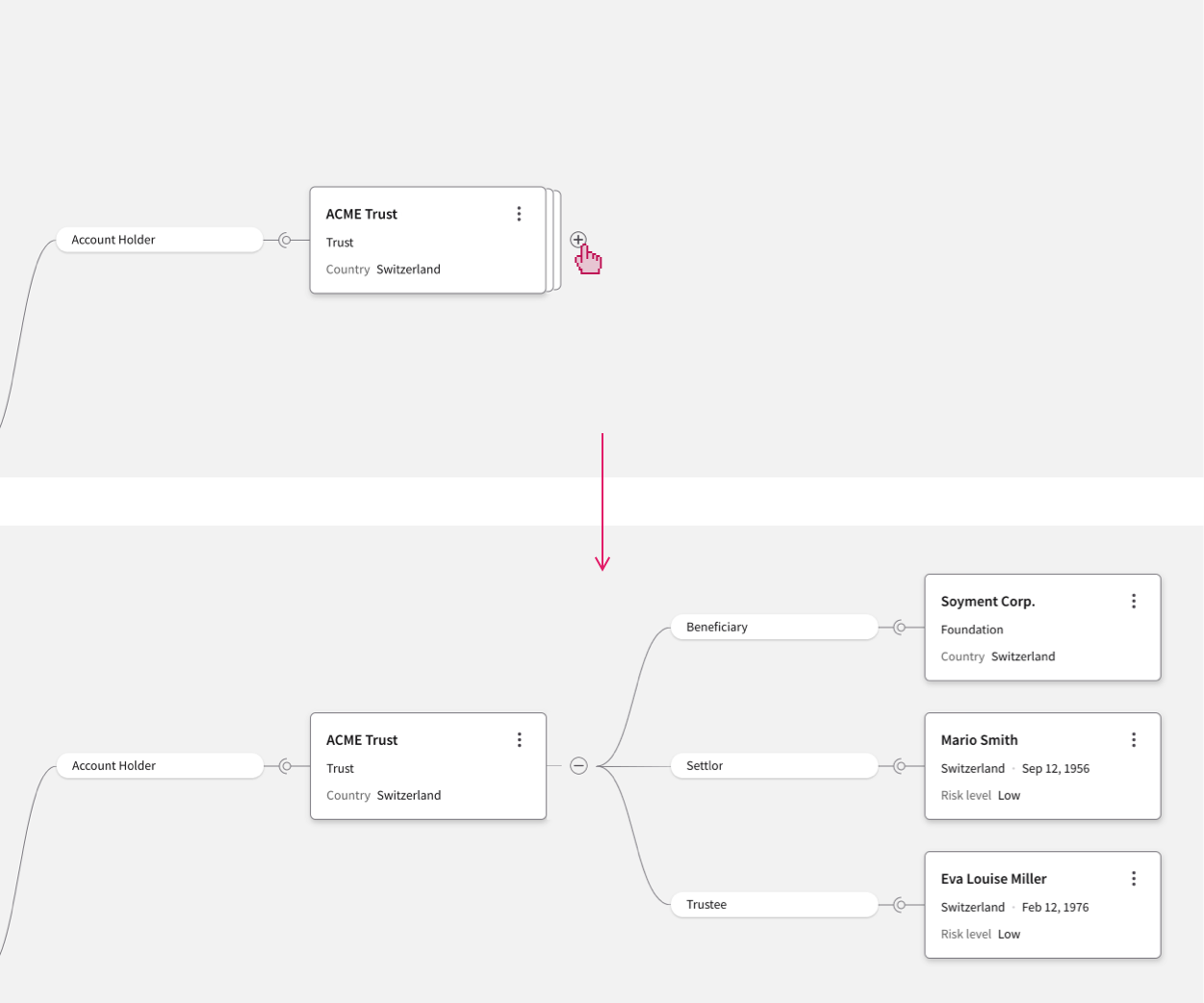
Clicking on the Expand (+) icon displays the whole list of Relationships and Objects for a specific item. Click on the Collapse (-) icon to hide the expanded items.
Relationship Definition is designed based on the WCAG 2.1 guidelines, therefore it provides interface features that guarantee the highest accessibility for any audience. Most accessibility features are included by design, as they are provided by the UI itself:
- Easy navigation is made possible by a clear structure, that helps users easily understand the hierarchy of data and quickly grasp where they are in the page structure.
- Content organization supports users in easier and faster readability through the following features:
- Content grouping
- Typography
- Spacing
- Color contrast — Default theme colors are chosen to provide the correct contrast.
- Shapes and text are also used to communicate information (e.g blocking issue and warning annotations).
- Screen responsiveness — All screens are responsive and adapt to any device.
- Keyboard navigation — The whole page can be navigated using the keyboard only.
- Screen reader — Screen readers are fully supported so that the page can be easily read by people with visual impairment.
See all details on Accessibility in the related
blog post.