Document and Document Set Business Objects
A Document BO is basically a collection of PDF Output Business Object. A Document Set, in turn, is a collection of Documents.
Documents are used to support multiple languages. A Document BO, in fact, may collects PDF Outputs in different languages, e.g. a tax form in English and in Italian. Both files have the same data set, but the location of the fields is different. When a Rule gets evaluated (see PDF Overview), it will pick the PDF in a Document matching the chosen render language. If not available, it will fall back to the default language or to the only language available.
Document
To create a Document BO, drag and drop the desired PDF Output BOs from the left pane, one for each supported language. Note that you can drag the objects to rearrange them, and use the context menu to delete them.
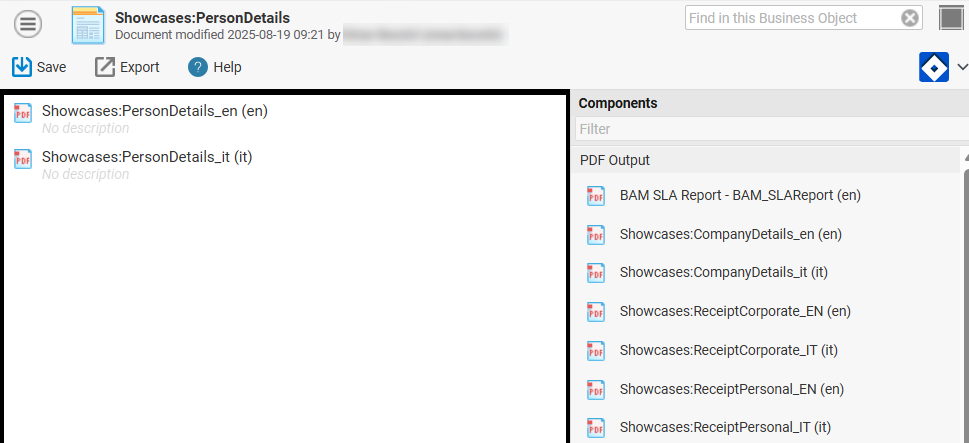
You can add a Document Title by clicking on the Edit Title button.
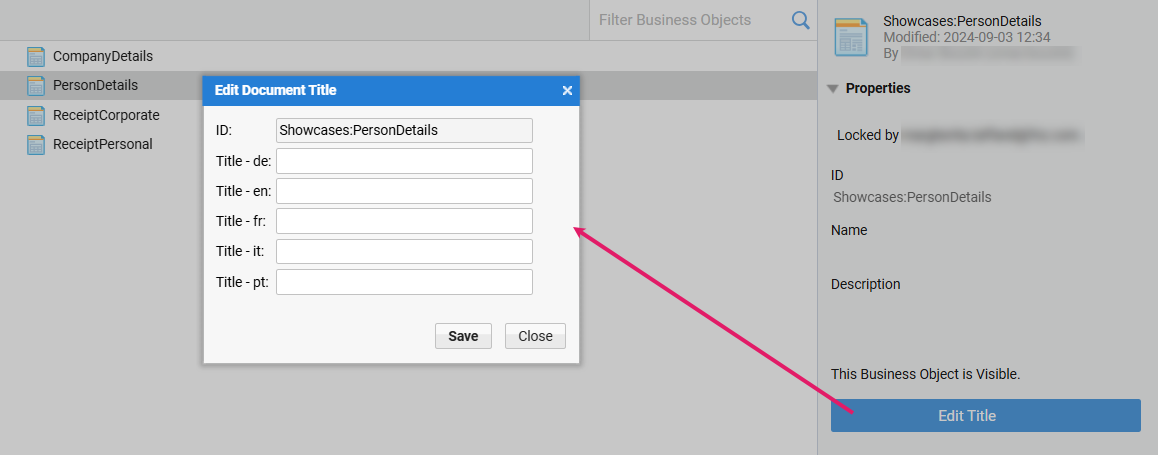
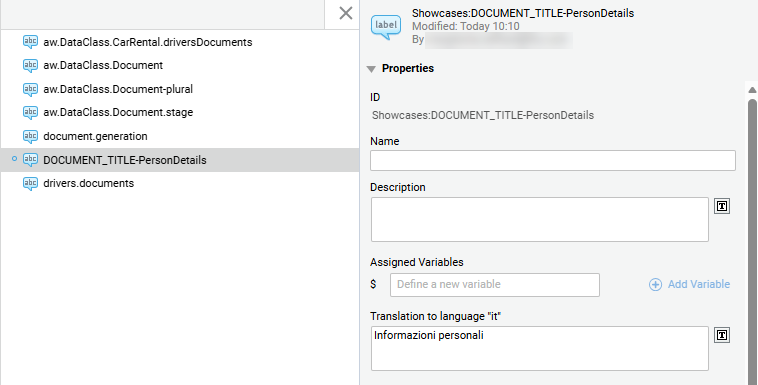
The title is saved as a Label BO with an ID derived from the Document ID. The title will be used in the PDF’s outline, if enabled for rendering.
Document Set
A Document Set can contain Documents, as well as nested Document Sets.
Document Sets are used to define the order of Documents. In fact, when you generate a PDF file based on a Rule (see PDF Overview), Documents are added to the PDF in the order determined by the actions generated by the Rule evaluation. On the other hand, if you define a Document Set, Documents are added to the PDF in the order defined in the Document Set Editor. If the Rule has discarded one or more Documents, these are simply skipped.
To create a Document Set BO, drag and drop the desired Document BOs from the left pane. Note that you can drag the objects to rearrange them, and use the context menu to delete them.
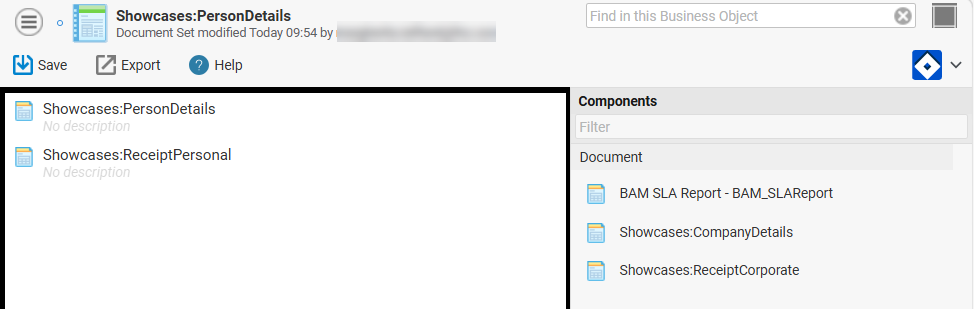
As with Documents, you can add a Document Set Title by clicking on the Edit Title button. You can add a Document Title by clicking on the Edit Title button. The title is saved as a Label BO.
Keyboard Shortcuts
Note that most shortcut keys are common to all editors (see the Shortcut Keys in Business Object Editors article). The following table summarizes how these shortcuts behave in the specific case of the Document and Document Set Business Objects.
- Ctrl-S – Save the Document
- Ctrl-A – Select all Fields
- Ctrl-W – Close the Document Editor
- Delete, Backspace – Delete selected Business Objects from list