PDF Overview
Creating a static or dynamic PDF file and presenting it on a Screen is actually the result of a chain of other Business Objects coming together. Therefore, before you can create a report, you have to produce all the Business Objects (BOs) it depends on, namely:
- PDF Output Table Business Object
- PDF Output Business Object
- Document and Document Set Business Objects
- Rule and Rule Set Business Objects
- Process Business Object
The following schema represents the interaction among all the BOs mentioned above:
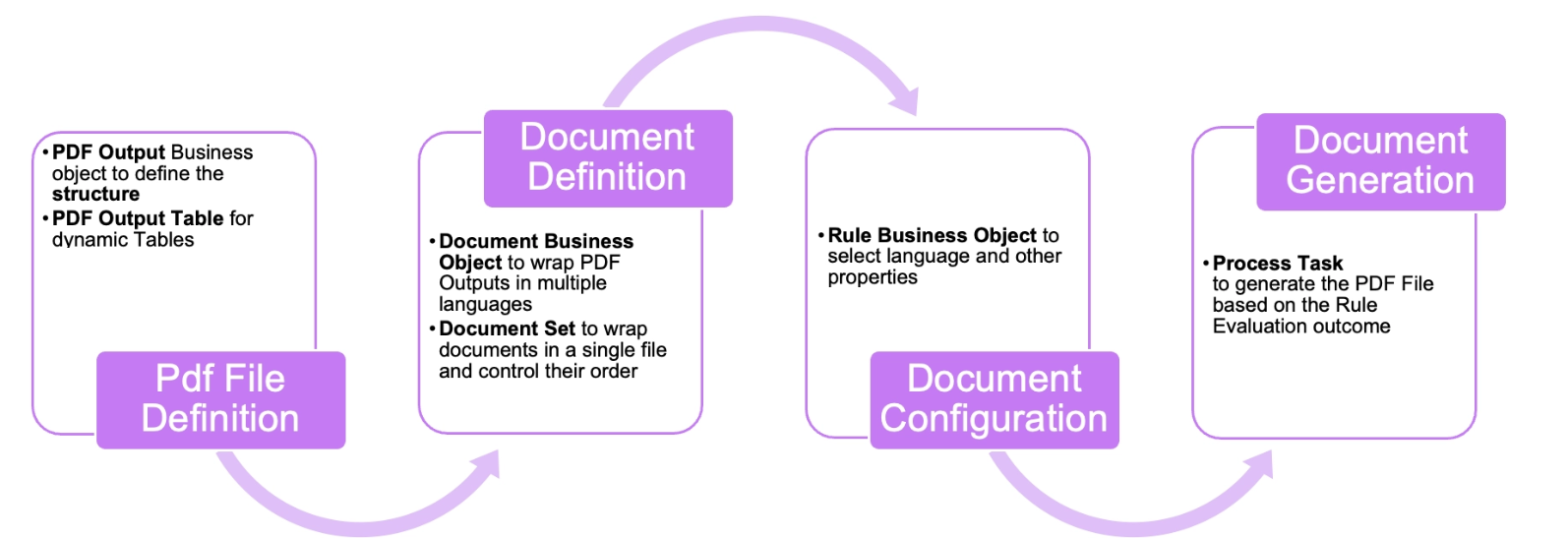
In this article, we describe all the phases of generating a PDF file based on an example. This example uses a Package called PDFScreenShowcase. Download this Package to follow the procedure below.
PDF Output Table
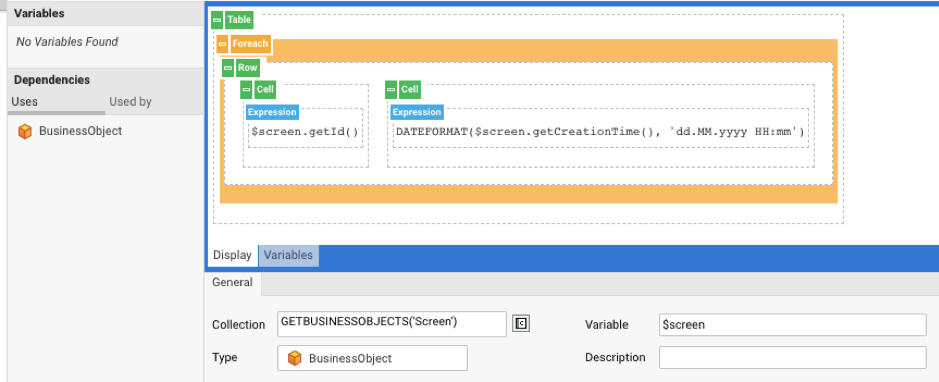
The PDF Output Table Business Object is used for dynamic content, mostly reporting. In our example, it represents the table listing all the Screens.
To create the PDF Output Table, go to Solution Design > Packages – PDFScreenShowcase > Business Objects > PDF Output Table.
Create a new PDF Output Table with the ID AllBOsTable. Then, in the editor:
-
Add a For each component between Table and Row:
- Collection:
GETBUSINESSOBJECTS('Screen') - Variable:
$screen - Type:
BusinessObject
- Collection:
-
Replace the Text component in the first cell with an Expression component:
- Expression:
$screen.getId()
- Expression:
-
Add another Cell containing an Expression component:
- Expression:
DATEFORMAT($screen.getCreationTime(), 'dd.MM.yyyy HH:mm')
- Expression:
-
Validate (make sure it is successful), save and close.
The result should look like this:
PDF Output
The next step is to create a PDF Output Business Object which uses the PDF Output Table we just created. The PDF Output BO is used for static content, mostly for filling in existing PDF-based forms.
To create the PDF Output object, go to Solution Design > Packages – PDFScreenShowcase > Business Objects > PDF Output.
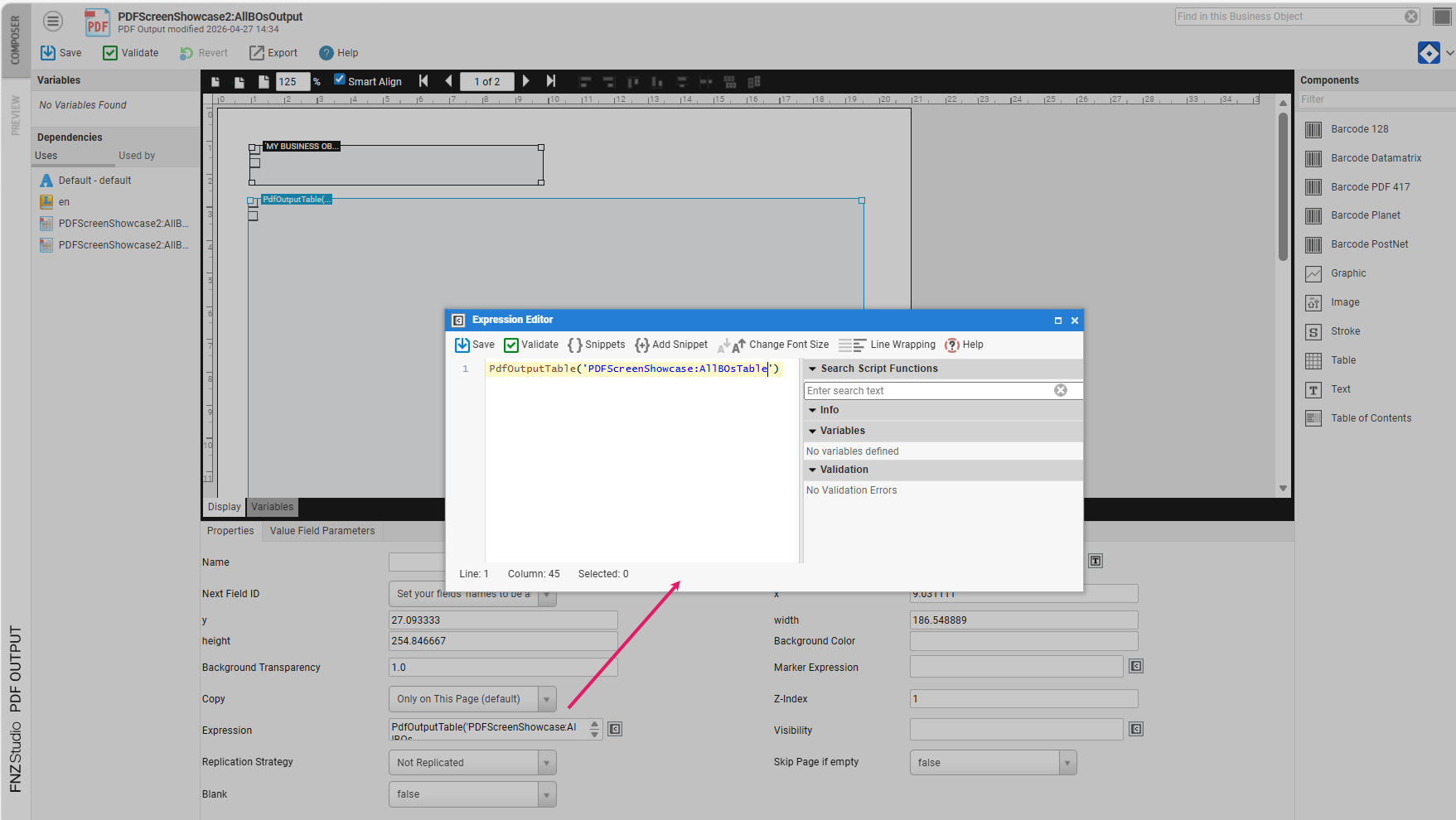
Create a new PDF Output with the ID AllBOsOutput. In the editor:
- Add a Text component:
- Expression:
My Screens:
- Expression:
- Add a Table component:
- Expression:
PdfOutputTable('PDFScreenShowcase:AllBOsTable')
- Expression:
- Validate, save, and close.
Document and Document Set
A Document BO (see Document and Document Set Business Objects) allows building a document that is backed by different languages of a PDF, e.g., a tax form in German and French. The Document BO has different content, pages and field locations. Depending on the selected render language, the PDF with the matching language is chosen.
To create a Document object, go to Solution Design > Packages – PDFScreenShowcase > Business Objects > Document.
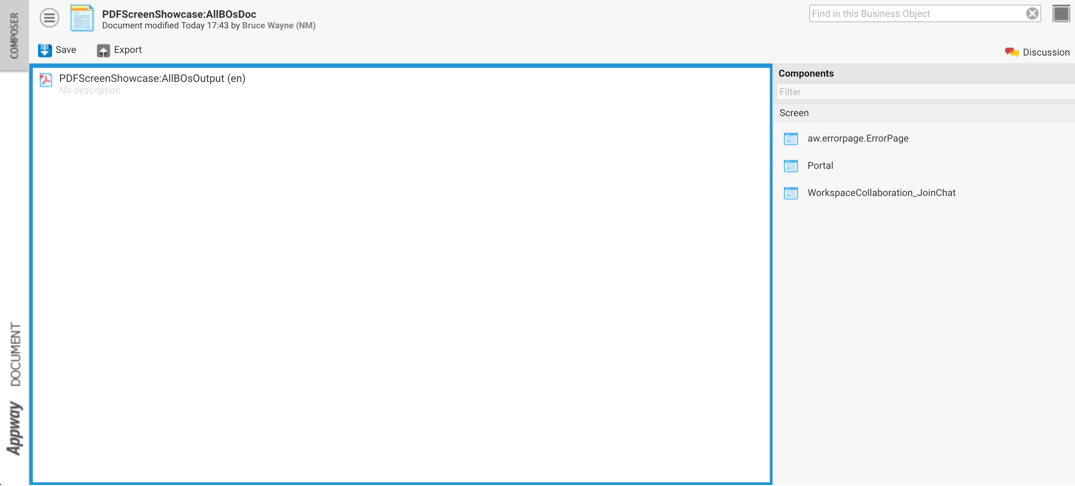
Create a new Document BO with the ID AllBOsDoc. In the editor:
- Drag and drop the 'PDFScreenShowcase:AllBOsOutput' Object from the right pane to the left pane.
- Save and close.
The result should look like this:
Optionally, you can also use a Document Set BO to wrap documents in a single file and control their sorting order. If you d not choose an order, documents will be sorted depending on Rule evaluation (see below).
Rule
The Rule and Rule Set Business Objects allows creating conditions based on which a document may be chosen (e.g., if Party is Person, then add Document "PersonalDetails".
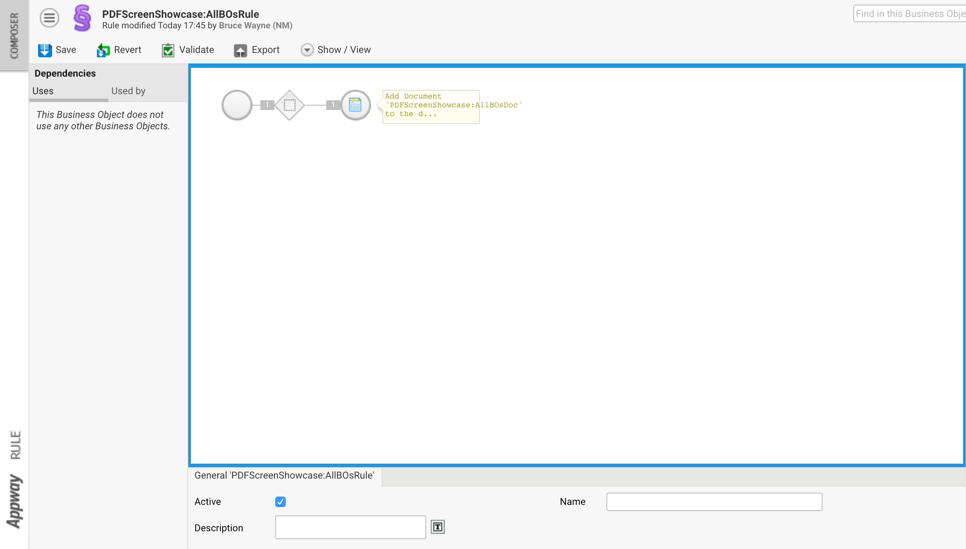
In this example, we have a simple Rule that outputs the document we just created.
To create a Rule BO go to Solution Design > Packages – PDFScreenShowcase > Business Objects > Rule.
Create a new Rule with the ID AllBOsRule. In the editor:
- Drag and drop the 'PDFScreenShowcase:AllBOsDoc' Document from the Components list into the composition area
- Save and close
The result looks like this:
Process and Screen
Finally, the Process Business Object produces our PDF.
To create the Process object, go to Solution Design > Packages – PDFScreenShowcase > Business Objects > Process.
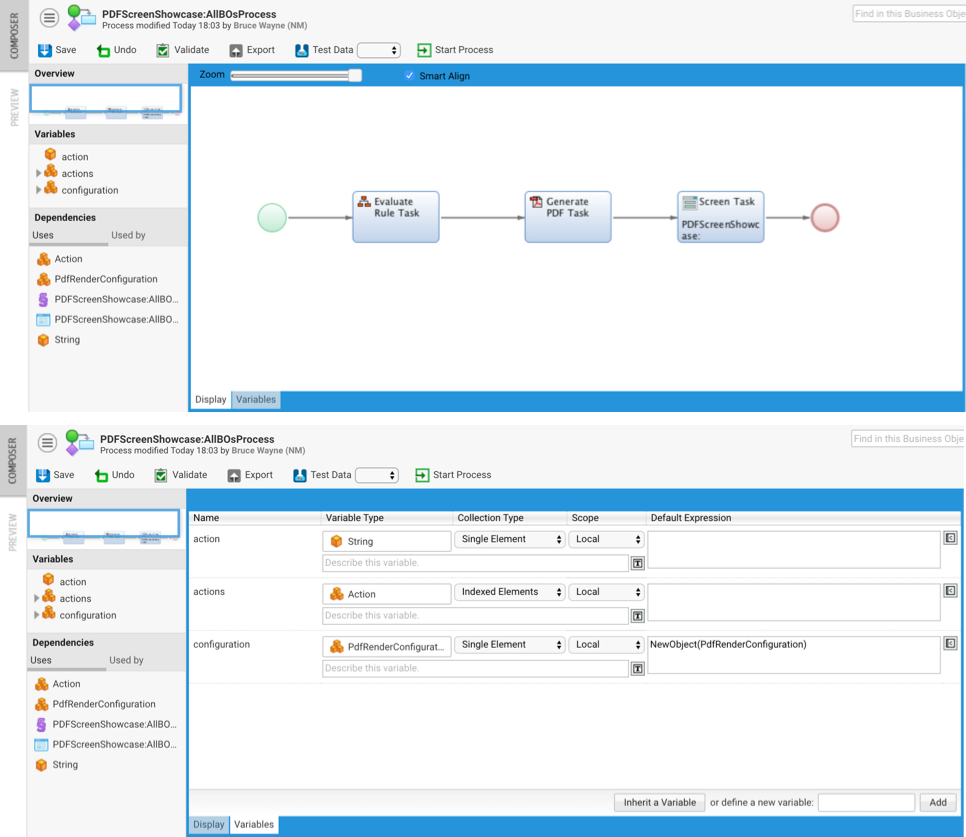
Create a new Process with the ID AllBOsProcess. In the editor:
- Drag and drop these three tasks (see Activities and Connections) from the Components list into the composition area:
- 'Evaluate Rule Task'
- 'Generate PDF Task'
- 'Screen Task'
- Connect the tasks with unconditional connections
- Double-click on the Screen task, and create a new Screen with the ID AllBOsScreen.
- Create the local variables needed in this Process:
$action(type: String)- Indexed Collection
$actions(type: Action) $configuration(type:PdfRenderConfiguration)
- Instantiate
$configurationin the Default Expression withNewObject(PdfRenderConfiguration) - Save and close.
The result looks like this:
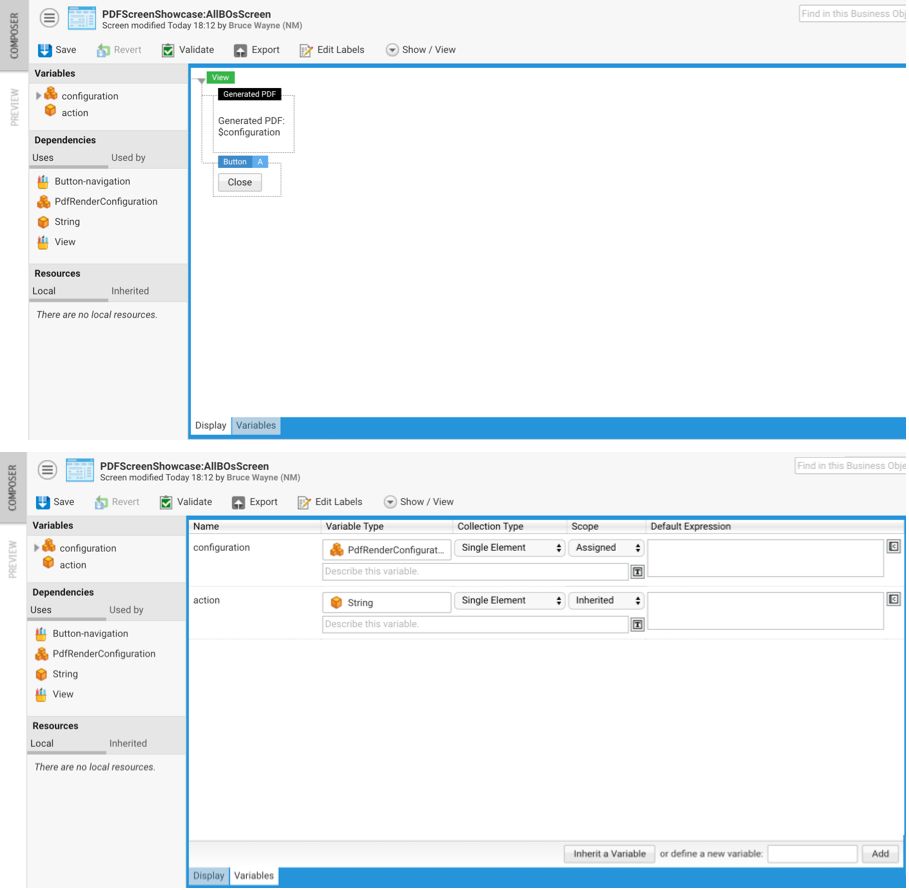
Now we need to implement Screen AllBOsScreen to show the generated PDF:
- In the Screen Editor, drag and drop the Screen Component Generated PDF into the View. Set the Height and Width properties to 80%.
- Add a Button. Set the style of the button to Button-navigation, and add an 'onclick' Process Action.
- Create the variables needed in this Process (see Variables and Scopes):
- inherited
$action(type: String) - assigned
$configuration(type: PdfRenderConfiguration)
- inherited
- Save and close the Screen Editor.
- Go back to AllBOsProcess, and configure the variable assignment for the Screen AllBOsScreen.
The result looks like this:
Generate and View the PDF
To view the result, run your Process.
You can also add a background PDF: Go to the PDF Output Business Object (AllBOsOutput) and click on Replace PDF.