This article refers to the
Business Data Comparison v4 and higher and contains major changes compared to previous Business Data Comparison versions. Check the Business Data Comparison
Products card for information on previous versions.
Note that the Appway Platform has been renamed
FNZ Studio (also referred to, generically, as Platform in this article). Appway Studio (design-time environment) and Appway Workspace (runtime environment) have been renamed
FNZ Studio Composition and
FNZ Studio Runtime, respectively. Refer to our Renaming
article for full information.
Business Data Comparison provides overviews of changes between a current state of a data structure and previous versions in time. Thanks to clear overviews of data changes along handovers between multiple collaborators who are working on a business process, the component boosts efficiency of business data reviews and supports transparent decision making. This helps reduce operational costs, supports compliance by design and helps provide better customer experience overall.
Following this Data-Driven approach, the Business Data Comparison Application Business Component (ABC) v4 and higher comes with the Data Review App Task.
Due to this major change, some migration steps are necessary when upgrading to Business Data Comparison v4 or higher from previous versions. See details in the Upgrade
section below.
Data review is a very common activity in collaboration contexts. Risk and compliance officers are often required to review data gathered from prospects to ensure it meets regulatory or compliance standards. In case of erroneous or missing information, the gathered data must be sent back to the front office for editing.
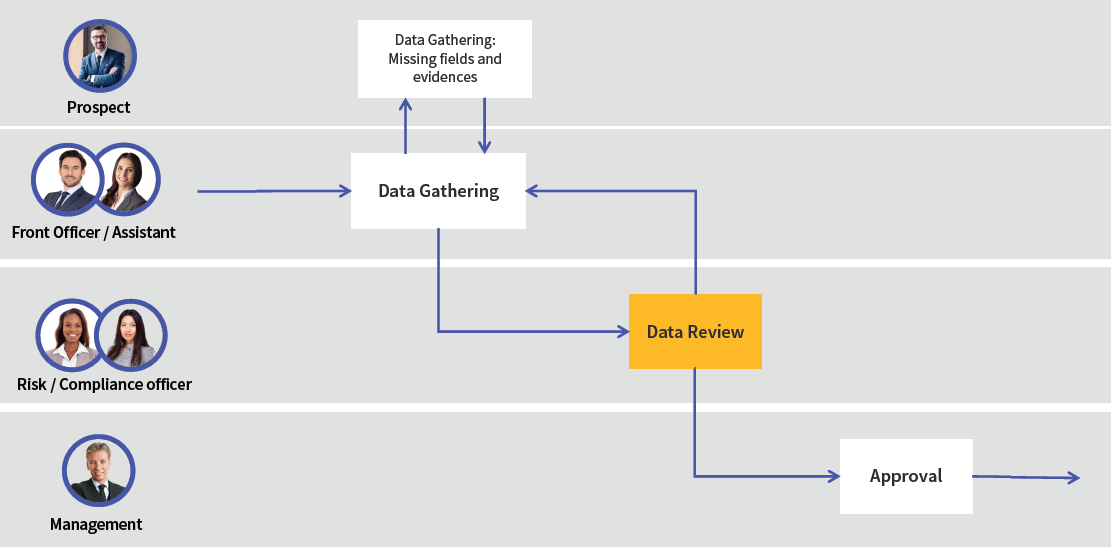
In the framework of this collaborative approach, the Data Review App Task complements the Data Gathering App Task and provides the necessary tools for effective and thorough business data review.
This document contains configuration information and technical details on the Business Data Comparison and Data Review App Task and is intended for users in charge of Business Data Comparison configuration. See also:
The Business Data Comparison consists of the following Packages provided in the component bundle:
- AppTask Extension (included in the FNZ Studio Platform)
- AppTaskAPI Extension (included in the FNZ Studio Platform)
- BusinessDataComparison Extension
- DataHistory Extension
- DataHistory Package
- (optional) WorkspaceCollaboration Extension (to be installed if you are using Collaboration features).
All ingredients are provided by Support. Please, consider that these ingredients refer to Business Data Comparison v4 and higher. Check the Business Data Comparison
Products card for information on all available ABC versions, their specific ingredients, and their compatibility with the Platform.
Business Data Comparison v4 requires the Appway Platform 11.0 or higher. Check the Platform version compatible with your Business Data Comparison version in the Business Data Comparison Products card. Moreover:
- Make sure that your Platform installation includes all other mandatory extensions in addition to the AppTask and AppTaskAPI mentioned above.
- Make sure that your Platform installations includes the mandatory Packages (dowloadable from the Products page).
- Make sure you have followed the technical requirements.
- Install Data History (Extension and Package) following the steps described in the Installing Data History article).
- Upload the following Extensions:
- BusinessDataComparison Extension
- AppTask Extension
- AppTaskAPI Extension
Label Refactoring
Some Labels have been refactored in Business Data Comparison v6, therefore some actions may be necessary if you are upgrading to this version. See also the Labels and Translations section in the App Tasks - Generic Configuration documentation for further details.
- Added Labels — The following Labels have been added to the AppTask Platform Package with default English texts. You can add and edit translations for such Labels (in Solution Design> Translations tab):
ErrorMessages.Savepoints.FetchErrorMessages.Catalog.FetchErrorMessages.Collaboration.UpdateErrorMessages.Data.FetchErrorMessages.DefaultErrorMessages.Update.Collection.AddErrorMessages.Update.Collection.RemoveErrorMessages.Update.Object.CreateErrorMessages.Process.Action.ExecuteErrorMessages.Task.InitErrorMessages.Theme.FetchErrorMessages.Document.AddErrorMessages.EndTaskErrorMessages.StartSubprocessErrorMessages.Definition.Update
Some Labels have been refactored from Business Data Comparison v4.4 to v4.4.1, therefore some actions may be necessary.
- Added Labels — The following Labels have been added to the AppTask Platform Package with default English texts. You can add and edit translations for such Labels (in Solution Design> Translations tab):
AppTask:CollaborationSidebar.Comments.Reply (default value: Reply)AppTask:CollaborationSidebar.Comments.Reply-plural (default value: Replies)
Business Data Comparison v4 introduces the Data Review App Task, which represents a major change compared to previous versions of the Application Business Component. For this reason, you need to follow some migration steps when upgrading to Business data Comparison v4 from previous versions.
- Replace the Screen Task containing the Change Review Widget with the new Data Review AppTask

- Associate the Data Review AppTask with the same Data Logic and variable assignments used in the ChangeOverviewHelper.

- If you used a custom Savepoint Provider in the
BusinessDataComparison:ChangeOverviewHelper.savepointProviderproperty:
- Create a Script Function with the same logic as your
SavepointProvider.getSavepointsfunction, keeping in mind that this function should return SavepointIDs and not the whole object. - Invoke this function in the App Task property Savepoint filter (see details).
- Remove the
BusinessDataComparison:ChangeOverviewHelper variable, as it is no longer needed.
The Business Data Comparison ABC is based on a set of generic capabilities for tracking data changes performed in the context of a Process and handling the data change display. This ensures the ability to construct the change overview irrespective of the underlying data structure complexity and collaboration workflows where data changes are made by users.
The diagram below explains how the change overview is constructed. Based on a series of configuration steps performed at design time and actual data objects managed in the context of a Process at runtime, the change overview is auto generated on the fly.

The following are the configuration steps that are required to be performed at design time. Each step is illustrated in detail in dedicated section.
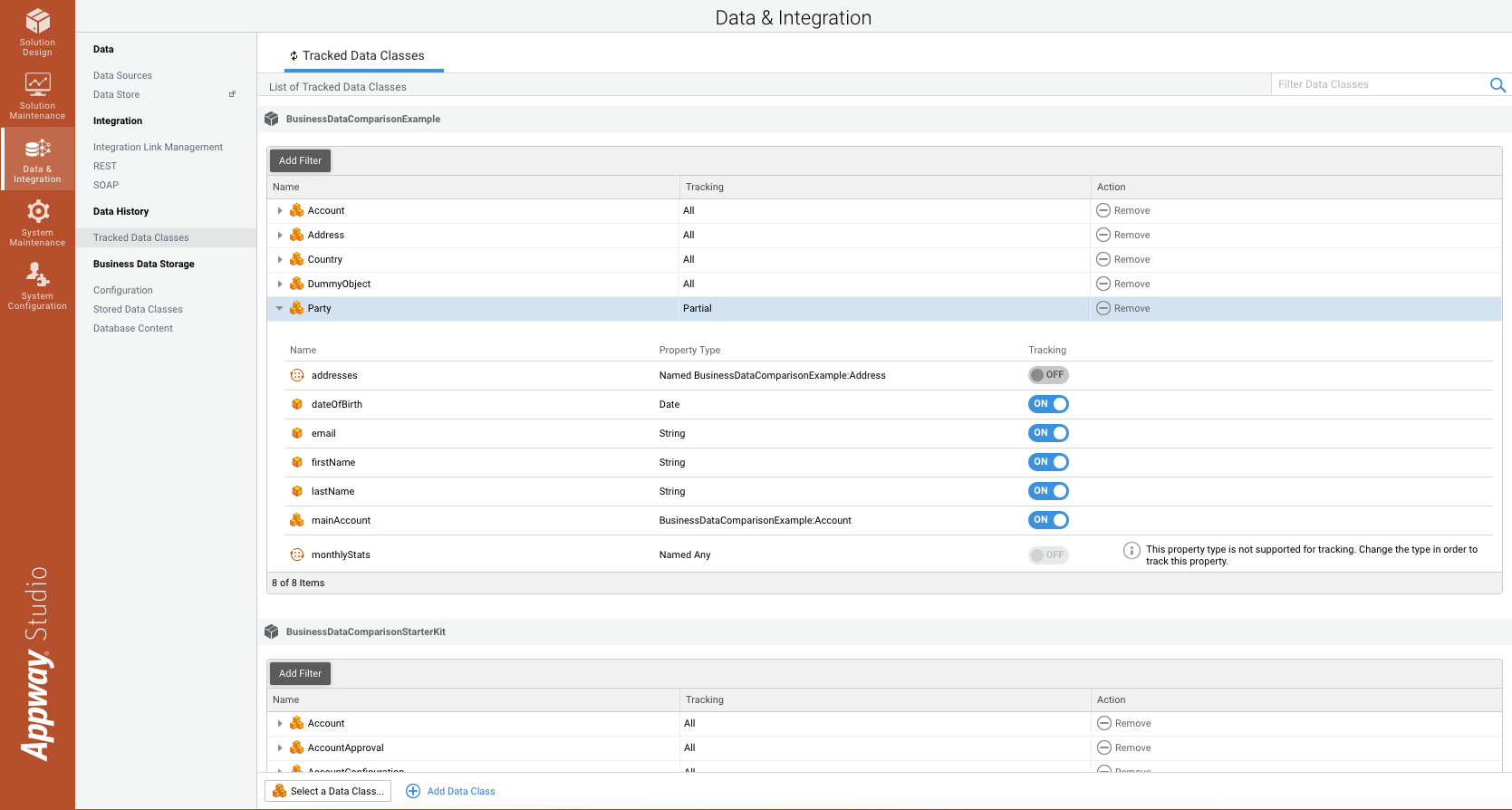
- Configure change tracking with Data History — Define which Data Classes, Data Class properties and Collections should be tracked for changes by the Data History.
- Configure tracking start and stop with Data History — At the relevant points in the Process, implement the logic to start and stop Data History tracking.
- Add Data History Savepoints — At the relevant points in the Process, add Data History Savepoints and configure their names. This step is optional, and it is only required if the functionality to filter based on Savepoints is used.
- Configure the Data Review App Task — At the relevant points in the Process, wherever you need to show data change overviews in a Solution, add the Data Review App Task and configure it.
- Configure the Data Logic Business Object — Define the data and changes to be shown and their order by creating a Data Logic Business Object with all the required configurations. and add it to the Data Review App Task.
Data History is responsible for tracking and retrieving changes performed by users on Data Class instances and collections in the context of and for the duration of a Process Instance. The Data History module in Studio Composition provides support to configure the data properties to be tracked in a visual manner, as well as a series of functions to manage the tracking and querying of information.
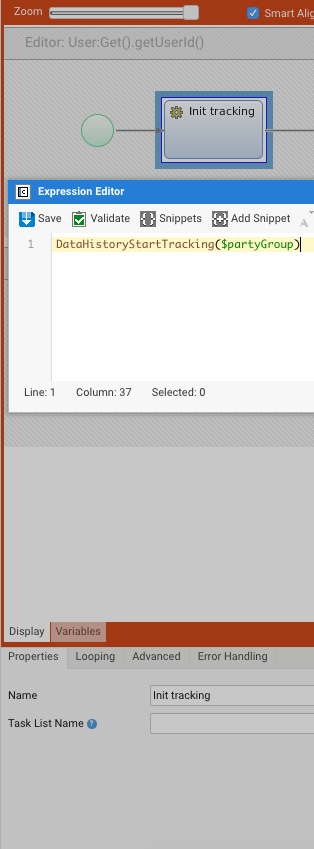
Data History comes with predefined functions to start and stop the tracking of changes: DataHistoryStartTracking and DataHistoryStopTracking, respectively. As part of the business analysis activities and the Process design, it is necessary to identify the points in the Process where the Data History start and stop functions need to be invoked for a correct tracking and display of data change information.
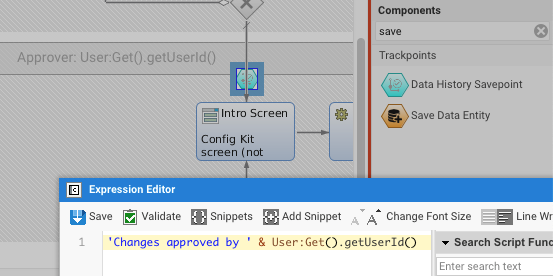
Savepoints are trackpoints that can be added to the Process to define markers in the timeline of tracked changes. The Business Data Comparison Savepoints are based on Data History Savepoints. Data History Savepoints must be added to your Process in the first place, but they can be further configured (optionally) in the Business Data Comparison ABC (see details).
Consider that the name of each Data History Savepoint can be configured according to the business requirements of the Solution in such a way that users understand their meaning.
Savepoints support use cases where it is necessary to retrieve only a subset of the changes performed on Data Class instances or collections. Consider, for example, a Process with multiple back and forth handovers between collaborators and, thus, multiple rounds of changes over the same data entities. In this case, users need to review only the changes performed since the last time they have returned the process and hide those changes that they have already reviewed in a previous session.
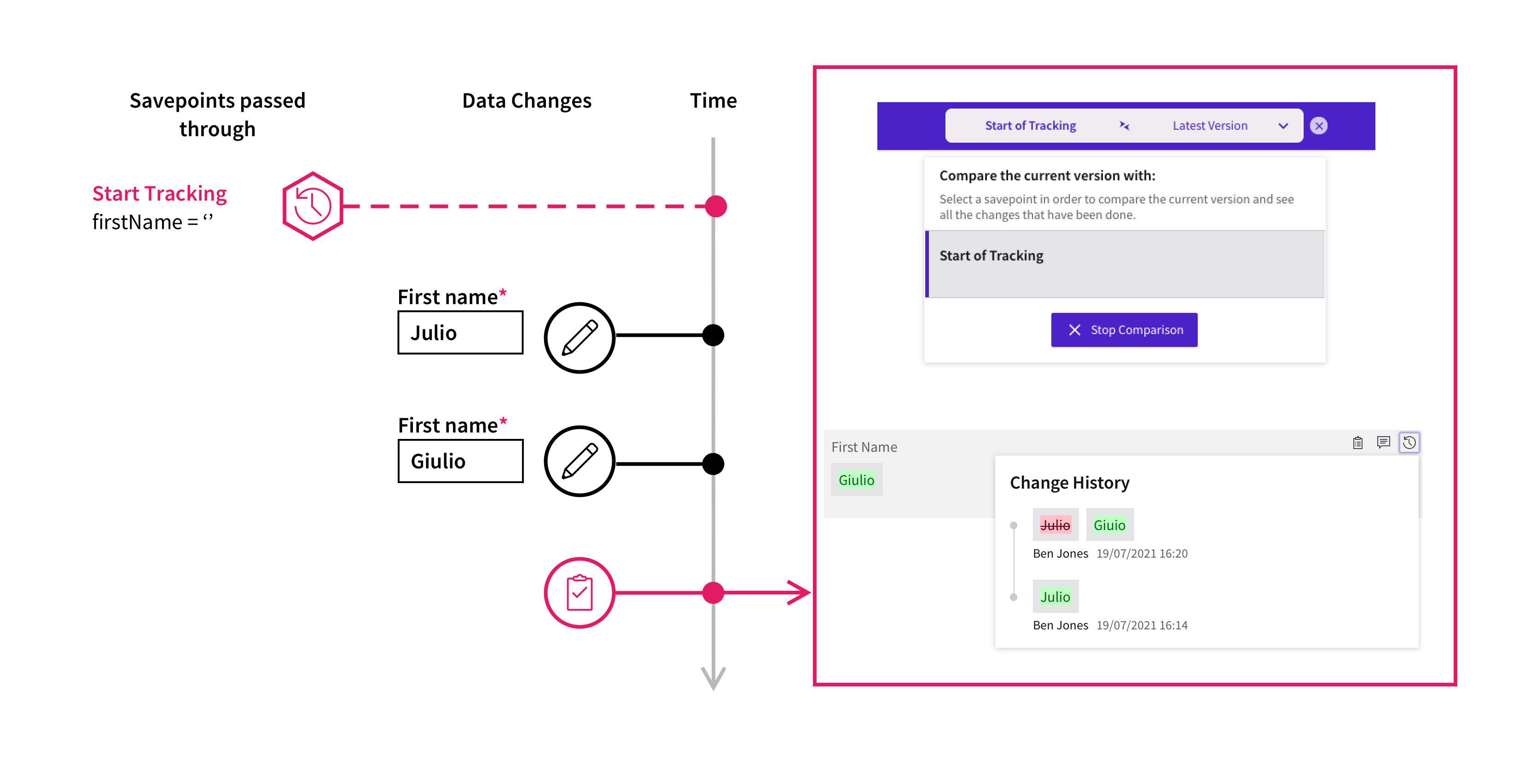
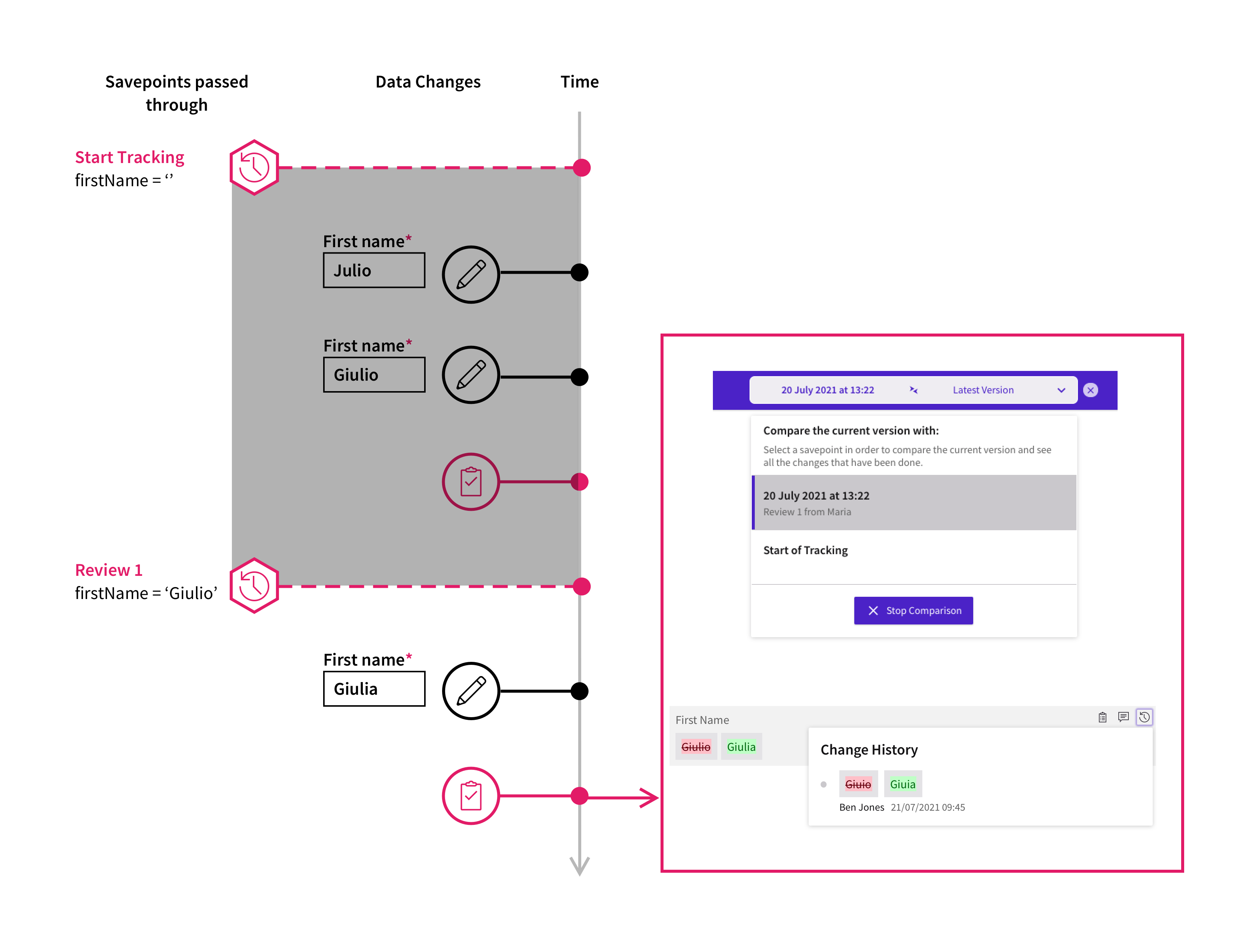
Consider a Process that tracks an account owner and has Savepoints defined where the Process is handed over to another collaborator. The Savepoints are configured to show:
- the stage in the Process, such as "Review1".
- the action performed, such as "Submit", "Return" or "Reject".
- the name of the user who has just performed the action.
If the Savepoint is set to Start Tracking, the user interface shows that the name has evolved from "Julio" to "Giulio" and then "Giulia". The full history of changes is also displayed in the popup.
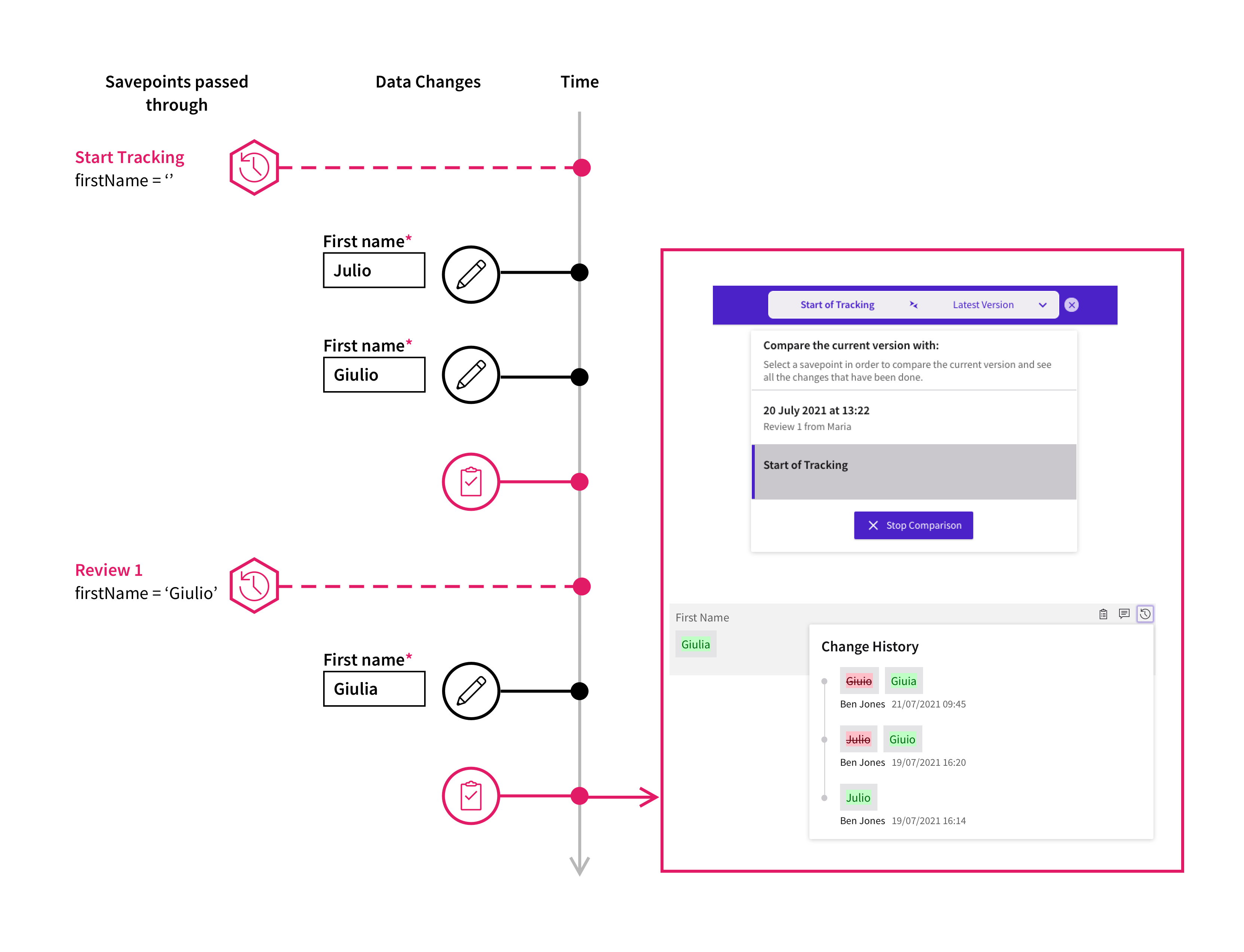
However, if the Savepoint is set to the stage right after "Review 1" action, then the user interface shows that the name has gone through a change from "Giulio" to "Giulia". The history of changes between the two savepoints is also displayed in the popup.
For each Data Class tracked by the Data History, the display value is the output of the predefined getDataHistoryDisplayValue function. For complex Data Classes in particular, it is recommended that the Data Class provides an alternative implementation for the getDataHistoryDisplayValue function in order to define a user-friendly representation for the old display values of Data Class instances and collections. Otherwise, the display uses a default String representation (serialization).

An example for a "Party" Data Class:
Function getDataHistoryDisplayValue() : String Begin
   If EMPTY($this.firstName) and EMPTY($this.lastName) and EMPTY($this.dateOfBirth) Then
      Return 'Party';
   End
   Return $this.firstName & ' - ' & $this.lastName & ' (' & SHORT($this.dateOfBirth) & ')';
End
Note on Data Class design: Since Business Data Comparison is relying on the Data Class model to render the data change display, remember to follow
Best Practices when it comes to Data Model design. In particular, use the proper representation for Lists of elements and avoid using bindings to Strings. Although, the Multiple Selection Field and Check Box List Screen Components allow defining string binding, this feature was deprecated in Appway 10 and therefore
is not supported in Business Data Comparison.
After following the installation steps above, the Data Review App Task will be available in your Platform installation in the Process Editor that you can drag into the central composition area

| Tab | Description |
|---|
| Properties | Configure general properties of the App Task:- Task Title field: Select the Label Business Object containing the title for the whole Data Gathering page. In case the property is not set, it shows 'Appway'.
- Task type dropdown: Select the Task pattern (details).
|
| Data | Configure specific Data Gathering properties: - Data Logic field: Define the Data Logic Business Object that governs the UI generation (details)
- Show Start Tracking Savepoint checkbox: Select it if the Start Tracking savepoint should be visible and, therefore, selectable (details).
- Savepoint Filter field: Configure a script function to filter the list of all the available savepoints to be shown in the comparison. The script function should return an indexed list of Strings with the savepoint IDs.
|
| Actions | Configure Global Actions (generic to all App Tasks) (details). |
| Collaboration | Configure features such as Comments and Review Requests, which are common to the Data Gathering and Data Review App Tasks (details). |
Other configurations, such as the
Home button configuration, are not performed in the Process Editor but through configuration properties. See the
App Home button in the App Tasks - Generic Configuration document.
As for all App Tasks, the whole UI is generated starting from the Data Logic Business Object according to mapping strategies specific to your business requirements.
The Data Logic configuration for the Data Review App Task is the same as for the Data Review App Task and is described in the
App Task - Generic Configuration article. If you are using both the Data Gathering and Data Review App Tasks, we recommend that you configure one Data Logic Business Object an select it in the Process Editor for both App Tasks (
details).

| UI element | Data Logic configuration |
|---|
Page navigation, including:- (
1) Header navigation (first-level navigation) - (
2) Page navigation (second-level navigation) - (
3) Anchor navigation (content navigation)
| Data Logic 'Group' Controls (see details). |
(4) Content area | Data Logic 'Data' Controls (Data Class, Primitive and Collection Controls) and 'Text' Controls (see details for Primitive Types and Text). |
(5) Information Framework : Contains change-highlighting strategies to support the end user in finding and fixing such changes in the most efficient way. | Data Logic Data Rules (see details). |
(6) Comparison Bar : Allows the end user to switch from Current to Comparison Mode (and viceversa) and navigate through savepoints. | No Data Logic configuration needed. |
(7) Comment and Review Request buttons : Allow adding a comment or request a review of the entered data, respectively. | Data Logic 'Primitive' Data Controls and Collection of 'Primitive' Data Controls. Moreover, these buttons are enabled in the Data Review Process Editor (see section). |
A specific setting of the Data Logic allows you to enable the textDiff representation for a specific field. Use a Data Logic Single Property Expression Rule and enable the Allow Multiline option for that field.
This section documents the Script Functions provided by the Data Review App Task (not included in the Platform and its mandatory extensions).
Returns true if the specified Data Logic contains at least one change since tracking started.
Input Parameters
$dataLogicId(String)
The ID of the Data Logic to be used
Example: 'MyPackage:DataLogic'$variableAssignments (Named Any, Optional)
Variable assignments for the Data Logic Business Object. Use the variable defined in $objectVariable to access the current Object from the Objects Collection. In this case, the Variable assignment Collection must be created in the same line as the invocation of this Script Function.
Example: {'objVar'=$objectVariable, 'flagVar'=true, 'collection'=$indexedProcessVariable}
Return Value
(Boolean) Returns true if the specified Data Logic contains at least one change since the start tracking.
Returns true if the specified Data Logic contains at least one change since the specified savepoint.
Input Parameters
$savepointId(String)
The Id of the savepoint to be used to search for changes.$dataLogicId(String)
The ID of the Data Logic to be used
Example: 'MyPackage:DataLogic'$variableAssignments (Named Any, Optional)
Variable assignments for the Data Logic Business Object. Use the variable defined in $objectVariable to access the current Object from the Objects Collection. In this case, the Variable assignment Collection must be created in the same line as the invocation of this Script Function.
Example: {'objVar'=$objectVariable, 'flagVar'=true, 'collection'=$indexedProcessVariable}
Return Value
(Boolean) Returns true if the specified Data Logic contains at least one change since the specified savepoint.
Returns all the open (pending or done) Review Requests associated to the elements in the Data Logic context.
Input Parameters
$reviewRequests(Indexed DataReview:ReviewRequests)
The list of all the Review Requests$dataLogicId(String)
The ID of the Data Logic to be used
Example: 'MyPackage:DataLogic'$variableAssignments (Named Any, Optional)
Variable assignments for the Data Logic Business Object. Use the variable defined in $objectVariable to access the current Object from the Objects Collection. In this case, the Variable assignment Collection must be created in the same line as the invocation of this Script Function.
Example: {'objVar'=$objectVariable, 'flagVar'=true, 'collection'=$indexedProcessVariable}
Return Value
(Indexed DataReview:ReviewRequests) Returns all the open (pending or done) Review Requests associated to the elements in the Data Logic context.
Returns true if there is at least one open (pending or done) Review Request associated with the elements in the Data Logic context.
Input Parameters
$reviewRequests(Indexed DataReview:ReviewRequests)
The list of all the Review Requests$dataLogicId(String)
The ID of the Data Logic to be used
Example: 'MyPackage:DataLogic'$variableAssignments (Named Any, Optional)
Variable assignments for the Data Logic Business Object. Use the variable defined in $objectVariable to access the current Object from the Objects Collection. In this case, the Variable assignment Collection must be created in the same line as the invocation of this Script Function.
Example: {'objVar'=$objectVariable, 'flagVar'=true, 'collection'=$indexedProcessVariable}
Return Value
(Boolean) Returns true if there is at least one open (pending or done) Review Request associated with the elements in the Data Logic context.
Returns all the Review Requests associated with Data Entities that no longer exist.
Input Parameters
$reviewRequests(Indexed DataReview:ReviewRequests)
The list of all the Review Requests
Return Value
(Indexed DataReview:ReviewRequests) Returns all the Review Requests associated with Data Entities that no longer exist.
Language, date and number localization is available for App Tasks.
Moreover, you can brand your solution through the Theme Editor, a tool available in Studio Composition out-of the-box.